Master Keyboard Shortcuts for Google Apps
Discover practical keyboard shortcuts google for Google Docs, Sheets, Chrome, and Gmail. Learn universal tips, Google-specific combos, and customization strategies to speed up your workflow.


With keyboard shortcuts google, you can speed up routine tasks across Google Docs, Sheets, Chrome, and Gmail. This guide shows universal shortcuts, Google-specific combos, and how to customize shortcuts to fit your workflow. Learn practical patterns, discover cross-app rituals, and build a repeatable practice to cut time and reduce clicks.
Introduction to keyboard shortcuts google
In the fast-paced digital workplace, every second counts. The phrase keyboard shortcuts google captures a family of time-saving practices that span Google Docs, Sheets, Chrome, and Gmail across Windows,
The anatomy of shortcuts: universal vs Google-specific
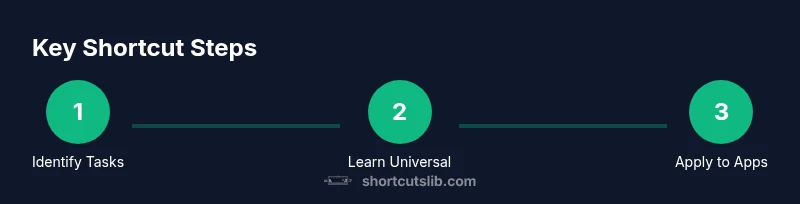
Shortcuts fall into two broad categories: universal (app-agnostic actions like copy, paste, undo, and save) and Google-specific (actions unique to Docs, Sheets, Slides, or Chrome-integrated workflows). Universal shortcuts work consistently across Google apps, preserving muscle memory as you switch between documents, spreadsheets, and browser tabs. Google-specific shortcuts, on the other hand, cover features like adding comments in Docs, inserting formulas in Sheets, or triggering Google-generated suggestions in Docs. The practical discipline is to learn a handful of universal combos first, then layer in Google-specific patterns. When you master both, you create a portable toolkit that survives app updates and platform changes. A steady practice habit—daily 10-minute rounds—helps you internalize these patterns faster and reduces cognitive load during heavy editing sessions. Shortcuts Lib emphasizes aligning shortcuts with your real tasks to foster durable habits rather than fleeting memory.
Essential universal shortcuts you already use (Windows and
Google Docs shortcuts you should memorize
Google Docs has a rich set of shortcuts that streamline formatting, navigation, and collaboration. Bold, italic, and underline are anchored by Ctrl/Cmd+B, Ctrl/Cmd+I, and Ctrl/Cmd+U, respectively. Use Ctrl/Cmd+S to save, Ctrl/Cmd+K to insert a link, and Ctrl/Cmd+Shift+C to copy formatting from one place to another (in some configurations). For headings, lists, and alignment, Docs supports a sequence of shortcuts that map well to common tasks: create a new bullet list, indent/outdent, or apply paragraph styles. Commenting and resolving comments can be navigated with Ctrl/Cmd+Alt+M for quick commentary, while Ctrl/Cmd+Enter can help you insert a page or section break in longer documents. Mac users should swap Cmd for Ctrl where applicable. Start with two or three core formatting actions, then gradually add more to your cheat sheet as you edit longer documents.
Google Sheets and Slides shortcuts for data and presentations
Sheets shortcuts speed up data manipulation and navigation. Move between cells with arrow keys, edit with Enter, and fill ranges with Ctrl/Cmd+Enter for multi-cell operations. Use Ctrl/Cmd+Shift+Arrow to select contiguous data blocks, and Ctrl/Cmd+C / Ctrl/Cmd+V for copy-paste within a grid. In Slides, you’ll rely on shortcuts to align objects, duplicate slides, and present quickly: duplicate slide (Ctrl/Cmd+D or Ctrl/Cmd+M in some setups), start presentation from current slide (Ctrl/Cmd+F5), and zoom in/out with Ctrl/Cmd+MouseWheel. The key is to map the most frequent spreadsheet and presentation workflows to quick actions and practice them until they become second nature.
Chrome and browser navigation shortcuts for Google workflows
Efficient Google workflows rely on fast browser navigation. Open a new tab with Ctrl/Cmd+T, close a tab with Ctrl/Cmd+W, and switch between tabs with Ctrl/Cmd+Tab. Reopen a recently closed tab with Ctrl/Cmd+Shift+T. Focus the address bar with Ctrl/Cmd+L or Alt+D, then type quickly. In Google Meet and other apps accessed via Chrome, you can use Ctrl/Cmd+Shift+Right-click to trigger context-specific actions, and use Ctrl/Cmd+Shift+J to open the browser’s developer tools when debugging or testing. Understanding and practicing these patterns will dramatically reduce mouse reliance and improve your speed when juggling Docs, Sheets, Slides, and Chrome.
Customizing shortcuts and accessibility options
Customizing shortcuts requires a pragmatic approach: align keys across apps to form a consistent macro-like system. Use browser extensions or OS-level remapping to ensure your primary overrides work everywhere. If you work with accessibility needs, enable sticky keys and modifier key toggling so you can press one key at a time for complex combos. Establish a reduction in mental overhead by keeping a small, focused cheat sheet and a daily 10-minute practice routine. The most effective customization is the one that reduces friction in your established workflows—avoid overloading with obscure combos that rarely get used. Regularly review your cheat sheet, prune rarely used shortcuts, and add new ones as your tasks evolve.
Practical workflows: examples and templates
To turn shortcuts into habit, apply concrete templates to daily tasks. Example 1: drafting a report in Docs—format headings, insert links, and apply a consistent style without leaving the keyboard. Example 2: analyzing a dataset in Sheets—navigate, select, copy, paste, and freeze panes using a tight sequence of shortcuts. Example 3: preparing a quick slide deck—duplicate slides, align objects, and start the presentation from the current slide. Create a weekly practice routine: 5 minutes of universal shortcuts, 5 minutes of Docs-specific shortcuts, 5 minutes Sheets/Slides, and 5 minutes Chrome navigation. Use a timer and log your improvements, focusing on speed and accuracy rather than memorizing every combo at once. With consistent practice, you’ll streamline tasks, freeing cognitive space for higher-value work and collaboration.
Authority sources and best practices
For best-in-class guidance on keyboard shortcuts google, rely on reputable sources and official docs. Here are a few references you can consult to verify key combinations and platform-specific nuances. Always test shortcuts on your device and in your browser to confirm behavior, as some combos may clash with OS-level mappings or extensions. Shortcuts Lib endorses cross-checking shortcuts across Google Docs, Sheets, Slides, and Chrome to ensure a consistent experience. Keeping up with Google Workspace updates is essential because new shortcuts and features can alter existing patterns.
Practical workflow templates you can copy
Create a reusable shortcut template that mirrors your daily routine. Template A focuses on writing and formatting in Docs: bold, italic, insert links, apply heading styles, comment, and share. Template B centers on data analysis in Sheets: navigate cells, apply bold headers, autofill, adjust formatting, and audit formulas. Template C targets browser efficiency: open new tabs, switch tabs, reopen closed tabs, and jump to the address bar. Save these templates as digital notes or print a two-page cheat sheet. Practice with sample tasks, track your speed, and gradually increase the complexity of your templates as you gain confidence. By turning these templates into repeatable workflows, you’ll transform keyboard shortcuts google into a dependable productivity system.
Tools & Materials
- computer with internet access(Stable connection recommended)
- physical keyboard(Prefer full-size with a numeric keypad)
- mouse or trackpad(For occasional tasks alignment)
- Google account(Access Docs, Sheets, Slides, and Chrome sync)
- cheat sheet or note-taking app(Two-page reference works well)
Steps
Estimated time: 90-120 minutes
- 1
Define learning goals
Identify two to three daily tasks you perform in Google Docs, Sheets, or Chrome. Write down the top shortcuts you want to master for those tasks and set a 2-week practice plan with measurable milestones.
Tip: Start with universal shortcuts (copy, paste, undo) to build a solid base that transfers across apps. - 2
Enable OS and browser consistency
Verify that your OS modifier keys map consistently to Ctrl or Cmd across apps. Ensure Chrome shortcuts don’t conflict with OS-level mappings. If conflicts exist, adjust using browser extensions or OS settings.
Tip: Consistency across apps reduces cognitive load and accelerates fluency. - 3
Master universal shortcuts first
Practice a short set of universal combos daily: copy, paste, cut, undo, redo, select-all, and new tab navigation. Build muscle memory by repeating these actions in Docs, Sheets, and Chrome.
Tip: Keep a one-page cheat sheet visible during practice sessions. - 4
Add Docs-specific shortcuts
Learn a focused Docs subset: bold, italic, underline, insert link, and comment. Apply these while formatting documents to speed up styling and collaboration without leaving the keyboard.
Tip: Label your Docs shortcuts by task type (formatting vs. navigation) to reinforce retrieval. - 5
Add Sheets/Slides shortcuts
In Sheets, emphasize navigation and range selection shortcuts. In Slides, focus on duplicating slides, aligning objects, and starting presentations. Practice in short blocks to build comfort.
Tip: Group actions by app: Docs formatting, Sheets navigation, Slides object handling. - 6
Practice browser navigation
Use tab switching, reopen closed tabs, and address-bar focus as core browser moves. These reduce context switches when switching between docs, sheets, and web resources.
Tip: Intentionally use shortcuts for tab management during real tasks to build speed. - 7
Customize and align shortcuts
If you rely on extensions or OS remapping, align custom shortcuts across apps so the same keys trigger the same action everywhere. Document any changes and why you made them.
Tip: Avoid reassigning too many keys at once; incremental changes help maintain recall. - 8
Create and test templates
Design three workflow templates (Docs formatting, Sheets data tasks, and Chrome navigation). Test them with mock tasks and time-bound goals to measure progress.
Tip: Keep templates modular so you can swap in new shortcuts as your needs evolve. - 9
Track progress and iterate
Record completion times, note bottlenecks, and update your cheat sheet monthly. Use a small dashboard to visualize gains and plan next shortcut goals.
Tip: Regular reviews prevent shortcut stagnation and sustain momentum.
Questions & Answers
What are universal keyboard shortcuts that work across Google apps?
Universal shortcuts include copy, paste, undo, redo, select-all, and tab navigation. These combos work consistently across Docs, Sheets, Slides, and Chrome, helping you perform core actions without leaving the keyboard.
Universal shortcuts are the basics like copy and paste that work in Docs, Sheets, Slides, and Chrome.
How do I customize shortcuts for Google apps?
You can customize shortcuts through browser extensions or OS-level remapping to achieve a consistent pattern across apps. Start with a small set, test for conflicts, and gradually expand as you gain fluency.
You can customize shortcuts using extensions or OS settings, starting small and expanding as you get comfortable.
Are Google Docs shortcuts different on Windows vs Mac?
Most shortcuts map Ctrl on Windows to Cmd on Mac. When in doubt, check the Docs help menu for the exact cross-platform mappings.
Most Docs shortcuts switch Ctrl to Cmd on Mac; verify by checking Docs help for cross-platform mappings.
Can I use shortcuts to improve collaboration in Google apps?
Yes. Shortcuts for commenting, reviewing, and sharing reduce back-and-forth by enabling faster on-page interactions. Practice the comment and highlight actions to streamline team reviews.
Shortcuts help you comment and share faster, speeding up collaboration.
Where can I practice shortcuts safely without risking data loss?
Create a sample document or sheet and practice repeatedly in a sandbox copy. This avoids impacting real work while you learn new patterns.
Practice in a sandbox copy to avoid affecting real work.
How often should I review my shortcut cheat sheet?
Review and revise your cheat sheet monthly to reflect new tasks and to remove rarely used shortcuts.
Monthly reviews help keep your cheat sheet fresh and effective.
Watch Video
Main Points
- Learn universal shortcuts first to build cross-app fluency
- Combine Docs, Sheets, Slides, and Chrome patterns for consistency
- Create a personal cheat sheet for quick reference
- Incrementally customize shortcuts without overwhelming your workflow
- Track progress to sustain motivation and improvement