Can You Add Keyboard Shortcuts to Google Docs? A Practical Guide
Learn how to add, customize, and use keyboard shortcuts in Google Docs with practical steps, tips, and troubleshooting from Shortcuts Lib. Explore built-in shortcuts and browser-based workarounds for faster document editing in 2026.


Short answer: Google Docs does not natively support user-defined keyboard shortcuts. You can use the built-in shortcuts for common tasks, and extend functionality by remapping keys at the browser level with an extension. This approach works across documents and devices, but it may affect other sites, so test carefully. For a detailed setup, continue reading.
Can you add keyboard shortcuts to Google Docs? What’s possible
Google Docs is a flexible writing platform, but it doesn't offer a built-in editor to create entirely new keyboard shortcuts. For power users, this means that you rely on the extensive set of included shortcuts and adopt browser-based workarounds when you need a faster workflow. According to Shortcuts Lib, many keyboard enthusiasts want to customize their docs experience, but the workaround options are limited by the browser and the platform’s current design. The practical takeaway is to learn and optimize the existing shortcuts first, then evaluate whether a browser-level remapping approach makes sense for your needs. In this guide, we’ll explore what’s possible with Google Docs today, what isn’t, and how to implement safe, repeatable browser-based shortcuts if you decide to pursue them. We’ll also address common pitfalls, including conflicts with OS shortcuts and cross-device consistency. By the end, you’ll have a clear path to speeding up your doc work without compromising reliability.
Built-in shortcuts you should know in Google Docs
Google Docs ships with a robust set of shortcuts designed to speed up common editing tasks. You can use these to apply bold, italics, underline, insert links, and navigate the document without removing your hands from the keyboard. The shortcut repertoire also covers operations like find and replace, text alignment, bullet lists, and paragraph formatting. While the exact keystrokes vary by OS (Windows/Linux vs. macOS), the underlying ideas are the same: quick formatting, fast navigation, and rapid document management. The most valuable from a productivity perspective are the basics: bold, italics, and underline; inserting and editing links; and undo/redo sequences. You should view the official help resources to get a complete list of shortcuts, and practice them in a few test docs to make them second nature. The built-in shortcuts are reliable, consistent across devices, and don’t require additional tools. Using them consistently will shave minutes off your daily editing tasks and reduce the cognitive load of hunting for menu items.
When to use browser extensions for custom shortcuts
If your workflow requires a shortcut for an action that Google Docs doesn’t map to a keystroke, a browser extension is the practical route. Extensions can remap keys or trigger browser-level commands only on the Docs domain, preserving the rest of your browsing environment. Before choosing an extension, check reviews for privacy and permissions, and confirm that the extension supports per-site remapping. You’ll typically create a new shortcut pair, choose a key combination that avoids clashes with OS or browser shortcuts, and assign it to a Google Docs command such as "Insert link" or "Comment." Keep in mind that extensions are not guaranteed to behave uniformly across devices or browsers; you may need to configure separate profiles or sync settings. The Shortcuts Lib team often sees users succeed when they start with a single, high-value shortcut and expand gradually.
How to test and refine your browser-based shortcuts
Testing is essential when you introduce browser-based remapping. Start in a blank Google Doc to confirm that the new shortcut triggers only the intended action and does not interfere with standard browser shortcuts elsewhere. If you notice conflicts, choose a different key combination or disable the conflicting OS shortcut. Record a short practice session to verify that repeated use remains consistent across different document types (text, tables, comments). Over time, refine mappings to align with your most frequent tasks and document editing rhythm. Remember to document changes so teammates can reproduce your workflow if needed. This disciplined approach helps prevent accidental edits and ensures predictable behavior across sessions.
Example workflow: mapping a high-value action (Insert Link)
To demonstrate a practical mapping, you can remap a rarely used key combo to the Insert Link action in Google Docs. Start by selecting a high-value action you perform often, such as inserting a hyperlink, and assign a clean, easy-to-remember key sequence like Ctrl/Cmd + Alt + L. Test in multiple docs to ensure consistency, and avoid overlaps with existing shortcuts. If the extension offers per-site profiles, create one profile exclusively for Google Docs to isolate the impact. After you validate the mapping works smoothly, document it for others who share your workflow. This approach minimizes disruption while maximizing productivity. The goal is a single, reliable shortcut that replaces a repetitive mouse action.
Cross-device consistency and portability
Shortcuts that live in your browser extension can travel with you across devices if the extension supports cloud syncing. If not, you must recreate mappings on each device, which can be tedious. Consider starting with a small, essential mapping and expanding only after you’ve confirmed stable behavior across devices. For teams, create a shared mapping guide so everyone can implement a similar workflow. Consistency across devices reduces confusion and protects against cognitive load when switching between machines. The broader takeaway is to balance convenience with reliability and to select approaches that align with your device ecosystem.
Accessibility and inclusive design considerations
Keyboard shortcuts should improve accessibility, not hinder it. If you rely on screen readers or other assistive tech, ensure that any new shortcuts are announced or compatible with your assistive workflow. Some extensions may interfere with accessibility features; always test with assistive devices and consider offering alternative actions for users who cannot or prefer not to use remapped keys. Where possible, keep essential actions available via the built-in Docs shortcuts so that users on older devices or with different setups still have solid access. Shortcuts Lib emphasizes a human-centered approach: improvements should reduce friction without introducing new barriers.
Real-world usage scenarios: practical examples
Imagine drafting a long document and needing to switch quickly between formatting and content. A mapped shortcut to toggle bold formatting can save seconds per paragraph, compounding into significant time savings over a week. Or consider a scenario where you frequently insert links to external references; a single remapped shortcut can eliminate multiple mouse clicks. Start with one or two high-value mappings and observe how your editing speed changes. If you find yourself frequently adjusting the mapping, revisit the design—aim for consistency, memorability, and minimal conflict with existing shortcuts. The result is a tailoredDocs workflow that feels natural and fast.
Security, privacy, and maintenance considerations for extensions
Extensions can access your browsing data and interact with Google Docs content, so privacy and security matter. Only install extensions from reputable sources, review requested permissions, and regularly audit active extensions. When possible, use extensions that offer local storage and opt-in sync rather than broad data sharing. Periodically reassess whether a particular shortcut remains valuable as Docs updates and new shortcuts are added, to prevent stale mappings from causing confusion.
The path forward: choosing built-in vs extension-based shortcuts
For most users, starting with built-in shortcuts is the safest and most reliable path. If you reach a point where essential actions lack mappings, consider a browser extension cautiously, focusing on a few high-impact shortcuts. Maintain a clear migration plan with backups and versioned notes, so you can revert quickly if needed. Shortcuts Lib’s guidance is to keep the core experience stable and augment it responsibly, balancing speed with reliability across devices.
Tools & Materials
- Computer with internet access(Any modern browser (Chrome, Edge, Firefox, Safari))
- Google Docs account(Access to Google Docs (docs.google.com) with an active workspace)
- Browser extension that supports per-site shortcuts(Examples: per-site remapping extensions; review permissions before installation)
- Test document(Use a blank doc to test mappings before applying to important work)
- Mapping notes(Keep a master list of mappings and rationale)
Steps
Estimated time: 10-15 minutes
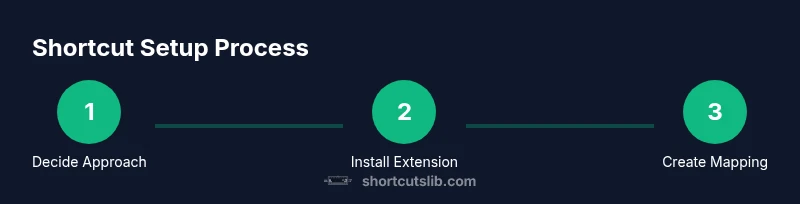
- 1
Decide on your approach
Evaluate whether you’ll rely on built-in shortcuts, browser remapping, or a hybrid strategy. Consider your workflow, cross-device needs, and whether teammates must follow the same mappings. Starting with a small, high-value target helps you learn quickly.
Tip: Begin with one essential action to minimize risk and build confidence. - 2
Install a browser extension
Choose a reputable per-site shortcut extension and install it on your browser. Enable it for Google Docs only to limit unintended changes on other sites.
Tip: Review privacy permissions before installation. - 3
Create your first mapping
Define a new shortcut for a high-value action (e.g., insert link or comment). Pick a clean key combination that doesn’t collide with OS or browser shortcuts.
Tip: Test the mapping in a blank document first. - 4
Test in Google Docs
Open a new or existing Docs document and verify the shortcut triggers only the intended action. Observe behavior across different document types (text, tables, drawings).
Tip: If it conflicts, adjust the key combo. - 5
Document and share
Document the new shortcut in a quick team guide and share installation steps if you plan to scale usage. Provide a fallback to built-in shortcuts.
Tip: Create a one-page cheat sheet for quick reference. - 6
Back up and maintain
Export or copy your shortcut settings when available. Revisit mappings after Docs or browser updates, and keep your guide up to date.
Tip: Schedule a quarterly review of mappings.
Questions & Answers
Can I create my own shortcuts in Google Docs without extensions?
No. Google Docs does not currently provide a built-in way to define new shortcuts. You’re limited to the built-in shortcuts and any browser-level remapping you add via extensions.
No, Google Docs doesn’t let you create new shortcuts within the app. You can use built-in shortcuts or a browser extension to remap keys for Docs.
Do built-in shortcuts cover all editing tasks?
They cover the most common actions like formatting, navigation, and basic editing, but some niche actions may require menus or extensions for faster access.
Built-in shortcuts cover the common tasks, but not every possible action in Docs.
Will extensions affect performance or security?
Extensions can impact performance and raise privacy concerns if they access your data. Use reputable extensions, review permissions, and test impact on your docs experience.
Yes, extensions can affect performance and privacy; choose trusted ones and test first.
Will mappings sync across devices?
Some extensions offer cloud sync for mappings, while others store settings locally. Check the extension’s sync features and plan accordingly.
Mapping sync depends on the extension; expect local storage for some, cloud sync for others.
How do I reset or disable shortcuts?
Disable or remove the extension, or reset mappings within the extension settings. If you rely on built-in shortcuts, they reset with a browser profile or Docs reset.
You can reset via the extension settings or remove the extension entirely to revert to built-in shortcuts.
Can I share shortcuts with teammates?
Yes, by sharing a mapping guide or exporting extension settings if the extension supports collaboration. Provide clear instructions to ensure consistent usage.
Yes, share the guide or export settings if the extension supports it.
Watch Video
Main Points
- Master built-in shortcuts first.
- Use browser remapping only for high-value actions.
- Test thoroughly across docs and devices.
- Monitor for conflicts with OS/browser shortcuts.
- Document and share mappings for team consistency.