Keyboard shortcuts google docs: Master editing efficiency
Learn the essential keyboard shortcuts for Google Docs to accelerate editing, formatting, and collaboration. This guide from Shortcuts Lib covers navigation, text formatting, and power-user workflows with practical tips and examples.


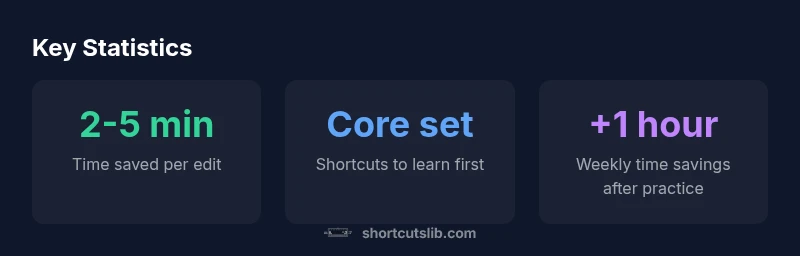
Fast fact: Mastering keyboard shortcuts google docs can dramatically speed up everyday editing. By building a core set of navigation, formatting, and editing commands, you move faster, reduce hand strain, and keep your flow uninterrupted as you write, review, and collaborate. This quick win translates into real time savings across emails, reports, and shared docs.
Why keyboard shortcuts matter in Google Docs
According to Shortcuts Lib, mastering keyboard shortcuts google docs can dramatically speed up everyday editing and collaboration. When you memorize a focused set of commands for navigation, formatting, and editing, your hands stay near the keyboard and your attention stays on content rather than menus. The result is a smoother writing process with fewer interruptions and more consistent output. This section explains why shortcuts aren’t just faster; they shape a more fluent editing rhythm that reduces fatigue and boosts accuracy over time.
Core shortcuts for navigation and selection
Efficient editing starts with navigation and selection. Use arrow keys for precise cursor movement, and combine with modifier keys to jump, select, and edit faster:
- Move by word or paragraph with keyboard shortcuts (Windows and Mac equivalents).
- Extend selection: Shift+Arrow to highlight text as you move.
- Jump to document start or end with dedicated keys.
- Select all with a single command before applying formatting or deleting.
Key practice tips:
- Always keep your hands on the home row when possible.
- Pair navigation with find (Ctrl+F / Cmd+F) to locate text before moving.
Text formatting shortcuts
Text formatting is a staple of Google Docs workflows. Common formatting shortcuts help you emphasize content without breaking your stride:
- Bold, Italic, and Underline toggle on the fly (Windows and Mac equivalents).
- Copy formatting from one selection and apply it to another to maintain consistency.
- Clear formatting when you need a clean slate for style changes.
Practical habit: run through a quick formatting pass after drafting a paragraph to ensure emphasis is consistent throughout the document.
Editing and document structure shortcuts
Editing and structure shortcuts keep you productive as the document grows. Use a few core commands to manage content efficiently:
- Undo/Redo to recover from mistakes quickly.
- Copy, Cut, and Paste for moving sections without losing formatting.
- Insert links with a simple shortcut to connect references and resources.
- Use Find and Replace pathways to standardize terminology across long documents.
Tip: enable the shortcut cheatsheet (Ctrl+/ on Windows or Cmd+/ on Mac) to see the full list of available commands in your current environment.
Collaboration shortcuts
Google Docs shines when multiple people edit in parallel. Leverage shortcuts that support comments, suggestions, and quick checks:
- Comment and resolve threads without leaving the keyboard.
- Add suggestions for edits while preserving the original text.
- Navigate between comments and edits to stay in the flow during reviews.
Remember: coordination matters as much as speed. Shortcuts help teams align on edits without interrupting writers.
Customizing shortcuts and accessibility
Direct customization of Google Docs shortcuts is limited, but you can adapt your workflow in several ways:
- Use OS-level remapping or browser extensions to map commands to preferred keys.
- Create a personal cheat sheet so you practice a compact set of commands consistently.
- Leverage the built-in shortcuts cheatsheet to discover new commands and reinforce learning.
Accessibility considerations: if you rely on screen readers or assistive tech, practice the most compatible shortcuts first and gradually add others to minimize cognitive load.
Practical workflows: scenarios you can try today
Scenario A: Quick edit of a shared doc
- Use Find to locate terminology, then navigate with arrow keys.
- Apply bold formatting to key terms, insert links, and leave a concise comment thread for teammates.
Scenario B: Draft and revise multiple sections
- Move between sections with navigation shortcuts, format headings consistently, and use undo/redo to experiment with edits.
- Use a few select formatting shortcuts to emphasize changes without overusing styles.
Scenario C: Final review before sharing
- Run a final find for inconsistent terminology, adjust formatting, and insert comments for outstanding items.
- Save and organize versions to keep a clean revision history.
Common myths and pitfalls
Myth: Shortcuts replace good writing. Reality: shortcuts speed up editing but must be paired with clear structure and style. Myth: Memorizing every shortcut guarantees fluency. Reality: start with a core set, then expand once you’re comfortable. Myth: Shortcuts are OS-specific and unequal. Reality: most core commands have cross-platform equivalents, with occasional variation you can tolerate.
How to learn and memorize efficiently
Adopting shortcuts is a deliberate practice. Try these methods:
- Build a small core set (navigation, selection, formatting) and drill daily for one week.
- Use a visual cheat sheet near your workspace and mark progress as you master each item.
- Schedule spaced repetition sessions to prevent forgetting previous shortcuts.
- Integrate shortcuts into real tasks rather than practicing in isolation to reinforce memory.
Practical tips for teams and organizations
To scale shortcut adoption:
- Create a shared cheat sheet aligned with your document templates and branding.
- Encourage quick wins: start with a 5-minute weekly training and a micro-challenge for new shortcuts.
- Track usage with lightweight surveys and offer quick tips based on feedback.
- Align with accessibility goals by prioritizing high-contrast, easily discoverable shortcuts.
Advanced tips: using Google Docs with Chrome
Leverage browser features to extend keyboard efficiency:
- Open the shortcuts cheatsheet with Ctrl+/ or Cmd+/ to see all commands.
- Pin frequently used docs to your browser and use native tab and window shortcuts to manage multiple documents.
- Combine Docs shortcuts with search and discovery features for rapid navigation across long documents.
Next steps: practice plan to become fluent
Commit to a 14-day practice plan:
- Days 1-3: Learn 5 core shortcuts and integrate them into a single document.
- Days 4-7: Add 3 formatting shortcuts and 2 navigation shortcuts.
- Days 8-10: Practice collaboration shortcuts in a team doc.
- Days 11-14: Consolidate learning with a personal shortcut cheat sheet and a short project review.
Quick-reference table of Google Docs shortcuts by category
| Category | Example shortcuts | Notes |
|---|---|---|
| Navigation | Ctrl+Arrow keys; Ctrl+Shift+Arrow for select | Windows; Cmd equivalents on Mac |
| Formatting | Ctrl+B/Ctrl+I/Ctrl+U | Cross-platform: Cmd equivalents |
| Editing | Ctrl+C/Ctrl+V/Ctrl+X; Ctrl+Z | Android/iOS have limited support; use touch equivalents |
| Find & Replace | Ctrl+F / Ctrl+H | Common doc-wide operations; Mac equivalents apply |
| Link & Comment | Ctrl+K; Ctrl+Alt+M | Mac: Cmd+K; Cmd+Option+M for comment |
Questions & Answers
What is the most essential Google Docs shortcut to memorize first?
Start with navigation and basic editing shortcuts like Find (Ctrl+F) and Undo (Ctrl+Z). These foundations unlock faster drafting and easier error correction, setting you up for broader shortcut use.
Begin with find and undo so you can quickly navigate text and revert mistakes as you type.
How do I customize or remap shortcuts in Google Docs?
Google Docs does not let you remap core shortcuts directly. You can use browser or OS-level remapping tools, or rely on a personal cheat sheet to track your preferred commands.
Direct remapping isn’t built in; use OS tools or a cheat sheet to adapt.
Do shortcuts differ across operating systems (Windows vs macOS)?
Core shortcuts have cross-platform equivalents, with minor variations (e.g., Ctrl on Windows vs Cmd on Mac). Always check the Docs help panel for the exact mapping on your device.
Yes, there are cross-platform equivalents; use the Docs shortcuts cheat sheet for your device.
Can I use shortcuts in Google Docs on mobile devices?
Mobile shortcuts exist but are fewer and differ from desktop. Use the on-screen editor plus any supported hardware keyboard shortcuts if you have a Bluetooth keyboard.
Mobile shortcuts are more limited; connect a keyboard if you need more power.
How can I learn shortcuts effectively without slowing down?
Focus on 4-6 core shortcuts first, practice daily in real documents, and gradually add more as fluency grows. Use a quick cheatsheet to reinforce memory.
Start small, practice daily in real tasks, and expand as you go.
Are there shortcuts to speed up collaboration in Google Docs?
Yes. Shortcuts for commenting, linking, and navigating reviews help teams coordinate faster. Pair these with clear communication to maximize impact.
Yes—use comment and navigation shortcuts to streamline teamwork.
“Shortcuts save time and reduce cognitive load when drafting in Google Docs. Consistent use leads to a smoother, more reliable editing flow.”
Main Points
- Start with a core shortcut set for faster editing
- Use OS equivalents to maintain cross-device consistency
- Leverage inline formatting shortcuts to preserve flow
- Practice regularly to build fluent, muscle-memory routines