How to Create Keyboard Shortcuts for Text
Learn how to design, implement, test, and maintain keyboard shortcuts to insert text efficiently across OS and editors with practical steps, examples, and best practices.


By the end, you will know how to create keyboard shortcuts for text across apps and editors. Start with a clear goal, map frequent phrases to keystrokes, and test for conflicts. According to Shortcuts Lib, a well-designed set of text shortcuts saves time, reduces repetitive typing, and improves consistency across documents.
Why you should create keyboard shortcuts for text
In daily writing and coding, repetitive phrases and boilerplate steal time. Crafting small text shortcuts can dramatically speed up drafting, reduce defects, and help you maintain brand voice. According to Shortcuts Lib, a deliberate set of text shortcuts tailored to your workflow yields tangible productivity returns across editors, IDEs, and office suites. The design goal is to minimize keystrokes while maximizing clarity and consistency.
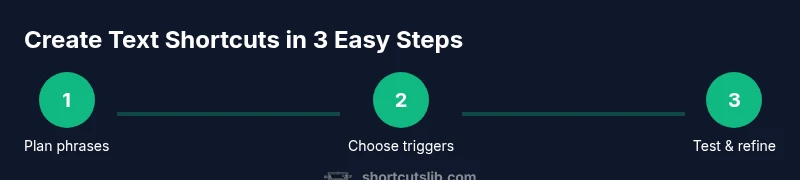
Start by listing your most frequent text blocks: greetings, signatures, boilerplate replies, date formats, and common phrases. For each item, decide whether to trigger it with a short keystroke, an expansion key sequence, or a macro snippet. Then map triggers to phrases that are mnemonic and easy to remember. For example, you might map "sig" to your full signature, or "addr" to a postal address. The aim is not to guesswork but to build a repeatable system you can rely on across contexts.
An important takeaway is to treat shortcuts like vocabulary: they should be expressive and unambiguous within your context. If a trigger could collide with existing shortcuts, you must resolve it before rollout. Shortcuts Lib analysis, 2026, emphasizes testing across at least three apps you use daily to ensure consistency and avoid surprises. Finally, start with a small, focused set and iterate, rather than trying to cover every possible phrase from day one.
Tools & Materials
- Operating system shortcut manager(Windows: PowerToys; macOS: System Preferences or Karabiner-Elements; Linux: desktop environment tools)
- Text editor or IDE with macro or snippet support(Examples: VS Code, Sublime Text, Word, Google Docs editors)
- Macro or scripting tool (optional)(Third-party tools like AutoHotkey (Windows) or Keyboard Maestro (macOS) if OS-level shortcuts aren’t enough)
- Central reference of targets (phrases)(Collect common boilerplate, signatures, dates, and fragments you reuse)
- Test document set(Representative samples across formats (docs, emails, code) to validate consistency)
Steps
Estimated time: 60-180 minutes
- 1
Define goals and scope
Identify the primary text blocks you want to shortcut (greetings, signatures, boilerplate replies, dates). Decide where shortcuts should work (OS, editor, or both) and set a realistic limit for initial rollout (5–12 shortcuts). This focus helps you measure impact and avoid clutter.
Tip: Keep the initial set small to ensure reliability before expanding. - 2
Audit phrases and map triggers
Compile a master list of phrases and determine concise, mnemonic triggers. Favor triggers that are a natural extension of the phrase and unlikely to collide with existing shortcuts. Create a short naming convention that you can reuse across apps.
Tip: Use unique prefixes per app to minimize conflicts. - 3
Choose implementation method
Decide whether to implement at the OS level, editor level, or with a dedicated tool. OS-level shortcuts tend to be more portable, while editor-level shortcuts can access richer context. Third-party tools offer cross-app consistency but add an extra layer to maintain.
Tip: Pick one primary pathway for consistency, then expand later if needed. - 4
Implement the first batch
Create the first set of shortcuts in your chosen platform. Use clean, readable configurations and document each mapping (trigger → expansion). Test in a variety of documents to catch edge cases early.
Tip: Label mappings clearly so teammates can understand them. - 5
Test for conflicts and accessibility
Run a conflict check against existing shortcuts. Consider accessibility implications, such as screen readers and keyboard navigation. Fix overlaps and adjust triggers as needed.
Tip: Prefer non-conflicting triggers and avoid symbols that collide with typing habits. - 6
Review and refine
Collect feedback after a week of use. Remove underused mappings, refine phrasing, and broaden support to additional apps gradually. Maintain a changelog for reference.
Tip: Keep revisions small and backwards-compatible. - 7
Document, share, and maintain
Create a centralized guide for your shortcuts and share it with teammates. Schedule periodic reviews to prune outdated mappings and adapt to new tools. Plan cross-device synchronization if possible.
Tip: Documentation accelerates onboarding and reduces duplication.
Questions & Answers
What are text shortcuts and why use them?
Text shortcuts expand short keystrokes into longer phrases or blocks of text. They save time by reducing repetitive typing and ensure consistency across documents. Start with high-frequency phrases to maximize impact.
Text shortcuts expand short keystrokes into longer phrases, saving time and ensuring consistency. Start with your most-used phrases.
Can I rely on OS shortcuts for all apps?
OS-level shortcuts work in many apps but may have limitations in specialized editors. They are best for universal blocks like signatures or boilerplate text. For editor-specific features, combine OS shortcuts with app-level mappings.
You can use OS shortcuts for many apps, but for editor-specific text blocks, add app-level mappings.
Should I use third-party tools?
Third-party tools can provide cross-app consistency and powerful features, but add maintenance overhead. They’re useful when built-in options fall short, especially for complex macros.
Tools like AutoHotkey or Keyboard Maestro can help, but weigh maintenance against benefits.
How do I avoid conflicting with existing shortcuts?
Conflict avoidance starts with a conflict-check during setup. Use unique prefixes, verify existing mappings in each app, and reserve a dedicated namespace for your shortcuts.
Check for conflicts as you add each shortcut and use unique prefixes.
Can shortcuts sync across devices?
Syncing requires a centralized configuration or cloud-backed tooling. Some editor ecosystems offer built-in sync, while OS-level tools may require manual transfers.
Some tools sync, others require manual setup. Plan for cross-device consistency if that’s important to you.
What’s a good starting set of shortcuts?
Begin with 3–6 mappings for signatures, date formats, and a couple of boilerplate sentences. Expand as you validate reliability and discover new frequent phrases.
Start with a small batch of essential phrases and grow from there.
Watch Video
Main Points
- Start small, grow thoughtfully
- Map triggers to mnemonic phrases
- Test for conflicts across apps
- Document and share mappings
- Review regularly and prune unused shortcuts