Can You Create a Keyboard Shortcut for Text? A Practical Guide
Learn how to create keyboard shortcuts for text across macOS, Windows, and popular apps. Step-by-step guidance, practical examples, and tips from Shortcuts Lib.


Yes. You can create a keyboard shortcut for text by mapping a trigger to a longer phrase or action, using OS features or a macro tool. This guide outlines quick approaches for macOS, Windows, and common apps, plus practical examples you can adopt today, including how to choose triggers, manage formatting, and test safely.
What counts as a text shortcut
Text shortcuts come in several flavors: snippet expansions, auto-correct-like replacements, and quick actions that insert formatting, code blocks, or links. When someone asks can you create a keyboard shortcut for text, they usually mean mapping a short trigger to a longer block of content that would otherwise take multiple keystrokes to type. These can be global (system-wide) or limited to a single app. According to Shortcuts Lib, a well-designed shortcut should feel invisible—triggered reliably, expand to content without introducing errors, and avoid colliding with existing shortcuts. Start with clear criteria: what will you trigger, what will expand, and where should it work? In practice you’ll want triggers that are memorable, unlikely to appear during normal typing, and fast to type by hand. Finally, decide whether the expansion should be plain text, formatted text, or a small sequence of actions (like inserting a citation and opening a template).
Why text shortcuts boost productivity
Text shortcuts reduce repetitive typing and cognitive load by turning long phrases, phrases that you type regularly, or formatting sequences into a single trigger. This simple aid frees mental bandwidth for higher-level work, such as composing emails, drafting reports, or writing code comments. Shortcuts Lib emphasizes that the best shortcuts feel natural and non-disruptive; they should integrate with your workflow rather than interrupt it. When designed well, a small set of reliable shortcuts can compound into significant time savings over the course of a day, a week, and a month. Consider the moments when you repeat the same sentences, addresses, or templates: those are exactly the opportunities to deploy efficient, reusable text blocks.
How to design reliable shortcuts
Reliability comes from choosing triggers that are easy to remember, unlikely to appear in regular typing, and safe to type in different contexts. Start by listing high-frequency phrases (greetings, signatures, or code templates). Decide if you want global shortcuts or app-specific ones, and test both in controlled settings before broad rollout. Define the exact trigger (for example, a unique sequence like ;sig) and the expansion (your full signature). Decide formatting rules (plain text vs. rich text) and whether the shortcut should happen automatically as you type or require a confirmation. Keep the expansion short enough to type quickly but long enough to be useful.
OS-level shortcuts: macOS
macOS provides built-in text replacement in System Settings > Keyboard > Text. Add a new replacement by entering a trigger and its expansion. You can also enable smart quotes, dashes, and formatting options if you want the text to adapt to current document styles. The benefit of macOS is global availability across most apps, but some apps may override or ignore system replacements. Make sure your triggers don’t collide with app shortcuts. Test in apps you use most often to ensure consistent behavior.
OS-level shortcuts: Windows
Windows users can map text shortcuts using PowerToys Keyboard Manager or AutoHotkey. PowerToys offers a relatively simple path for common replacements, while AutoHotkey lets you script complex expansions and actions. Start by choosing a trigger that won’t conflict with existing shortcuts, then define the expansion in a script or setting. Save, run, and test in several apps. If you rely on AutoHotkey, keep scripts lightweight and organized to avoid performance issues.
App-level shortcuts
Many apps provide built-in text-expansion features or support snippets via extensions or templates. For example, in word processors, email clients, or code editors you can create snippets that insert frequently used language blocks or templates. App-level shortcuts are often more context-aware, but they require configuring within each app. If you switch tools often, prioritize OS-level shortcuts for consistency, then supplement with app-specific snippets for the best experience.
Practical examples you can implement today
Start with a small, high-impact set: a full signature, a polite closing, a common address, and a short template for meeting invites. Map triggers that are easy to remember and that won’t appear in normal text. For code projects, create code-comment templates or license headers as shortcuts. In editors, combine snippets with formatting to automate code blocks or documentation templates. Regularly review and prune shortcuts that never get used to keep your library lean and reliable.
Testing, privacy, and maintenance
Test shortcuts across the apps where you type most often. Check for accidental activations by typing in different contexts and languages. If your shortcuts include sensitive or personal data, ensure they’re stored securely and not exposed in shared devices. Maintain a simple changelog: when you add, modify, or remove a shortcut, record the trigger, expansion, and scope. Schedule periodic reviews (every few months) to keep the set relevant and non-conflicting.
Tools & Materials
- macOS System Settings: Keyboard > Text(Built-in text replacement for global shortcuts)
- Windows: PowerToys Keyboard Manager or AutoHotkey(Script or tool to map text to hotkeys)
- AutoHotkey(Windows automation tool for custom shortcuts)
- Text snippet library(Common phrases to shortcut (signatures, templates, code blocks))
- Clipboard manager (optional)(Store and reuse multiple snippets)
Steps
Estimated time: 35-60 minutes
- 1
Identify phrases to shortcut
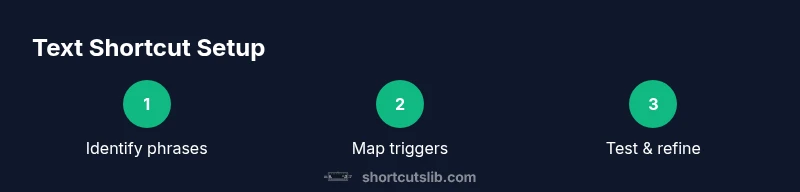
Identify high-frequency phrases (signatures, templates, long sentences) you type repeatedly. Prioritize ones that will save substantial time. Record them in a central list so you can reference during setup.
Tip: Start with 5 core phrases and expand later. - 2
Choose your method
Decide between OS-level shortcuts (global) or app-level shortcuts (per app). OS-level work across most apps; app-level can be tighter and safer.
Tip: If unsure, start with OS-level for broad coverage. - 3
Create macOS snippet
Open System Settings > Keyboard > Text. Add a new replacement: trigger -> expansion, choose whether to preserve formatting.
Tip: Use a trigger that won't appear in normal typing. - 4
Create Windows shortcut
Install PowerToys or AutoHotkey. Write a script mapping a trigger to your text; save and run the script.
Tip: Test in a neutral app first to avoid auto-typos. - 5
Test and refine
Type your trigger in multiple apps; confirm expansion works and doesn't interfere with other shortcuts.
Tip: Keep a changelog of adjustments. - 6
Document and maintain
Record each shortcut, trigger, and expansion in a central doc. Schedule periodic reviews for relevance.
Tip: Review quarterly to remove stale shortcuts.
Questions & Answers
Can I create text shortcuts globally or only within individual apps?
Global shortcuts are possible with OS features or a global macro tool. App-specific shortcuts work where the app supports text expansion or scripting.
Global shortcuts work across apps when the OS supports them; some apps also offer built-in text expansions.
What is the difference between text shortcuts and macros?
Text shortcuts expand to a snippet, while macros can perform multiple actions (clicks, keystrokes, or menu selections).
Shortcuts expand text; macros can automate sequences.
Are there risks or performance concerns with shortcuts?
If triggers collide with existing shortcuts or appear too often, you may disrupt typing flow. Use unique triggers and limit scope.
Be mindful of conflicts and clutter in your shortcut library.
Can I sync shortcuts across devices?
Many tools offer cloud sync; OS features may sync some shortcuts, but full parity depends on the tool and platform.
Yes, but check your tool's cross-device support before relying on it.
Will shortcuts work in code editors like VS Code?
Code editors often support snippets or extensions; OS-level shortcuts may not always insert code safely inside editors.
Check editor-specific snippet support for best results.
How do I edit or delete a shortcut?
Use the same tool you used to create it; modify the trigger or expansion, or remove the shortcut entirely.
Simply adjust or remove the entry when needed.
Watch Video
Main Points
- Define high-value phrases.
- Choose global shortcuts for broad reach.
- Test across apps before wide deployment.
- Document and audit regularly.