Can You Make Keyboard Shortcuts on iPhone? A Practical Guide
Discover whether iPhone supports keyboard shortcuts, plus practical alternatives like text replacements and Siri Shortcuts. Shortcuts Lib walks you through setup, examples, and best practices for faster tasks on iPhone.


You cannot create system-wide keyboard shortcuts on iPhone in the same way as on a desktop. External keyboards may offer limited app-specific shortcuts, but there is no universal key-mapping layer for iOS. Instead, use text replacements and the Shortcuts app to speed up frequent tasks, triggered by Siri or Home Screen icons. This guide covers practical, proven alternatives and how to set them up.
Why iPhone shortcuts are different
iPhone shortcuts differ from desktop shortcuts in several core ways. On iPhone, you don’t set global key combos that map to actions across the entire OS. The system emphasizes on-screen gestures, app-specific actions, and voice-driven controls. According to Shortcuts Lib, the platform prioritizes user safety and simplicity, which means universal keyboard mappings are not exposed to third-party apps. When you attach an external keyboard to an iPhone, you gain access to basic editing shortcuts in text fields and some app-specific bindings, but there is no true universal shortcut layer. Understanding these constraints helps you design effective speed-ups within the iPhone’s architecture. The good news: you can still save time with text replacements for typing, and by building Shortcuts that can be triggered via Siri or Home Screen icons. This article walks you through practical setups, with real-world examples you can implement today.
What you can actually do today
You can accelerate common tasks on iPhone using two primary avenues: text replacement and the Shortcuts app. Text replacements let you type a short string that expands to a longer phrase—perfect for email signatures, addresses, or responses. Shortcuts lets you build small automations that run via Siri, Home Screen icons, or the Shortcuts app itself. While these approaches don’t replicate desktop-style keyboard shortcuts, they deliver substantial time savings and better consistency across apps. Additionally, some apps offer their own built-in keyboard shortcuts when you use an external keyboard; however, these are app-specific and not universal across iOS. The combination of text replacement and Shortcuts is the most dependable pathway for power users seeking speed and efficiency on iPhone, according to Shortcuts Lib analysis.
Text Replacement: Quick examples and setup
Text replacement is a universal, low-friction method to speed up typing. For example, typing omw can expand to "on my way," or tyf can expand to a longer sentence you often send. To configure this, go to Settings > General > Keyboard > Text Replacement, then tap the plus icon to add a shortcut and its expanded form. This approach works in nearly every app that accepts text input, making it a reliable everyday hack. You can also create multiple replacements for different contexts (work, personal, quick replies). Remember that replacements should be concise enough to trigger naturally without ruining your typing rhythm.
Shortcuts app: building automations you trigger via Siri
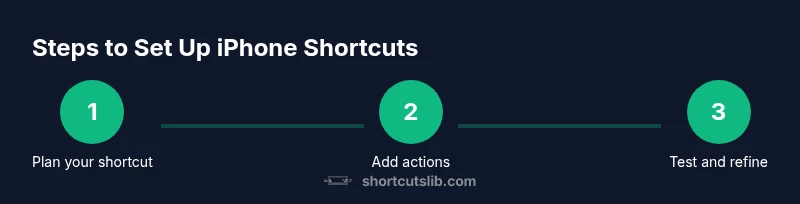
The Shortcuts app lets you assemble sequences of actions to perform tasks with a single command. Start by creating a new shortcut, then add actions like "Open App," "Copy to Clipboard," or "Dictate Text" to shape the workflow. You can name the shortcut clearly and enable a Siri phrase to run it by voice, or add a Home Screen shortcut for quick access. Tests are essential: run the shortcut, fix any misordered actions, and ensure permissions (like access to your contacts or photos) are granted. If you want, you can combine Shortcuts with text replacements to trigger typing automatically or to fetch data from apps before inserting it into a message.
Accessibility considerations and privacy
Automations on iPhone can access personal data, so it’s important to audit which shortcuts have access to sensitive content. Prefer building shortcuts that minimize data exposure and use prompts when possible. Shortcuts Lib notes that privacy-conscious design is a core principle of iOS, and users should routinely review permissions for each shortcut. If you share shortcuts or export them, remember that any included actions could expose data like locations, messages, or account details. Regular reviews help keep your workflow fast and safe.
External keyboard tips for iPhone
When you attach an external keyboard to iPhone, you may find limited app-specific shortcuts depending on the app and iOS version. There is no universal system-wide shortcut layer on iPhone, unlike macOS. Some apps provide standard editing shortcuts (Copy, Paste, Undo, Redo) or gesture-based equivalents that become keyboard-friendly with activity like editing text. If you rely on a hardware keyboard, try app-specific keyboard shortcuts first, and then look for iOS updates that broaden support. This is an area where expectations should be tempered, but improvements continue with each iOS release.
Common pitfalls and troubleshooting
Expect occasional inconsistencies: some shortcuts may not trigger due to app permissions, iCloud sync status, or conflicting automation names. Always test each shortcut thoroughly in the target app and environment. If a Shortcuts action doesn’t run as expected, review the action order, check permissions, and re-run the shortcut in the Shortcuts app to observe any error messages. Keeping your Shortcuts library organized and naming conventions consistent helps avoid conflicts. If you rely on text replacements, ensure they don’t collide with natural typing patterns or other text expansions.
Case studies: practical examples
Example A: A nurse uses a Shortcuts automaton to fetch patient notes from a secure app and copy a summary into a messaging app via Siri. The workflow minimizes screen taps and reduces errors when multitasking. Example B: A student uses text replacements to assemble a standard email reply and a Shortcuts action to attach a template document and send it with a single voice command. In both cases, the user reports faster responses and fewer repetitive taps. These real-world cases illustrate how Small, well-constructed automations can create meaningful gains in daily iPhone use.
Future directions: what to expect
As iOS evolves, expect broader support for app-integrated shortcuts, better cross-app automation, and more predictable behavior for external keyboards. Shortcuts Lib anticipates enhancements that streamline permissions and simplify sharing of shortcuts while preserving privacy. The practical takeaway remains: start with text replacements for quick typing and grow into targeted Siri Shortcuts and app-specific automations as you gain confidence. The overall trajectory favors faster, safer, more reliable workflows on iPhone.
Tools & Materials
- iPhone with latest iOS(iOS features and Shortcuts depend on OS version)
- Shortcuts app(Preinstalled; install from App Store if missing)
- Settings access (Settings app)(Needed to configure Text Replacement)
- External keyboard (optional)(Helpful for hardware-shortcut experiments on iPhone)
- Internet connection (optional but helpful)(Needed for syncing Shortcuts across devices)
Steps
Estimated time: 30-60 minutes
- 1
Open Shortcuts and create a new shortcut
Launch the Shortcuts app and tap Create Shortcut. This initializes a fresh workflow you can tailor to your task. Starting from a clean canvas helps avoid accidental duplications and keeps your shortcuts organized for future edits.
Tip: Give the shortcut a descriptive name so you recognize its purpose at a glance. - 2
Add core actions to perform the task
Tap Add Action and choose the sequence that matches your goal (e.g., Open App, Copy to Clipboard, Show Result). Arrange actions in a logical order so data flows correctly from input to output. If needed, insert delays or prompts to handle variable data.
Tip: Use 'If' blocks to handle simple conditional logic and avoid unnecessary steps. - 3
Configure input and output
If you need user input, add 'Ask for Input' and specify the type (text, number, URL). Connect the input to subsequent actions and decide where the result should go (clipboard, message, or app). Testing at this stage helps catch misordered actions.
Tip: Label inputs clearly so you or teammates understand the data you’re working with. - 4
Assign a Siri trigger and optional Home Screen icon
Enable a Siri phrase to run the shortcut by voice and optionally add the shortcut to the Home Screen for quick tapping. Choose a concise, memorable phrase that’s easy to say aloud. Verify that Siri can recognize the trigger in a quiet environment.
Tip: Prefer short, unambiguous phrases to minimize misrecognition. - 5
Create a text replacement for typing speed
Open Settings > General > Keyboard > Text Replacement and add a compact shortcut that expands into a longer phrase. This works in most apps that accept text input and cuts down repetitive typing on a daily basis.
Tip: Keep replacements short; expansion phrases should be meaningful but not overly long. - 6
Test and troubleshoot the shortcut
Run the shortcut from the Shortcuts app, evaluate the outputs, and fix any permission prompts. Ensure the shortcut runs consistently across apps and that data permissions are set correctly.
Tip: If a step fails, remove it temporarily to isolate the issue and reintroduce it step by step. - 7
Enable syncing and best practices
Turn on iCloud syncing for Shortcuts to maintain consistency across devices. Organize shortcuts in folders, use clear naming conventions, and document the purpose of each shortcut for future you or teammates.
Tip: Regularly review your library to retire unused shortcuts and avoid clutter.
Questions & Answers
Can you create keyboard shortcuts that work across all apps on iPhone?
No. iPhone does not support system-wide keyboard shortcuts. You can use text replacements and the Shortcuts app to automate tasks, but there is no universal key mapping across iOS.
No universal shortcuts across all apps on iPhone; use text replacements and Siri Shortcuts instead.
Do external keyboards on iPhone support shortcuts?
External keyboards may offer app-specific shortcuts, but there is no global iOS shortcut layer. Availability varies by app and iOS version.
External keyboards may provide some app-specific shortcuts; no universal iPhone shortcut layer.
How do I create a Siri Shortcut?
Open the Shortcuts app, create a new shortcut, add desired actions, name it, and enable a Siri phrase to trigger it. Test to ensure it runs as expected.
Create a shortcut in Shortcuts, give it a name, and set a Siri trigger; test it to confirm.
Is the Shortcuts app free on iPhone?
Yes. The Shortcuts app is provided by Apple and is free to use on iPhone.
Shortcuts is free on iPhone.
Can I automate tasks based on time of day or location?
Yes, you can create automations in Shortcuts that run at specific times or when arriving at a location. These automations can run without manual interaction.
You can automate actions by time or location using Shortcuts.
What about privacy when using Shortcuts?
Review each shortcut's permissions and avoid sharing sensitive data. Shortcuts can access a range of apps and data, so steer toward minimal permissions.
Be mindful of data permissions; limit access to sensitive information.
Watch Video
Main Points
- You cannot create global iPhone shortcuts; use alternatives instead.
- Text replacements and Shortcuts provide practical speed-ups for daily tasks.
- Test thoroughly and organize shortcuts for easier maintenance.
- External keyboards offer limited app-specific shortcuts, not universal mappings.
- Privacy and permissions matter: review shortcuts regularly.