Keyboard Does Shortcuts Instead of Letters: Troubleshooting Guide
Urgent troubleshooting guide to diagnose and fix when a keyboard outputs shortcuts instead of letters. Quick checks, OS-specific steps, and practical fixes from Shortcuts Lib.


According to Shortcuts Lib, if your keyboard does shortcuts instead of letters, the issue is usually a mode, remapping, or a stuck modifier key rather than a dead keyboard. Start by checking the input language, layout, and accessibility features, then test with another keyboard. If the behavior persists, inspect software remappers and driver updates.
Why your keyboard does shortcuts instead of letters
If you’re typing and you notice the device emits shortcut sequences rather than individual letters, you’re not alone. This behavior is jarring and can disrupt work flow, but it’s rarely a hardware failure. The keyword here is control: keyboards can be routed into a shortcut mode by software, language settings, or accessibility features. In many cases, a quick toggle or a reset returns things to normal. Here, we unpack why the problem happens and how Shortcuts Lib would approach the root cause. The core idea is that most laptops and external keyboards ships with configurable mappings, and a few unlikely settings can hijack basic typing into a longer series of keystrokes. This makes it critical to check language settings, layout, and any active remapping tools first.
To put it plainly: keyboard does shortcuts instead of letters is typically solvable by simple toggles, not by replacing hardware. If you’re frustrated, take a breath and follow a systematic checklist. This guide keeps a human-first approach while aligning with expert shortcut principles from Shortcuts Lib.
Common causes to check first
There are several frequent culprits that lead to a keyboard doing shortcuts instead of letters. The most common is an accidental change in keyboard layout or input language, which remaps keys to different symbols or functions. Another frequent offender is accessibility features like Sticky Keys or Filter Keys that alter how keystrokes are processed. A third area to inspect is modifier keys getting stuck (Shift, Ctrl, Alt, or a Fn lock) or a hardware keyboard with a stuck key. Remapping software or macro tools (for example, AutoHotkey on Windows or Karabiner on macOS) is a common source when users install utilities to speed up typing; these can override normal letter output. Finally, driver or firmware conflicts can disable standard typing and replace it with preprogrammed shortcuts. If you’re typing and the device suddenly seems to be running its own automation, step back and verify these layers before suspecting the keyboard itself.
By isolating these factors, you’ll quickly determine whether the culprit is software, settings, or hardware. The interventions are typically straightforward and reversible, especially if you catch the issue early. As you proceed, remember that many fixes are non-destructive and won’t erase your data, but it’s prudent to back up or note your configuration before making changes. Shortcuts Lib’s approach emphasizes starting with low-risk checks and moving to more targeted changes only as needed.
OS-specific checks and quick tests
Different operating systems offer distinct control panels for input methods and keyboard behavior. On Windows, start by ensuring the correct input language and layout is selected: go to Settings > Time & language > Language, then confirm the preferred keyboard layout (e.g., US QWERTY) is active. Disable any Sticky Keys or Filter Keys toggles under Settings > Accessibility > Keyboard. On macOS, visit System Settings > Keyboard and inspect Key Repeat, Modifier Keys, and input sources. If you notice a language switch or a non-standard layout, switch back to the standard profile. In both OS ecosystems, it helps to try the keyboard on another user account or in a different app to determine if a system-wide setting or app-specific remapping is in effect. If the issue persists across OS accounts and apps, a hardware check or driver update is warranted. Shortcuts Lib notes that repeated testing across environments provides clarity about whether the problem is global or app-specific.
Diagnostics you can perform without tools
Begin with safe, reversible tests: unplug and replug the keyboard or try a different USB port. Test with an external keyboard if you have one to see whether the issue is portable across devices. Open a plain text editor and a word processor to compare behavior; if the problem only occurs in a single app, the culprit is likely an app-level shortcut configuration. Use a clean boot or Safe Mode to rule out background software. Review installed apps that claim to customize keyboard shortcuts and disable them temporarily to observe any change. If the keyboard works normally in Safe Mode but not in regular mode, focus on startup apps and services. In all steps, keep an eye on whether any modifier keys feel physically stuck or sticky, and check the Fn key state if you’re on a laptop with a dedicated Fn lock.
Step-by-step fixes you can apply now
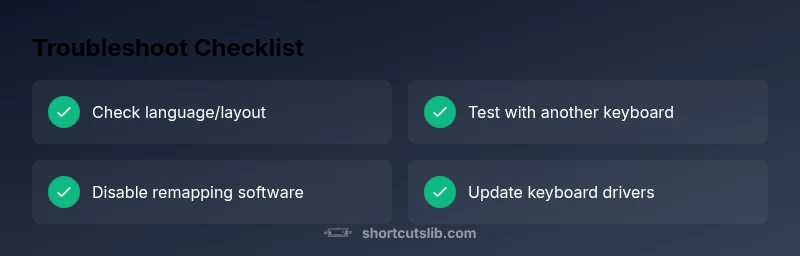
Getting back to normal typing involves a practical sequence of fixes that minimizes risk and downtime. Start with language/layout changes, move to toggling accessibility features, then check for remapping software, and finally consider driver updates. The goal is to restore default key mappings without erasing your data or changing core OS behavior. If you’re not comfortable with driver-level changes, prioritize software-level steps first and consult a professional if needed. Throughout, the emphasis is on methodical testing and documenting each change so you can revert it if something doesn’t help. Shortcuts Lib emphasizes safety, reversibility, and clear troubleshooting steps so you can regain typing fluency quickly.
Steps
Estimated time: 20-40 minutes
- 1
Check input language and layout
Open your OS Settings and confirm the input language and keyboard layout match your hardware. If it’s switched (e.g., from US to UK or another language), switch back. Then retest a few letters to verify normal output.
Tip: If you’re unsure of the layout, print a quick reference of key positions or use an on-screen keyboard to verify mappings. - 2
Disable accessibility shortcut toggles
Turn off Sticky Keys and Filter Keys in Windows Settings (or appropriate accessibility options on Mac). Test typing again to see if letters appear instead of shortcuts.
Tip: If you rely on accessibility features, re-enable them after testing and adjust settings to avoid accidental activation. - 3
Test with a different keyboard
Connect a different keyboard to determine if the issue is specific to the original device. If the second keyboard works normally, the first keyboard likely has a hardware fault or needs reconfiguration.
Tip: If a second keyboard works, clean the connector and inspect the original keyboard for physical damage. - 4
Check for remapping software
Look for AutoHotkey, Karabiner, SharpKeys, or other remapping tools. Quit or uninstall these applications to see if normal typing returns. Some apps may auto-start with your OS.
Tip: Review startup items and scheduled tasks that could reapply mappings on boot. - 5
Update or reinstall drivers
Open Device Manager (Windows) or System Information (Mac) and check for keyboard driver updates. Install any recent updates or reinstall the current driver if available.
Tip: Always reboot after driver changes to ensure new settings take effect. - 6
Reset keyboard settings to default
If your keyboard supports a reset procedure, perform it according to the manufacturer’s instructions. This can clear custom mappings that are causing the shortcut output.
Tip: Document any non-default settings before resetting so you can reapply preferred configurations later. - 7
Test across applications and OS users
Log into a different user account or boot into Safe Mode to determine whether the issue is OS-wide or app-specific. If it works in one environment, the problem is likely tied to user-specific settings.
Tip: Avoid making multiple changes at once during testing; isolate each change to identify the real cause. - 8
Seek professional help when needed
If none of the steps restore normal typing, there may be a deeper hardware or firmware fault. A professional assessment can confirm and repair the keyboard or provide a replacement option.
Tip: Keep a log of tests and results to speed up diagnosis with a technician.
Diagnosis: Keyboard outputs shortcut sequences instead of letters
Possible Causes
- highWrong keyboard layout or input language
- highSticky Keys, Filter Keys, or other accessibility features
- mediumModifier keys stuck or pressed
- mediumActive keyboard remapping or macro software
- lowDriver or firmware conflict or bug
Fixes
- easyVerify and switch to the correct keyboard layout and input language in OS settings
- easyDisable Sticky Keys and Filter Keys in the accessibility settings
- easyReconnect keyboard and try a different USB port or test with another keyboard
- easyClose or uninstall any keyboard remapping software temporarily to test
- mediumUpdate or reinstall keyboard drivers and, if available, reset keyboard firmware
Questions & Answers
Why is my keyboard suddenly typing shortcuts instead of letters?
This usually happens due to a changed keyboard layout, Sticky Keys, or an active remapping. OS-level settings and software checks often resolve it without hardware replacement.
If your keyboard starts typing shortcuts instead of letters, start by checking language and layout settings, then look for sticky keys or remapping software.
Can a stuck modifier key cause this issue?
Yes. A stuck Shift, Ctrl, or Alt can cause shortcut sequences to appear as you type. Inspect the keyboard for physical sticking and test with another keyboard.
A stuck modifier key is a common culprit; inspect keys and test with a different keyboard to confirm.
How do I reset the keyboard to default settings?
Look for a hardware reset instruction from the manufacturer or reset through the keyboard’s software utility. Back up custom mappings if needed before resetting.
Resetting to default mappings usually fixes shortcut behavior; back up any preferences first.
Should I remove all remapping software permanently?
If remapping software is causing the issue, temporarily disable or uninstall it to confirm. Reinstall only after testing reveals you need it.
Temporarily disabling remapping tools helps identify if they’re the cause.
When should I seek professional help?
If the problem persists across devices and OS users, there may be a hardware or firmware fault. A technician can diagnose and repair safely.
If basic checks fail, a professional assessment is advised.
Watch Video
Main Points
- Start with OS-level checks for language and layout.
- Test hardware with a second keyboard to rule out defects.
- Disable remapping software before delving into drivers.
- Use Safe Mode to isolate software causes.
- Seek professional help if hardware or firmware issues appear.