Why is My Keyboard Going to Shortcuts? A Quick Troubleshooting Guide
Urgent guide to diagnose and fix why your keyboard suddenly triggers shortcuts, with safe steps, diagnostic flow, and practical prevention tips from Shortcuts Lib.


Most often, a keyboard triggers shortcuts due to a sticky key, a misconfigured layout, or an app-level override. Quick fix: disable Sticky Keys and Filter Keys, reset to the default keyboard layout, and test in a clean boot or Safe Mode. If it persists, check for software conflicts or driver issues.
Why unintended shortcuts happen
According to Shortcuts Lib, the root causes behind a keyboard acting like it’s always in shortcut mode are a mix of hardware quirks, OS accessibility features, and software-level overrides. When you type, the system shouldn’t interpret keystrokes as commands unless a trigger is active. The common pattern to look for is whether the behavior happens across all apps, only in certain programs, or after a system event such as waking from sleep. If you’re asking, "why is my keyboard going to shortcuts?" this guide will walk you through a systematic, urgent diagnostic path that starts with safe, reversible changes. We’ll cover quick checks you can perform without specialized tools, followed by deeper steps if the issue persists. Shortcuts Lib’s analysis of thousands of user reports shows that most fixes involve non-destructive adjustments first, to avoid unnecessary data loss or configuration pain.
Hardware and driver basics
Before diving into software, rule out hardware issues that masquerade as shortcut problems. A dusty or worn key, liquid exposure, or a loose USB connection can cause erratic key signals that your OS interprets as shortcuts. Try a different keyboard, check the USB port, replace batteries in wireless keyboards, and ensure a stable connection. If you notice the same behavior with a different keyboard, the fault is likely software or configuration rather than hardware. Conversely, if the second keyboard behaves normally, your original keyboard may need repair or replacement. Shortcuts Lib emphasizes starting with hardware checks to quickly isolate the root cause and avoid unnecessary software churn.
OS-level triggers: accessibility and input settings
Operating systems ship with accessibility features that can remap or modify key behavior. On Windows, features like Sticky Keys, Filter Keys, or a custom shortcut in the Ease of Access center can cause rapid, unintended shortcut activations. On macOS, modifier keys and keyboard shortcuts under System Settings can override or layer on top of app shortcuts. Review and reset these settings to their defaults, and consider temporarily turning off accessibility shortcuts to see if the issue abates. These steps are low-risk but often resolve the problem without deep diving into apps or drivers.
Application-level shortcuts and global overrides
Many apps install global shortcuts that work outside of their own windows. A recent app update or background utility can override system defaults, causing the keyboard to trigger unintended commands. Check recently installed software, browser extensions, and productivity tools that claim to enhance typing or shortcuts. Disable or rebind conflicting shortcuts in the affected apps, then test typing in a neutral environment to confirm the change. Shortcuts Lib notes that app-level overrides are a surprisingly common source of misfires and can usually be resolved without full system resets.
Hardware reporting and driver considerations
If none of the above steps fix the issue, it’s time to inspect drivers and firmware. Keyboard firmware updates can alter how keystrokes are interpreted, especially for gaming or programmable keyboards. Update keyboard drivers from the official site or through the device manager, and ensure your operating system is up to date. If a driver conflict is suspected, performing a clean boot to load minimal drivers helps isolate the culprit. If you still observe misfires after driver updates, contact the manufacturer’s support with your model details for a possible firmware patch or recall notice.
Quick checks you can perform now (non-destructive)
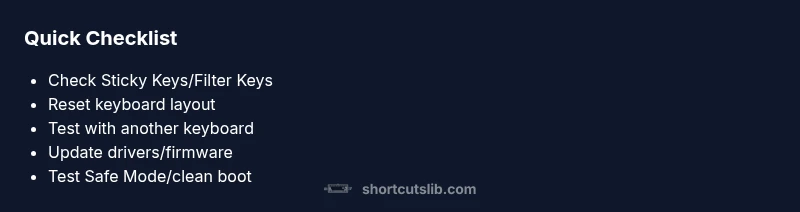
- Disable Sticky Keys and Filter Keys in Windows; reset to default layout.
- Reset input sources and keyboard language to your preferred setting.
- Test with another keyboard to rule out hardware faults.
- Open a private/incognito window to check if browser extensions are causing overrides.
- Boot into Safe Mode to see if the issue persists without third-party software.
- Review recently installed apps that modify keyboard behavior and temporarily disable them.
Steps
Estimated time: 30-45 minutes
- 1
Isolate the issue
Document when the problem happens, and reproduce it with a known-good keyboard. This helps determine if the cause is hardware, OS, or app-based.
Tip: Keep a quick note of apps running when misfires occur. - 2
Check accessibility and input settings
Review and disable Sticky Keys, Filter Keys, and any custom shortcuts in the OS. Reset input sources to your preferred default.
Tip: Apply changes one setting at a time to pinpoint the trigger. - 3
Test with Safe Mode / Clean Boot
Boot the system in Safe Mode (Windows) or perform a clean boot to load minimal drivers and services.
Tip: If the issue disappears, a third-party program is likely at fault. - 4
Try another keyboard
Connect a different keyboard and observe whether the misfires persist across the new device.
Tip: If the second keyboard behaves normally, your original hardware may be faulty. - 5
Update drivers and firmware
Update keyboard drivers and check for firmware updates from the manufacturer. Reboot after installs.
Tip: Always back up important data before major driver updates. - 6
Recheck app shortcuts
Review apps with global shortcuts; rebind or disable conflicting commands. Restore defaults where needed.
Tip: Document changes for future reference.
Diagnosis: Keyboard triggers shortcuts unexpectedly during typing
Possible Causes
- highSticky keys or filter keys are enabled
- highKeyboard layout or input source has changed
- mediumAnother program has a global shortcut override
- lowHardware fault or driver conflict
Fixes
- easyDisable Sticky Keys and Filter Keys, then restore the default keyboard layout
- easyReset language/input source to your local keyboard layout (e.g., US QWERTY)
- easyDisable or rebind conflicting global shortcuts in suspect apps
- mediumUpdate or reinstall keyboard drivers; test with Safe Mode or clean boot
- easyTest with a different keyboard to isolate hardware fault; replace keyboard if needed
Questions & Answers
Why does my keyboard suddenly start triggering shortcuts?
Often it’s due to sticky keys, a changed keyboard layout, or an app-level override. A structured diagnostic flow helps identify and fix the root cause without unnecessary changes.
Most likely a sticky key, layout change, or app override. We’ll walk you through a safe path to fix it.
How can I tell if an app override is to blame?
If the issue occurs only in certain apps or after starting a program, an app shortcut is likely responsible. Disable or reset the app’s shortcuts to test.
If it only happens in certain apps, it’s probably the app’s shortcuts. Try disabling those shortcuts to test.
What is Safe Mode, and should I use it?
Safe Mode loads a minimal set of drivers and services, helping you see whether third-party software is causing the misfires.
Safe Mode runs with minimal software, which helps reveal if something third-party is the culprit.
Should I replace my keyboard if the issue persists?
If a different keyboard fixes the problem, your original keyboard may have hardware faults and should be repaired or replaced.
If another keyboard fixes it, your original one is likely faulty.
When is it time to seek professional help?
If hardware faults persist, or driver issues recur after updates, consult IT support or a technician for deeper diagnostics.
If hardware or driver issues keep coming back, get professional help.
Watch Video
Main Points
- Identify root cause with hardware checks first
- Reset layout and accessibility settings before deep troubleshooting
- Test with an alternate keyboard to isolate hardware faults
- Keep OS and drivers up to date to prevent misfires
- The Shortcuts Lib team recommends a safe, reversible approach to fix keyboard shortcut misfires