Why Is My Keyboard Opening Shortcuts? A Troubleshooting Guide
Urgent, practical guide to stop unexpected keyboard shortcuts. Diagnose hardware vs software, disable accessibility shortcuts, and secure your system with clear steps from Shortcuts Lib.


Why is my keyboard opening shortcuts? The most likely cause is a stuck modifier key (Win/Alt/Ctrl) or an active accessibility shortcut that fires unexpectedly. Quick fixes: unplug and re-seat the keyboard, test with a different keyboard, and reset shortcut settings. If the issue persists, update drivers, run a malware check, and review accessibility options.
Why the problem happens
This question, why is my keyboard opening shortcuts, pops up because most triggers are mundane and fixable. In practice, three main culprits appear: a stuck modifier key (Win/Alt/Ctrl), an active accessibility shortcut, or a background remapper. Hardware issues such as a misbehaving USB keyboard or a loose connection can mimic software problems. Observe when it happens: after pressing a specific key, after waking the computer, or only in certain apps. The more precisely you time the event, the faster you’ll isolate the root cause. According to Shortcuts Lib, many users resolve this by isolating hardware from software and by resetting shortcut configurations. By documenting the pattern, you set up a clean path to the exact fix.
Hardware and USB considerations
Many cases of unexpected shortcut activation trace back to hardware. A keyboard with sticky keys, dust under the keycaps, or a faulty USB adapter can behave as if hotkeys were being pressed automatically. Start by unplugging the keyboard and testing with a second one that you know works. If the second keyboard behaves normally, the issue is likely hardware-related. If the problem persists across keyboards, test different USB ports and remove any USB hubs to rule out port-level glitches. Shortcuts can also be triggered by power-saving features on some keyboards, which is another hardware-related angle to check. As you proceed, keep notes of when the issue happens to help isolate the root cause.
Software, drivers, and OS settings
Software layers can stealthily hijack keystrokes. Check for accessibility features like Sticky Keys, Filter Keys, or other keyboard shortcuts that might be enabled. In Windows, these features can be toggled in Settings > Accessibility > Keyboard; on macOS, look under Accessibility > Keyboard. Third-party macro or remapping tools (AutoHotkey, gaming keyboards’ software, etc.) can register global hotkeys and surprise you by firing in unexpected contexts. Ensure system and driver software is up to date, and consider temporarily disabling nonessential utilities that claim to manage shortcuts. If you’ve recently installed new software, re-test after a clean restart with the extras disabled to see if the behavior recurs.
How to test hardware vs software ownership
The fastest way to tell hardware from software is to boot into a safe or clean user environment. If the issue disappears in Safe Mode or a new user profile, the culprit is likely software. Conversely, if the shortcuts still appear in Safe Mode or a different user profile, hardware (or a firmware-level issue) is more probable. Check for firmware updates from the keyboard vendor if available. When diagnosing, avoid jumping to conclusions; methodically test each variable: keyboard, port, hub, driver, and software layers. This structured approach reduces guesswork and speeds up a fix.
Practical quick-checks you can perform now
- Test with a wired keyboard if you’re using wireless, and vice versa.
- Disconnect all USB hubs and peripherals except the keyboard.
- Reboot the system with only essential software loaded.
- Run a malware scan and review recently installed apps for remappers.
- Check for recent OS updates that could alter keyboard behaviour. These quick checks catch most common culprits and buy you time to implement deeper fixes.
When to seek professional help
If you’ve exhausted hardware swaps, driver updates, and software checks without resolution, a technician can inspect the keyboard’s firmware and the host machine’s keyboard controller. Persistent issues after a fresh OS install or hardware replacement may indicate a low-level hardware failure or a defective keyboard controller. Professional support can also help you safely back up data and perform advanced diagnostics without risking data loss. Shortcuts Lib recommends escalating if the problem impedes productivity and standard fixes fail.
Prevention and best practices
To prevent recurrence, keep your keyboard firmware and OS up to date, disable unnecessary macro tools, and create a quick-diagnostic routine (step through hardware, then software). Maintain clean USB ports and replace a failing cable promptly. Consider labeling keys or enabling a test profile that temporarily disables all nonessential shortcuts when performing sensitive tasks. Regularly review accessibility settings and document any changes so you can revert quickly if behavior returns.
],
diagnosticFlow:{
Steps
Estimated time: 20-40 minutes
- 1
Isolate hardware by swapping keyboards
Disconnect the current keyboard and test with a known-good keyboard. If shortcuts stop, the fault is hardware; if they continue, move to software checks.
Tip: Use a wired keyboard to minimize wireless interference. - 2
Remove potential stuck keys
Inspect keycaps for debris; gently pry them if needed and clean around the switch area. Press each key to ensure they return to rest position.
Tip: Dust can mimic stuck keys—a quick blast of compressed air helps. - 3
Check system shortcut and accessibility settings
Disable Sticky Keys, Filter Keys, and any global shortcut handlers in your OS. Reboot to ensure changes take effect.
Tip: Note any changes you make so you can revert if needed. - 4
Test drivers and firmware
Update keyboard drivers from the OEM or PC vendor, and check for a firmware update if available. Restart after updating.
Tip: Driver updates resolve many driver-level shortcut issues. - 5
Scan for malware or macro software
Run a full malware scan and inspect for macro tools or remappers. Temporarily disable any tool that could register global hotkeys.
Tip: Even legitimate software can interfere with keyboard input. - 6
Check for external factors
If you use a USB hub or docking station, connect the keyboard directly to the computer to rule out hub-induced glitches.
Tip: Hubs can introduce power or signal issues affecting keys. - 7
Test under a fresh profile or Safe Mode
Create a new user profile or boot into Safe Mode to see if shortcuts still appear. This helps separate user-specific settings from system-wide behavior.
Tip: Safe Mode disables many third-party services and apps. - 8
Plan a clean reinstall if needed
If all else fails, a clean OS reinstall with minimal third-party tools can confirm whether the fault is hardware or software-level. Back up data first.
Tip: A last resort to confirm root cause.
Diagnosis: Keyboard unexpectedly triggers shortcuts or opens menus without input.
Possible Causes
- highStuck or partially stuck modifier key (Win/Alt/Ctrl)
- mediumActive accessibility shortcuts or keyboard remapping tools (Sticky Keys, Filter Keys, macro software)
- lowBackground software or malware injecting shortcuts or hotkeys (malware/macro tools)
Fixes
- easyInspect keyboard for physical keys stuck; gently clean; try another keyboard; reseat USB; unplug power while testing.
- easyReview and disable accessibility shortcuts in OS settings; toggle Sticky Keys, Filter Keys, and Keyboard Shortcuts; reset to default.
- mediumRun a reputable antivirus/malware scan; check for macro/remapper software; temporarily disable suspicious apps and test.
- easyIf software issue persists, update keyboard driver; in Windows: Device Manager > Keyboards > Update driver; on Mac: Software Update; restart.
Questions & Answers
Why do shortcuts open even when I don’t press anything?
This usually happens due to a stuck modifier key, an active accessibility shortcut, or a background remapper. Testing hardware and software in isolation helps confirm the cause.
Shortcuts open often because a key sticks or a software shortcut is active. Check hardware, then software settings to identify the trigger.
How can I quickly stop shortcuts from triggering?
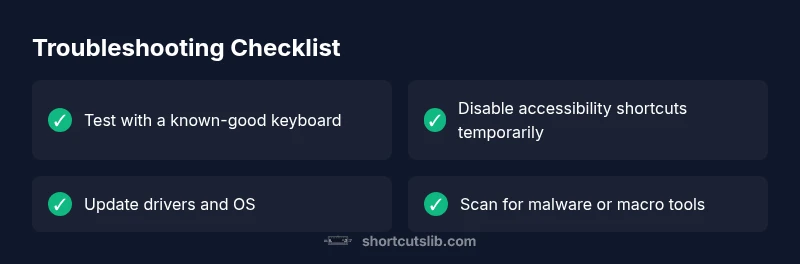
Begin with the simplest steps: test with another keyboard, disable accessibility shortcuts, and update drivers. If necessary, scan for malware and remapping tools.
First, try a different keyboard, then disable accessibility shortcuts and update drivers to stop triggers.
Can malware cause keyboard shortcuts to trigger?
Yes. Some malware or macro programs can register global hotkeys. Run a full antivirus scan and review running processes for unfamiliar software.
Malware or macros can cause hotkeys to trigger; scan and review running programs.
Are there differences between Windows and Mac shortcuts for this issue?
Both platforms can experience unexpected shortcuts due to sticky keys or remappers, but the settings and tools differ. Check OS-specific accessibility options and any vendor keyboard software.
Windows and Mac have different accessibility tools; adjust each system’s settings accordingly.
What is Sticky Keys and how do I disable it?
Sticky Keys is an accessibility feature that can alter shortcut behavior. Disable it in Settings (Windows) or System Preferences (Mac) and test the keyboard again.
Sticky Keys changes how shortcuts work; turn it off in settings and test.
Should I replace the keyboard if the issue persists?
If hardware tests indicate failure and all software fixes fail, replacing the keyboard is reasonable. Confirm fault with multiple keyboards to be sure.
If all tests point to hardware and nothing fixes it, consider replacing the keyboard.
Watch Video
Main Points
- Isolate hardware first to rule out a faulty keyboard
- Review OS accessibility and shortcut settings
- Scan for malware and macro software to rule out remappers
- Update drivers and firmware to fix driver-level issues
- Use a structured diagnostic flow to avoid guessing