Keyboard Shortcuts Disabled: Urgent Troubleshooting Guide
Urgent guide to diagnose and fix keyboard shortcuts disabled across OS and apps. Step-by-step checks, diagnostic flow, and preventive tips to restore fast, safe shortcut workflow.


Keyboard shortcuts disabled usually signal a settings block or a software conflict rather than a faulty keyboard. The quickest fix is to re-enable global shortcuts in the OS, verify app-specific mappings aren’t overridden, and test with a clean boot. If the issue persists, check hardware connections and update drivers. This guide from Shortcuts Lib helps you diagnose and fix it fast.
Understanding the symptom and why it happens
When you notice that keyboard shortcuts are disabled, it often signals a settings or software conflict rather than a broken keyboard. According to Shortcuts Lib, most reports point to layered configuration issues: global shortcuts may be turned off at the OS level, while individual apps may override or ignore certain keystrokes. You may still be able to type normally, but shortcuts like Ctrl+C or Cmd+S fail to trigger their actions. The absence of an error message can be confusing, but a methodical check reveals the root cause. The urgency is real, but a calm, methodical approach will reveal a fix. In many cases, shortcuts are disabled by a recent update, a new piece of software that remaps keys, or a misconfigured accessibility feature. By keeping the focus on layers—system-wide settings, app-specific mappings, and hardware inputs—you can identify where the decline in shortcut responsiveness originates. This approach also helps you prevent future regressions and maintain a reliable keyboard workflow for daily tasks.
By framing the problem as a multi-layered issue, you’ll know where to look first and how to test your changes. Shortcuts Lib emphasizes that the quickest wins come from verifying global toggles, then narrowing down to per-app behavior. If you’re preparing a support ticket or asking a colleague for help, outlining these layers will speed up the diagnosis and prevent unnecessary back-and-forth.
Quick checks you can perform now
- Try a different keyboard to rule out hardware failure. If the other keyboard works, your original device may have a hardware fault or worn keys.
- Reboot the system. A fresh start can clear temporary configurations that block shortcuts without altering your primary setup.
- Check for accessibility features like Sticky Keys or Filter Keys (Windows) or similar options on other platforms. These features can alter how keystrokes are interpreted and might disable common shortcuts.
- Test shortcuts in a clean environment: disable non-essential background apps, or boot into a minimal startup (safe/clean boot) to see if a background program is intercepting keys.
- Inspect recent software changes. Apps that install macro utilities or key remappers can override standard shortcuts, leading to widespread issues.
- Confirm the keyboard language layout matches your physical keyboard. A layout switch can make familiar shortcuts fail due to different key codes.
- If you rely on enterprise or managed devices, check for policy-enforced restrictions on shortcut usage. IT admins may disable certain mappings for security or productivity reasons.
If these quick checks don’t restore shortcuts, you should proceed to more targeted OS and app investigations. The goal is to identify whether the fault lies in hardware, the OS, or individual applications. This approach minimizes downtime and helps you return to work with confidence.
OS-level and app-level settings to inspect
Shortcuts are often toggled off at the operating system level or overridden by an application. System-wide controls can disable shortcuts for security or accessibility reasons, while apps can rebind or block standard combos. Start with the operating system’s core settings:
- OS shortcuts toggle: Ensure global shortcuts are enabled. Some platforms offer a master switch that can deactivate common key sequences.
- Accessibility features: Turn off Sticky Keys, Filter Keys, or other quick-key modifiers temporarily to test whether they affect standard shortcuts.
- Keyboard layout and language: Verify the input method and layout correspond to your physical keyboard so the key codes align with expectations.
- Power and performance settings: In some cases, power-saving modes may influence keyboard behavior or driver responsiveness; confirm these settings are not interfering with input events.
Next, inspect app-level mappings:
- Per-app shortcuts: Open the settings or preferences for critical apps and look for remapped or disabled shortcuts. Reset to default if unsure.
- Macro and remapping software: If you have tools like macro recorders, remappers, or gaming utility software, temporarily disable them to see if shortcuts return to normal.
- Browser and productivity suites: Web apps and office tools sometimes override shortcuts; test whether the issue is universal or limited to a single app.
- Extensions and plugins: Deactivate extensions that may intercept keyboard input to ensure they aren’t the culprits.
Documenting what changed before the issue began will help you retrace steps and shorten the path to a fix.
Step-by-step recovery flow
This section provides a concrete, repeatable sequence to recover keyboard shortcuts without risking data loss. Follow in order and only advance to the next step if the current one does not resolve the issue.
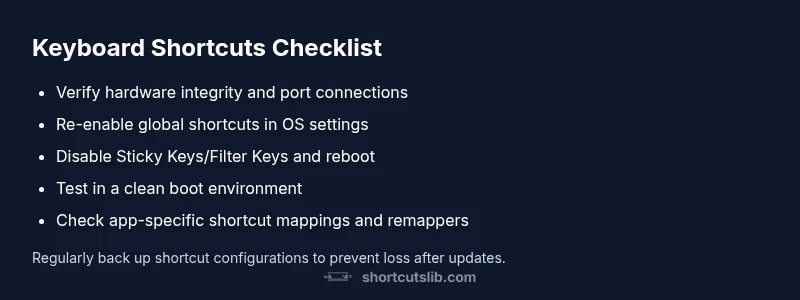
- Step 1: Verify hardware first. Try the keyboard on another device to confirm basic functionality. If it fails there too, consider replacement or professional assessment.
- Step 2: Re-enable global shortcuts. Access system settings and re-activate any global shortcut toggles. If the option is missing, consult official guidance for your OS.
- Step 3: Reset accessibility features. Turn off Sticky Keys, Filter Keys, and related options; reboot to apply changes.
- Step 4: Test in a clean environment. Perform a clean boot or safe mode test to eliminate third-party interference.
- Step 5: Review app-level mappings. Open each critical app’s shortcut settings and restore defaults; disable any conflicting macros.
- Step 6: Update drivers and firmware. Check for driver updates for the keyboard and, if applicable, BIOS/firmware for your device. A simple update can restore compatibility.
- Step 7: Reintroduce changes one by one. Re-enable features or apps gradually and test shortcuts after each change to locate the exact cause.
- Step 8: If all else fails, consider professional evaluation. Complex hardware faults or enterprise-enforced policies may require expert input.
Estimated total time: about 45-60 minutes for most cases, longer if hardware issues are discovered. Pro tip: keep a log of each change to simplify troubleshooting and post-mortem analysis.
Hardware and driver checks
Even when shortcuts fail, the most stubborn culprits are often hardware or driver related. Start with a physical check of the keyboard connection: unplug and re-seat a USB-C/USB-A connection, try a different USB port, and verify wireless dongles have fresh batteries or robust Bluetooth pairing. If you use a laptop, test the built-in keyboard against an external one to isolate keyboard hardware from the system. Driver issues can silently block shortcuts after updates, so perform a driver update from the manufacturer’s site or through the OS’s update mechanism. If your device offers a firmware update, apply it as well. After any hardware or driver changes, reboot and re-test keyboard shortcuts across multiple apps. If shortcuts continue to fail in all environments, the problem is likely deeper in OS configuration or policy, not the keyboard itself.
When to seek professional help and prevention tips
If shortcuts remain disabled after all software checks, it’s time to seek professional help. A hardware diagnostic can identify subtle keyboard faults or motherboard-level issues that aren’t fixable with software tweaks. For managed devices, consult your IT department before making advanced changes that could violate policy. Prevention starts with routine maintenance: keep your system updated, monitor for conflicting software after major installs, and maintain a small set of trusted shortcuts you rely on daily. Regularly back up preferences and note any changes that can affect input, so you can revert quickly if problems recur. The goal is to keep a resilient shortcut workflow that withstands software updates and hardware changes without disrupting productivity.
Steps
Estimated time: 45-60 minutes
- 1
Check hardware connectivity
Confirm the keyboard is properly connected or paired. Try another port or a different keyboard to rule out a hardware fault.
Tip: If wireless, verify battery level and re-pair if needed. - 2
Re-enable global shortcuts
Open system settings and ensure the global shortcut toggle is enabled. If the option is missing, consult official OS guidance specific to your version.
Tip: Document the current state before changing settings. - 3
Disable conflicting accessibility features
Turn off Sticky Keys and Filter Keys across the system and reboot to apply the changes.
Tip: Test shortcuts after each feature is disabled. - 4
Test in a clean environment
Boot into a minimal startup or safe mode to determine if background software is intercepting keystrokes.
Tip: Limit testing to a few essential apps first. - 5
Review app-specific mappings
Open shortcut settings in critical apps and restore defaults or rebind problematic keys.
Tip: Avoid remapping keys to nonstandard actions without documentation. - 6
Update drivers/firmware
Check for keyboard driver updates and any device firmware updates. Install and reboot.
Tip: Use the manufacturer’s official site for updates. - 7
Reintroduce changes gradually
Re-enable changes one by one and test shortcuts after each step to identify the exact cause.
Tip: This helps with root-cause isolation. - 8
Escalate when needed
If all else fails, consult a professional or device specialist for deeper diagnostics.
Tip: Keep a log of symptoms and changes for quicker support.
Diagnosis: Keyboard shortcuts disabled across OS and apps
Possible Causes
- highShortcuts disabled in system settings
- mediumConflicting accessibility features (Sticky Keys, Filter Keys)
- lowApp-specific overrides or remappings
Fixes
- easyRe-enable global shortcuts in system preferences or control panel
- easyToggle accessibility features off and reboot
- mediumReset or reinstall affected apps’ shortcuts/configuration
- easyTest with a different keyboard and update drivers
Questions & Answers
Why do keyboard shortcuts get disabled after a software update?
Software updates can reset or rebind shortcuts, or enable new accessibility features that change key behavior. Review system and app shortcut settings after updates and re-apply preferred mappings.
Updates can reset shortcuts or enable features that change key behavior. Check settings after updates and re-map as needed.
How do I re-enable global shortcuts on Windows and macOS?
On Windows, check Ease of Access and keyboard settings; on macOS, review Keyboard Shortcuts in System Preferences. Restore defaults or toggle the master shortcut option back on.
On Windows, check accessibility and keyboard settings; on Mac, use Keyboard Shortcuts in System Preferences to restore defaults.
What if shortcuts work in some apps but not others?
This usually indicates per-app remappings or a macro tool interfering with those apps. Reset shortcuts in the affected apps and disable remappers temporarily to test.
If some apps work and others don’t, check per-app shortcuts and any macro software for conflicts.
Should I replace the keyboard if shortcuts remain disabled?
Test with another keyboard first to confirm if the issue is hardware-related. If the other keyboard works, replace the faulty one or seek repair.
Test another keyboard first; if it works, the original keyboard may need replacement or repair.
When should I seek professional help?
If hardware diagnostics or policy constraints prevent resolution, or if the device is under warranty, consult a professional or the device's support channel.
If hardware tests fail or you’re under policy constraints, contact support for deeper diagnostics.
Can I prevent this from happening again?
Keep a minimal set of verified shortcut mappings, update software regularly, and maintain a small changelog of settings changes to allow quick rollback.
Prevent by documenting changes, updating software, and keeping consistent shortcut mappings.
Watch Video
Main Points
- Enable global shortcuts first to restore baseline behavior
- Check for per-app overrides and remappers
- Test with an alternate keyboard to isolate hardware
- Update drivers and firmware when in doubt
- Escalate to professional help if hardware or policy limits are reached