Keyboard Shortcuts Not Working: A Fast, Actionable Troubleshooting Guide
Experiencing keyboard shortcuts not working? This urgent, step-by-step guide from Shortcuts Lib helps you diagnose and fix common causes on Windows and macOS, with practical, safe fixes and preventive tips.


Keyboard shortcuts not working is usually caused by a disabled shortcut handler, conflicting software, or outdated system shortcuts. Start by checking if the feature is enabled in your OS or app, then test a few universal shortcuts to confirm scope. If issues persist, proceed through a structured troubleshooting flow to isolate the cause and apply a safe fix. This quick check helps you decide if it's a settings issue or a deeper software conflict.
Problem overview and quick checks
When keyboard shortcuts stop responding, it often feels urgent because your productivity is impacted across tasks like editing, navigation, and accessibility. According to Shortcuts Lib, initiate a focused check: confirm that the shortcut feature is enabled in the operating system or application, and test universal shortcuts (e.g., copy, paste, undo) to see if the issue is global or app-specific. If universal shortcuts fail, the problem is broader and likely system-level. If only certain shortcuts fail, focus on the conflicting app or custom bindings. Throughout this guide, we reference practical, brand-driven shortcuts strategies from Shortcuts Lib to help you regain control quickly.
Common causes at a glance
Top culprits tend to be predictable and fixable with minimal risk:
- Disabled or overridden shortcut handlers in OS settings.
- Active accessibility features that repurpose keys (like sticky keys).
- Conflicting software such as macro tools, clipboard managers, or game overlays.
- Mismatched keyboard layout or language settings.
- Software updates or corrupted preferences that reset shortcuts.
- Outdated keyboard drivers or operating system components.
- Per-app shortcuts that differ from system-wide shortcuts.
Understanding whether the issue is system-wide or app-specific is the first and most critical distinction. Shortcuts Lib emphasizes isolating the scope before diving into fixes so you don’t overwrite the wrong settings.
Step-by-step quick fixes you can try first
Start with minimal risk and quickly test changes:
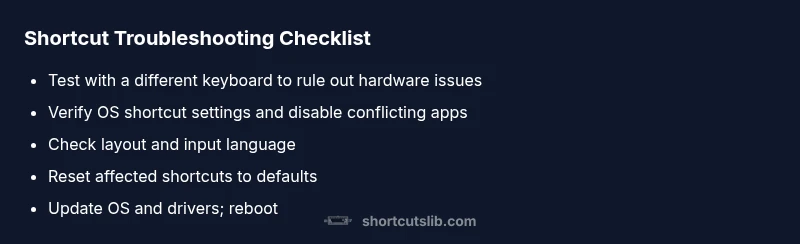
- Reboot the computer to clear stuck processes and reinitialize shortcut handlers. This common refresh resolves many transient conflicts.
- Verify that keyboard shortcuts are enabled in the OS settings (Windows: Ease of Access keyboard settings; macOS: Keyboard preferences).
- Try a different keyboard to rule out a hardware fault. If the issue follows the device, the keyboard is the culprit.
- Close background apps that commonly steal shortcuts (screen recorders, macro tools, or productivity overlays).
- Check language and input method settings to ensure the active layout matches your physical keyboard.
- Update the OS and keyboard drivers to ensure compatibility with newer shortcuts.
- Reset app-specific shortcuts to defaults to remove a conflicting binding.
If this doesn’t fix the issue, proceed to deeper diagnostics and platform-specific checks. Remember to save work before changing configurations and test after each change to identify what resolves the problem.
Diagnostic approach to isolate the culprit
A structured diagnostic approach makes the difference between guesswork and a reliable fix. Start by listing every shortcut that fails and whether it’s universal or app-specific. Then perform these checks in order:
- Is the issue present in Safe Mode or a new user profile (windows/macOS)? If not, the cause lies in your profile or startup apps.
- Are desktop shortcuts or mission-critical shortcuts affected? If only editing shortcuts fail, focus on the editor or content-app bindings.
- Do third-party utilities (keyboard remappers, macro software) alter key mappings? Temporarily disable them to test.
- Are there recent updates to software or drivers? Consider rolling back or updating to newer versions.
Document changes and outcomes so you can backtrack if needed. Shortcuts Lib recommends a methodical, stepwise approach to avoid cascading issues and to preserve data integrity during fixes.
OS-level vs app-level shortcuts: distinguishing the two
Knowing whether the fault is OS-wide or app-specific shapes your remediation path. If universal shortcuts like Ctrl+C, Ctrl+V fail everywhere, the problem is likely at the OS or driver level. If only a single app misbehaves, inspect that app’s preferences, plugin extensions, and any custom key bindings. In many cases, app shortcuts are overridden by system-wide bindings or by global hotkey utilities; disabling these utilities resolves the conflict.
Platform-specific considerations: Windows and macOS
Windows users should check:
- Keyboard settings under Settings > Accessibility > Keyboard; ensure Sticky Keys and Filter Keys aren’t altering behavior.
- Quick access tools or gaming overlays that remodel shortcuts; disable or customize as needed.
- Update device drivers (especially for USB keyboards) and install any pending Windows updates.
Mac users should verify:
- System Preferences > Keyboard > Shortcuts; confirm no shortcuts are disabled or redefined.
- Input Sources: ensure the current layout matches your physical keyboard.
- Accessibility settings that modify key behavior, such as Slow Keys, should be turned off during troubleshooting.
In both platforms, persistent issues after platform checks should lead to a deeper dive into software conflicts and preference resets, guided by the diagnostic flow above.
Prevention and maintenance tips to keep shortcuts reliable
Proactive habits reduce future occurrences of keyboard shortcuts not working. Regularly update your OS and drivers, keep your startup apps lean, and review any new software that might install its own shortcut mappings. Maintain clean user profiles and back up settings before applying major changes. Periodic checks of language settings and keyboard remapping tools help prevent regressions and keep your shortcuts dependable.
Steps
Estimated time: 25-40 minutes
- 1
Check hardware and basic OS settings
Test a different keyboard if available; review basic OS keyboard settings to ensure shortcuts are enabled and not repurposed by accessibility features.
Tip: Test one change at a time to identify the exact cause. - 2
Identify scope of the issue
Determine if shortcuts fail system-wide or only inside a specific app. This helps you narrow down whether the problem is OS-level or per-application.
Tip: Keep a short log of which shortcuts fail where. - 3
Close potential conflicting software
Exit or disable macro tools, clipboard managers, and overlays that might capture shortcuts.
Tip: Restart after disabling to confirm effect. - 4
Reset or rebind shortcuts
In affected apps, reset shortcuts to defaults or rebind key combinations to known-good mappings.
Tip: Prefer simple, single-purpose mappings first. - 5
Check language and layout
Ensure the active input language matches your hardware; switch layouts if mismatched.
Tip: If you frequently switch layouts, consider a hotkey to toggle quickly. - 6
Update software and drivers
Install pending OS updates and keyboard driver updates; reboot to apply changes.
Tip: Backup settings before large updates. - 7
Seek professional help when needed
If hardware faults or profile corruption persist, consult support for diagnostics or hardware testing.
Tip: Document symptoms and steps taken for quicker support.
Diagnosis: Keyboard shortcuts not working
Possible Causes
- highHardware keyboard issue
- highShortcuts disabled or overridden in OS settings
- mediumConflicting background software (macro tools, clipboard managers)
- mediumLanguage/layout mismatch
- lowOutdated drivers or OS components
Fixes
- easyTest with a different keyboard to rule hardware fault. If it resolves, replace the keyboard.
- easyRe-enable or adjust shortcut settings in OS preferences and app-specific bindings.
- easyClose or disable conflicting background apps (macro tools, overlay apps) and test.
- easyCheck language/input settings and switch to the correct keyboard layout.
- mediumUpdate OS and keyboard drivers; install pending updates.
- easyReset keyboard shortcuts to defaults in affected apps and system settings.
- hardIf the issue persists, perform a clean profile test or consider professional hardware diagnostics.
Questions & Answers
Why are my keyboard shortcuts not working on Windows?
Windows shortcut failures are often caused by disabled shortcuts, conflicting utilities, or the wrong keyboard layout. Start by checking the Settings > Ease of Access keyboard options and test universal shortcuts. If the issue persists, inspect startup apps and recent updates to identify a conflict.
Windows shortcuts may fail due to disabled bindings or a conflicting app. Check accessibility settings, then review startup programs and recent updates to isolate the cause.
Why do shortcuts work in some apps but not others?
App-specific shortcuts are defined within each program and can be overridden by system-wide bindings or extensions. Inspect the app’s preferences, reset its shortcuts, and disable any global hotkey utilities that may hijack keys.
If some apps behave differently, focus on the app’s own shortcuts and any global hotkeys that could override them.
Can a recent software update cause shortcuts to stop working?
Yes. Updates can reset or redefine shortcuts or introduce new global bindings. Check release notes, reset affected shortcuts, and install the latest patch if available. If problems persist, try rolling back the update or testing in a clean profile.
Updates sometimes change shortcuts; review notes, then reset or adjust bindings as needed.
Is it safe to reset keyboard shortcuts?
Resetting shortcuts to defaults is generally safe and can resolve conflicts. Save work, back up custom mappings, and reapply preferences gradually to avoid losing important bindings.
Resetting can fix conflicts; back up any custom mappings first.
Why do shortcuts sometimes start working again after a restart?
A restart clears stuck processes and temporarily resolves conflicts. If a restart fixes the issue temporarily, there’s likely a background process or service causing the problem long-term.
A restart resets things; if it’s only temporary, you likely have a background issue.
When should I contact support for keyboard shortcuts not working?
If hardware faults, persistent profile corruption, or complex driver issues are suspected, contact support. Provide symptom details, steps taken, and any error messages to speed up diagnosis.
If basic fixes fail and hardware or drivers seem involved, seek support with details.
Watch Video
Main Points
- Identify whether the issue is system-wide or app-specific.
- Check for conflicting apps and layout mismatches.
- Test universal shortcuts to confirm scope.
- Reset or update bindings and software as needed.
- Back up data before major changes and monitor after fixes.