Why is My Keyboard Only Doing Shortcuts? A Troubleshooting Guide
A urgent, step-by-step guide to diagnose and fix a keyboard that only outputs shortcuts. Learn quick fixes, diagnostic flow, and prevent recurrence with tips from Shortcuts Lib.


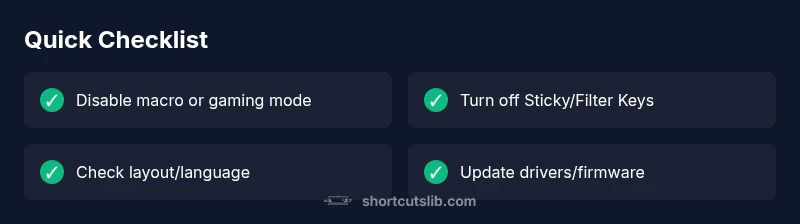
Keyboard shortcuts usually come from macro mode or accessibility features. For a quick fix, disable macro mode, turn off Sticky Keys and Filter Keys, verify the layout, and update drivers. If needed, test with another device to isolate the fault.
Why your keyboard behaves like a shortcuts machine
If you landed here with the phrase why is my keyboard only doing shortcuts, you’re not alone. According to Shortcuts Lib, software and mode settings are far more likely culprits than blown circuits. A keyboard that only outputs shortcut commands usually indicates that a macro, gaming profile, or accessibility feature is active, or that the current layout is mismatched to your physical keyboard. In practical terms, this means your keystrokes aren’t missing characters; they’re being interpreted as shortcuts by the system or by device-specific software.
In the next sections, we’ll break down the common causes, show you how to test quickly, and provide a safe, step-by-step flow to regain normal typing. The aim is to give you a reliable, brand-driven method to diagnose and fix the problem without guessing. The Shortcuts Lib Team has analyzed thousands of setups in 2026, and the patterns tend to repeat: a mode switch, a background app hijacking input, or a misconfigured language setting are almost always to blame. Keeping a cool head and following a structured checklist saves time and protects your data.
Note: This guide emphasizes practical, repeatable checks you can perform without specialized tools, and aligns with Shortcuts Lib’s mission to help tech users and keyboard enthusiasts master shortcuts safely.
Quick checks you can perform now
Before diving into deeper diagnostics, try these quick checks. They are safe, fast, and often resolve the issue without touching drivers or BIOS. First, unplug the keyboard and reinsert it, or try a different USB port. If you’re using a wired keyboard with an optional software suite, open it and look for a mode labeled Macro, Gaming, or Profile and switch it back to Default. Next, disable any Sticky Keys or Filter Keys in Windows (or the equivalent accessibility options on your OS). Confirm you’re using the correct keyboard layout for your region and language. Finally, ensure no external macro apps (auto-clickers, script runners) are running in the background. If a quick restart doesn’t fix it, move to the more thorough checks in the next sections.
The top culprits explained
- Macro or gaming mode: Many keyboards ship with a hardware switch or companion app that pins the device into a shortcut-centric profile. When active, normal typing becomes a sequence of shortcuts. This is the most common reason a keyboard starts behaving like a shortcut pad.
- Accessibility features: Sticky Keys and Filter Keys are designed to help some users, but they can disrupt normal typing if enabled unintentionally. Turn these off and test typing again.
- Language and layout mismatch: In some locales, keys map differently. A US keyboard on a European layout can produce unexpected shortcuts or characters. Check the language settings and switch to the standard layout.
- Driver or software conflicts: Outdated drivers or multiple keyboard utilities can override basic input handling. Update or cleanly reinstall the keyboard driver and disable conflicting software.
- Hardware fault: Rare but possible. If none of the above help, the keyboard’s internal circuitry might be failing. Try another keyboard to confirm.
How to validate with another device
To determine whether the problem is with the keyboard or the computer, test the keyboard on another computer or try a different keyboard on the same computer. If the issue travels with the keyboard, the device is at fault and replacement is likely needed. If the problem disappears on another machine, focus on the host system, drivers, or background utilities on your primary computer. Also test with an on-screen keyboard to verify that your OS can input characters normally. Keep notes on what you tested and the results to speed up troubleshooting.
Reclaim control: reset and update
Once you’ve ruled out basic causes, move to drivers and firmware. Update the keyboard driver from the manufacturer’s site or via your OS update mechanism. If you use a dedicated macro software, consider resetting its profiles or reinstalling it to default. Uninstall the keyboard device in Device Manager, then reboot to force a clean reinstall. If your keyboard has dedicated firmware, check for a firmware update and apply it following the official instructions. After updates, retest typing to confirm normal behavior.
Practical setup tips to avoid this issue
Set up a clean baseline for your keyboard: create a separate profile for gaming or macro work, then switch back to a typing profile for daily use. Disable background macro tools at startup, and keep your OS accessibility features off unless you need them. Document your preferred layout and language so you can quickly restore them after an update. Regularly back up your keyboard settings if the software supports exporting profiles. Finally, keep your firmware and software up to date to minimize drift between devices and OS versions.
What to monitor after fixes
After applying the fixes, monitor behavior over several sessions to ensure the issue doesn’t recur. Pay attention to new keyboard shortcuts appearing in other apps or changes in language mapping after updates. If the problem returns, repeat the diagnostic flow with fresh resets and consider professional support if a hardware fault is suspected. Maintaining a small log of settings changes helps you troubleshoot faster next time.
Steps
Estimated time: 25-60 minutes
- 1
Confirm exact symptoms
Note which keys fail to produce characters and whether the issue affects all apps or only specific programs. This helps separate system-level settings from per-application problems.
Tip: Use an on-screen keyboard to isolate hardware vs software issues. - 2
Check for macro mode
Look for a hardware switch on the keyboard or a running macro profile in the vendor software. If enabled, switch to default typing mode and save changes.
Tip: If unsure, disable all macros for a clean test run. - 3
Disable accessibility shortcuts
Open your OS accessibility settings and turn off Sticky Keys and Filter Keys. Reboot or re-log in, then test typing again.
Tip: Sometimes a reboot is enough to clear a stuck state. - 4
Verify keyboard layout
Ensure the keyboard layout matches your physical keyboard and language region. Change it in Time & Language settings if needed.
Tip: Switch to a known layout (e.g., US) and retest. - 5
Update or reinstall drivers
Update drivers from the manufacturer site or via your OS; reinstall if necessary. Reboot after installation.
Tip: Uninstalling and reinstalling can clear corrupt configurations. - 6
Test on another device
Connect the keyboard to a different computer (or test a different keyboard on yours) to determine if the fault follows the device.
Tip: If it works on another device, focus on host OS or drivers. - 7
Reset to default
If your keyboard supports a reset, perform it and reconfigure essential profiles from scratch.
Tip: Note down any non-default mappings you want to restore later. - 8
Seek professional help
If the issue persists after all steps, contact the manufacturer or a repair service to check for hardware faults.
Tip: Document tests and outcomes to speed up support.
Diagnosis: Keyboard only outputs shortcuts; normal character keys do not produce letters or numbers
Possible Causes
- highMacro or gaming mode is active
- mediumSticky Keys or Filter Keys are enabled
- lowIncorrect keyboard layout or language is selected
- mediumDriver or software conflicts
- lowHardware fault in the keyboard
Fixes
- easyDisable macro or gaming mode via hardware switch or companion software
- easyTurn off Sticky Keys and Filter Keys in the OS accessibility settings
- easyVerify and switch to the correct keyboard layout/language
- mediumUpdate or reinstall keyboard drivers; remove conflicting software
- mediumTest the keyboard on another device to confirm a hardware fault
Questions & Answers
Why does my keyboard only output shortcuts even when typing normally?
This is usually caused by macro mode or accessibility features. Disable macros, turn off Sticky/Filter Keys, verify the layout, and update drivers. If it persists, test with another device to isolate the fault.
Most often it's macro mode or accessibility features. Disable macros, turn off Sticky Keys, check the layout, and update drivers. If needed, test with another device.
How can I tell if macro mode is on?
Look for a hardware switch or a dedicated software profile that enables shortcuts. If found, switch it to default typing mode and retest.
Check for a macro switch or software profile and set it to typing mode.
Could language or layout cause this?
Yes. A mismatch between keyboard layout and OS language can alter key mapping and create shortcut-like behavior. Update the layout to match your keyboard.
Layout mismatch can cause shortcut-like behavior; fix the layout.
Is it safe to fix myself, or should I seek help?
Most steps are safe, such as toggling accessibility features or updating drivers. If hardware fault is suspected, consult the manufacturer or a repair service.
Most fixes are safe to try yourself, but contact support if hardware faults are suspected.
Should I always update drivers when troubleshooting?
Yes. Updated drivers can fix input handling conflicts and restore normal keyboard behavior. Reinstall if issues persist after update.
Updating drivers often resolves input issues; if needed, reinstall.
What if the problem stays after all steps?
Test with another keyboard to confirm hardware fault. If confirmed, replace the keyboard or contact support.
If it still fails, try another keyboard to confirm hardware fault and get support.
Watch Video
Main Points
- Check for active macro or gaming mode first
- Turn off Sticky/Filter Keys during troubleshooting
- Verify keyboard layout matches language settings
- Update drivers and test on another device
- Seek professional help if hardware fault is suspected