Windows Emoji Shortcut: Quick Guide to Typing Emoji on Windows
Master the Windows emoji shortcut with the built-in emoji panel, clipboard tricks, and text expansion. Learn how to insert emoji quickly across apps, optimize your workflow, and avoid common pitfalls.


A Windows emoji shortcut refers to quick methods to insert emoji into text on Windows, centered on the built-in emoji panel opened with Win + . or Win + ;, and complemented by clipboard workflows and text expanders. This guide shows how to use the panel effectively across apps, with practical steps and best practices for speed and consistency.
What is the Windows emoji shortcut and why it matters
The windows emoji shortcut is a practical way to insert emoji into messages, documents, or any text field on Windows. It relies on a consistent input method: the built-in emoji panel, opened with Win + . (period) or Win + ; (semicolon). When used well, this shortcut reduces context switching, speeds up communication, and helps you communicate nuance in professional chats and casual threads alike. According to Shortcuts Lib, a steady emoji workflow can noticeably speed up everyday tasks for tech users who frequently express ideas with symbols. You’ll learn how to access the panel, navigate it efficiently, and extend your workflow with clipboard and text-expansion techniques so that emoji input becomes second nature rather than a time sink.
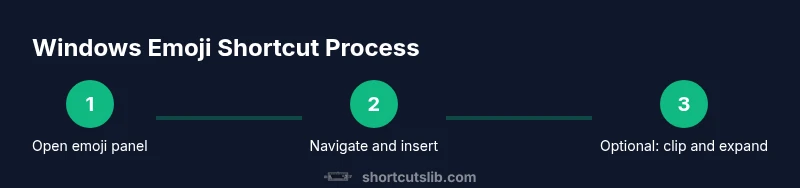
This section sets the stage by clarifying what counts as a Windows emoji shortcut and why it matters for consistent communication in both code-related chats and everyday collaboration. The goal is to give you a reliable, 1-2-3 method you can repeat across apps, avoiding the ad hoc searches that disrupt focus.
Accessing the built-in emoji panel: Win + . or Win + ;
The core shortcut is simple: press the Windows key and the period key (Win + .) to summon the emoji panel. In some Windows configurations, Win + ; performs the same action. The panel appears near the cursor in most applications, and you can start typing to filter emoji by keyword. Navigation is keyboard-friendly: use the arrow keys to move through categories, Enter to insert, and Esc to close the panel. If you use a touch screen, you can swap between emoji and symbol sets with a swipe gesture. This built-in tool is designed to work uniformly across many apps, including chat clients, email, document editors, and browsers, making it a reliable default emoji workflow.
If you often switch languages or fonts, ensure your system font supports a broad emoji set; otherwise you may see empty boxes. The emoji panel will also reflect any recent emoji you’ve used, helping you pick familiar icons quickly. For power users, habit formation with this panel translates into faster, clearer communication across teams.
Using the emoji panel in different apps
While the emoji panel is consistent, its behavior can vary slightly by app. In most modern apps, selecting an emoji inserts it at the cursor position, while some text editors may offer inline emoji previews as you type. Browser text fields typically accept emoji just like any other character, but certain enterprise apps might render color differently due to font constraints. If an app seems slow to render emoji, try switching to a lightweight text field first, then paste from the emoji panel, which can be faster than hunting for a tiny emoji in a long list. Shortcuts Lib recommends testing emoji input in the apps you use most to understand any edge cases and to identify a preferred workflow.
To maximize consistency, keep a short list of high-frequency emoji you use often, which you can quickly copy from a cheat sheet or a clipboard manager when needed.
Keyboard tricks to speed up emoji selection
The built-in emoji panel supports rapid navigation. Use the arrow keys to scroll through emoji, and type a keyword to filter results quickly. You can press Enter to insert the currently highlighted emoji, or use the number keys to jump to emoji that appear in a numbered grid. Pro users often assign hotkeys to their favorite categories (for example, quick access to faces or symbols). If you know you’ll be inserting a particular emoji repeatedly, memorize its name and position in the panel so you can reach it with fewer keystrokes. When you’re switching between emoji and text, staying in the same window reduces context switching and keeps your flow uninterrupted.
For multilingual users, some emoji sets have variants that differ by skin tone or gender, which you can select within a context menu after highlighting an emoji. Remember that not all emoji render identically across platforms, so verify how your team will view the icons in common apps.
Extending emoji input with clipboard managers and text expanders
The emoji panel is great for quick drops, but for larger emoji libraries or highly repetitive usage, a clipboard manager or text-expansion tool can save substantial time. A clipboard manager stores recently copied emoji for quick paste across apps, while a text expander lets you assign short shortcuts (like :smile:) that expand to emoji when you type. These tools help you bypass the panel for frequently used icons and phrases, reducing switch-cost between keyboard input and the UI. If you don’t want to install extra software, you can also keep a local document of your go-to emoji and paste from there. Shortcuts Lib encourages a hybrid workflow: use the emoji panel for ad-hoc picks, and a lightweight expander for your most-used symbols.
Skin tones, sequences, and accessibility considerations
Many emoji support skin tone modifiers and sequence variations. When inserting complex emoji, ensure the target app supports emoji presentation in color or text form. If a visual emoji looks inconsistent across platforms, you can fall back to a plain text description or a monochrome variant to communicate clearly. For accessibility, screen readers will describe emoji in a way that might not match the intended visual. If you rely on emoji in critical communications, pair them with concise text to avoid miscommunication. Language and regional differences can also influence which emoji feel natural, so keep a small set of region-agnostic symbols handy and adjust for context.
Additionally, keep system updates in mind: Windows updates may refresh fonts and emoji rendering, which can slightly alter how certain icons appear. Test after major updates to confirm your preferred icons still render as expected.
A quick cheat sheet of common emoji and how to trigger them
- Smile face: open panel, search smile, pick the classic yellow smile
- Thumbs up: type thumb or browse icons under people and hands
- Heart: search heart and choose red or decorative variants
- Fire: search fire for emphasis in notes or messages
- Check mark: useful in task lists and docs
- Party popper: for celebrations in announcements
Tip: Build a personal emoji library in a short document or text expander so you can insert the most used icons with a keystroke. This reduces time spent scrolling through the panel and helps you maintain consistency across messages.
Authority sources: For further reading on emoji standards, see Unicode emoji reference at https://unicode.org/emoji/ and Microsoft Learn resources at https://learn.microsoft.com/en-us/windows.
Troubleshooting common issues and compatibility notes
If you cannot access the emoji panel, verify that you are on Windows 10 version 1703 or newer, as older builds may have limited support. If the panel opens but the emoji render looks odd, check your font settings and ensure you are using a color font with emoji support. Some enterprise environments restrict clipboard access; if a security policy blocks clipboard managers, you may need to ask IT to provide a sanctioned workaround. When emoji do not appear in a document, confirm that the target app supports emoji rendering and that you are not in a plain text mode. Finally, reset your regional settings if you notice unusual character substitutions after language changes. A quick test in Notepad or Word will reveal whether the issue is app-specific or system-wide.
Building your personal emoji shortcut workflow
To become fluent with the Windows emoji shortcut, design a small, repeatable workflow. Start by establishing a core emoji set you use daily, configured via a text-expansion tool or clipboard manager. Add a ritual: open the emoji panel when composing new messages, search for the emoji by keyword, insert, and continue typing. Periodically review your emoji usage to prune seldom-used icons and update your cheat sheet. Finally, document your process: a short, private guide can help teammates understand your emoji language, ensuring consistent communication within your team.
Tools & Materials
- Windows PC or Laptop (Windows 10/11)(Ensure you can access the emoji panel via Win + . or Win + ;)
- Keyboard with Windows key(Required to trigger the emoji panel quickly)
- Clipboard manager (optional)(Store frequently used emoji for fast pasting)
- Text expansion tool (optional)(Create short, memorable aliases for your favorite emoji)
- Emoji reference sheet (optional)(Local document or digital notes with your most-used icons)
Steps
Estimated time: 15-25 minutes
- 1
Open the emoji panel
Press Win + . to open the built-in emoji panel near the cursor in most apps. If your configuration uses Win + ;, try that combination instead. The panel supports quick typing to filter results and keyboard navigation.
Tip: Use the arrow keys to move through categories and press Enter to insert. - 2
Navigate to the emoji you want
Use keyboard navigation or type a keyword to filter results. Category tabs help you quickly reach faces, symbols, or objects. If you have a frequent emoji, memorize its position for faster access.
Tip: Press the Tab key to move between the search field and emoji grid when needed. - 3
Insert the emoji into your text
Highlight the emoji and press Enter to insert at the cursor. In some apps, you might need to click or press Space after insertion to ensure it appears in place.
Tip: If the emoji panel closes automatically, keep typing in the same text field to re-open quickly. - 4
Use clipboard for non-panel emoji
For icons not easily found in the panel, copy from a trusted source or a clipboard manager, then paste into your text field. This is especially useful for decorative emoji or rare symbols.
Tip: Create a quick clipboard snippet for your most-used emoji to cut down on searches. - 5
Set up a text-expansion shortcut
Install a lightweight text expander and assign short aliases (eg, :smile:, :check:) that expand to emoji when you type. This reduces the need to open the emoji panel for repetitive icons.
Tip: Choose aliases that are unlikely to appear accidentally in normal text. - 6
Test across apps and adjust
Try inserting emoji in chat, email, and documents to confirm rendering. If some apps render differently, choose alternative emoji with consistent appearance across your most-used apps.
Tip: Keep a short list of app-specific tweaks so you know what to expect in each workspace.
Questions & Answers
What is the Windows emoji shortcut and how does it work?
The Windows emoji shortcut uses the built-in emoji panel opened with Win + . or Win + ; to insert emoji into text fields. It works across most modern apps, and can be augmented with clipboard workflows and text expanders for faster input.
Use the Win key plus the period key to open the emoji panel, then pick your emoji and press Enter to insert.
Which Windows versions support the emoji panel?
The emoji panel is supported on Windows 10 and Windows 11, and works in most standard text fields across apps. If you’re on an older or specialized environment, features may vary.
If you’re on Windows 10 or 11, you can usually access the emoji panel with Win + . or Win + ;.
Can I use emoji in all apps?
Most apps support emoji input via the panel or clipboard. Some enterprise or legacy apps may render emoji differently or restrict certain input methods.
Most apps will accept emoji, but test in critical tools to confirm rendering.
How do skin tones and variations affect emoji input?
Many emoji have skin tone modifiers; select them in context menus after highlighting the base emoji. Some apps may default to a specific variant based on platform.
If you need a skin tone variant, choose it from the quick options shown after selecting an emoji.
Are there quick shortcuts for specific emoji?
Direct keyboard shortcuts for individual emoji aren’t universal, but you can speed up input with a text-expansion alias or clipboard clipboard strategy for your most-used icons.
Use a short alias or a clipboard snippet to insert your favorite emoji quickly.
Watch Video
Main Points
- Master the Win + . emoji panel for fast insertion
- Combine panel use with clipboard and text expanders for scale
- Test emoji across apps to ensure consistent rendering
- Build a small personal emoji library for speed
- Keep accessibility and multilingual considerations in mind