Emoji shortcut in Windows 10: Quick and practical guide
Learn how to use the Windows 10 emoji shortcut to insert emoji quickly, across apps, with tips on fonts, accessibility, and common issues. A practical, brand-driven guide by Shortcuts Lib.


With Windows 10, you can insert emoji quickly without leaving your keyboard. The emoji panel opens with Win + . (period) or Win + ; (semicolon) in most languages, then you select an emoji to insert. This works across apps that support Unicode, including browsers, chat apps, and document editors. If the panel won’t appear, ensure your system is up to date and language settings are correctly configured.
Why emoji shortcuts matter on Windows 10
In today’s fast-paced digital communication, emoji shortcuts on Windows 10 save time and add nuance to text across emails, chats, and documents. The built-in emoji panel lets you insert colorful symbols without leaving the keyboard, which speeds up writing and reduces repetitive copying. For keyboard enthusiasts and power users, this tiny feature can become a reliable workflow booster. According to Shortcuts Lib, mastering these shortcuts is especially valuable when you write a lot in chats, code comments, or documentation where tone matters but you don’t want to break flow. The Shortcuts Lib team found that many users overlook the emoji panel, missing a simple, accessible tool that works across most modern Windows apps. This guide walks you through steps, practical tips, and methods to weave emoji shortcuts into your daily routines.
Quick access methods: Win + . and Win + ;
The primary shortcut to summon the Windows emoji panel is Win + . (period). In many keyboard layouts, Win + ; (semicolon) also opens the panel, offering quick access for users who expect punctuation on the same key. Once the panel appears, you can browse categories with arrow keys or the mouse, and you can start typing to search for a specific symbol. Press Enter to insert the selected emoji at the cursor, or Esc to close the panel. If you want multiple emoji, keep the panel open and press Enter again for each one. The panel respects your current font and rendering, so some emoji may appear differently across apps.
Using the emoji panel across apps and limitations
Because Windows emoji panel relies on Unicode and font rendering, not every app will display each emoji identically. Some apps use custom fonts or rely on browser or OS rendering that can alter color or size. If you want consistency, test a few emojis in your most-used apps and note any discrepancies. In enterprise or managed devices, IT policies might disable certain features, so if Win + . does not open, check with your administrator. Additionally, some accessibility tools may behave differently across apps, so verify compatibility with screen readers and high-contrast modes.
Finding and organizing your favorite emojis for quick insertion
Your most-used emoji should be easily accessible. Use the panel’s recents to keep frequently used symbols close and search to filter quickly. Practically, maintain a short cheat sheet of emoji with typical contexts (e.g., smiles for friendly messages, arrows for tasks, checkmarks for status). The panel updates recents as you use symbols, so consistently used emoji become faster to reach. This habit reduces cognitive load and keeps you in the flow while composing messages or notes.
Accessibility considerations and alternative methods
Emoji input should be accessible to all users. For screen reader users, rely on descriptive emoji names and ensure the focus remains in a text field when opening the panel. If hardware or policy limits emoji panel access, you can still insert emoji via clipboard history (Win + V) by copying from a reference source and pasting. Enabling the on-screen keyboard can also help when a hardware keyboard is unavailable. These alternatives ensure expressive communication remains available to everyone in your environment.
Troubleshooting common issues with emoji input
If the emoji panel isn’t opening, start with basic checks: confirm Windows 10 is up to date, and ensure language and region settings support emoji input. If Win + . does nothing, try Win + ; or adjust keyboard shortcuts in Settings. Some third-party tools may intercept shortcuts; temporarily disable such utilities to test. Make sure the text field is focused, and try a different application to rule out app-specific limitations. If needed, copy a symbol from a reputable reference site and paste it.
Advanced tips for power users
Boost your emoji workflow by leveraging clipboard history (Win + V) to reuse recently copied symbols. For better results, pair emoji with fonts like Segoe UI Emoji and test rendering across your most-used apps. Consider creating a tiny workflow: open the emoji panel, insert a symbol, then use Win + V to quickly reinsert another emoji from the clipboard. If you’re comfortable with scripting, you can map a dedicated hotkey to launch the panel using tools like AutoHotkey, but test thoroughly to avoid conflicts with other shortcuts.
Real-world use cases and scenarios
Use emoji shortcuts to speed up communication in Slack, Teams, or email; annotate slides with emoji for quick storytelling; mark status or progress in project boards; or add playful, contextual cues in code comments. The emoji panel makes these tasks faster and more natural by reducing switching time between keyboard and mouse. The key is to choose a consistent set of emoji you’ll rely on regularly so your teammates understand the meaning instantly.
Emoji fonts and language considerations
Windows 10 relies on fonts such as Segoe UI Emoji for color and shape rendering. If certain emoji look odd, switch to fonts that support the desired glyphs. Language and region settings influence which emoji appear first in the panel, so adjusting input language can help when using region-specific symbols. In multilingual or international workflows, test emoji across languages to ensure consistent meaning and avoid misinterpretation.
Tools & Materials
- Windows 10 device(Any edition that supports the emoji panel (Windows 10).)
- Text field or app to insert emoji(Examples: chat app, email client, document editor.)
- Keyboard or on-screen input method(Win + . works with physical or on-screen keyboards.)
- Reference emoji source (optional)(Useful if panel access is blocked; can copy/paste from a site.)
Steps
Estimated time: 15-20 minutes
- 1
Open the emoji panel
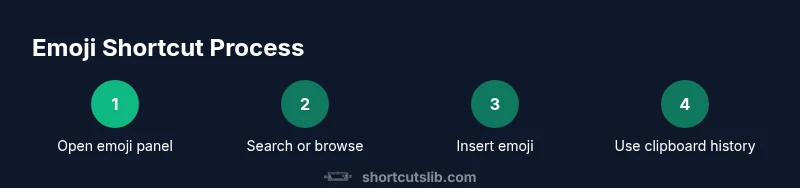
Press Windows key + period (Win + .) to open the emoji panel near the cursor. In some locales you may also use Windows key + semicolon (Win + ;) to summon the panel.
Tip: If nothing happens, verify Windows 10 is updated and language settings include emoji support. - 2
Navigate or search for an emoji
Use the arrow keys or your mouse to browse categories, or start typing to filter by name. Use Enter to select and insert the emoji.
Tip: Typing a keyword like 'smile' speeds up finding common symbols. - 3
Insert the emoji
The emoji should be inserted at the cursor position. If you want more than one, keep the panel open and press Enter again for each selection.
Tip: Some emoji have skin-tone variants; choose a variant if available. - 4
Close or continue inserting
Close the panel with Esc or continue selecting more emoji as needed.
Tip: If the panel stays open, ensure the text field is focused. - 5
Alternative: copy-paste
If the panel isn’t accessible, copy emoji from a reference site and paste into your document or chat.
Tip: Keep a small personal emoji cheat sheet for quick reference. - 6
Use clipboard history for reuse
Enable clipboard history (Win + V) to reuse recently copied emoji across apps.
Tip: Pin your most-used emoji for faster future access. - 7
Font and app consistency
Check how emoji render in your target apps; font support matters for color and size.
Tip: If rendering is off, switch fonts in affected apps if possible. - 8
Office and productivity apps
In Word/Excel/PowerPoint, emoji insertions typically carry through with expected formatting.
Tip: Use wrap text and alignment to keep documents neat. - 9
Advanced automation (optional)
If you’re comfortable with scripting, map a dedicated hotkey to open the emoji panel or create a small macro.
Tip: Test in a safe environment and respect IT policies.
Questions & Answers
What is the emoji shortcut in Windows 10?
The emoji panel opens with Win + . or Win + ;. You select an emoji to insert into your text field. This works in most apps that support Unicode.
Open the emoji panel with Win + period or Win + semicolon, then pick an emoji to insert.
Which Windows 10 versions support the emoji panel?
The emoji panel is available in Windows 10 and later. If you don’t see it, check for updates and ensure the language settings include emoji support.
The emoji panel is included in Windows 10 and newer; update if needed.
Can I customize or favorite emoji?
The panel shows recently used emoji and categories; there isn't a dedicated favorites feature beyond recents.
You rely on the recent items and search to access frequently used emoji.
Why isn’t the emoji panel opening?
Check that Windows is up to date, language settings support emoji input, and that no policy or software blocks the shortcut. Try both Win + . and Win + ;.
Make sure the OS is updated and the panel isn’t blocked by policy.
Is there a shortcut to paste emoji from the clipboard?
Yes. Copy the emoji and paste with Ctrl + V. You can also use Windows clipboard history (Win + V) to manage recent emoji.
Copy the emoji and paste or use clipboard history to reinsert.
Does emoji rendering differ across apps?
Yes. Emoji rendering depends on the app’s font support and rendering engine. Test in your most-used apps and adjust fonts if needed.
Some apps render emoji differently; test and adjust fonts where possible.
Watch Video
Main Points
- Open emoji panel with Win + . or Win + ;
- Insert emoji by pressing Enter; search to filter quickly
- Use recents and clipboard history for fast access
- Test emoji rendering across apps and fonts
- Consider accessibility and language settings for broader support