Emojis Windows 10: Quick and Easy Emoji Input Guide
Learn how to access and use emojis Windows 10 with the built-in emoji panel, Win shortcuts, and clipboard tips. This practical guide from Shortcuts Lib shows step-by-step methods and best practices for reliable emoji input across apps.


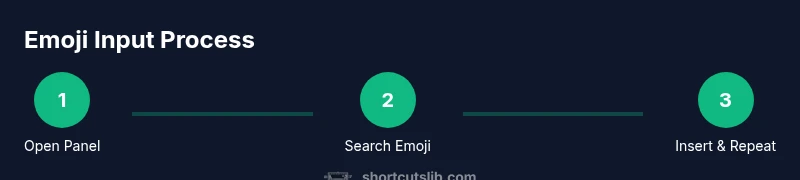
Emojis Windows 10 can be inserted quickly using the built-in emoji panel. Open it with Win + . or Win + ;, search for an emoji, and press Enter to insert it. Use skin-tone variants and copy/paste to reuse across apps. This quick guide highlights essential steps, shortcuts, and best practices for reliable emoji input.
What emojis on Windows 10 bring to your workflow
Emojis Windows 10 are more than decorative characters; they are visual shorthand that can clarify tone, emotion, and intent in messages, emails, notes, and chats. According to Shortcuts Lib, using emoji thoughtfully can reduce ambiguity in quick exchanges and add personality to professional communications without sacrificing clarity. The Windows 10 emoji panel gives you access to a broad family of symbols, including smileys, animals, objects, flags, and emoji modifiers. This section explores the why behind emoji usage and how to leverage them effectively in daily tasks, whether you’re drafting a quick message or composing a detailed document.
Accessibility and inclusivity of emoji usage
Emoji representations can vary between platforms and fonts, which means not all recipients will see the exact same glyph. When choosing emoji, opt for widely recognized symbols and test your output in the apps your audience uses most. Shortscuts Lib’s research indicates that consistent emoji usage across devices improves reader comprehension and reduces misinterpretation in casual and semi-formal contexts. Consider including a brief legend for complex symbols if your audience spans diverse devices and locales.
How Windows 10's emoji panel fits into a modern workflow
The emoji panel is designed to be fast, accessible, and distraction-minimizing. It integrates with any text field, supports search, and provides a curated set of categories for quick discovery. For power users, it offers shortcuts to bring up, navigate, and insert symbols without leaving the keyboard. In practice, this means you can enrich a message in a chat, annotate a document, or caption an image with a few keystrokes—saving time and preserving your typing rhythm.
Tools & Materials
- Windows 10 PC(Any edition with the emoji panel (from 1709 onwards) will work)
- Standard keyboard(With a Windows key for shortcuts)
- Internet access (optional)(Useful for looking up emoji meanings or variants)
- Clipboard history tool (optional)(Helps manage multiple copied emoji across apps)
Steps
Estimated time: 15-20 minutes
- 1
Open the emoji panel
Press Windows key + period (.) or Windows key + semicolon (;) to summon the emoji picker. If the panel does not appear, ensure your Windows 10 OS is updated to a recent build. This panel is universal across text fields, including browsers and document apps.
Tip: Try both Windows + . and Windows + ; to confirm which shortcut is registered on your system. - 2
Search or browse for your emoji
Type a keyword like 'smile' to filter results or browse categories (People, Animals, Food, Travel). The panel supports both quick search and category browsing to speed up your selection.
Tip: Use short keywords to quickly narrow down results; if you know the exact name, type it directly. - 3
Insert the emoji into your text
Click or press Enter to insert the selected emoji into the active text field. The emoji will render in the same font as surrounding text, so check how it looks in the target app.
Tip: If you’re typing in a document, verify font compatibility to avoid misrendered glyphs. - 4
Use skin-tone and variant options
Some emojis have skin-tone modifiers or gender variants. Select the emoji, then choose a variant from the quick options that appear in the panel or in the emoji's pop-up.
Tip: Variant availability depends on the emoji; not all characters have skins or variants. - 5
Copy and reuse emoji across apps
If you prefer, copy the emoji to clipboard and paste it anywhere. Clipboard history tools can help you reuse recently used symbols without reopening the panel.
Tip: Organize frequently used emoji into a clipboard stack for faster access. - 6
Manage recent emojis for speed
Most emoji panels keep a recent section. Rely on this for quick insertion in repetitive tasks, but remember that recent picks may differ across apps due to rendering.
Tip: Clear or pin frequently used symbols if your workflow relies on consistency.
Questions & Answers
How do I open the Windows 10 emoji panel?
Press Windows key + period (.) or Windows key + semicolon (;). The panel appears over your current text field and lets you insert emoji with a click or keyboard. If it doesn’t show, check for updates or restart your PC.
Open the emoji panel by pressing Windows key plus period or semicolon. If it won’t open, check Windows updates and try again.
Can I use emojis in all apps on Windows 10?
Most text input fields support emoji input via the panel, but rendering may vary by app and font. Some apps use custom fonts that render differently.
Most apps support emoji input, but appearance might vary depending on the app and font used.
How do I insert emoji into a document or email?
Open the emoji panel, search or browse for your emoji, then press Enter or click to insert. In some apps, you may also copy and paste from the panel or from a clipboard manager.
Open the emoji panel, pick an emoji, and insert it with Enter or click. You can also paste from clipboard.
Are there skin-tone variants in Windows 10 emoji?
Some emoji support skin-tone modifiers. Select the emoji, then choose a variant from the pop-up options if available. Not all emoji have variants.
Some emoji have skin-tone variants; choose the option if it's shown.
How do I copy emoji for reuse?
You can copy an emoji from the panel and paste it elsewhere. Clipboard history tools can help you manage multiple symbols efficiently.
Copy from the panel and paste wherever you need; clipboard history helps keep track.
Why do emoji look different on Windows 10?
Emoji glyphs depend on the font and rendering engine used by each app. Differences across Windows versions and apps are common.
Glyphs vary by font and app, so appearance can differ.
Watch Video
Main Points
- Learn the Win + . / Win + ; shortcuts to open the emoji panel.
- Search and browse categories to find emoji quickly.
- Use variants and modifiers when available for nuance.
- Test rendering across apps to ensure consistent appearance.