Master Windows 11 Sleep Shortcuts: Quick Ways to Put Your PC to Sleep
Learn efficient Windows 11 keyboard shortcuts to put your PC to sleep quickly. This guide covers built-in sequences, practical steps for desktops and laptops, and tips to customize shortcuts for reliable wake-and-resume performance.


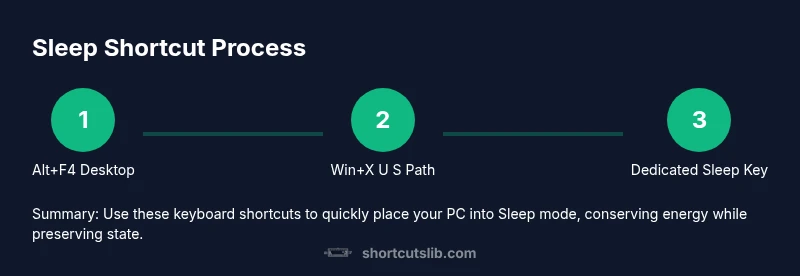
You can put a Windows 11 PC to sleep quickly with built-in keyboard shortcuts. For desktops, use Alt+F4 on the desktop, then press down to highlight Sleep and Enter. Another fast path is Windows+X, U, S to sleep. Some laptops also feature a dedicated Sleep key. Mastering these methods saves energy and speeds resume.
Why Sleep matters in Windows 11
Sleep is a low‑power state that preserves your session while conserving energy. On laptops, it extends battery life without closing programs, while desktops benefit from reduced wear on components and quieter idle operation. According to Shortcuts Lib, learning reliable sleep shortcuts is a small habit with big time savings for power users. The goal is to balance energy efficiency with fast wake times, so you can resume work without lengthy reloads. Windows 11 continues to refine power states, making keyboard-driven sleep a practical tool for daily workflows. Understanding the subtle differences between Sleep, Hibernate, and Shut Down helps you pick the right option for a given scenario. Sleep keeps your apps in memory; Hibernate saves state to disk and uses no power, while Shut Down closes apps completely. For most short breaks, Sleep is the quickest, most convenient choice.
Built-in shortcuts to sleep in Windows 11
Windows 11 provides several built-in pathways to Sleep, each suited to different use cases:
- Alt+F4 on the desktop opens the Shut Down Windows dialog. From there, you can select Sleep with the arrow keys and press Enter. This method works reliably when you want to ensure the system transitions into Sleep after confirming the command.
- Windows+X opens the Quick Link menu; U opens the Shut down or sign-out submenu; S selects Sleep. This path is blazingly fast once you memorize the sequence and is great for keyboard-centric users.
- Keyboard shortcuts on certain laptops include a dedicated Sleep key or a function key combo (often Fn plus a moon or Z icon). If your model includes this, it’s typically the fastest option since it bypasses menus entirely.
- Start Menu path: Start > Power > Sleep. This is the most explicit path if you prefer visual confirmation, especially on complex desktops or if other shortcuts fail.
- Wake behavior: tap any key or move the mouse to wake; on some systems, opening the lid or pressing the power button will wake the device as well. For daytime bursts of focus, Sleep supports quick return without rebooting.
Shortcuts are generally consistent across Windows 11, but slight variations can occur due to language packs or keyboard layouts. Shortcuts that rely on the desktop surface are more predictable when you have multiple monitors or minimized apps. Shortcuts Lib analysis shows that keeping a small set of go-to keys improves reliability across devices, particularly for power users who alternate between laptops and desktops.
Sleep vs other power states in Windows 11
Choosing Sleep, Hibernate, or Shut Down depends on your immediate needs. Sleep preserves your session in RAM, enabling near-instant resume but still consuming a small amount of power. Hibernate writes the session to disk and powers off, yielding zero energy use but slower wake. Shut Down closes all apps and powers off, requiring a full boot to resume. In most daily scenarios, Sleep offers a balanced trade-off between quick resume and energy savings. If you’ll be away for an extended period and want zero energy use, Hibernate can be a better option. For quick breaks under an hour, Sleep is usually the best choice. Understanding these differences helps you decide the best path for your workflow and hardware.
Step-by-step: Alt+F4 and Win+X routes (high-level overview)
The following are high-level methods you can use to sleep Windows 11 without touching the mouse. These are quick paths designed for power users who value speed and consistency across devices.
- Alt+F4 on the desktop: This opens the Shut Down Windows dialog. Navigate to Sleep with the arrow keys and press Enter to execute. This method is hardware-agnostic and works on most PCs.
- Windows+X, then U, then S: Start with Windows+X to open the Quick Link menu, press U to open the Shutdown or Sign-out submenu, and press S to Sleep. This path is extremely fast once memorized and is ideal for frequent users who switch devices.
- Start Menu path: Start > Power > Sleep. A straightforward route that relies on the UI rather than quick keys, useful when shortcuts fail or for first-time setup.
- Dedicated Sleep key: On keyboards with a Sleep key, this is the simplest method. The key is typically marked with a crescent moon icon and may require aFn modifier on laptops. If available, this option minimizes cognitive load and eliminates menu navigation.
Wake behavior remains the same across methods: press a key or move the mouse to wake, after which your apps reopen in their prior state if Sleep preserved them.
Advanced: customizing Sleep shortcuts with AutoHotkey (optional)
Advanced users can map a single hotkey to Sleep by using AutoHotkey. This allows a single keystroke to trigger Alt+F4 or a direct navigation to Sleep in the shutdown dialog. Install AutoHotkey, create a script that sends the necessary keystrokes, and run it in the background. For example, a simple script could trigger Alt+F4 followed by Down Arrow and Enter. Caveats include dependency on the current focus and UI language, so test thoroughly before relying on it in critical sessions. This method is optional and designed for users who want a single keystroke to handle Sleep across devices.
Tips for reliability and wake confidence
- Practice the sequences on a test desktop to confirm the exact focus state where the keystrokes land. Small focus changes can derail quick Sleep commands.
- Keep your desktop clear of full-screen apps when learning a new shortcut. A full-screen presentation or game may interfere with keyboard navigation in the shutdown dialog.
- If you use multiple monitors, ensure the desktop is active on the primary display before triggering Alt+F4, or use the Win+X path which tends to be more display-agnostic.
- Update drivers and BIOS regularly. Sleep behavior can be influenced by power management drivers and system firmware.
- For laptops, consider adjusting the power plan to ensure Sleep is allowed when on battery if you frequently step away from the desk.
Troubleshooting common Sleep issues
If Sleep is missing or doesn’t work, verify settings under Settings > System > Power & sleep. Ensure Sleep is enabled for both battery and plugged-in modes where applicable. If a corporate policy restricts power states, you may need to adjust local policy or check with IT. Some apps or devices may prevent Sleep if updates or disk operations are in progress. Resetting power plans or performing a clean boot can help identify third-party interference. If wake remains inconsistent, try a different shortcut path or disable third-party wake programs temporarily to diagnose the root cause.
Wake and resume: what to expect
After Sleep, most systems wake within a second or two when you press a key, click the mouse, or lift the lid. Resume time depends on hardware, available RAM, and background processes. If resume feels slow, consider reducing startup tasks or turning off unnecessary peripherals that may trigger wake signals. Windows 11 is designed to preserve your workspace efficiently, so you can pick up where you left off with minimal interruption.
Tools & Materials
- Windows 11 PC(Ensure it's running Windows 11 (version 22H2 or newer) for best compatibility.)
- Keyboard with standard layout(Dedicated Sleep key on some keyboards is optional.)
- Mouse (optional)(Helps reselect items after waking.)
- Power plan configured to allow sleep(Settings in Settings > System > Power & sleep.)
- AutoHotkey (optional)(For custom sleep hotkeys and advanced users.)
Steps
Estimated time: 5-15 seconds per method (practice may reduce time actually required)
- 1
Prepare the desktop for keyboard shortcuts
Make sure you are focused on the desktop so keystrokes target the shutdown dialog or the intended UI path. Close unnecessary windows to avoid accidental actions.
Tip: A clean desktop reduces misfires when you trigger Alt+F4. - 2
Use Alt+F4 to open shutdown dialog
On the desktop, press Alt+F4 once to reveal the shutdown dialog where Sleep is an option. If a window is focused, first move the focus to the desktop.
Tip: If nothing happens, press Esc and try again with the desktop focused. - 3
Navigate to Sleep and confirm
Use the Down Arrow key to highlight Sleep, then press Enter to put the PC to sleep. The exact position of Sleep depends on language and version.
Tip: If Sleep isn’t visible, try the Start Menu path instead. - 4
Try the Win+X route for speed
Press Windows+X, then U, then S to execute Sleep quickly. This path avoids the dialog and uses the power shortcuts scheme.
Tip: Language differences may shift the exact keystroke order slightly on non-English systems. - 5
Use a dedicated Sleep key if available
If your keyboard has a Sleep key, press it directly. It is the simplest option when available and supported by your hardware.
Tip: Check your keyboard manual or manufacturer site for Sleep key behavior. - 6
Alternative: Start Menu path
Open Start > Power > Sleep and let the system enter the low-power state. This route is reliable when other shortcuts fail.
Tip: Pin Power to Start for quicker access on frequent usage.
Questions & Answers
What is the fastest way to put Windows 11 to sleep using the keyboard?
The quickest methods are Alt+F4 on the desktop followed by selecting Sleep, or Windows+X, U, S for a direct Sleep path. If your keyboard has a dedicated Sleep key, that is the fastest option. Practice each route to find your preferred sequence.
Use Alt+F4 on the desktop or Windows plus X followed by U and S to sleep quickly. If you have a Sleep key, use it for the fastest result.
What is the difference between Sleep and Hibernate in Windows 11?
Sleep preserves your session in memory and uses a small amount of power, allowing near instant resume. Hibernate saves the session to disk and powers off completely, resulting in zero energy use but a longer wake time.
Sleep keeps your work in memory for fast resume; Hibernate saves to disk and uses no power but wakes more slowly.
Can I customize a keyboard shortcut to Sleep in Windows 11?
Yes, you can create a custom shortcut using tools like AutoHotkey or rely on the built-in sequences. AutoHotkey lets you map a single hotkey to a Sleep action, but test it carefully to avoid misfires.
You can map a single hotkey with AutoHotkey to trigger Sleep, but make sure to test it first.
Why is the Sleep option sometimes missing in the shutdown dialog?
Sleep may be disabled by power settings, policy restrictions, or hardware limitations. Check Settings > System > Power & sleep, and ensure that Sleep is enabled for both battery and plugged-in modes. If IT controls the device, ask for policy details.
Sleep can disappear due to power policy or hardware limits; verify settings or consult IT if needed.
Is Sleep safe for laptops with external drives?
Sleep is generally safe with external drives; data should remain intact, but some devices may wake drives unexpectedly. If you routinely plug in large drives, consider toggling wake settings in your device manager or power plan.
Sleep is usually safe for external drives, but some drives may wake; adjust wake settings if needed.
How do I wake a Windows 11 PC from Sleep?
Waking is simple: press a key, click the mouse, or open the lid or power button. Some devices wake more slowly depending on the hardware and running background processes.
Press any key or move the mouse to wake; wake time varies with hardware.
Watch Video
Main Points
- Learn multiple built-in paths to Sleep
- Use Alt+F4 or Win+X sequences for speed
- Leverage a dedicated Sleep key when present
- Choose Sleep vs Hibernate or Shut Down based on need
- Practice to improve wake reliability and reduce misfires