Keyboard Sleep Shortcut Guide
Learn the keyboard shortcut to put computer to sleep across Windows, macOS, and Linux. This expert guide covers built-in options, how to create custom shortcuts, and best practices from Shortcuts Lib.


A sleep shortcut lets you quickly suspend your computer without a full shutdown. Use the built-in sleep options or a custom keyboard shortcut to activate sleep across Windows, macOS, and Linux. This guide covers defaults, customization, and practical tips to save energy and protect your work.
What a Sleep Shortcut Does and Why It Helps
A sleep shortcut is a fast way to put your computer into a low-power state without fully shutting down. For keyboard enthusiasts, it can be a single keystroke or a compact sequence that fits naturally into your workflow. According to Shortcuts Lib, mastering a reliable keyboard shortcut to put computer to sleep reduces the need to navigate menus and minimizes the risk of leaving apps running. When used consistently, sleep shortcuts can help conserve energy and extend device longevity. In practice, sleep mode dims the display, reduces background activity, and preserves your open documents in RAM so you can resume quickly. The exact behavior depends on the OS, hardware, and your power settings, making it worth understanding the defaults across Windows, macOS, and Linux.
Sleep Behavior Across Operating Systems
Sleep behavior varies by operating system and hardware. Windows commonly treats sleep as a distinct state separate from display-off and hibernate, designed for quick wake-ups. macOS emphasizes display sleep and system sleep, often with shorter wake times, while Linux distributions offer flexible sleep targets that can be bound to desktop environments or waiting states. Knowing these differences helps you pick the right approach for your work style and device. Shortcuts Lib emphasizes tailoring your sleep actions to reduce interruptions while preserving your current session.
Default Sleep Shortcuts by OS: Common Patterns
Across major platforms, you’ll typically find two kinds of shortcuts: (1) built-in accelerators that trigger sleep or display sleep, and (2) configurable shortcuts you can map yourself. Windows desktops often use a Sleep command accessible via a hardware key or the Power/menu options. macOS users commonly sleep the display with a key combo or rely on the Apple menu for system sleep. Linux environments vary by desktop, but most DEs expose a Power or Suspend action you can bind to a keystroke. If your hardware lacks a dedicated Sleep key, most systems still allow you to honor this action through software shortcuts. Shortcuts Lib recommends starting with the built-ins and then extending with custom mappings as needed.
How to Create Custom Sleep Shortcuts (Windows/macOS/Linux)
Custom shortcuts give you precise control over when sleep occurs. On Windows, you can use PowerToys Keyboard Manager or a script to trigger the Sleep command, binding it to a convenient key or macro. On macOS, Automator or a shell script paired with System Preferences lets you assign a shortcut that runs a sleep command or AppleScript to put the machine to sleep. Linux users can create a custom shortcut via the Desktop Environment’s Keyboard settings that executes a suspend command. Each approach minimizes context switching and keeps your workflow intact while delivering instant sleep when you need it.
Troubleshooting Sleep Shortcuts
If a shortcut doesn’t work as expected, check for conflicting bindings or power settings that override sleep. Ensure the shortcut isn’t disabled by a running application or a system policy. Wake-related issues often stem from peripheral devices or BIOS/UEFI wake settings; disabling wake on keyboard or mouse in BIOS can help. If sleep triggers are ignored during heavy I/O tasks, try closing the active applications or temporarily adjusting energy-saving thresholds in the OS settings. Shortcuts Lib suggests testing in a controlled session to identify the exact failure point.
Best Practices: Sleep vs Hibernate vs Shutdown
Sleep saves your session quickly but uses RAM, while hibernate saves to disk and uses less power for longer pauses. Shutdown ends all processes and requires a full boot to resume. Shortcuts Lib recommends using sleep for short breaks, hibernate for longer absences, and shutdown when you won’t return for an extended period. Consistency helps you manage updates, protect unsaved work, and reduce energy consumption.
Accessibility and Power Settings
For users relying on assistive technologies, ensure that sleep shortcuts don’t conflict with accessibility tools. Some screen readers or high-contrast modes can be disrupted by unexpected sleep events. Use visible confirmations, such as an on-screen toast when a shortcut triggers sleep, and keep a documented fallback (e.g., a dedicated Power button) for safety. Managing power profiles to balance performance, sleep duration, and wake responsiveness is a practical step in inclusive computing.
Quick Validation and Real-World Scenarios
Test each shortcut in a real work scenario: an ongoing document, a long-running download, or a video conference. Validate wake reliability by ensuring devices wake from sleep promptly and that unsaved work remains intact. Scenario-based checks help you choose between display sleep and full system sleep to fit your workflow. Shortcuts Lib advocates a phased rollout: start with one OS, verify behavior, then apply the same pattern to other platforms.
Tools & Materials
- Computer with Windows/macOS/Linux(Any modern OS supports sleep; verify power settings for your device.)
- Keyboard(Standard keyboard; no specialized hardware required.)
- Power settings access (OS-specific)(Windows: Power & Sleep; macOS: Energy Saver/Keyboard; Linux: DE Power settings.)
- Shortcut mapping tool (optional)(Windows: PowerToys; macOS: Automator or Shortcuts app; Linux: DE shortcuts editor.)
Steps
Estimated time: 30-60 minutes
- 1
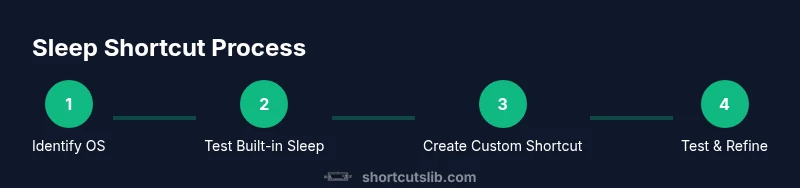
Identify your OS and default sleep method
Determine which operating system you rely on and locate the built-in sleep option in your power or energy settings. Understanding the default behavior helps you decide whether to use a built-in shortcut or create a custom one. This step sets expectations for wake behavior and session preservation.
Tip: Check both display sleep and system sleep options to choose the most appropriate action. - 2
Test the built-in sleep shortcut (if available)
Attempt the built-in shortcut or command in your current environment to observe how quickly the display and system enter sleep. Note how long it takes to wake and whether unsaved work remains intact. This baseline helps you measure the impact of any custom shortcuts you add later.
Tip: If there’s no built-in shortcut, proceed to create a custom one with the OS tools discussed. - 3
Create a Windows custom shortcut (PowerToys or script)
Install PowerToys and use Keyboard Manager to map a key or key combo to the Sleep command. If you prefer, write a short script that triggers system sleep and bind it to a key in PowerToys. Test for reliability with a quick wake test.
Tip: Choose a keystroke that won’t conflict with gaming or other common shortcuts. - 4
Create a macOS custom shortcut (Automator/AppleScript)
Use Automator or a simple AppleScript to trigger system sleep, then bind it to a keyboard shortcut in System Preferences > Keyboard > Shortcuts. Ensure the action runs with your user privileges and during typical workflows.
Tip: Label the shortcut clearly to avoid confusion with other system actions. - 5
Create a Linux custom shortcut (DE shortcuts editor)
Open your desktop environment’s keyboard shortcuts editor and add a new command that runs suspend (e.g., systemctl suspend or dbus-send). Assign a comfortable key combo and test wake behavior.
Tip: Some environments require root privileges for suspend; use sudo if needed and secure your session. - 6
Test all shortcuts in practice
Trigger each shortcut during normal work tasks, verifying that the system sleeps and wakes predictably without losing data. Repeat across a couple of apps to ensure robustness.
Tip: Disable notifications temporarily to avoid interruptions during testing. - 7
Refine and document your setup
Choose the most reliable and convenient shortcut, then document its location and behavior for future reference. Consider creating a backup shortcut in case the primary one conflicts with other software.
Tip: Keep a simple one-page note near your workstation for quick recall.
Questions & Answers
Is there a universal keyboard shortcut to put any computer to sleep?
No universal shortcut exists. Sleep shortcuts depend on the operating system, hardware, and user settings. Start with built-in options and then add custom mappings if needed.
There isn’t a universal shortcut. It varies by OS and hardware, so check your system’s power options first.
How do I customize a sleep shortcut on Windows 10/11?
On Windows, you can use PowerToys Keyboard Manager to map a key to the Sleep command, or create a script that triggers sleep and bind it to a keystroke.
In Windows, use PowerToys to remap a key to sleep, or set up a small script and bind it to a keyboard shortcut.
Can I display-only sleep without locking the computer?
Yes. Many setups allow you to sleep the display or the entire system. Check the specific shortcut options in your OS power settings to choose whether to dim just the display or suspend the whole machine.
You can sleep just the display or the full system by adjusting your shortcut’s target in power settings.
Is it safe to sleep while running long tasks?
Sleeping during long tasks is generally safe if the task is interruptible. For critical transfers or updates, ensure progress is saved or paused properly before sleep.
If you’re doing something important, save progress first and confirm it’s safe to sleep.
Can I assign a sleep shortcut on Linux to a USB keypad?
Yes. Most desktop environments support custom shortcuts that can be bound to any connected keyboard, including USB macro keypads, to trigger suspend.
You can map a USB keypad key to a sleep command just like any other shortcut.
What should I do if my computer wakes up immediately after sleeping?
This can happen due to wake-on-keyboard or wake-on-LAN settings. Disable those features in BIOS/UEFI and OS power settings if you don’t need them for quick wake-ups.
If it wakes up by itself, check wake-on settings in BIOS and OS power options.
Watch Video
Main Points
- Learn OS-specific sleep behavior and choose the right shortcut approach
- Use built-in options first, then customize with trusted tools
- Test wake reliability to protect unsaved work
- Document and back up your shortcut mappings
- Balance sleep with energy-saving goals for your setup