Sleep Keyboard Shortcut Windows 7: A Practical Guide
Master Windows 7 sleep shortcuts with keyboard tricks. This Shortcuts Lib guide covers defaults, fast configuration, troubleshooting, and energy-saving practices.


Sleep keyboard shortcut windows 7 helps you quickly put your PC into a low-power state using built-in methods. The simplest built-in method is Alt+F4 on the desktop, then selecting Sleep and pressing Enter. You can also create a custom sleep shortcut via a desktop shortcut and assign a hotkey.
Why Sleep Shortcuts Matter for Power Users
In today’s fast-paced computing world, small efficiencies compound into big time savings. A reliable sleep shortcut lets you pause your work without hunting through menus, keeping your focus on the task at hand. For power users and keyboard enthusiasts, knowing how to nudge a Windows 7 machine into sleep with a few keystrokes reduces interruptions, conserves energy, and extends battery life on laptops. According to Shortcuts Lib, mastering core shortcuts like sleep is a foundational skill that compounds with other productivity tricks. When you know where and how sleep happens, you gain predictable behavior from your system—resume is quick, and you’re back to work without waiting for the OS to boot. This guide uses practical steps you can execute immediately, with minimal setup and no extra software.
Default Sleep Shortcut in Windows 7: What You Need to Know
Windows 7 ships with Sleep as a supported power state. The fastest built-in path to Sleep is usually via the desktop context: press Alt+F4, use the arrow keys to select Sleep, and press Enter. If Sleep isn’t visible in the Shut Down Windows dialog, you can still reach it by ensuring your desktop is active and the Power Options are configured to allow Sleep from the Start Menu. These built-in options provide a reliable baseline for quick, consistent Sleep behavior. Shortcuts Lib notes that consistency matters: if Sleep behaves differently across scenarios (desktop, laptop on battery, or external monitor), unify the power plan first.
Trigger Sleep Without a Menu: Alt+F4 on the Desktop
This is one of the fastest, universally available methods. On an empty desktop, press Alt+F4 to open the Shut Down Windows dialog. Use the arrow keys to highlight Sleep, then press Enter. If you keep pressing Tab, you’ll see other options like Shut down, Restart, or Hibernate depending on your configuration. This technique works without enabling any additional software and relies on a standard Windows 7 feature. Pro tip: ensure no modal dialog boxes or fullscreen apps are stealing focus, or the Alt+F4 sequence may close the active application instead of opening the dialog.
Creating a Custom Sleep Shortcut: Safe, Step-by-Step
If you want a single keystroke to trigger Sleep, you can create a desktop shortcut and assign a hotkey. Start by right-clicking the desktop, choosing New > Shortcut, and pointing to a Sleep command (see caution below). Next, open the shortcut’s Properties and set a keyboard shortcut (e.g., Ctrl + Alt + S). Note: Windows 7 may require a command like rundll32.exe powrprof.dll,SetSuspendState 0,1,0 to invoke Sleep directly from a shortcut; if Hibernate is enabled, Sleep might actually hibernate. Disable or adjust Hibernate via Power Options if you want strict Sleep-only behavior. Test the shortcut after creation and adjust if the system wakes unexpectedly.
Configuring Power Settings for Consistent Sleep Behavior
Power settings shape how Sleep behaves across power states. Navigate to Control Panel > Hardware and Sound > Power Options, then choose or customize a plan. Ensure Sleep is enabled under both On battery and Plugged in, and set reasonable timers for display off and system sleep. Decide whether you want a password prompt on wakeup and whether to allow wake timers. These settings prevent surprises when the screen turns off or when the device wakes up while you’re away. Shortcuts Lib recommends aligning settings across devices in your environment to minimize inconsistent sleep experiences.
Troubleshooting Common Sleep Issues
If Sleep won’t engage or wakes immediately, start with basic checks. Verify that the power plan actually enables Sleep and that no wake timers are forcing wakeups. Check Device Manager for hardware that might wake the PC (network adapters, USB devices). Disable Wake-on-LAN if you don’t need remote wake. If a custom shortcut doesn’t work, review the command syntax and ensure Hibernate isn’t interfering. Keeping drivers up to date helps prevent wake issues from peripheral hardware.
Best Practices: Sleep vs Hibernate vs Power Plans
Sleep and Hibernate are not the same. Sleep preserves your session in RAM with low power, while Hibernate saves a full image to disk and powers off. For quick resumes, Sleep is ideal; Hibernate is safer for long-term storage of work between sessions. Use Power Plans to balance energy savings with responsiveness, particularly on laptops. Configure a plan that favors Sleep during routine work and uses Hibernate only when you won’t be using the device for extended periods. Shortcuts Lib emphasizes consistent usage patterns to avoid unexpected data loss.
Real-World Scenarios: Everyday Uses of Sleep Shortcuts
A morning workflow might start with pressing Alt+F4 to Sleep the previous session, then a quick wake and resume when the user returns. On a laptop, a hotkey to Sleep accelerates transitions between meetings or focus blocks. For students, Sleep shortcuts reduce the friction of moving between study apps and virtual lectures. In shared environments, a reliable Sleep shortcut helps maintain privacy by turning off visible activity when stepping away briefly. By practicing a few reliable methods, you can pick the approach that fits your routine and hardware.
Quick Maintenance and Longevity of Sleep Functionality
Keep Sleep reliable by periodically checking power settings, updating drivers, and testing your shortcuts. Revisit wake timers after major OS updates and re-evaluate whether Hibernate settings affect Sleep behavior. Document your preferred shortcut and test it monthly to ensure it still works after restarts or driver updates. Regular practice reduces missed sleeps and ensures fast resumes. Shortcuts Lib suggests keeping a small cheatsheet handy for quick reference.
Tools & Materials
- Windows 7 PC (desktop or laptop)(Must be running Windows 7 with Sleep support)
- Keyboard(Standard layout; wired or wireless acceptable)
- Access to Power Options(Open Control Panel > Hardware and Sound > Power Options to verify Sleep settings)
- Desktop Shortcut (optional)(If creating a custom shortcut for Sleep, see the rundll32 command guidance)
Steps
Estimated time: 15-25 minutes
- 1
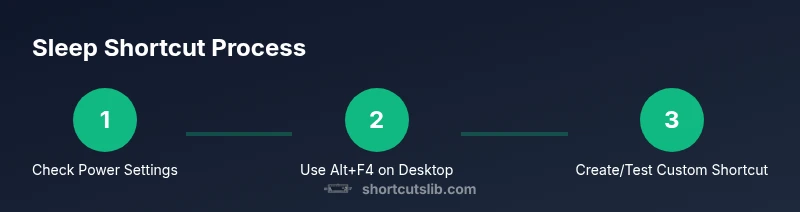
Check Power Settings for Sleep
Open Control Panel > Hardware and Sound > Power Options and confirm that Sleep is enabled for both battery and plugged-in modes. Ensure timers are set to reasonable values so the system can enter Sleep after short idle periods without losing work. This baseline ensures the rest of the steps behave predictably.
Tip: If Sleep is disabled in any plan, enable it before proceeding. - 2
Use Alt+F4 on the Desktop
With the desktop in focus, press Alt+F4 to open the Shut Down Windows dialog. Use the arrow keys to select Sleep and press Enter to engage Sleep. This built-in method works without any configuration changes and is a quick, reliable fallback.
Tip: Ensure no fullscreen apps are stealing focus when you press Alt+F4. - 3
Create a Sleep Shortcut (Advanced)
Right-click the desktop > New > Shortcut. If you’re comfortable with command-line calls, you can point the shortcut to a Sleep command (for example, rundll32.exe powrprof.dll,SetSuspendState 0,1,0). Save and name the shortcut clearly.
Tip: Be aware this may affect Hibernate; disable Hibernate if you want strict Sleep. - 4
Assign a Keyboard Shortcut to the Sleep Shortcut
Right-click the newly created shortcut > Properties > Shortcut key. Click in the Shortcut key field and press the desired key combination (e.g., Ctrl+Alt+S). This assigns a global hotkey that triggers Sleep via your shortcut.
Tip: Avoid using combinations that are already used by other apps. - 5
Test and Validate
Click the shortcut or press the assigned hotkey. Confirm the screen goes dark and the system enters Sleep smoothly. Wake with any key or mouse movement to verify resume behavior. Repeat on battery and AC power to ensure consistency.
Tip: If wake timers wake the PC, disable them in Power Options. - 6
Tweak as Needed
If Sleep appears inconsistent, revisit Power Options and wake options, ensuring there are no conflicting timers or drivers. Update device drivers if wake events persist.
Tip: Document the final setup so you can reproduce it easily.
Questions & Answers
What is the easiest way to put Windows 7 to sleep using a keyboard shortcut?
The quickest built-in method is to press Alt+F4 on the desktop, then select Sleep and press Enter. This uses only Windows 7 default behavior without extra software.
Use Alt+F4 on the desktop to open the shutdown dialog, choose Sleep, and press Enter.
Can I create a custom hotkey that puts Windows 7 to sleep?
Yes. Create a desktop shortcut for Sleep (if you have a command like rundll32.exe powrprof.dll,SetSuspendState 0,1,0) and then assign a keyboard shortcut in the shortcut’s properties.
You can map a hotkey to a Sleep shortcut to activate Sleep with one press.
Why does Sleep sometimes wake up immediately after going to sleep?
Wake timers or hardware devices can wake the PC. Check Wake timers in Power Options and disable Wake-on-LAN or device wake signals if unwanted.
Some devices wake the PC; disable wake timers in settings to prevent this.
Is Sleep safe for laptops?
Yes, Sleep is safe for laptops and helps save battery. Ensure critical updates aren’t interrupted and that you save work before Sleep.
Sleep is safe for laptops as long as you save your work before you go to sleep.
How do I verify that my new Sleep shortcut works on Windows 7?
Test the shortcut or hotkey after creation by triggering Sleep and confirming the system resumes correctly with your work intact.
Test it by triggering Sleep and then waking the PC to confirm your session is preserved.
Watch Video
Main Points
- Learn the built-in Alt+F4 method for rapid Sleep access
- Create a dedicated Sleep shortcut if you want one-key access
- Align power settings to ensure predictable Sleep behavior
- Test Sleep regularly to catch wake issues early