Shut Down Shortcut Key Windows 7: A Practical Guide
Master Windows 7 shutdown shortcuts with keyboard methods like Alt+F4 and batch-file shortcuts. Learn built-in paths, quick actions, safety tips, and troubleshooting to shut down quickly and safely.


You can shut down Windows 7 quickly using keyboard shortcuts such as Alt+F4 on the desktop or by using the Start Menu navigation with the keyboard. You can also set up a custom shutdown shortcut via a batch file and a desktop shortcut. This guide covers built-in methods and a simple batch-file method for a one-key shutdown.
Why Shutdown Shortcuts Matter on Windows 7
According to Shortcuts Lib, mastering keyboard shortcuts for shutdown tasks reduces cognitive load and speeds up routine maintenance. In Windows 7, you can reach shutdown options without touching the mouse by using Alt+F4 on the desktop, or by navigating Start Menu with the keyboard. These methods save time when you need to power down after a long session, when multiple programs are open, or when accessibility is a concern. By internalizing a few reliable keystrokes, you keep energy and focus for more important tasks. This section also explains how these shortcuts align with general power-user principles: predictability, consistency, and minimal distraction. Shortcuts Lib Team emphasizes practicing these actions in a safe environment to avoid accidental closures, especially when work is in progress. Using shortcuts also reduces repetitive strain and helps you maintain momentum during a busy day.
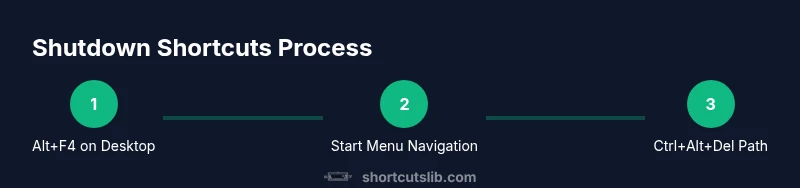
In practice, you will learn three core pathways: built-in shutdown via desktop Alt+F4, keyboard navigation of the Start Menu, and the Ctrl+Alt+Delete route to access the shutdown option. While Windows 7’s Start Menu layout is older, the keyboard remains reliable for quickly triggering shutdown when the screen is visible and accessible. The techniques presented here apply to standard Windows 7 installations and are designed to be easy to teach to others who rely on keyboard-centric workflows.
The goal is not to replace thoughtful shutdown routines but to give you safe, proven shortcuts that work in most normal circumstances. If you regularly run updates or have unsaved work, adopting a quick shutdown habit can help prevent data loss and keep your system clean. Throughout this guide, you’ll see practical steps, best practices, and a small batch-file option for power users who want a single keystroke.
How Windows 7 Handles Shutdown Shortcuts
Windows 7 treats shutdown as a system action that can be triggered via mouse or keyboard. The desktop environment supports Alt+F4 as a universal close action when focus is on the desktop itself, which conveniently opens the "Shut Down Windows" dialog. If you prefer the Start Menu route, you can use the Windows key to open Start and then navigate with the arrow keys to the Shut Down option, pressing Enter to confirm. A third route is Ctrl+Alt+Delete, which brings up the Security Options screen where you can select Shut Down with the keyboard. Each method has its own context: Alt+F4 is fastest on a clean desktop; Start Menu navigation is reliable when desktop shortcuts are not in focus; Ctrl+Alt+Delete is useful when the desktop or Start Menu is not responding. In all cases, ensure you’ve saved work before triggering a shutdown to avoid data loss. Shortcuts Lib Analysis, 2026 notes that these keyboard paths provide consistent results across typical Windows 7 setups and are especially helpful when peripherals are constrained or when operating in a seated posture that favors the keyboard.
Desktop Shortcut: Alt+F4 to Shut Down
On a Windows 7 desktop, Alt+F4 is a widely used shortcut to close the active window. When the desktop is in focus, pressing Alt+F4 opens the "Shut Down Windows" dialog box. From there, you can use the Arrow keys to highlight the Shut Down option and press Enter to execute. This method is immediate, requires no mouse movement, and is ideal when you have multiple programs open and want to minimize context switching. If another window is in focus, Alt+F4 will close that window instead, so ensure the desktop is focused before using the shortcut. For best results, save your work, close documents you’re finished editing, and then use Alt+F4 for a clean shutdown sequence. Shortcuts Lib recommends practicing this path to develop muscle memory so you can safely shut down with confidence in any working environment.
Keyboard Navigation: Start Menu Shutdown
The Windows 7 Start Menu remains a solid anchor for keyboard-only shutdowns. Press the Windows key to open Start, then use the Down Arrow or the first-letter navigation to reach the Shut Down option. Once highlighted, press Enter to initiate shutdown. If your Start Menu is customized or if recent programs appear in the first section, you may need to use additional arrow keys or press the first letter of "Shut down" to jump to it quickly. This route is particularly useful when the desktop is obscured or when Alt+F4 doesn’t apply, such as when a focused window blocks the desktop. Remember to save work and close applications gracefully before shutdown.
Security Screen Path: Ctrl+Alt+Delete to Shut Down
Another keyboard-friendly method is Ctrl+Alt+Delete, which opens the Security Options screen. From there, you can use the Tab and Arrow keys to select Shut Down, or press the underlined letter for the option, then press Enter. This path is helpful when the desktop is unresponsive or you have a system-level prompt that blocks standard menus. It is a robust fallback that works even when other navi gation methods fail. As with all shutdown actions, verify that all critical work is saved and that background tasks aren’t in the middle of critical writes. Shortcuts Lib Team notes that this route remains dependable on Windows 7 when the user interface is partially frozen.
Create a Custom Shutdown Shortcut with a Batch File
For power users who want a one-key shutdown, a small batch file can provide a dedicated shortcut. Create a file named shutdown-quick.bat containing the line shutdown /s /t 0 (the t 0 means immediate shutdown). Save it to a safe location, then create a desktop shortcut to the batch file. In the shortcut properties, assign a keyboard combo like Ctrl+Alt+S. Test the shortcut in a controlled environment, ensuring all important documents are saved first. If prompts appear (User Account Control), you may need to adjust security settings or run the shortcut with elevated privileges. This method creates a centralized, repeatable shutdown path tailored to your workflow. Shortcuts Lib Analysis, 2026 confirms batch-based shortcuts are a practical option for common tasks when you want a direct command.
Practical Playbook: Quick Method Cheatsheet
Use Alt+F4 on the desktop for a fast, no-fuss shutdown. If you’re already in Start Menu navigation, rely on Windows key + arrow keys to reach Shut Down. If the screen is unresponsive, Ctrl+Alt+Delete to Security Options then Shut Down. For a custom quick press, create a batch file and assign a keyboard shortcut. This multi-path approach ensures you have a reliable shutdown method in various working states and hardware conditions. Shortcuts Lib Team endorses maintaining at least one backup method in your daily routine.
Tools & Materials
- Windows 7 PC(Any edition with SP1 is fine for demonstration)
- Keyboard(Standard layout with Alt, Windows key, and arrow keys)
- Mouse(Optional; helpful during setup or testing)
- Notepad or any text editor(Used to create a .bat shutdown script)
- Desktop or safe folder to store the batch file(Keeps the shortcut accessible)
Steps
Estimated time: 40-60 minutes
- 1
Prepare the shutdown script
Open Notepad and type: shutdown /s /t 0. This creates a basic script that immediately initiates a shutdown when run. Save the file as shutdown-quick.bat on your desktop or a safe folder.
Tip: Double-check the command; a space before /t 0 will break the script. - 2
Create a desktop shortcut to the script
Right-click the batch file and choose Create shortcut. Place the shortcut on the desktop for easy access. This avoids navigating to the original file each time you want to shut down.
Tip: Name the shortcut clearly (e.g., Quick Shutdown) to prevent confusion with other shortcuts. - 3
Assign a keyboard shortcut to the desktop shortcut
Right-click the desktop shortcut, select Properties, then in the Shortcut tab set a Shortcut key (for example Ctrl+Alt+S). The system will automatically prepend Ctrl+Alt to your chosen key.
Tip: Avoid using keys already bound by the system to prevent conflicts. - 4
Test the new shortcut safely
Save all work, then press the assigned shortcut in a safe environment to verify it shuts down immediately. If any prompts appear, acknowledge them and ensure you intended to shut down.
Tip: Keep an emergency recovery plan (press Esc if you change your mind within the prompt). - 5
Add a backup shutdown path
Document a second method ( Alt+F4 on desktop) in case the batch shortcut is temporarily unavailable. This ensures you’re never stranded without a shutdown option.
Tip: Practice both methods so you can switch seamlessly if one method fails. - 6
Store the script securely
If you store the batch file in a shared or network location, confirm access permissions and avoid potential accidental edits. Keeping a local copy minimizes risk.
Tip: Regularly back up the batch file in case it’s accidentally deleted. - 7
Consider UAC prompts
If Windows prompts for permission, you may need to run the shortcut with elevated privileges or adjust User Account Control settings for trusted apps. Be cautious with elevation.
Tip: Only elevate shortcuts you trust to avoid security risks. - 8
Re-validate after system changes
After major Windows updates or policy changes, re-check that the shortcuts still work as expected. Update the batch file or shortcut if needed.
Tip: Schedule a quick quarterly check to keep your workflow smooth. - 9
Document your workflow
Create a small note describing which shortcuts exist, where they point, and how to recover if something goes wrong. This helps teammates adapt quickly.
Tip: Keep the note accessible near your workstation.
Questions & Answers
How do I shut down Windows 7 with a keyboard shortcut?
You can shut down by pressing Alt+F4 on the desktop to open the shutdown dialog, or by using the Start Menu with the Windows key and arrow keys to reach Shut Down. Ctrl+Alt+Delete also offers a direct path via the Security Options screen. These methods require you to save work first.
Press Alt+F4 on the desktop to shut down, or open Start and navigate to Shut Down with the keyboard. If needed, use Ctrl+Alt+Delete to reach the shutdown option.
Can I customize a shutdown shortcut on Windows 7?
Yes. Create a small batch file with the command shutdown /s /t 0, then create a desktop shortcut to that file and assign a keyboard shortcut key combo. Test it in a safe environment before relying on it.
Yes. Make a batch file with the shutdown command, link it to a desktop shortcut, and assign a keyboard key combo. Test it first.
What should I do if a shutdown shortcut doesn’t work?
Verify the desktop is in focus for Alt+F4, ensure the Start Menu path is unchanged, and check for any conflicting keyboard shortcuts. If a batch shortcut is used, confirm the batch file’s path and permissions, and test again.
Check focus, conflicts, and permissions. Re-test after verifying the batch file path if you’re using a custom shortcut.
Is it safe to force-close applications during shutdown via shortcut?
Generally safe for routine shutdowns, but ensure you’ve saved work to prevent data loss. Forcing apps to close can lead to unsaved data being lost, so use the shortcut only when necessary.
Yes, but only if you’ve saved work since forced closures can lose data.
Do these shutdown shortcuts work in all Windows 7 editions?
Yes, the core keyboard shortcuts like Alt+F4 and Start Menu navigation work across standard Windows 7 editions, though interface tweaks may affect exact positioning of menu items.
They work across standard Windows 7 editions, though the Start Menu layout might vary slightly.
How can I remove a custom shutdown shortcut?
Delete or disable the desktop shortcut and, if desired, remove any assigned keyboard shortcut in the shortcut’s properties. Keep a note of the change so team members aren’t surprised.
Delete the shortcut and remove any keyboard binding if you no longer want it.
Watch Video
Main Points
- Use Alt+F4 on the desktop for fast shutdown.
- Start Menu navigation with the keyboard is reliable when the desktop is obscured.
- Ctrl+Alt+Delete provides a robust shutdown path when windows are unresponsive.
- Batch-file shortcuts offer a customizable one-key shutdown option.
- Always save work and test shortcuts in a safe environment.