Windows 10 Keyboard Shutdown Shortcuts: A Practical Guide
Learn fast keyboard shortcuts to shut down Windows 10, plus safe alternatives, tips, and step-by-step instructions for power users and keyboard enthusiasts.


Master Windows 10 keyboard shutdown shortcuts to power off quickly and safely. This guide covers Alt+F4 on the desktop, Start menu paths, and Power User navigation, plus tips for unsaved work, emergency shutdown, and creating a custom shortcut. Learn practical steps you can rely on on laptops and desktops, with safety reminders for updates and data integrity.
Why fast shutdown matters
From a productivity perspective, the ability to shut down Windows 10 quickly reduces time lost to prompts and idle navigation. Power users know that the difference between a minute-long shutdown ritual and a 10-second keyboard routine compounds over the day. The ability to shut down with a few keystrokes also helps when you're working in environments with limited mouse control or need to power off during a live demo. According to Shortcuts Lib, mastering keyboard shutdown shortcuts can save seconds and keep your workflow smooth. In a typical work cycle, a quick shutdown right from the desktop ensures you end a session cleanly, preserve data integrity, and avoid leaving apps in limbo. This section lays out why you might choose a keyboard path, and what to expect from each approach, including the differences between a full shutdown, a quick sign-out, and a warm restart.
Understanding Windows 10 shutdown options
Windows 10 offers multiple ways to power down, sleep, or hibernate. A full shutdown closes all apps cleanly and turns off the hardware, while Sleep preserves your session in a low-power state for a fast resume. Hibernate saves the session to disk, which can be useful on laptops with limited battery life. When you use keyboard shortcuts, you typically aim for a full shutdown for security or maintenance, but you should consider your current task—unsaved work, ongoing updates, or background processes can influence the best choice. Shortcuts Lib analysis shows that the availability of keyboard shutdown options varies slightly by build and policy, but the core paths remain stable across Windows 10.
Alt+F4 on the desktop: a clean, reliable shutdown
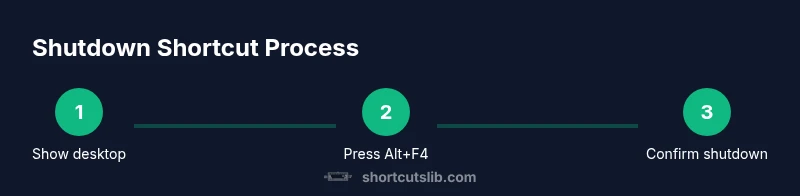
Alt+F4 is a classic keyboard-based shutdown method for Windows. When focused on the desktop, pressing Alt+F4 opens the generic Shut Down Windows dialog. From there, you can press Enter to confirm the shutdown, or use the arrow keys to select the Shutdown option before pressing Enter. This path works consistently on most Windows 10 installations and does not require mouse input, making it a favorite for demonstrations and speed runs. If no dialog appears, verify that your focus is on the desktop and not in a full-screen app. This method is particularly effective when you want a clean shutdown without additional prompts.
Start Menu keyboard path options
A robust alternative is to use the Start menu with the keyboard. Press the Windows key to open Start, then use Tab and Arrow keys to reach the Power button, and press Enter to reveal the shutdown options. From there, use the Arrow keys to choose Shutdown with Enter to confirm. This method is portable across devices and works even if Alt+F4 is disabled by policy or blocked by full-screen apps. It’s also friendly for laptops where the Windows key is easy to reach but mouse control is limited.
Windows key + X and other keyboard navigations
The Windows key + X shortcut opens the Quick Link menu. You can then navigate to Shut down or sign out via the keyboard, and select Shut down using Enter. If your system uses a different regional keyboard layout or a non-standard mapping, rely on the directional keys to reach the shutdown option. This route is useful when you need to access a shutdown path quickly on a device without a traditional Start menu layout.
When the system is unresponsive
If the PC becomes completely frozen, a keyboard-based shutdown may not respond. The safest recourse is to use the physical power button as a last resort. Hold the button for 5-7 seconds to force power-off, then restart. Do not rely on this method unless every other option has failed because it can corrupt data or cause file system issues if the system is mid-write.
Post-shutdown steps and safety reminders
After shutdown, press the power button to restart and log in. If updates are pending, allow them to complete during the next startup to avoid repeated reboot cycles. Consider enabling startup options like 'Fast startup' if supported by your device to reduce wake time. Finally, ensure you have backups and saved versions of critical documents to minimize potential loss during abrupt shutdowns.
Create a custom keyboard shortcut for shutdown
You can create a dedicated keyboard shortcut that shuts down Windows 10 by crafting a small desktop shortcut with the command shutdown /s /t 0, then assigning a keyboard combination through the shortcut's properties. This approach gives you a single keystroke to power off even faster. Test it in a safe environment and document your keystroke for future reference.
Tools & Materials
- Windows 10 PC (desktop or laptop)(With a working keyboard and display)
- Keyboard(Any standard keyboard, wired or wireless)
- External keyboard (optional)(Useful for testing layouts)
- Notes/app for saving work(Optional but recommended to prevent loss)
Steps
Estimated time: 6-12 minutes
- 1
Prepare the desktop
Ensure you are on the Windows desktop so keyboard shortcuts affect the desktop shutdown dialog rather than an active application. If you can, minimize all windows or press Windows+D to reveal the desktop. This reduces accidental closures and helps you act quickly.
Tip: If you frequently work with full-screen apps, allocate a moment to switch to the desktop before starting. - 2
Open the shutdown dialog with Alt+F4
From the desktop, press Alt+F4. This opens the standard Shut Down Windows dialog. If nothing happens, confirm that no window has the focus and try again.
Tip: Make sure all important work is saved to avoid data loss when the dialog appears. - 3
Select Shutdown and confirm
In the shutdown dialog, use the keyboard to select Shutdown. If necessary, navigate with Tab and the arrow keys to the Shutdown option, then press Enter to confirm.
Tip: If the dialog already highlights Shutdown, you can simply press Enter to proceed. - 4
Alternative: Start menu shutdown path
Open Start with the Windows key, then navigate to the Power button using the keyboard. Open the shutdown options and select Shutdown using Enter or the arrow keys.
Tip: This path is reliable when Alt+F4 is blocked by certain apps or policies. - 5
Alternative: Windows key + X navigation
Press Windows+X to open the Quick Link menu. Move with the keyboard to 'Shut down or sign out' and select Shutdown with Enter.
Tip: If you’re on a non-US layout, rely on directional keys rather than letter cues. - 6
If the system freezes
If the system is completely unresponsive, the hardware power button becomes necessary. Hold it for 5-7 seconds to force power-off, then restart.
Tip: Use this only after trying all keyboard-based methods and when data loss risk is high. - 7
Post-shutdown prep
When you boot back up, check for pending updates and allow them to finish. Configure startup settings to improve boot/shutdown performance if desired.
Tip: Keep a small checklist to ensure you saved critical work before shutdown. - 8
Create a one-key shutdown shortcut
Right-click the desktop, create a new shortcut with 'shutdown /s /t 0', then assign a keyboard shortcut under the shortcut's properties. Test and document your keystroke for future reference.
Tip: Place the shortcut somewhere easy to reach and remember.
Questions & Answers
What is the quickest keyboard shortcut to shut down Windows 10?
The quickest built-in method is Alt+F4 on the desktop, which opens the shutdown dialog; press Enter to confirm. This works reliably across Windows 10 builds when you are on the desktop.
Press Alt+F4 on the desktop to open the shutdown dialog, then press Enter to shut down.
Can I shut down Windows 10 without a mouse?
Yes. Use Alt+F4 on the desktop or Start menu keyboard navigation (Windows key, then arrows to Power, then Enter) to shut down without a mouse.
Yes, you can shut down with keyboard methods like Alt+F4 on the desktop.
What happens to unsaved work when using keyboard shutdown?
If there are unsaved changes, Windows will prompt you to save before shutdown. If you confirm, unsaved work may be lost.
You’ll usually be prompted to save; save to avoid losing work.
Is a forced shutdown safe?
Forced shutdown should be a last resort if the system is unresponsive. It can risk data loss and file system damage.
Only use the power button if the system is completely frozen.
How can I create a custom keyboard shortcut to shut down?
Create a desktop shortcut with 'shutdown /s /t 0' and assign a keyboard shortcut via the shortcut’s properties. Test to ensure it works as expected.
You can make a keystroke that runs 'shutdown /s /t 0' to shut down.
Do these shortcuts interfere with sleep or hibernate modes?
Shutdown shortcuts power down completely. Use Start menu options or power settings to sleep or hibernate.
Shutdown shortcuts turn the PC off; use the Start menu for sleep or hibernate.
Watch Video
Main Points
- Master key shutdown path: Alt+F4 on desktop
- Use Start menu or Win+X for alternatives
- Create a custom shutdown shortcut for speed
- Avoid shutdown during updates or heavy disk activity