Windows 10 Shutdown Shortcut Keys: A Practical How-To
Master fast keyboard shutdowns on Windows 10 with Alt+F4, Windows+X, and Start-menu paths. Practical, safe guidance for tech users who want mouse-free power-downs.


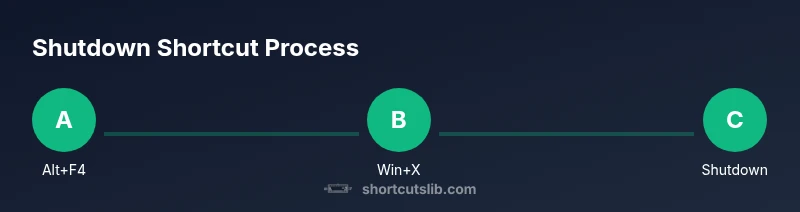
Using keyboard shortcuts, you can shut down Windows 10 quickly without a mouse. The classic method is Alt+F4 on the desktop to open the Shut Down Windows dialog, then press Enter. A faster path for power users is Windows+X, U, U to perform a full shutdown. This article covers these steps and safer alternatives.
Keyboard shutdown basics
Shutting down Windows 10 with the keyboard is not only convenient when your mouse is unavailable; it can also save time during repetitive computer usage. The key is knowing a few reliable sequences that work from the desktop, the lock screen, or the Start menu. According to Shortcuts Lib, the most consistent outcomes come from keyboard-driven routes that start on the desktop. When you practice these techniques, you maintain fluency across apps and windows, reducing the risk of accidental data loss. First, get into the habit of saving work, closing critical documents, and ensuring that background tasks are paused before powering down. This preparation makes keyboard shutdown smooth and predictable, especially in busy work environments where quick turnarounds matter.
Alt+F4: the classic desktop shutdown
Alt+F4 on the Windows desktop is a robust way to trigger the shutdown dialog without a mouse. You should first ensure your desktop is focused (no applications active). Press Alt+F4, and Windows will present the Shut Down Windows dialog. Use the arrow keys to select “Shut down” and press Enter. If the dialog is not visible, try pressing Tab until the focus lands on the dialog. This method works even on systems with minimal UI responsiveness, making it a dependable go-to in many scenarios.
Power-user path: Windows key + X, U, U
For power users who want a direct shutdown path without navigating dialogs, the Windows key plus the power user menu offers a fast route. Press Windows+X to open the Power User Menu, then press U to select “Shut down or sign out,” and press U again to choose “Shut down.” Confirm with Enter if prompted. This sequence is especially useful when Alt+F4 does not land you on the shutdown option due to window focus; it bypasses the need to interact with the desktop content.
Start menu and search: keyboard-first alternatives
If you prefer keyboard-first access via the Start menu, hit the Windows key to open it, type “Shut down,” and press Enter. This path is reliable on systems with standard search indexing. You can also use Windows key + Ctrl+ Shift+ B to refresh the display if the screen is unresponsive, then proceed to the shutdown option. While longer than Alt+F4 or Windows+X, this route is consistent across different user profiles and privacy configurations.
Quick shutdown from the lock screen or login screen
When your device is locked or at the login screen, you can still power down using keyboard shortcuts. From the sign-in screen, press Ctrl+Alt+Delete, then press the Power button icon using the keyboard (or navigate with Tab/arrow keys) and select Shut down. If you can reach the Windows key, you can also press Ctrl+Alt+Del to bring up options and then use the arrow keys to move to Shut down and Enter. This is especially useful when you need to power off a device you cannot unlock.
Forcing a shutdown safely vs. hard shutdown
There are times when your system is unresponsive and you must force a shutdown. A safe approach is to use Alt+F4 on the desktop to close unresponsive apps, then confirm shutdown. If the system is completely frozen, a hard shutdown by holding the power button is sometimes unavoidable; use this only as a last resort after attempting softer methods. Always try to save work frequently and consider enabling sleep or hibernate for faster resumes when a clean shutdown is not strictly required.
Accessibility and error handling for keyboard users
Keyboard shortcuts should be one of several accessible options. If you use a screen reader or a high-contrast display, practice Alt+F4 and Windows+X paths to ensure compatibility with your environment. If a shortcut does not respond, check for focus issues or policy restrictions in managed devices. In corporate or school settings, some shortcuts may be disabled by IT through group policy, so having a fallback method (start menu or power button) is prudent.
Best practices for safe power-downs
Always save and close documents before shutting down, and use sleep/hibernate as an alternative when you need rapid resume. Keep your keyboard shortcuts consistent across user profiles so you don’t have to relearn the process on different machines. Periodically verify that the shortcuts work after system updates, and train new users on the preferred sequences to reduce support inquiries. A little practice goes a long way toward reliable, mouse-free shutdowns.
Common pitfalls and edge cases
Remember that application focus matters: Alt+F4 only triggers the shutdown dialog if the desktop is the active window. If a window is in the foreground, Alt+F4 will close that window instead. Windows+X is power-user heavy and may differ slightly by language or regional keyboard layouts. On some machines, corporate policies disable certain shortcuts; always have a backup method. Finally, if you see a “Are you sure you want to shut down?” prompt that seems unresponsive, wait a moment or use another route like Start menu shutdown to complete the task.
Tools & Materials
- Keyboard(A standard keyboard with Alt, F4, and Windows keys.)
- Mouse (optional)(Only needed if you switch to mouse-driven steps.)
Steps
Estimated time: 5-10 minutes
- 1
Prepare to shutdown
Save all work, close critical documents, and close foreground apps so the shutdown dialog will reflect the most recent state.
Tip: Use Ctrl+S frequently in the minutes before shutdown to avoid data loss. - 2
Open shutdown dialog from desktop
Press Alt+F4 while the desktop is focused to bring up the Shut Down Windows dialog.
Tip: If the dialog doesn't appear, ensure no apps are in the foreground by pressing Windows+D to show the desktop. - 3
Select shutdown option
Use the arrow keys to highlight “Shut down” and press Enter to execute.
Tip: If the focus is on a window, press Alt+F4 again until the desktop dialog appears. - 4
Try the Windows key path
If Alt+F4 isn't landing you on the shutdown option, press Windows+X, then U, then U to shut down.
Tip: This path bypasses window focus and tends to be reliable on laptops with touchpad gestures. - 5
Shutdown from Start menu
Open the Start menu with the Windows key, type “Shut down,” then press Enter.
Tip: This method works well when your desktop is not accessible. - 6
Handle unresponsive systems
If the system freezes, try Ctrl+Alt+Delete to access power options and choose Shut down; as a last resort, hold the power button.
Tip: Avoid power-button holds unless there is no other option to prevent data loss.
Questions & Answers
What is the fastest keyboard shortcut to shut down Windows 10?
The fastest is Alt+F4 on the desktop, followed by Enter to confirm. Windows+X, U, U is a close second for power users.
Alt+F4 on desktop opens the shutdown dialog quickly; if that fails, try Windows+X, U, U.
Can I customize shutdown shortcuts in Windows 10?
Windows 10 does not provide built-in customization for shutdown shortcuts. You can script shutdowns or use third-party utilities, but beware security policies on managed devices.
There isn't a built-in way to customize shutdown shortcuts in Windows 10; consider scripts as an alternative.
Will forcing shutdown damage unsaved data?
Forcing a shutdown can risk unsaved changes or data in memory. Always attempt safe shutdowns first and save work before powering down.
Force shutdowns can cause data loss; save work when possible and try safe shutdown first.
Is there a way to shut down from the login screen?
Yes. From the login screen, press Ctrl+Alt+Delete to access the power options, then use the keyboard or arrow keys to select Shut down.
From the login screen, Ctrl+Alt+Delete opens power options you can navigate with the keyboard.
What if Alt+F4 closes the active window instead of shutting down?
Alt+F4 closes the active window; ensure the desktop is focused or use the Start menu or Windows+X path when needed.
If Alt+F4 closes a window, switch focus to the desktop first, then try again.
Watch Video
Main Points
- Use Alt+F4 on the desktop to trigger shutdown.
- Windows+X, U, U is a fast power-user route.
- Always save work before shutting down.
- Have a fallback method if shortcuts fail.
- Practice these steps to gain fluency.