Short Key of Shut Down: Master Shutdown Shortcuts
Master essential Windows and macOS shutdown shortcuts with practical tips, safety guidance, and customization ideas from Shortcuts Lib. Learn fast sequences, troubleshoot, and test your setup to power off systems confidently.


Goal: shut down a computer quickly with keyboard shortcuts on Windows and macOS. This guide covers built-in key sequences, how to customize them, and safety tips to avoid data loss. According to Shortcuts Lib, mastering shutdown shortcuts saves time and reduces repetitive strain for power users. You’ll learn practical steps, test strategies, and common pitfalls to avoid.
What is a shutdown shortcut and why it matters
A shutdown shortcut is a quick keyboard sequence that powers off your computer without using the mouse. For keyboard enthusiasts, these short keys speed up routine maintenance, reduce repetitive motion, and help you triage productivity during long sessions. In practice, a well-chosen set of shortcuts can save seconds per shutdown and avoid data loss when used with autosave and backup habits. This section defines the core concept and aligns it with everyday workflows, emphasizing how a few keystrokes can replace several menu clicks over the lifetime of your device. Shortcuts Lib emphasizes that knowing these quick keys not only boosts efficiency but also reduces fatigue during long workdays.
Key differences: Windows vs macOS
Windows and macOS handle shutdown at the operating system level with different default sequences, prompts, and safeguards. Windows commonly presents a shutdown dialog after a desktop-focused keystroke, while macOS emphasizes menu navigation and permission-aware commands. For power users, mastering both ecosystems requires remembering distinct keystroke paths and recognizing when to move from a quick keyboard shortcut to a safer, dialog-based option. This section outlines the fundamental distinctions so you can plan cross-platform shortcuts that align with your device fleet. The Shortcuts Lib team notes that a consistent approach across devices reduces cognitive load and speeds up the shutdown process.
Common Windows shutdown shortcuts
Windows users typically rely on desktop-focused shortcuts. The classic route is Alt+F4 when the focus is on the desktop, which opens a shutdown dialog. From there, pressing Enter confirms the default action (Shut down). If Alt+F4 is unavailable or unresponsive, you can use Ctrl+Alt+Delete to reach the power user menu and select Shutdown. For automation or scripting, the command line provides a direct route, such as shutdown /s /t 0, which can be bound to a hotkey or run from Run (Win+R). Remember to save work before triggering any shutdown shortcut to prevent data loss. In practice, a well-practiced Windows path reduces motion and keeps you productive even on a tight deadline.
Common Mac shutdown shortcuts
Mac users rely on a mix of menu navigation and keyboard shortcuts. A graceful shutdown often starts with the Apple menu, navigable via keyboard once Full Keyboard Access is enabled. Some Macs support a direct shutdown shortcut that shuts down immediately, but the exact key combination can vary by macOS version and hardware. When in doubt, use the Apple menu path to ensure a clean shutdown and avoid data loss. For power users who want to script, Terminal offers commands like sudo shutdown -h now, which prompts for an admin password and requires caution. The Mac ecosystem emphasizes safe shutdown practices and awareness of open documents.
Alternative methods: command line and force shutdown
Beyond GUI shortcuts, you can trigger shutdown via command line. Windows users can run shutdown /s /t 0 in Run or PowerShell to initiate an immediate shutdown. Mac users can execute sudo shutdown -h now in Terminal, which requires admin authentication. Use force shutdown only when the system is unresponsive, since it bypasses prompts and can cause data loss. Always attempt a graceful shutdown first and reserve forced methods for emergencies. Scriptable shutdowns enable automation across multiple machines if you manage a fleet.
Planning and safety: avoid data loss
Shutdown shortcuts are powerful, but they come with responsibility. Ensure autosave is enabled in your applications and that you’ve saved critical documents. Close important programs or use the app’s built-in save prompts before issuing a shutdown. When teaching others or deploying shortcuts in a team, include a checklist: save work, close apps, and confirm the correct OS path. Consider testing shortcuts in a non-production environment to minimize risk. Shortcuts Lib emphasizes blending speed with safety to prevent accidental data loss on busy days.
Customizing your own shutdown shortcut
Both Windows and macOS offer paths to customize shutdown shortcuts. On Windows, you can create a small batch file that runs a shutdown command and map it to a hotkey using a launcher or task scheduler. On macOS, Automator or AppleScript can produce a service to shut down the system, bindable via a keyboard shortcut. The goal is to create a single, memorable keystroke that triggers a safe shutdown uniformly across devices. Document your setup so teammates can replicate it without confusion. Custom shortcuts should be tested thoroughly before deployment.
Testing and troubleshooting
Testing is essential to ensure reliability. Start by testing on a non-production machine or virtual machine to avoid disrupting active sessions. Validate each OS path (Windows, Mac) separately, then verify the default dialogs and prompts function as expected. If a shortcut doesn’t work, check keyboard layout differences, Active desktop focus, and any security software that might intercept shutdown commands. Keep a log of what you tested, the exact keystrokes, and the outcome to inform future refinements. Troubleshooting is a normal part of building a robust shutdown workflow.
Real-world usage scenarios
In real workstreams, shutdown shortcuts save precious seconds when you’re juggling many tasks. Scenarios include tidying up a late-night coding session, quickly powering down a test machine after QA, or preparing a conference booth setup where rapid resets are necessary. By combining keyboard-first shutdowns with safe scripting, you can standardize the process across a small team or department. These practical examples demonstrate how a disciplined approach to shutdown shortcuts translates into smoother operations and less time spent navigating menus.
Best practices for multi-device environments
When supporting both Windows and macOS devices, establish a shared baseline for shutdown shortcuts. Document the exact keystrokes, preferred dialogs, and any automation scripts used. Train team members on the plan and provide quick reference sheets to reduce mistakes during high-pressure moments. If you manage a fleet, consider centralized policy enforcement for safe shutdown sequences and consistent prompts. A unified approach minimizes confusion and helps everyone shut down efficiently without risking data loss.
AUTHORITY SOURCES
To ground this guide in established guidance, here are some reputable sources on keyboard shortcuts and shutdown procedures across platforms.
- https://support.microsoft.com/en-us/windows/keyboard-shortcuts-in-windows-10
- https://support.apple.com/guide/mac-help/keyboard-shortcuts
- https://support.google.com/chrome/answer/157179
Tools & Materials
- Computer with Windows 10/11 or macOS(Identify OS to choose the correct path; ensure you have admin rights for certain commands.)
- Keyboard(Any standard keyboard; wireless or built-in works.)
- Access to Run/Terminal(Needed for command-line shutdown methods (e.g., shutdown /s /t 0 or sudo shutdown -h now).)
- Test device or VM(Practice on a non-production device if possible.)
- Autosave-enabled apps(Ensure documents automatically save to minimize data loss.)
- Note-taking app or document(Keep a quick reference of your custom shortcuts.)
Steps
Estimated time: 30-45 minutes
- 1
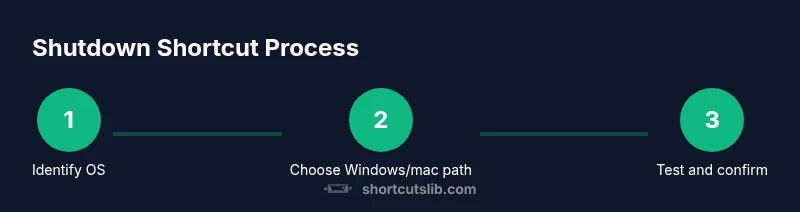
Identify your OS
Determine whether you are on Windows or macOS and prepare a clean workspace to reduce accidental data loss during testing.
Tip: Verify the OS version to ensure you choose the correct shutdown path. - 2
Windows: Alt+F4 on the desktop
With focus on the desktop, press Alt+F4 to open the shutdown dialog; do not press it while a window is active.
Tip: Ensure the desktop is focused before triggering the shortcut. - 3
Windows: Confirm shutdown with Enter
In the shutdown dialog, press Enter to confirm the default action (Shut down).
Tip: If you want to cancel, press Esc immediately after Alt+F4. - 4
Windows: Alternative path using Ctrl+Alt+Delete
If Alt+F4 fails, press Ctrl+Alt+Delete to reach the shutdown option and select Shutdown.
Tip: This path is a backup; it often appears when the UI is locked or unresponsive. - 5
Windows: Command-line shutdown
Open Run (Win+R), type shutdown /s /t 0, and press Enter to shut down immediately.
Tip: You can create a batch file and map it to a hotkey for quick access. - 6
Mac: Use the Apple menu with keyboard
Navigate to the Apple menu using the keyboard and select Shut Down gracefully.
Tip: Enable Full Keyboard Access for Menus in System Settings to simplify navigation. - 7
Mac: Direct shutdown shortcut (where available)
Some macOS versions support a direct shortcut to shut down immediately; verify on your device and use cautiously.
Tip: If unsure, use the Apple menu path to avoid data loss. - 8
Mac: Terminal shutdown
Open Terminal and type sudo shutdown -h now; provide your password when prompted.
Tip: This requires admin rights and bypasses dialogs—use only when necessary. - 9
Safety checks before shutdown
Review open apps and unsaved documents; close critical programs to prevent data loss.
Tip: Use autosave features and quick backups to preserve work. - 10
Test and refine your shortcuts
Test on a non-production device or VM; adjust timing and prompts as needed.
Tip: Document exact keystrokes and outcomes for future reference. - 11
Document and share your setup
Keep notes of scripts or custom hotkeys for future use and share with teammates.
Tip: Create a quick-reference sheet and store safely.
Questions & Answers
What is the quickest Windows shutdown shortcut?
On a Windows desktop, press Alt+F4 to open the shutdown dialog, then press Enter to confirm. This is fast when your focus is on the desktop.
On Windows, Alt+F4 on the desktop opens the shutdown dialog; press Enter to shut down.
Is it safe to use keyboard shortcuts to shut down without saving?
No. Always save any work and close critical apps before shutdown to prevent data loss. Use a quick save or autosave feature where possible.
Always save your work before shutting down using shortcuts.
How can I customize a shutdown shortcut on Windows?
You can create a script or batch file that runs a shutdown command and map it to a hotkey using Windows tools or third-party utilities.
Create a batch file that runs a shutdown command and map it to a hotkey.
Can I shut down macOS with a keyboard shortcut?
Yes, macOS supports keyboard access to shut down, and some models allow a direct key combo. If unsure, use the Apple menu or confirm with the dialog.
MacOS supports keyboard-based shutdown paths; use the Apple menu when in doubt.
Watch Video
Main Points
- Know Windows shutdown shortcuts (Alt+F4 on desktop, Enter to confirm)
- Know Mac shutdown options (Apple menu, then Shut Down)
- Always save work before shutting down
- You can script or customize shutdown shortcuts safely
- Verdict: Shortcuts Lib recommends standardizing shutdown shortcuts across devices