Troubleshooting Keyboard Shortcuts Not Working Windows 11
Quick, safe fixes for keyboard shortcuts not working Windows 11. Learn common causes, step-by-step troubleshooting, and best practices to restore fast, reliable shortcuts.


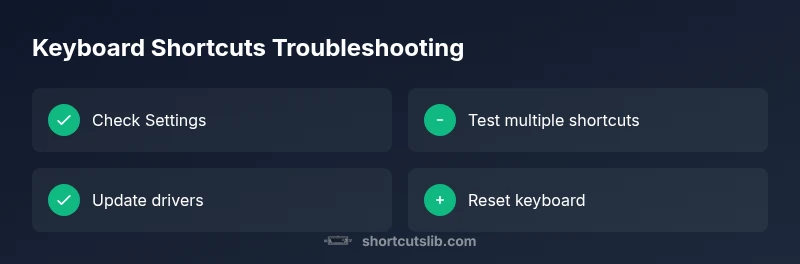
Most often, keyboard shortcuts not working Windows 11 are caused by a disabled setting, conflicting accessibility options, or an outdated driver. Start by verifying shortcuts are enabled in Settings > Accessibility > Keyboard, test a simple combo (Win+L, Ctrl+C), and disable Sticky Keys or Filter Keys if active. If problems persist, update your keyboard driver and reset keyboard preferences.
Why keyboard shortcuts not working Windows 11 happen
According to Shortcuts Lib, users frequently encounter keyboard shortcuts not working windows 11 due to a mix of software settings and device quirks. When shortcuts stop firing, the root cause is rarely a broken keyboard; more often it’s a misconfiguration, a conflicting app, or an out-of-date driver. The first clue is to notice which shortcuts fail: do all system shortcuts fail (Win+L, Win+Tab) or only app-specific combos (Ctrl+C, Ctrl+V)? Recognize that Windows 11 aims to harmonize input from many devices, and a single setting can disable a wide range of gestures. In these situations, you should treat the issue as a triage task: verify basic controls, inspect accessibility options, and then move toward driver updates or clean reconfigurations. If you’ve ever asked why keyboard shortcuts not working windows 11, you’re not alone; many drivers or settings can block them from firing reliably.
Quick checks you can do right away
Before diving into deep fixes, run through a quick, safe checklist. Start by rebooting your PC to clear transient states. Then verify that the keyboard is connected properly and that the correct input language/keyboard layout is active. Open Settings > Accessibility > Keyboard and confirm that shortcuts are enabled and that features like Sticky Keys and Filter Keys are turned off. Test a few basic combos such as Win+L, Ctrl+C, and Ctrl+V to see which ones fail. If a single app is responsible, check that app’s own keyboard shortcuts or hotkeys, and disable any conflicting macro tools or overlay apps.
Common culprits and how to disable or adjust them
Several common culprits can block Windows 11 shortcuts. Accessibility features such as Sticky Keys or Filter Keys can intercept Ctrl or Win sequences; turning these off often restores normal behavior. Language settings or a mismatch between the system keyboard layout and physical keyboard can distort shortcuts, especially if the layout changes mid-session. Background applications—especially clipboard managers, macro tools, or game overlays—may trap shortcuts for their own purposes; closing or uninstalling them often resolves the issue. Driver problems are another frequent cause: an outdated or corrupt keyboard driver can prevent signals from registering. In many cases, a simple Device Manager update or a clean reinstall will fix the symptoms without touching core OS files.
Advanced fixes and safe resets
If basics fail, move to safe and reversible steps. First, update or rollback your keyboard driver in Device Manager to ensure Windows 11 uses a compatible version. Next, reset keyboard settings to their defaults: open Settings > Time & language > Typing, or locate a global reset in the keyboard section of Windows Settings. Check for Windows updates and optional drivers; these can include important fixes for input devices. If you rely on third-party software for shortcuts, temporarily disable or uninstall it to test a clean environment. As a last resort, create a system restore point and perform a repair install or reset this PC with the option to keep files; this preserves data while refreshing OS components.
Testing after fixes and ongoing prevention
After applying fixes, re-test a broad set of shortcuts across multiple apps to verify consistency. Create a short keyboard-shortcuts test sheet and mark which keys work and which don’t. If problems recur, review recent software installations or driver updates that coincide with the issue. Maintenance habits help too: keep drivers up to date, clean startup programs, and periodically review accessibility settings to ensure they aren’t auto-enabled after updates. By following these steps, you can maintain a stable Windows 11 shortcut environment and prevent regressions.
Steps
Estimated time: 20-40 minutes
- 1
Confirm shortcuts are enabled
Open Settings > Accessibility > Keyboard and ensure the switch for shortcuts is on. If it’s off, toggling it on can restore basic shortcut functionality. Then test a few common combos to verify behavior.
Tip: If the toggle is missing, proceed to driver checks. - 2
Disable Sticky Keys and Filter Keys
Go to Settings > Accessibility > Keyboard and turn off Sticky Keys and Filter Keys. Some keyboards appear to work but ignore combos when these features are active.
Tip: Reboot after changing these options to ensure changes apply. - 3
Test across apps
Try the same shortcuts in multiple apps (Notepad, browser, Office) to identify if the issue is universal or app-specific.
Tip: If only one app fails, check that app’s own shortcuts or extensions. - 4
Update keyboard driver
Open Device Manager, locate Keyboards, and update the driver. If an update isn’t available, try rolling back to a previous version.
Tip: Always restart after driver changes. - 5
Check for background conflicts
Close clipboard managers, overlay apps, and macro tools to see if shortcuts resume. Re-enable them one by one to identify the culprit.
Tip: Disable at startup to maintain a clean test environment. - 6
Reset or restore if needed
If all else fails, reset keyboard settings or perform a system restore to a point when shortcuts worked. Consider a repair install if problems persist.
Tip: Back up data before major resets.
Diagnosis: Keyboard shortcuts not working Windows 11
Possible Causes
- highShortcuts disabled in Settings
- mediumSticky Keys or Filter Keys enabled
- mediumOutdated or corrupted keyboard driver
- lowConflicting third-party software or overlays
Fixes
- easyCheck and enable shortcuts in Settings > Accessibility > Keyboard
- easyDisable Sticky Keys and Filter Keys if active
- easyUpdate or roll back the keyboard driver via Device Manager
- easyClose or uninstall conflicting third-party software
- easyReset keyboard settings and/or perform a safe OS update
Questions & Answers
Why are shortcuts not working?
Shortcuts can fail due to disabled settings, accessibility features, or driver issues. Use a structured troubleshooting flow to identify the cause and apply safe fixes.
Shortcuts fail mainly because settings or drivers are off. Follow the troubleshooting steps to fix it.
How do I enable keyboard shortcuts in Windows 11?
Check Settings > Accessibility > Keyboard to ensure shortcuts are enabled, and verify the correct keyboard layout is active. Test several common combos after adjusting.
Go to Accessibility > Keyboard, turn on shortcuts, and test a few key combos.
Ctrl+C not copying—what should I do?
Rule out app-specific behavior by testing in multiple apps. Disable clipboard managers or overlays that could be intercepting the command, then update drivers if needed.
Test in different apps and check for intercepting software.
What if the issue remains after updates?
Review recent installations, perform a safe mode test, or consider a system restore. If unresolved, a repair install may be appropriate.
Try safe mode testing or a system restore if updates didn’t help.
Can third-party apps block shortcuts?
Yes. Clipboard tools, macro programs, or game overlays can trap shortcuts. Temporarily disable them to determine if they’re the cause.
Yes, disable any third-party shortcut tools to test.
When should I seek professional help?
If basic fixes fail and the keyboard remains unreliable across devices, a technician can diagnose hardware faults or perform advanced OS repairs.
If the problem persists after these steps, consider professional help.
Watch Video
Main Points
- Verify basic settings and test broadly.
- Disable accessibility features that intercept keys.
- Update drivers and reset keyboard preferences when needed.
- Avoid risky changes; back up before major fixes.