Fixing Broken Shortcuts in Windows 10: A Troubleshooting Guide
Diagnose and repair broken shortcuts in Windows 10 with a practical, step-by-step approach from Shortcuts Lib. Learn quick checks, driver updates, and prevention tips to keep keyboard shortcuts reliable.


Most likely, broken shortcuts Windows 10 are caused by hardware faults, disabled shortcut settings, or software conflicts. Start with quick checks: test the keyboard, verify shortcut keys are enabled in Settings, and perform a clean boot to rule out background software. If that doesn’t fix it, update drivers and reset keyboard mappings in Windows, or test in Safe Mode if needed.
Why broken shortcuts Windows 10 happen
Shortcuts stop working on Windows 10 for a handful of practical reasons. In most cases, the fault lies with hardware, configuration, or software conflicts rather than a universal OS defect. According to Shortcuts Lib, reliability hinges on a healthy keyboard, correct input language, properly enabled shortcut behavior, and minimal background interference. Common culprits include outdated keyboard drivers, Bluetooth/wireless signal interference, sticky keys or accessibility options that capture modifier keys, and apps that register global hotkeys that override system shortcuts. When a single shortcut fails across multiple apps, you’re likely dealing with a system setting or driver issue. If the problem is isolated to one program, the fault is usually within that app or its keyboard shortcut mapping. Understanding the difference helps you apply the right fix quickly.
Quick checks you can do before diving deeper
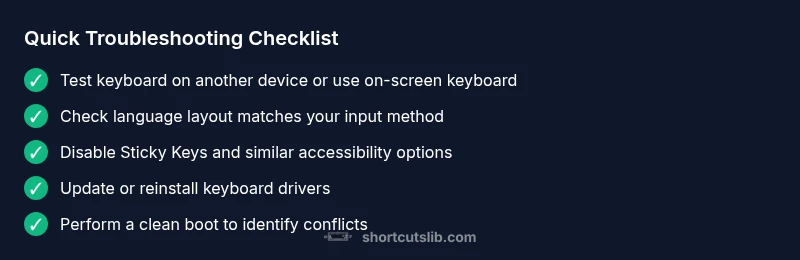
Begin with quick hardware and environment checks to avoid chasing ghosts. Test the keyboard on another device or use the Windows on-screen keyboard to confirm basic functionality. Remove extra USB devices that might claim certain shortcuts. Verify that your input language and keyboard layout match your intended setup, and turn off Sticky Keys and Filter Keys temporarily to rule out modifier-key capture. Finally, ensure you’re not in a full-screen app or game mode that blocks system shortcuts. Documenting what you changed helps you track what actually fixed the issue.
How Windows 10 handles shortcuts: settings and policies
Windows 10 manages shortcuts across several layers: core OS settings, user preferences, and app-level overrides. Make sure system-wide shortcuts are enabled: Settings > Accessibility > Keyboard (Ease of Access) and Settings > Time & language > Language > Keyboard for the correct input method. Some shortcuts depend on the Windows key being functional, which means checking hardware, driver support, and BIOS settings if the key feels unresponsive. Applications like clipboard managers, macro tools, or game overlays can hijack global hotkeys, so review startup items and installed extensions. If a shortcut works in Safe Mode but not in a normal boot, the culprit is likely a third-party service or background app. This distinction narrows the fault to software rather than hardware.
Diagnosing conflicts: drivers, apps, and services
When basic checks don’t fix the issue, proceed to a targeted diagnosis. Start by updating keyboard drivers through Device Manager or the manufacturer’s site; if Windows Update offers a newer version, install it. If problems begin after a recent update, roll back the driver. Check for Windows updates that may include cumulative fixes. Use Task Manager to disable nonessential startup programs and services, then reboot to test shortcuts. If a known app claims to manage shortcuts, temporarily disable that feature or uninstall the tool to see if the built-in shortcuts resume normal operation. Keep a log of which shortcuts fail, in which context, and under what app, to accelerate diagnosis.
Step-by-step fixes you can apply now (4 practical actions)
- Reboot into a clean state: perform a full restart, then sign in with a local account to rule out profile-specific settings. 2) Update or reinstall keyboard drivers: remove old drivers, restart, and let Windows reinstall. 3) Check language/input settings: switch to a default US layout and re-add your preferred layout if needed. 4) Reset shortcut mappings: in some apps, re-create custom shortcuts from scratch. For each step, test the focused shortcuts immediately after applying the change to confirm the effect. If a fix works, document the change for future reference.
Preventive measures and best practices
To avoid future breakages, keep drivers current, avoid questionable peripheral adapters, and maintain a lean startup environment. Regularly verify your language packs and input methods, and back up important settings before making changes. Enable Safe Mode testing for critical fixes, and create a system restore point before major edits. If you’re unsure about advanced edits, contact a professional rather than risking broader system instability.
Steps
Estimated time: 30-45 minutes
- 1
Reboot and test
Do a full restart of Windows, then sign back in. Test several common shortcuts (e.g., Ctrl+C, Ctrl+V, Windows key shortcuts) to see if behavior returns. If not, move to the next step.
Tip: Note which shortcuts fail and in which apps; this helps isolate the scope. - 2
Update or reinstall keyboard drivers
Open Device Manager, locate your keyboard, and choose Update driver. If issues persist, uninstall the driver and reboot to let Windows reinstall automatically.
Tip: Prefer drivers from the device manufacturer when available. - 3
Check language and input settings
Go to Settings > Time & language > Language > Keyboard. Add the desired layout, set it as default, then remove conflicting layouts if present.
Tip: Test shortcuts after switching layouts to confirm fix. - 4
Test in Safe Mode or perform a clean boot
Boot into Safe Mode to see if shortcuts work. If they do, a startup service or app is the likely culprit; perform a clean boot to identify it and disable/ uninstall as needed.
Tip: Safe Mode isolates OS basics from third-party software.
Diagnosis: User reports that keyboard shortcuts do not work on Windows 10 across multiple apps.
Possible Causes
- highOutdated or corrupted keyboard drivers
- mediumIncorrect language/keyboard layout or mismatch between input methods
- mediumBackground software intercepting shortcuts (clipboard managers, macro apps)
- lowSticky Keys or accessibility features interfering with modifier keys
Fixes
- easyUpdate or reinstall keyboard drivers
- easyVerify and reset input language and layout
- easyPerform a clean boot to identify interfering apps
- easyDisable Sticky Keys and related accessibility features
Questions & Answers
Why do Windows shortcuts stop working after a Windows update?
Updates can reset settings or drivers, which may disable or intercept shortcuts. Recheck language layouts and reapply missing shortcuts after updates.
Updates can reset shortcuts, so re-check your settings and reapply them after updates.
How can I tell if a background app is stealing shortcuts?
A clean boot helps reveal whether startup apps are the source. If shortcuts work in a clean boot, re-enable items one by one to identify the offender.
Use a clean boot to test; if shortcuts return, re-enable items to find the culprit.
Is it safe to adjust registry keys to fix shortcuts?
Registry edits can fix shortcuts but carry risk. Only proceed with trusted guidance and backups; otherwise, use safer configuration options first.
Registry edits are risky; back up and proceed cautiously or seek professional help.
What should I do if Windows key shortcuts still don’t work?
Verify hardware and BIOS settings for the Windows key, test with an external keyboard, and check for conflicting apps that override Win key mappings.
If the Windows key still fails, test hardware and look for conflicting software.
Can language/layout changes affect shortcuts?
Yes. A mismatched layout can map keys differently. Reinstall or reorder input methods and ensure the active layout matches your expectation.
Language layout matters; fix by correcting input methods and layout order.
How often should I perform maintenance to prevent this issue?
Regular driver updates, minimal startup programs, and periodic checks of language settings help prevent shortcuts from breaking.
Keep drivers updated and monitor startup apps to prevent issues.
Watch Video
Main Points
- Check hardware first, then drivers.
- Disable conflicting apps to test.
- Test in Safe Mode to isolate causes.
- Document changes to avoid repeated issues.