Keyboard Shortcuts Not Working: Quick Troubleshooting Guide
Urgent troubleshooting guide to fix keyboard shortcuts not working across apps on Windows and Mac. Find causes, steps, and prevention tips by Shortcuts Lib.


Shortcuts not working is usually caused by a layout or language mismatch, conflicting software, or a disabled modifier key. Quick fix: verify your keyboard language and layout, test a few common shortcuts in a plain text editor, reset conflicting apps to default, and reboot to refresh the system state. According to Shortcuts Lib, most issues resolve after restoring defaults and eliminating app conflicts.
Why keyboard shortcuts stop working
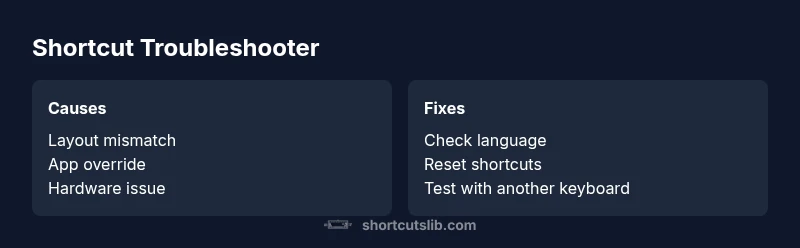
In practice, shortcut failures typically fall into a few core categories: a keyboard language or layout mismatch, software-level overrides or custom shortcuts, and occasional hardware or accessibility features that interfere with normal key behavior. According to Shortcuts Lib, the majority of reported cases involve layout mismatches and application conflicts rather than a dead keyboard. This means your first checks should target language settings, layout, and the apps you use most. If shortcuts work in a simple text editor but fail in a specific program, the problem is usually within that program’s shortcut mapping rather than OS-wide. Some keyboards ship with companion software that can re-route keys or create macros; disabling or reconfiguring those tools often restores expected behavior quickly. Finally, don’t overlook hardware issues—try a different USB port or another keyboard to rule out a faulty unit.
Quick OS- and app-level checks
Start with the basics: confirm the active input language, the keyboard layout (e.g., US vs UK vs ISO), and whether the shortcuts rely on Fn or modifier keys. On Windows, check Settings > Time & language > Language, then verify the input source and keyboard settings. On macOS, inspect System Settings > Keyboard > Input Sources and ensure the intended layout is selected. Some apps override global shortcuts; in those cases, you’ll need to review per-app preferences and disable conflicting shortcuts. If a shortcut fails only in a single program, the issue is usually localized to that app’s shortcut map. If it fails everywhere, the problem is more likely OS or hardware related. Finally, check accessibility features like Sticky Keys or Filter Keys on Windows and the Keyboard preferences on Mac; these can alter how keys are interpreted and break typical shortcuts.
Hardware and accessibility considerations
A stubborn key or sticky modifier can render a whole set of shortcuts useless. Inspect the keyboard for physical issues—sticky or unresponsive keys, debris under keys, or a worn cable/USB connector. If available, test with an on-screen keyboard to see if the issue persists without the physical device. Wireless keyboards can suffer from interference; try a wired connection for a quick test. Update or reinstall keyboard drivers if you suspect a driver issue, and try the same keyboard on another device to rule out hardware fault. If you use accessibility features (e.g., Sticky Keys, Slow Keys), temporarily disable them to confirm they aren’t the root cause.
How conflicts and language settings affect shortcuts
Even when OS and hardware are healthy, conflicts arise when multiple programs register the same key combos or when language-specific shortcuts differ from your expectations. Global shortcuts (system-wide) may be overridden by applications like productivity suites, browsers, or gaming software. Some keyboards come with peripheral software that remaps keys or creates macros—these can unexpectedly hijack shortcuts. To isolate issues, disable nonessential macro software or temporarily boot into a clean user profile to see if the problem persists. If a problem disappears in a clean profile, you’ve found the source: a conflicting program or user-specific setting.
Practical checks you can run now
- Test common shortcuts in a neutral editor (e.g., Notepad, TextEdit) to determine if the issue is global or app-specific.
- Confirm language/layout alignment matches your intended typing region.
- Try a different keyboard or use a wired connection to rule out hardware faults.
- Disable accessibility features temporarily and re-test shortcuts.
- Review and reset any custom shortcuts in the problematic apps; revert to OS defaults if possible.
- Reboot the machine to clear ephemeral settings that can cause intermittent failures.
When to seek professional help
If shortcuts continue to fail after exhausting these checks, there could be deeper hardware problems or rare driver conflicts. Seek professional IT support or contact the keyboard manufacturer for warranty-assisted diagnostics. Shortcuts Lib recommends documenting exactly which shortcuts fail, the OS and app context, and any recent changes (software updates, language changes, new peripherals) to speed up diagnosis.
Steps
Estimated time: 60-90 minutes
- 1
Identify the symptom and scope
Document exactly which shortcuts fail, where you notice the failure (one app vs all apps), and when it started. This establishes the scope of the issue and guides subsequent checks.
Tip: Note timestamps of updates or changes that coincide with the problem. - 2
Check language and layout
Open language/input settings and confirm the active keyboard layout matches your expected region. Switch to the correct layout and test shortcuts again. If you regularly switch layouts, consider a quick toggle shortcut.
Tip: Use a visible keyboard layout indicator if available. - 3
Test with a different keyboard
Connect a different keyboard (preferably wired) and attempt the same shortcuts. If the issue disappears, the original keyboard may be faulty or misconfigured.
Tip: Rule out USB port or cable problems by testing on alternate ports. - 4
Review app-level shortcuts
Check the affected apps for custom shortcuts or conflicting mappings. Restore to default shortcuts where possible and disable any macro software temporarily.
Tip: Document differences before resetting so you can re-apply preferred mappings later. - 5
Check OS accessibility settings
Disable Sticky Keys, Filter Keys, or any other accessibility features that could alter key input. Re-test shortcuts to see if behavior normalizes.
Tip: Accessibility settings can behave differently after updates. - 6
Reboot and monitor
Restart the machine to refresh system state and apply any changes. After reboot, retest a core set of shortcuts across multiple apps.
Tip: If the problem recurs, capture system logs or crash reports to aid support.
Diagnosis: Keyboard shortcuts not working across one or more apps, or system-wide
Possible Causes
- highKeyboard layout or input language mismatch
- mediumModifier keys physically stuck or failing
- highConflicting software or app-specific shortcut mappings
- mediumOS accessibility features interfering (Sticky Keys, Filter Keys)
- lowHardware issue or driver problem with the keyboard
Fixes
- easyTest in a plain text editor to isolate app-level vs OS-level issues
- easySwitch keyboard layout to the correct input source (Windows or Mac)
- easyReset shortcuts to default in affected apps; disable conflicting software temporarily
- mediumUpdate or reinstall keyboard drivers; try a different keyboard if possible
- easyDisable accessibility features temporarily to test shortcuts
Questions & Answers
Why are keyboard shortcuts not working on Windows 11 after a language change?
A language or input source change often remaps keys, causing shortcuts to fail. Verifying and selecting the correct input source usually resolves the issue. If a specific app overrides shortcuts, you’ll need to adjust per-app settings.
A language change can remap keys, so pick the right input source and test again.
Why do shortcuts work in Word but not in Chrome?
Many applications have their own shortcut mappings or extensions that can override global shortcuts. Check per-application settings, disable conflicting extensions, and test after disabling macro software.
Some apps map shortcuts differently or have extensions that steal the keys.
How can I reset keyboard shortcuts to default on Windows or macOS?
Windows and macOS don’t have a universal reset for all shortcuts. You typically reset within each app or OS module (System Settings > Shortcuts on Mac; Settings > Keyboard on Windows) and reconfigure as needed.
There isn’t a single reset button—reset per app or OS settings instead.
Could external software cause shortcuts to stop working?
Yes. Macro tools, gaming overlays, or clipboard managers can hijack keys. Temporarily disable them to test and identify conflicts.
External software can hijack shortcuts; try disabling it and testing again.
Should I replace the keyboard if keys are failing across all apps?
If multiple keys fail across apps and tests, hardware issues are likely. Test with another device to confirm before replacement.
If many keys fail across programs, hardware is likely at fault; try another keyboard first.
Watch Video
Main Points
- Verify language/layout first to rule out most causes
- Isolate by testing in a neutral editor and with another keyboard
- Reset/disable conflicting software before deep hardware checks
- Document changes and monitor results for faster resolution