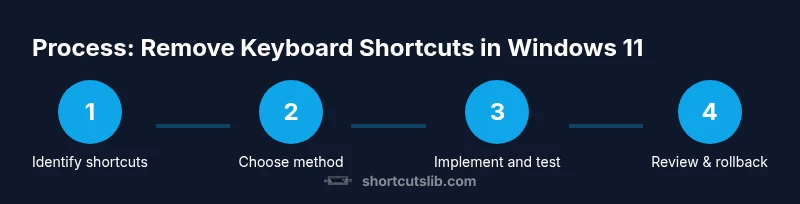
How to Remove Keyboard Shortcuts in Windows 11
Learn how to remove or disable keyboard shortcuts in Windows 11 with practical methods, using built-in options, AutoHotkey, or PowerToys. This guide covers steps, safety, and testing.


By following this guide, you will learn how to remove keyboard shortcuts Windows 11, including when native options exist and practical workarounds for everything else. You’ll identify which shortcuts are safe to disable, implement a reliable script or binding, and test thoroughly to avoid breaking essential workflows. This process can be done with built-in settings for some shortcuts and with third-party tools for others.
Understanding why you might want to remove keyboard shortcuts Windows 11
Removing or rebinding keyboard shortcuts can reduce accidental actions, especially during high-focus tasks or gaming. For many power users, the goal is to reclaim cognitive bandwidth and ensure that frequent keystrokes align with their workflow. According to Shortcuts Lib, the most impactful changes come from targeting the shortcuts you actually use, rather than attempting a blanket disable of every key combination. Think of this as a tailored optimization: you keep access to essential shortcuts, and you remove or reassign the disruptive ones. In practice, you’ll identify the top offenders—such as combos that trigger unintended actions—and map them to harmless alternatives or no-ops. The result is a cleaner, faster, and more predictable keyboard experience that reduces frustration and interruptions. This article walks you through decision-making, safe methods, and tested workflows so you can customize Windows 11 without compromising core capabilities. The goal is to give you control, not to remove utility from the system.
Safety and scope: what can and cannot be disabled
Not all Windows shortcuts are equal when it comes to disabling them. Some key combinations are deeply integrated into the OS and applications, while others are easier to rebind or disable using external tools. Native options in Windows 11 tend to be limited, especially for global shortcuts like Win-based combos. What you can safely change often depends on the shortcut’s role: does it open a system feature, switch apps, or trigger an in-app action? A practical approach is to start with shortcuts that cause repeated, disruptive actions in your daily tasks, then test across commonly used software to confirm there are no adverse effects. Shortcuts Lib’s analysis suggests a cautious, incremental strategy yields better long-term stability than sweeping, large-scale changes. Always ensure you have a restore point or a backup of your scripts before making changes, so you can revert if something breaks.
Native Windows 11 methods to disable shortcuts
Windows 11 offers limited built-in toggles for keyboard behavior, and for many useful shortcuts there is no direct native switch to disable them globally. Some accessibility-related toggles may adjust keyboard behavior (for example, changes to sticky keys or filter keys) but they do not provide a blanket disable for all shortcuts. Because of this limitation, most users reach for safer alternatives rather than attempting risky OS edits. The takeaway is to verify what native options exist on your machine and then pursue a targeted approach for the rest. If a shortcut is causing frequent problems but your work depends on other keys, opting for a rebound or a temporary disable during specific tasks can be more reliable than a permanent disable.
Third-party methods: AutoHotkey and PowerToys
Third-party utilities can offer the flexibility that Windows lacks for disabling shortcuts. AutoHotkey is the most common choice for precise remapping and no-op bindings. It lets you intercept key combinations and decide exactly what they should do—often nothing, effectively disabling the shortcut. PowerToys provides a Keyboard Manager that can remap keys and shortcuts in a more user-friendly interface, which is ideal if you want a safer, GUI-based method. When using these tools, you should start with a small, well-documented script and keep a copy of the original configuration. Always download from official sources and scan for scripts before executing them. The community around AutoHotkey and PowerToys regularly shares safe patterns for disabling frequently disruptive shortcuts without harming system stability.
Step-by-step: using AutoHotkey to disable specific shortcuts
AutoHotkey works by watching for keystrokes and then executing a block of code in response. You can map a shortcut to a no-op action, or you can redirect it to something harmless. The essential steps are to install AutoHotkey, create a script file, write mappings for the shortcuts you want to disable, run the script, and test across your most-used apps. This approach gives you fine-grained control and can be reversed quickly if you need to restore default behavior.
Step-by-step: using PowerToys to rebind keys without scripting
PowerToys Keyboard Manager lets you rebind shortcuts in a user-friendly interface. This method is often safer for non-developers and offers quick toggling of different setups. Install PowerToys, open Keyboard Manager, and add new remappings for the shortcuts you want to suppress or repurpose. This approach preserves key accessibility while avoiding potential script-related issues. After configuring, test in a few critical apps to ensure there are no conflicts with other shortcuts or system actions.
Step-by-step: testing, backups, and rollback plans
Once you’ve implemented a disable or remap, validate across the programs you use most. Look for conflicts with gaming macros, productivity software, and accessibility tools. Create a quick rollback plan: save a copy of scripts, note the changes, and know how to uninstall or revert at a moment’s notice. Maintain a backup of any registry edits or configuration files and consider creating a system restore point before applying changes. If something doesn’t work as expected, disable the new mapping, reload the script, or restore from a backup. These precautions help prevent longer outages and ensure you can recover quickly.
Optional: restoring default behavior and best practices
If you decide to revert changes, remove scripts, uninstall AutoHotkey, or disable Keyboard Manager mappings, and then reboot or re-login to ensure all changes take effect. Documenting what you changed, when, and why makes future adjustments simpler. A best practice is to limit initial changes to a few high-frequency offenders and expand only after verifying stability. For most users, a phased approach minimizes risk while still delivering meaningful gains in focus and efficiency.
Tools & Materials
- Windows 11 PC(Must have admin or user rights to install tools.)
- AutoHotkey(Download from official site; choose the installer with minimal extras.)
- PowerToys (optional)(Useful for GUI-based remapping; from Microsoft official repo.)
- Text editor (Notepad, VS Code)(For creating and editing script files.)
- Backup/restore point(Create before making changes.)
- Internet connection(To download tools and view reference guides.)
Steps
Estimated time: 60-120 minutes
- 1
Identify shortcuts to disable or remap
Review your most-used shortcuts and list those that cause disruption or are rarely needed. Prioritize combinations that are accidentally triggered during work or gaming. This helps minimize risk by focusing on the most impactful changes first.
Tip: Start small; disable 1-2 shortcuts and test before expanding. - 2
Choose your method
Decide between native options (limited) or a third-party approach (AutoHotkey or PowerToys) for broader control. The choice depends on how many shortcuts you want to alter and whether you prefer a script or GUI. This decision guides the rest of the setup.
Tip: If you’re new to scripting, PowerToys can be safer to begin with. - 3
Install AutoHotkey
Download AutoHotkey from the official site and run the installer. Opt for a standard install and remember the location of your Script folder so you can easily create and manage script files.
Tip: Keep a copy of the installer’s hash or download location for safety. - 4
Create and save a script
Open your text editor and create a new .ahk file. Add a binding that maps the unwanted shortcut to a no-op or a harmless alternative. Save the file in a dedicated scripts folder for easy management.
Tip: Name the script descriptively, e.g., disable-win-shortcuts.ahk. - 5
Run the script and test
Double-click the .ahk file to run it. Test the targeted shortcut in several apps and websites to confirm it’s disabled or remapped as intended. If it doesn’t work, check your syntax or path and restart the script.
Tip: Run with a simpler test case first to verify behavior. - 6
Make the script auto-start
To ensure persistence, configure the script to start with Windows by placing a shortcut to the .ahk file in the Startup folder. This guarantees your changes apply after each login.
Tip: Create a backup of the startup shortcut in case you need to remove it later. - 7
Optional: remap with PowerToys
If you prefer a GUI, install PowerToys and use Keyboard Manager to remap or disable shortcuts. This is a safer path for users who don’t want to manage scripts.
Tip: Test remappings in isolation before combining with AutoHotkey. - 8
Validate across workflows and rollback plan
Test the setup across critical tools (office apps, IDEs, browsers, games) to ensure no conflicts. If problems arise, revert by deleting the script or disabling Keyboard Manager mappings, and consider restoring from a system restore point.
Tip: Keep your rollback plan clearly documented for quick recovery.
Questions & Answers
Can I disable Windows 11 shortcuts completely?
Complete, global disabling is not provided by Windows 11 by default. Use targeted remapping or disable specific combos with AutoHotkey or PowerToys, and test carefully.
Windows 11 doesn't offer a full disable switch for all shortcuts; you typically remap or disable specific combos with a script or tool and test thoroughly.
Will disabling shortcuts affect accessibility features?
Some shortcuts overlap with accessibility tools. Disable with caution and verify that features like Sticky Keys or shortcuts for zoom and narration still work as needed.
Disabling certain shortcuts can interfere with accessibility options, so test those features after changes.
Is AutoHotkey safe to use for disabling shortcuts?
AutoHotkey is widely used and safe when downloaded from the official site. Always review scripts before running and test in a controlled environment.
AutoHotkey is safe if you download from the official site and test changes in a controlled setup.
Can PowerToys rebind shortcuts without scripts?
Yes. PowerToys Keyboard Manager provides a GUI to remap or disable shortcuts, which can be safer for non-developers.
PowerToys offers a GUI-based remapping option that’s easier for many users.
How do I revert changes if something breaks?
Delete the AutoHotkey script or disable PowerToys remaps, uninstall AutoHotkey, or restore a system restore point to revert to default behavior.
If something goes wrong, remove the script or remaps and restore from a backup.
Watch Video
Main Points
- Identify high-impact shortcuts first
- Native options are limited; use scripts or remappers for control
- Test across apps and keep a rollback plan
- Document changes for future maintenance
- Safety comes first: create restore points and backups