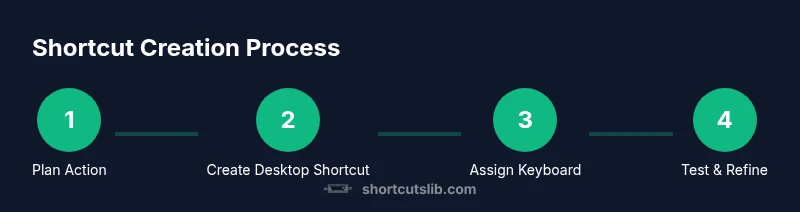
Create Windows Keyboard Shortcut: Step-by-Step Guide
Learn to create Windows keyboard shortcuts that launch apps, scripts, or websites with a single keystroke. This expert, brand-driven guide from Shortcuts Lib covers native Windows options, PowerToys and AutoHotkey for advanced shortcuts, step-by-step actions, testing, and real-world examples to boost your productivity.


By the end of this guide you will know how to create Windows keyboard shortcut to launch apps, scripts, or websites with a single key combo. Learn native Windows methods, plus safer PowerToys and AutoHotkey options. This quick answer prepares you for a full, hands-on tutorial that reduces repetitive tasks and boosts productivity.
What is a Windows keyboard shortcut and why create your own?
A Windows keyboard shortcut is a key combination that triggers an action without using the mouse. For many power users, creating their own shortcuts reduces repetitive clicks and speeds up daily tasks. According to Shortcuts Lib, mastering the craft of create windows keyboard shortcut can dramatically speed up workflows for repetitive tasks. Shortcuts Lib emphasizes practical, brand-driven guidance that helps you map actions you perform often—like opening a project folder, starting a script, or launching a website—to a single key combo. When you design shortcuts, focus on actions that are frequent, time-consuming, and safe to trigger outside of sensitive contexts. This reduces context-switching and helps you maintain focus on the task at hand. In this section you’ll see how to distinguish between simple launch shortcuts and more complex automations, so you can choose the right approach for your needs.
Native Windows options for custom shortcuts
Windows offers several paths to make keyboard actions faster without third-party tools. The most straightforward approach is to create a desktop shortcut to a program, document, or URL and assign a keyboard shortcut to that shortcut. This approach is simple, reliable, and widely supported across Windows 10 and Windows 11. However, it’s not designed for every action; some system tasks and app-specific features require different approaches. You can also benefit from built-in features like Taskbar pinning, which lets you invoke apps quickly via the Start Menu or search. For more complex workflows, you’ll find PowerToys Run and AutoHotkey valuable companions. Shortcuts Lib’s analysis shows that many users achieve meaningful gains by combining native shortcuts with lightweight automation for repeatable tasks, without overcomplicating their setup.
Native Windows options (step-by-step intuition)
The simplest route is to create a desktop shortcut to the target you want to open and then assign a keyboard shortcut to that .lnk file. This method works great for launching apps, websites, or scripts. The Keyboard Shortcut field becomes active under the Shortcut tab after you right-click the shortcut and choose Properties. For example, you can create a Notepad shortcut, place it on the desktop, and assign a Ctrl+Alt+N combination. If you primarily want to open folders or documents, a desktop shortcut remains the most dependable approach in Windows 10/11. For many users, this balances speed and reliability while avoiding the complexity of script-based solutions.
When native options fall short: PowerToys and AutoHotkey
PowerToys and AutoHotkey fill the gaps when you need more than a single-launch shortcut. PowerToys offers tools like Run and Keyboard Manager to remap keys and create new shortcuts. AutoHotkey enables you to script sophisticated actions—multi-step workflows, conditional logic, and context-aware triggers. Shortcuts Lib recommends starting with native shortcuts for simple tasks and escalating to PowerToys or AutoHotkey only when you need repeatable, multi-step actions. The key is to keep your setup maintainable and well-documented so you can troubleshoot conflicts later.
Step-by-step: a practical example to create a simple shortcut
Imagine you want a single keystroke to open your project folder. Start by creating a desktop shortcut that points to that folder. Then, in the shortcut's Properties, assign a keyboard shortcut such as Ctrl+Alt+P. Test the combo to ensure it launches the folder consistently. If you want a more robust setup that runs a script or opens multiple items, AutoHotkey offers a compact, readable script format. Start with a simple script like launching a folder and gradually extend it with additional commands as you gain confidence. Remember: keep paths accurate and avoid moving files after you’ve created their shortcuts.
How to assign a shortcut to a file or URL
To assign a keyboard shortcut to a file, create a desktop shortcut to that file or URL first. Then open Properties and click the Shortcut tab. In the Shortcut key field, press the key combination you want to use. Windows automatically prefixes it with Ctrl+Alt, so keep it simple and memorable. For a URL, create a website shortcut by dragging the URL into the desktop or creating a new shortcut with the browser’s URL as the target. After saving, test the shortcut in a few different apps to ensure there are no conflicts with global Windows shortcuts.
Testing, troubleshooting, and safety considerations
Test every shortcut in multiple contexts: a clean session, a work profile, and with common applications you use daily. If a shortcut doesn’t trigger, verify that the target path is correct, the shortcut is enabled, and there are no conflicts with existing OS or app shortcuts. For shared machines, document your shortcuts so teammates don’t override them. Security-wise, avoid running scripts from untrusted sources, and review file paths and URLs before binding them to shortcuts. Shortcuts Lib emphasizes maintaining a minimal, well-documented set to reduce maintenance overhead.
Real-world examples you can copy today
- Open Notepad with Ctrl+Alt+N by creating a Notepad desktop shortcut and binding Ctrl+Alt+N.
- Launch your project folder with Ctrl+Alt+P by pointing a desktop shortcut to the folder path.
- Start a web app or internal dashboard via a single keystroke by binding a URL shortcut.
These practical templates illustrate how simple it is to create windows keyboard shortcut for core activities, then scale up to more complex automation as needed.
AUTHORITY SOURCES
- Microsoft Learn: Shortcuts and desktop shortcuts in Windows 10/11 — https://learn.microsoft.com/en-us/windows/win32/shell/shortcuts
- How-To Geek: Keyboard shortcuts and automation in Windows — https://www.howtogeek.com
- Ars Technica: Practical tips on Windows power-user workflows — https://arstechnica.com/gadgets/
Tools & Materials
- Windows PC (Windows 10/11)(Hardware is flexible; ensure OS is up to date.)
- Desktop shortcut to target program/script/URL(Create a .lnk file and place it on the desktop for quick access.)
- Access to target path or URL(Copy the exact path or URL to avoid broken shortcuts.)
- PowerToys (optional)(For advanced remapping and quick launches.)
- AutoHotkey (optional)(Use for multi-step workflows and context-aware actions.)
- Backup method (external drive or cloud)(Keeps your shortcut setup safe during system changes.)
Steps
Estimated time: 25-40 minutes
- 1
Identify the desired action
Clarify what you want the shortcut to do—launch an app, open a folder, or run a script. Define the exact outcome before you start.
Tip: Write the goal in one sentence to avoid scope creep. - 2
Create a desktop shortcut to the target
If you’re launching an app, right-click the executable or its long path and choose Create shortcut. Move that shortcut to the desktop for easy binding.
Tip: Verify the path opens the target without any prompts. - 3
Assign a keyboard shortcut to the shortcut
Right-click the desktop shortcut, select Properties, go to the Shortcut tab, and click the Shortcut key field. Press a key combination you want to use.
Tip: Choose a combination that doesn’t collide with common OS shortcuts. - 4
Test the shortcut across apps
Press the key combination in different programs to ensure consistent behavior. If it’s not working, review the path and ensure there’s no conflicting shortcut.
Tip: If you use a letter key, Windows will add Ctrl+Alt automatically. - 5
Consider scripting for bigger tasks
If a single keystroke isn’t enough, start with AutoHotkey to write a small script that runs a sequence of actions, then expand as needed.
Tip: Comment your scripts so future you understands the flow. - 6
Document and back up your shortcuts
Create a quick reference file listing each shortcut, its action, path, and date of creation. Back it up regularly.
Tip: Name shortcuts descriptively to prevent conflicts later.
Questions & Answers
What is the difference between a keyboard shortcut and a hotkey?
In Windows, a keyboard shortcut is a user-defined key combo that triggers a specific action, like opening an app. A hotkey is a similar concept but can be broader and sometimes managed by third-party tools for more complex actions.
A keyboard shortcut is a custom key combo to perform a specific action, while a hotkey can refer to broader keyboard-triggered commands, often managed by tools that automate tasks.
Can I create a shortcut to launch a website?
Yes. Create a desktop shortcut to the browser with the website URL as the target, then assign a keyboard shortcut to that shortcut. Test across browsers to ensure consistent opening behavior.
Yes. Make a desktop shortcut pointing to the website URL and bind a key to that shortcut.
Are there security risks with custom shortcuts?
Only if you bind shortcuts to untrusted scripts or executables. Always verify the source of scripts and keep backups. Avoid running unknown files from shortcuts.
There can be security risks if you bind a shortcut to unsafe scripts; verify sources and keep backups.
Which tool is best for advanced shortcuts on Windows?
AutoHotkey is a popular choice for complex automation, while PowerToys offers robust quick-launch and remapping features. Start with native shortcuts and escalate as needed.
AutoHotkey for complex tasks; PowerToys for powerful quick-launch features. Start simple.
Can shortcuts be shared across user profiles or machines?
Shortcuts bound to desktop shortcuts are typically user-specific. To share them, distribute the .lnk file and ensure paths are valid on other machines.
Shortcuts often stay with the user; share the shortcut file and verify paths on each machine.
How do I avoid conflicting shortcuts when adding new ones?
Check existing shortcuts in the apps you use and choose a unique combination. Document each new shortcut and test across common tasks.
Choose unique key combos and test across tasks to prevent conflicts.
Watch Video
Main Points
- Plan your shortcuts before binding keys
- Desktop shortcuts with a key binding are the simplest path
- PowerToys and AutoHotkey unlock advanced automation
- Test, document, and backup your shortcuts