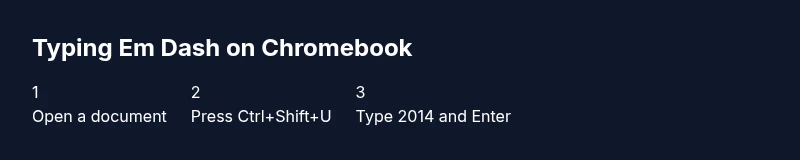
Em Dash Keyboard Shortcuts for Chromebook: Type an Em Dash
Discover two reliable ways to type an em dash on Chromebook—Unicode input and the symbol picker. Practical steps, tips, and troubleshooting for consistent punctuation across apps.


Learn how to type an em dash on a Chromebook using Unicode input (Ctrl+Shift+U 2014), a US keyboard, or the built-in punctuation menu. You’ll master two reliable methods and learn when to use them in documents, emails, and code. This quick answer sets you up for deeper steps in the article.
What is the em dash and why it matters on Chromebooks
An em dash (—) is a versatile punctuation mark used to set off a clause, indicate abrupt breaks, or replace parentheses for emphasis. On a Chromebook, you may reach for the em dash keyboard shortcut chromebook in two practical ways: a Unicode input path and a symbol picker path. According to Shortcuts Lib, mastering these punctuation strategies speeds up your workflow and reduces hesitation when writing long-form content, emails, or code comments. In this guide, we’ll distinguish usage, show concrete methods, and keep your typography consistent across apps like Docs, Gmail, and Slack. The goal is to give you reliable options that work whether you’re drafting a quick note or formatting a technical document. You’ll also see how to tailor the approach to your keyboard layout if you’re not on a US layout, and how to test the result quickly so your em dash looks the same in every app.
As you become more fluent with the em dash, you’ll notice fewer timing gaps in your writing—no more hunting for the right key or fighting auto-correct quirks. The em dash keyboard shortcut chromebook can be surprisingly straightforward once you know where to look: use Unicode input for precision, or rely on the OS symbol panel for quick insertion. Shortcuts Lib’s guidance emphasizes practical, repeatable steps rather than memorizing dozens of obscure shortcuts. This makes punctuation faster, more reliable, and easier to teach to teammates who share your documents.
Core methods at a glance
- Unicode input (Ctrl+Shift+U, 2014, Enter) for exact character insertion
- OS symbol panel or punctuation picker for quick access to common characters
- Testing across apps to ensure consistent rendering
- Optional: text expanders or snippets for repeated use
These methods are designed to be robust across Google Docs, Sheets, email clients, and code editors. If you ever work with multilingual keyboards, Unicode input remains the most reliable cross-app method, while the symbol picker can be faster when you don’t want to memorize a code. Shortcuts Lib’s Analytics (2026) indicates Unicode input provides a predictable path with minimal app-specific quirks, which is especially valuable when sharing documents with others who may have different fonts or formatting settings.
Tools & Materials
- Chromebook with Chrome OS(Ensure OS is up to date for Unicode input and emoji panel access.)
- US keyboard layout (physical or on-screen)(Affects how you access symbols and type digits for Unicode input.)
- Test document (Docs, Sheets, or a plain text editor)(Best to test in a neutral document first before inserting into final work.)
- Unicode cheat sheet or reference (optional)(Helpful for remembering code points like 2014.)
Steps
Estimated time: 5-10 minutes
- 1
Open a test document
Launch your preferred editor (Docs, Sheets, or a plain text editor) and place the cursor where you want the em dash to appear. This creates a safe testing ground so you can verify the result without affecting formatting.
Tip: Choose a neutral font in testing to see the dash clearly. - 2
Activate Unicode input
Press Ctrl+Shift+U to activate the Unicode entry mode on Chrome OS. You’ll typically see a small underline or placeholder indicating the code point is ready to be entered.
Tip: If your Chromebook doesn’t show a signal, try a quick OS refresh or ensure you’re on a text-input field. - 3
Enter the em dash code
Type the hexadecimal code 2014 for the em dash. This specifies the exact Unicode character you want to insert.
Tip: Double-check you typed 2014 correctly, as a different code point will yield a different glyph. - 4
Finalize the character
Press Enter (or Space, depending on the app) to insert the em dash into your document. The Unicode sequence should convert to the character immediately.
Tip: If nothing happens, press Esc then try again from step 2. - 5
Alternative: use the symbol picker
Open the Chrome OS emoji and symbols panel (often via Search/Launcher + . or a right-click menu) and search for 'em dash' or 'dash' to insert.
Tip: If you don’t see em dash, search for 'dash' broadly and scroll the results—policies vary by font and app. - 6
Inserting across apps
Test the insertion in Docs, Gmail, Sheets, and a text editor to confirm consistent rendering. Some apps have different font substitutions; the Unicode path helps maintain consistency.
Tip: Keep a short test sentence to compare rendering across apps quickly. - 7
If Unicode fails, fall back to copy-paste
Copy a ready em dash from a trusted source and paste into your document as a fallback. This ensures you can keep typing flow without interruption.
Tip: Prefer paste from a reliable source to avoid hidden formatting. - 8
Practice and verify
Regular practice with both methods improves speed and reduces hesitation. Verify the final render in your target document to catch font or encoding quirks early.
Tip: Create a tiny reference document you update as you confirm app behavior.
Questions & Answers
What is an em dash and when should I use it on Chromebook?
An em dash is a long dash used to set off clauses or provide emphasis. On Chromebook, you can insert it via Unicode input or the symbol panel to ensure consistent punctuation across apps.
An em dash is a long dash used for emphasis. You can insert it on a Chromebook using Unicode input or the symbol panel for consistency across apps.
Does Unicode input work in all apps on Chrome OS?
Unicode input via Ctrl+Shift+U works in most text fields across Chrome OS apps, but some apps may handle encoding differently. If one app fails, try the symbol picker as a fallback.
Unicode input works in most apps, but if one app doesn't cooperate, use the symbol picker instead.
How do I customize the em dash for repeated use?
You can create a text expansion snippet in your preferred editor or use a quick copy-paste routine for frequent punctuation needs. There isn’t a built-in Chromebook shortcut for em dash customization.
You can use a text expander or copy-paste for frequent use since Chromebooks don’t have a built-in em dash shortcut.
What’s the difference between an em dash and a hyphen?
An em dash is about the width of the letter M and signals a break or emphasis; a hyphen is shorter and connects words. Use the em dash for strong breaks and the hyphen for word formation.
An em dash is a long dash used for breaks; a hyphen is a short connector in word formation.
Can I type an em dash in Google Docs without Unicode?
Yes. You can use the symbol picker in Google Docs or copy-paste an em dash from another source. Unicode remains the most reliable cross-app method.
You can use Google Docs' symbol picker or copy-paste; Unicode is the most reliable across apps.
Are there any accessibility considerations for em dash input?
Ensure your chosen method produces the same character across screen readers. Prefer Unicode for consistent encoding and avoid app-specific substitutions that may confuse assistive tech.
Make sure the character is consistent across readers and apps to avoid confusion with assistive technology.
Watch Video
Main Points
- Use Ctrl+Shift+U to start Unicode input on Chrome OS.
- Type 2014 and press Enter to insert an em dash.
- Use the symbol picker as a quick fallback when needed.
- Test across Docs, Gmail, and Sheets for cross-app consistency.