Master Long Dash Shortcuts: Typing the Em Dash Across Platforms
Learn how to insert the em dash (long dash) using Windows, macOS, and Linux shortcuts, Unicode input, and text replacement. This guide covers built-in methods, app-specific tips, and best practices for consistent punctuation across documents.


In this guide you will learn how to type a long dash (em dash) using built-in keyboard shortcuts on Windows and macOS, plus practical tips for Linux and common apps. You’ll discover platform-specific codes, Unicode options, and text-replacement methods to consistently insert em dashes across documents, emails, and web content.
What is a long dash (em dash) and why it matters
A long dash, or em dash, is a typographic punctuation that signals a break or a strong interruption in a sentence. It can replace parentheses, commas, or colons in certain writing contexts, and it helps readability by creating a deliberate pause. For writers who work across apps and devices, having reliable methods to insert the em dash—consistently and quickly—saves time and keeps your documents looking professional. According to Shortcuts Lib, mastering long dash shortcuts saves time formatting text and ensures a uniform style across platforms. In most fonts, the em dash is wider than the surrounding characters, which subtly draws attention to the inserted thought. Use it deliberately to set off parenthetical elements, dash off inflected clauses, or indicate abrupt breaks in dialogue.
Understanding the em dash in context
The em dash is wider than the en dash (–) and longer than a hyphen (-). Writers use the em dash to add emphasis, indicate interruptions, or replace parentheses in a clean, modern style. In contrast, the en dash serves as a range indicator or to connect related words like “digital–analog.” Knowing when to use each dash helps avoid typographic confusion and maintains consistency in long-form content, emails, and code comments alike. Some style guides prefer minimal dash usage, while others allow more expressive pacing with em dashes. The key is consistency across a document or project.
Platform basics: Windows shortcuts to insert em dash (long dash)
Windows users commonly insert an em dash using an Alt code that requires the numeric keypad. A widely used sequence is Alt + 0151, entered with the Num Lock activated and the keypad. If your keyboard lacks a dedicated numeric keypad, you can use the on-screen keypad or insert from a characters panel. In most editors, this method works, but some apps may require an explicit insertion method or a different encoding. Unicode input—where available—offers another reliable path. Alt codes are not universal across all international keyboard layouts, so test in your primary editor to confirm behavior.
macOS shortcuts to insert em dash
macOS provides a built-in, elegant shortcut: Option + Shift + Minus (-) yields an em dash (—). This single keystroke works across many macOS apps, including TextEdit, Pages, and Safari text fields. For en dash, the common combination is Option + Minus (–). If you prefer, you can also insert an em dash via the Emoji & Symbols viewer or by customizing text replacements, which is helpful when you’re typing quickly on a laptop without a numeric keypad.
Linux and alternative input methods
Linux users often rely on multiple approaches, depending on the desktop environment and input methods. One universal method is Unicode input: press Ctrl + Shift + U, release, type 2014, then press Enter or Space to render an em dash. Some distributions offer a Compose key, allowing sequences like Compose, then -- to generate a long dash. If you need cross-app consistency, consider enabling a global text expansion or AutoCorrect rule that substitutes a short mnemonic (e.g., -- or --em-- ) with an em dash as you type.
In apps: Word processors and editors
Microsoft Word and Google Docs are two of the most common environments for writing where em dashes matter. In Word, Alt + 0151 is often supported, but Word’s own autocomplete and autocorrect features can also insert em dashes as you type. In Google Docs, you can use Insert > Special characters and search for “em dash,” or rely on the macOS or Windows shortcuts when supported by the browser. For developers and note-takers, plain text editors may require Unicode input or copy-paste after using an external tool like a character map.
Unicode input and text replacement as reliable fallbacks
If platform-specific shortcuts fail, Unicode entry remains a robust fallback: paste or type the Unicode code point 2014 (em dash) when allowed by the editor. In environments without direct Unicode support, a text replacement system can automatically replace a short mnemonic (e.g., --) with an em dash. Consistency is key, so choose a method that you can reliably reproduce across devices and documents. Pair these with a brief editorial checklist to verify each em dash appears with the same width and spacing across your content.
Best practices for editors and writers
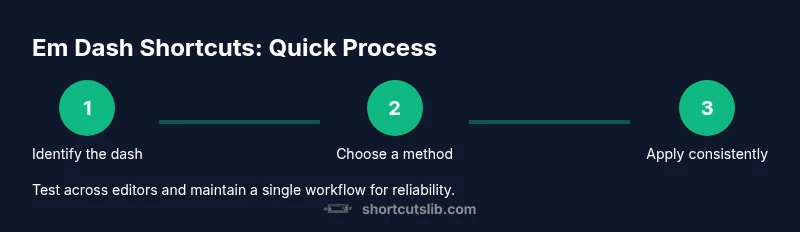
Adopt a single em dash workflow for your team or project to reduce variability. For long-form content, decide whether to use em dashes sparingly or for emphasis and stick to that choice throughout the document. Validate each dash visually in your chosen font, since some fonts render the dash slightly narrower or wider. Establish a preferred method (Alt code, macOS shortcut, Unicode input, or text replacement) and train your team to use it. This consistency supports clearer style and faster proofreading.
Accessibility, typography, and readability considerations
From an accessibility perspective, punctuation should not confuse screen reader users. Em dashes can be read as a pause or interruption, depending on screen reader behavior; maintain consistency and avoid overuse that could disrupt rhythm. In terms of typography, select a font with a clean, distinctive em dash. If your readers are likely to copy-paste content into other workflows, ensure the dash remains a single character across platforms. Finally, keep a reference cheat sheet of your team’s preferred shortcuts for quick onboarding and error reduction.
Tools & Materials
- Computer or laptop(Any OS (Windows, macOS, Linux) for testing shortcuts)
- Numpad with numeric keypad(Use for Alt codes on Windows; if no keypad, use on-screen keypad or alternative methods)
- US keyboard or appropriate locale(Some shortcuts depend on keyboard layout (US, UK, etc.))
- Document editor or text field(Word, Google Docs, WordPad, or any app that accepts insertion)
- Unicode input method (optional)(Windows: Alt+Unicode 2014; macOS: not common; Linux: Compose key if available)
Steps
Estimated time: Total time: 15-25 minutes
- 1
Identify the dash you need
Begin by deciding whether you want an em dash (—) for a strong break or an en dash (–) for a range. Review your document style and pick the dash that aligns with your writing goals. This decision sets your subsequent shortcut choices and ensures consistency across sections.
Tip: Note the dash width in your chosen font to confirm it visually matches your style guide. - 2
Insert em dash on Windows using an Alt code
If your keyboard has a numeric keypad, hold Alt and type 0151, then release to insert an em dash. If you’re on a laptop without a keypad, use the on-screen keypad or copy-paste from a character map. Alt codes work in most word processors and many text fields.
Tip: Ensure Num Lock is enabled; in some apps, the Alt code may insert a different symbol if the keyboard layout differs. - 3
Insert em dash on macOS with a built-in shortcut
Press Option + Shift + Minus to produce an em dash. This shortcut works across many macOS apps, including Pages, TextEdit, and browsers with text fields. If your app overrides keystrokes, use the macOS Character Viewer as a fallback.
Tip: Practice the combination a few times in a neutral document to build muscle memory. - 4
Linux: Unicode input or Compose key
For Unicode, press Ctrl + Shift + U, type 2014, then Enter. If you’ve configured a Compose key, you can type a sequence like Compose + -- to generate the em dash. Availability varies by distro and desktop environment.
Tip: If you frequently need em dashes, configure a global text replacement to keep your workflow fast. - 5
In Word and Google Docs: app-specific paths
In Word, Alt code often works, but Word’s own autocorrect workflow can insert em dashes as you type. In Google Docs, you can use Insert > Special characters to search for 'em dash' or rely on your OS shortcut if supported by the browser. Maintain consistency across editors.
Tip: Create a shared shortcut cheat sheet for your team and publish it in your project wiki. - 6
Set up text replacement for automation
Configure a text expansion rule such as typing -- to automatically replace with —. Use this method across apps that support text replacement, including mobile keyboards and desktop editors. It minimizes errors and speeds up typing.
Tip: Test replacements in several apps to ensure the dash renders identically in all contexts. - 7
Validate punctuation for consistency
Review a sample document and verify that every em dash matches the same width, font, and typographic style. If you find inconsistencies, adjust your font or choose a single insertion method for the project.
Tip: Run a quick visual audit on a representative page to catch anomalies early.
Questions & Answers
What is the difference between an em dash and an en dash?
An em dash (—) is longer and signals a strong break or interruption. An en dash (–) is shorter and typically marks ranges or connections. Use each dash consistently according to your style guide.
The em dash is longer and used for emphasis, while the en dash is shorter and used for ranges. Use them consistently per your style guide.
How do I type an em dash on Windows without a numeric keypad?
Use the on-screen keyboard to enter Alt codes or copy the em dash from a character map. Some apps also support Unicode input as an alternative.
If you don’t have a numeric keypad, try the on-screen keypad or Unicode input as an alternative.
Can I customize or remap keyboard shortcuts for dashes?
Yes. Many editors and OS environments allow remapping or adding text replacements. Create a consistent mnemonic for your team and apply it across tools.
You can remap to a mnemonic like -- to an em dash, and apply it across your apps.
Are em dashes supported in all apps?
Most modern editors and browsers support em dashes, but some legacy or plain-text apps may require copy-paste or Unicode input. Always test in your primary workflow.
Most apps support em dashes, but always check your primary editor and browser.
What are common mistakes when inserting em dashes?
Overuse, inconsistent dash width, or mixing em and en dashes within the same document. Maintain one standard style and method.
Avoid mixing dash types and ensure consistent width and spacing.
Is there an accessibility best practice for em dashes?
Keep dash usage readable and purposeful to minimize confusion for screen readers. Use consistent punctuation and avoid excessive interruptions that hinder flow.
Be mindful of readability for screen readers by using em dashes purposefully and consistently.
What is the recommended approach for cross-platform punctuation?
Choose a primary method (keyboard shortcut, Unicode, or text replacement) and apply it across devices to ensure uniform rendering in your content.
Pick a primary method and use it consistently across devices.
Watch Video
Main Points
- Master one em dash workflow for consistency.
- Use Windows Alt codes or macOS shortcuts as primary methods.
- Unicode input and text replacement are robust fallbacks.
- Test across apps to ensure uniform rendering.
- Incorporate dash usage guidelines into your style guide.