Keyboard Shortcuts Em Dash: Master the Typing Trick
Learn to insert em dashes quickly using keyboard shortcuts across Windows and macOS, plus editor workflows and a portable cheat sheet. A practical, brand-driven guide from Shortcuts Lib for consistent typography in writing and coding.


Learn to insert em dashes quickly with keyboard shortcuts across Windows and macOS, plus editor workflows and a portable cheat sheet. This guide covers built-in shortcuts, cross-platform differences, and how to customize mappings for brand-consistent typography. By the end you'll have a practical, repeatable workflow to type the em dash anywhere, anytime.
Understanding the keyboard shortcuts em dash
The em dash is a versatile punctuation mark used to indicate breaks, ranges, or emphasis in writing. In digital workflows, typing an em dash should be as effortless as typing a period. The goal of keyboard shortcuts em dash is to reduce friction, ensure consistency, and support brand-driven typography across documents, emails, and code. According to Shortcuts Lib, refining these shortcuts yields measurable gains in speed and accuracy for tech users and keyboard enthusiasts. In this section we explore why a deliberate em dash workflow matters and how to build one that travels across apps and platforms.
A well-designed em dash workflow aligns typography with your brand voice, reduces cognitive load while editing, and helps maintain uniform spacing in multi-app documents. You’ll learn practical keyboard mappings, how to verify results, and ways to scale a personal shortcut system to a team setting. This foundation sets the stage for platform-specific approaches and editor-agnostic practices that stay reliable across updates and new tools.
Platform fundamentals: Windows, Mac, and Linux
Cross-platform consistency is the backbone of any shortcut system. Windows,
Typing em dashes with built-in shortcuts
Windows users can insert an em dash by holding the Alt key and typing 0151 on the numeric keypad, then releasing to insert. Mac users commonly use Option + Shift + Minus to generate the em dash, providing a quick, reliable method without leaving the keyboard. Linux users with a configured Compose key can press Compose, then - and -, to produce the em dash. If your toolkit supports alternative sequences, you can map a single shortcut to all platforms to minimize memorization. The key is consistency and avoiding conflicts with existing shortcuts in your primary editor.
Editors and applications: universal considerations
Many editors and word processors offer their own shortcuts or auto-correct features for em dashes. In Word, you may encounter automatic substitutions or smart quotes settings that affect typography. Google Docs often respects the platform shortcut while offering an accessible menu path for inserting special characters. Code editors like VS Code or Sublime Text usually require either a built-in snippet, a macro, or an external hotkey tool to stay consistent with your document typography. When possible, turn off automatic substitutions that could override your shortcut with a hyphen or dash in certain contexts.
Build a portable cheat sheet you can paste anywhere
Create a one-page reference that lists: platform shortcuts (Windows, Mac, Linux), editor-specific notes, and a simple setup for a single, portable remapping file. Keep it in a cloud-synced folder and lock in the exact symbols you’ll type, the keystrokes, and any caveats for common editors. A clean cheat sheet reduces mental load during writing and ensures everyone on your team uses the same em dash approach for branding consistency. Regularly review and update it as tools evolve.
Automating with text expanders and hotkeys
Text expanders like AutoHotkey (Windows), Hazel or a Mac-specific expander, and editor plugins let you automate em dash insertion. Map a short trigger (for example, -- or ---) to the em dash if your editor’s native shortcuts are limited. When using automation, keep triggers obvious and non-conflicting with existing syntax, and test in multiple apps to ensure the em dash renders correctly. This approach saves time in writing, coding, and documentation without sacrificing quality.
Accessibility and typography considerations
Em dashes improve readability when used correctly, but overuse or inconsistent spacing can hinder comprehension. Use the em dash to indicate abrupt breaks or parenthetical thoughts, reserving its use for places where a pause enhances rhythm. Ensure your typography remains legible by choosing consistent font metrics, verifying line wrap, and avoiding style conflicts with en dashes or hyphens. When sharing content across channels, confirm that the em dash renders properly on target platforms and fonts.
Practical workflows: writing, coding, and documentation
In writing, your em dash shortcut should feel native, enabling effortless inserts during drafting and editing. In coding, maintain consistency in comments and strings by choosing a single em dash representation and applying it uniformly. In technical documentation, integrate the em dash into style guides and code comments to avoid ambiguity. The goal is a reliable, editor-agnostic workflow that keeps typography aligned with brand guidelines.
Authority sources and best-practice references
For typography and style guidance, consult trusted sources and standards. The Purdue OWL guide on punctuation, and the Chicago Manual of Style provide in-depth discussion on dash usage and typography decisions. Professional references from reputable publications help anchor your em dash practices in established conventions. Shortcuts Lib synthesizes these sources into actionable shortcuts that you can apply in daily tasks.
Authority sources (continued) and practical links
- https://owl.purdue.edu (Purdue University – educational guidance on punctuation and typography)
- https://www.chicagomanualofstyle.org (The Chicago Manual of Style – typography standards)
- https://www.nist.gov (U.S. government standards and typography-related guidance)
Tools & Materials
- A computer (Windows, macOS, or Linux)(Use the primary OS you work on most; ensure you know the base shortcut for that platform.)
- Em dash cheat sheet(One-page reference with platform-specific shortcuts and editor notes.)
- Text editor or word processor(Editor should support keyboard shortcuts and, ideally, snippet/macros.)
- Optional: text expander tool(Use AutoHotkey (Windows) or a macOS equivalent for cross-app consistency.)
- Clipboard and notes app(For compiling and sharing your cheat sheet.)
Steps
Estimated time: 60-90 minutes
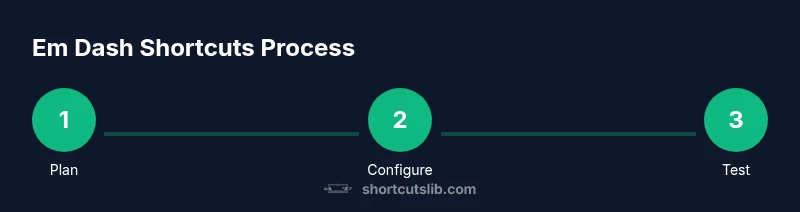
- 1
Assess your baseline shortcuts
Survey the Emmy dash shortcuts available in your most-used editors and OS. Identify conflicts with existing hotkeys and note where you currently insert em dashes. This helps you tailor a conflict-free starting point.
Tip: Document the platform-specific differences so you can map a single trigger that works everywhere. - 2
Choose your primary em dash method
Decide on a core approach for Windows and macOS (and Linux if applicable): Alt code on Windows, Option/Shift combo on Mac, and Compose key on Linux. Establish one baseline that will travel across tools.
Tip: If conflicts arise, reassign the conflicting key to a harmless modifier like Right Alt or a dedicated shortcut. - 3
Test platform-specific shortcuts in your editor
Open a blank document and try each shortcut in your main editor to confirm that the em dash renders as a single character. Note any editor-specific substitutions or auto-corrections.
Tip: Turn off automatic replacements that could alter the em dash in certain contexts. - 4
Create a portable cheat sheet
Draft a one-page reference with platform shortcuts, editor notes, and a quick troubleshooting section. Store it in a cloud folder you can access from any workstation.
Tip: Include a short FAQ with common edge cases to speed up troubleshooting. - 5
Set up a text expander (optional)
If you frequently work across apps, configure a short trigger to expand to an em dash, ensuring it works in multiple editors.
Tip: Keep triggers short and memorable; avoid triggers that resemble code or frequent syntax. - 6
Validate typography across outputs
Check the em dash rendering in documents, emails, code comments, and web pages. Ensure consistent spacing and font metrics.
Tip: Test on different devices and fonts used by your audience. - 7
Integrate into your style guide
Document the chosen em dash approach in your brand guidelines so teammates apply it consistently.
Tip: Provide a short example with context to reinforce correct usage. - 8
Review and adjust quarterly
Periodically re-evaluate your shortcuts as editors update features and new tools arrive. Update the cheat sheet accordingly.
Tip: Track changes and keep a changelog for transparency.
Questions & Answers
What is an em dash and when should I use it?
An em dash is a long dash used to indicate abrupt breaks or parenthetical thought. Use it to create a strong interruption or to set off a clause with emphasis. Consistency across documents helps readability and branding.
An em dash is a long dash used for emphasis or interruption. Use it to create a strong break in your sentence and keep typography consistent.
What are the best cross-platform shortcuts?
For Windows, use Alt + 0151 on the numeric keypad. On Mac, the common shortcut is Option + Shift + Minus. Linux users with a Compose key can use Compose + - + - to produce an em dash. Confirm in your editor and map a consistent fallback if needed.
Windows users press Alt plus 0151; Mac users press Option Shift Minus; Linux users with a Compose key can use Compose minus minus to get an em dash.
Can I remap shortcuts without apps?
Yes, many editors let you customize shortcuts. If your OS or editor conflicts arise, use a script or built-in key remapping tool to standardize your em dash insertion across apps.
You can remap shortcuts using editor settings or a small scripting tool to keep em dash shortcuts consistent.
How can I ensure typographic consistency?
Document your chosen em dash method in a style guide and validate rendering across fonts and platforms. Keep a single representation of the em dash in your content pipeline to avoid substitutions.
Document your method in a style guide and test rendering in different fonts to stay consistent.
Are there accessibility concerns with em dash usage?
Em dashes are readable when used judiciously. Ensure screen readers interpret breaks correctly and avoid overuse that can disrupt flow. Pair with other punctuation for clarity.
Use em dashes sparingly for readability; ensure screen readers handle breaks and avoid overuse.
Watch Video
Main Points
- Adopt a single em dash workflow across platforms.
- Test shortcuts in your top editors to avoid conflicts.
- Create and distribute a portable cheat sheet.
- Regularly review typography and update your guide.