What Keyboard Shortcut Takes a Screenshot: A Practical Guide
Explore the keyboard shortcuts for capturing screenshots on Windows, macOS, and Linux. Learn core combos, region capture, and best practices to speed up your workflow in 2026.


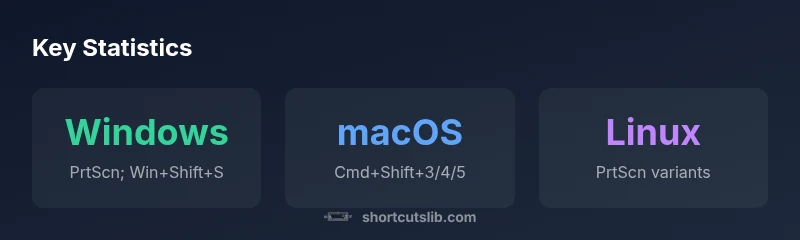
The primary keyboard shortcuts for taking screenshots depend on your operating system: Windows uses PrtScn or Win+Shift+S for region capture; macOS uses Command+Shift+3, Command+Shift+4, or Command+Shift+5 for full, area, or tool-based captures; Linux typically relies on PrtScn variants (region/window), with behavior varying by desktop environment. This ensures you stay productive whether you switch devices or rely on built-in tools.
How Screenshot Shortcuts Vary by Operating System The shortcuts you use for screenshots differ by operating system, and recognizing these three patterns helps you stay efficient: Windows favors PrtScn-based flows and Win+Shift+S for region capture; macOS emphasizes Command+Shift+3/4/5 for full, area, or tool-based captures; Linux relies on PrtScn variants whose behavior depends on the desktop environment. Understanding this helps you quickly pick the right tool when you switch devices or workflows. - Windows: PrtScn copies to clipboard; Win+Shift+S opens Snip & Sketch for region capture. - macOS: Cmd+Shift+3 takes a full screenshot; Cmd+Shift+4 for a region; Cmd+Shift+5 opens a capture utility with options. - Linux: PrtScn-based shortcuts are common, with region and window captures varying by GNOME, KDE, or Xfce. Pro tip: use a consistent habit across platforms to reduce cognitive load.
Quick Reference: Keyboard Shortcuts by OS Windows: PrtScn (full screen to clipboard); Alt+PrtScn (active window); Win+Shift+S (region capture). macOS: Cmd+Shift+3 (full screen); Cmd+Shift+4 (region); Cmd+Shift+5 (screenshot tool with options). Linux: PrtScn and Alt+PrtScn (state varies by environment); Shift+PrtScn (region) is common in GNOME/KDE. Tip: leverage built-in tools to avoid extra software and ensure consistency.
Region and Window Capture: Precision Shots When you need a specific area or window, region capture is your friend. Windows offers Win+Shift+S; macOS provides Cmd+Shift+4 (drag to select) and Cmd+Shift+5 (capture tool with options); Linux users rely on PrtScn variants tied to their desktop environment. Prepare the window with minimal clutter, then capture for the cleanest result. Pro tips include pasting into an editor to adjust margins and using overlays for annotations if supported.
Tools Built Into Each OS vs Third-Party Apps Built-in tools cover most day-to-day needs and keep systems lean. Windows Snip & Sketch and macOS Screenshot provide fast region and timed captures. Linux environments vary, but many desktops include region capture and clipboard options. For advanced editing or cloud sharing, third-party apps like Greenshot, Flameshot, or share-to-clipboard utilities can save time. Pros of built-ins: no extra install; cons: fewer annotation features; cross-platform workflows may require adaptation.
Improving Speed: Practice and Shortcuts Library Memorization improves speed. Start with three core shortcuts per OS: Windows, macOS, and Linux, then expand as needed. Create a one-page cheatsheet and keep it handy during onboarding. Regular practice reduces cognitive load and boosts consistency across devices.
Troubleshooting and Keyboard Layout Considerations If a shortcut doesn’t work, check keyboard layout (QWERTY vs DVORAK) or hardware mappings that swap keys. Some laptops remap Print Screen; verify desktop environment remappings and conflicts in other apps. Adjust settings to ensure the intended key combo maps correctly on your device.
Accessibility and Ergonomics in Screenshot Capture Predictable, easy-to-reach combinations support accessibility goals. Prefer smaller key combos and consider on-screen hints or toolbars to aid users with motor skill challenges. If region capture is frequent, consider macro-like sequences to reduce keystrokes per shot.
Best Practices for Sharing and Storing Screenshots Establish a consistent naming convention and storage location. Annotate before saving when possible, and crop or blur sensitive information before sharing. A streamlined workflow minimizes errors in collaborative environments.
Screenshot shortcuts by operating system
| OS | Default Shortcut(s) | Notes |
|---|---|---|
| Windows | PrtScn; Win+Shift+S | Full screen and region capture; clipboard-ready |
| macOS | Cmd+Shift+3; Cmd+Shift+4; Cmd+Shift+5 | Full, region, and tool-based captures |
| Linux | PrtScn; Shift+PrtScn; Alt+PrtScn | Environment-dependent; varies by DE |
Questions & Answers
What is the easiest keyboard shortcut to take a screenshot on Windows?
On Windows, press PrtScn to copy the entire screen to the clipboard; Win+Shift+S opens Snip & Sketch for region capture.
On Windows, press PrtScn or Win+Shift+S for quick region capture.
How do I quickly capture a selected area on macOS?
Use Command-Shift-4 to draw a region, or Command-Shift-5 for a capture tool with options.
Use Cmd-Shift-4 for a region, or Cmd-Shift-5 for the capture tool.
Are there differences in Linux screenshot shortcuts across desktop environments?
Yes. Shortcuts like PrtScn and Alt+PrtScn are common, but exact behavior varies by GNOME, KDE, and Xfce.
Yes, Linux varies by desktop environment; check your distro's docs.
Can I customize screenshot shortcuts on Windows or macOS?
Yes. Windows can remap keys with tools; macOS allows some remappings in System Settings. Third-party apps can help if needed.
You can customize some shortcuts in system settings or with helper apps.
What about privacy when sharing screenshots?
Screenshots may contain sensitive data; use region capture and review before sharing.
Be mindful of what you capture; review before sharing.
What about mobile devices?
iOS and Android use system-level gestures; refer to device-specific guides for exact combos.
Mobile devices rely on OS-specific gestures; consult your device guide.
“Consistency across operating systems accelerates screen capture. Start with the core patterns for Windows, macOS, and Linux, then build from there.”
Main Points
- Identify your OS default shortcuts first
- Use region capture for precision
- Memorize core combos per OS
- Balance built-in vs third-party tools
- Customize shortcuts to fit your workflow