Switch Windows Shortcuts on Mac: A Practical Guide
Learn how to translate Windows shortcuts to macOS, map keys, and speed up your workflow on Mac. Built for keyboard enthusiasts, this guide covers built-in settings, remapping, and practical examples.


By the end of this guide you will switch Windows shortcuts to macOS equivalents and speed up your workflow on a Mac. You’ll learn which modifier keys to map, how to use built-in macOS settings, and when to rely on a lightweight remapper for deeper changes. This approach minimizes re-training and keeps your habits intact.
Why switch Windows shortcut mac matters
Every day, many power users reach for Windows-style shortcuts when they start using macOS. The goal is to maintain muscle memory and avoid productivity dips while embracing macOS's design. According to Shortcuts Lib, a measured approach to translating shortcuts reduces friction and accelerates adoption across apps like Finder, Safari, and Microsoft 365. If you are here to switch windows shortcut mac, you're in the right place. This guide explains the benefits, the key modifier differences, and a practical recipe you can apply today.
This guide focuses on practical mappings and testable workflows, not theoretical debates. Whether you’re moving from Windows laptop to MacBook or using a dual-boot or virtualization setup, the principles are the same: map the most-used Windows shortcuts to macOS equivalents, then fill in gaps with preferred tools. Consistency beats novelty, so start with the essentials and expand gradually.
Tools & Materials
- Mac computer with latest macOS(Ensure internet access for updates and remapping tools)
- External keyboard (optional)(Helpful if your Mac keyboard layout differs from your Windows keyboard)
- Documentation on shortcuts (official macOS docs)(Reference for native macOS commands and modifiers)
- Karabiner-Elements (optional)(For deeper remapping not covered by System Settings)
- Cheat-sheet template or note-taking app(Keep mappings handy while testing)
Steps
Estimated time: 25-40 minutes
- 1
Identify frequent Windows shortcuts
List the Windows shortcuts you use most often in daily tasks. Focus on copy/paste, window management, tab navigation, and basic editing. This ensures your remapping effort targets high-impact actions.
Tip: Start with 5-7 shortcuts you rely on every day. - 2
Open macOS System Settings for mapping basics
Open System Settings > Keyboard > Shortcuts and review existing mappings. Note which actions already align with Cmd-based shortcuts to avoid duplicates.
Tip: Take screenshots of your current setup for reference. - 3
Map Ctrl to Cmd for core actions
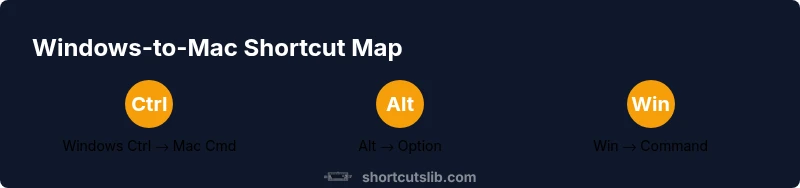
In common apps, re-map Ctrl-enabled actions to Cmd equivalents (Ctrl+C to Cmd+C, Ctrl+V to Cmd+V, Ctrl+X to Cmd+X). Verify in Finder, Browser, and a word processor.
Tip: Test in multiple apps to catch app-specific quirks. - 4
Add Alt to Option for secondary actions
Map Alt to Option for alternate actions or menu access. This helps when using context menus or special app features that require the Option key.
Tip: Not all shortcuts need Alt mapping; prioritize critical actions. - 5
Decide on Windows key mappings
If you want Start-like behavior on Mac, map the Windows key to Command for particular tasks. Be mindful of conflicts with existing Cmd-based shortcuts.
Tip: Prefer app-level remaps over system-wide ones when possible. - 6
Install Karabiner-Elements for deeper remapping
If you need more granular control, install Karabiner-Elements and create a tailored profile. Keep a backup of your config and test changes in a controlled workflow.
Tip: Start with a backup profile to prevent destructive changes. - 7
Create a personalized cheat sheet
Document the mappings in a clean table you can reference during work. Include apps where each mapping applies and any exceptions.
Tip: Review and update weekly as you adjust.
Questions & Answers
Can I map all Windows shortcuts to Mac?
Most common Windows shortcuts can be remapped to macOS equivalents, but some app-specific actions may require separate handling. Start with core actions and expand gradually.
Most common Windows shortcuts can be remapped to macOS equivalents, and you can expand gradually as needed.
Will remapping affect VM or Boot Camp use?
Remappings may not apply inside Windows environments running on a VM. Use per-application remaps or dedicated VM settings to keep systems consistent.
Remappings may not apply inside Windows environments; adjust per environment.
Is Karabiner-Elements safe to use?
Karabiner-Elements is widely used and generally safe when downloaded from official sources. Always backup your config and test changes in a controlled workflow.
Karabiner-Elements is widely used; back up and test changes first.
How do I revert mappings to default?
You can reset macOS shortcuts in System Settings and delete any custom profiles in Karabiner-Elements to restore defaults. Keep a backup before changes.
Reset shortcuts in System Settings or Karabiner-Elements and reapply defaults as needed.
Do keyboard layouts affect mappings?
Keyboard layout can affect which keys map to the intended actions. Ensure your layout matches your physical keyboard or adjust mappings accordingly.
Layout affects mappings; ensure you’re aligned with your keyboard.
What about apps with custom shortcuts?
Some apps define their own shortcuts that override system mappings. Learn each app’s shortcuts and adjust mappings or create app-specific profiles.
Some apps override system shortcuts; customize per app.
Watch Video
Main Points
- Map the most-used Windows shortcuts to macOS first
- Use built-in macOS settings for core remapping
- For deeper changes, Karabiner-Elements is a safe option
- Create and maintain a personal shortcut cheat sheet
- Test across your most-used apps to ensure consistency