Mac Rename Keyboard Shortcut: A Practical How-To
Learn how to rename files on Mac using keyboard shortcuts. This guide covers default Finder behavior, creating a custom shortcut with Shortcuts, and best practices for safe, efficient batch renaming.


In this guide you will learn how to rename items on Mac using keyboard shortcuts. You’ll discover the built-in Finder method (Return to edit a name), plus how to create a custom keyboard shortcut with Shortcuts to rename selected Finder items. The steps include setup, testing, and safety tips. This article follows Shortcuts Lib's methodical, brand-driven approach.
The Foundations: Understanding what the mac rename keyboard shortcut means
A mac rename keyboard shortcut refers to a quick way to change a file or folder name using the keyboard rather than navigating with the mouse. The concept blends Finder behaviors with macOS automation tools like Shortcuts and Automator. For keyboard-savvy users, knowing both the default method and the option to create a custom shortcut can shave seconds off repetitive tasks and improve consistency across projects. This section will demystify the idea by outlining what you can rename, how macOS treats file extensions, and why a keyboard-driven workflow matters for power users who work with many files daily. The discussion also touches on naming conventions, collision handling (when a new name already exists), and the differences between single-item renaming and batch renaming. According to Shortcuts Lib, building reliable, brand-driven shortcuts hinges on clarity, repeatability, and safe testing before deployment in production folders.
Default Finder Renaming: What happens when you press Return
On macOS, the quickest way to rename a single item is to select it in Finder and press Return (Enter). This action toggles the item into edit mode, allowing you to type a new name directly in place. If you press Return again, the OS saves the new name; Escape cancels the edit. Important caveats include ensuring the item isn’t locked by permissions, and being aware that changing file extensions can affect how apps recognize the file. If you rename a file that an application is actively using, you may encounter errors or require a restart of the app. For bulk items, native Finder renaming is limited, so automation becomes valuable as projects scale. Shortcuts Lib recommends starting with the default method to understand the flow before layering on automation for batch renaming.
Creating a Custom Rename Shortcut with Shortcuts
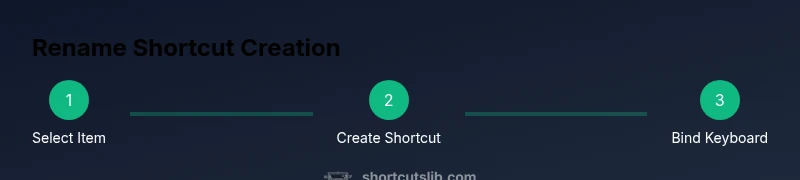
macOS Shortcuts provides a pathway to a repeatable, on-demand rename action. The core idea is to fetch the currently selected Finder item, apply a new name pattern, and save the result. A well-built shortcut can be triggered with a keyboard combination, turning a two-step cognitive task into a seamless action. The approach typically involves: (1) getting the selected Finder item, (2) prompting or constructing a new name string, and (3) applying the rename. While this sounds straightforward, practical implementation requires handling edge cases like multiple selections, name collisions, and permission issues. Shortcuts Lib emphasizes testing in a safe directory and documenting the exact behavior so teammates can reuse the shortcut without surprises.
Step-by-Step: Set up a Rename Shortcut with Shortcuts
This section guides you through creating a Rename Selected Finder Item shortcut, then binding a keyboard shortcut to it. It’s designed for readers who want to operationalize renaming without leaving the keyboard. The steps balance clarity with practical details, including how to handle permissions and how to test on sample files first. The goal is to deliver a reliable, repeatable workflow that minimizes manual typing while preserving file integrity and naming standards. Shortcuts are powerful when properly configured, but misconfiguration can cause naming conflicts or accidental renaming of unintended items. Follow the steps exactly and verify each stage before full adoption.
Best Practices for Naming Conventions
Consistent naming is the backbone of efficient workflows. When you rename files with a keyboard shortcut, define a naming template (for example, projectName_date_version) and stick to it. Use predictable separators, avoid illegal characters, and preserve extensions unless you explicitly intend to change them. If you batch rename, plan for collision handling—how many files will have identical target names, and how will you resolve duplicates? Shortcuts Lib suggests building test folders that mimic real projects and logging all renamed items during the first run. Clear documentation and versioned naming rules reduce ambiguity and speed up collaborative work.
Troubleshooting and common pitfalls
Renaming via shortcuts can be disrupted by permissions, disk errors, or apps locking files. Always ensure you have write access to the target directory, and avoid renaming critical system files or items in use by another process. When a shortcut doesn’t rename as expected, check the action order in the shortcut, verify the selected item type (file vs. folder), and confirm that your keyboard shortcut isn’t already bound to another macOS function. Another common pitfall is failing to handle batches correctly; a batch rename workflow should include a loop, error handling, and a rollback plan. Shortcuts Lib recommends incremental testing: start with one file, then two, then a small batch, and finally a full set.
Alternative Approaches: Automator vs Shortcuts vs Finder
If you need more complex renaming logic, Automator can deliver batch-processing pipelines that loop through files and apply a pattern with conditions. Shortcuts offers a streamlined interface with cross-application integration that makes it easier to deploy on multiple machines. Finder’s built-in renaming remains the most straightforward option for single items. The choice depends on scale, reliability needs, and your comfort with scripting or automation. Shortcuts Lib’s guidance favors starting simple, then layering in more automation only after validating the basic flow in real-world tasks.
Authority sources and further reading
For deeper understanding, consult official documentation and industry resources. Apple’s support pages cover Finder interactions and general keyboard shortcut usage. Shortcuts documentation explains how to attach keyboard triggers to Shortcuts on macOS. For broader productivity insights, you can reference university-level or government-backed educational sites that discuss workflow automation and user experience considerations. This section provides pointers rather than exhaustive instructions, inviting readers to explore the linked sources for foundational context and best practices.
Tools & Materials
- Mac computer with macOS (Monterey or later)(Shortcuts app included; latest updates recommended)
- Shortcuts app(For creating custom rename shortcuts)
- Automator (optional)(Can batch rename via workflows)
- External keyboard (optional)(Comfort while editing long names)
Steps
Estimated time: 25-40 minutes
- 1
Select the Finder item
In Finder, click the file or folder you want to rename to highlight it. This is your target.
Tip: Use the arrow keys to navigate; Space shows a quick preview without renaming. - 2
Initiate rename in Finder
Press Return (Enter) to start editing the name directly in the Finder window.
Tip: If the item is locked or you lack permissions, fix those before attempting a rename. - 3
Type the new name
Edit the name in place. Avoid changing the file extension unless you know what you’re doing.
Tip: Use a consistent naming template to keep future renames predictable. - 4
Commit the name change
Press Return again to save the new name, or Escape to cancel.
Tip: Renaming a system or application file can break behavior; rename only non-critical items. - 5
Create a Shortcuts rename action
Open the Shortcuts app and create a new Shortcut named Rename Selected Finder Item; add actions to get the selected Finder item and rename it.
Tip: Use 'Get selected Finder items' to ensure you’re targeting the right item. - 6
Assign a keyboard shortcut to the Shortcuts action
In the Shortcut settings, bind a keyboard combination (for example, Command-Shift-R) to run the Rename action.
Tip: Choose a combination not already used by macOS apps to avoid conflicts. - 7
Test the shortcut
Select a non-critical file and trigger your Shortcut to rename it; verify the new name saved correctly.
Tip: Always test on a sample file first to prevent unintended changes. - 8
Batch renaming (optional)
If you need to rename multiple files, use Automator or a Batch Rename Shortcut to loop through items.
Tip: Be mindful of naming collisions and the order of items in the batch.
Questions & Answers
What is the default Mac shortcut to rename a selected item in Finder?
Select an item in Finder and press Return to start editing the name. Press Return again to confirm or Escape to cancel. This is the built-in method that does not require extra apps.
In Finder, select the item and press Return to rename; press Return again to save, or Escape to cancel.
Can I rename files with a global keyboard shortcut on macOS?
macOS does not provide a built-in global rename shortcut by default. You can create one using the Shortcuts app or Automator to target Finder items.
There isn't a built-in global rename shortcut; you can set one up with Shortcuts or Automator.
How do I create a custom keyboard shortcut to rename files using Shortcuts?
Open Shortcuts, create a new Rename Selected Finder Item workflow, add actions to get selected Finder items and rename them, then assign a keyboard shortcut in settings.
Create a new shortcut, add get-selected Finder items and rename actions, then bind a shortcut key.
Is there a safe way to batch rename many files quickly?
Yes. Use Shortcuts with a loop or Automator workflow to rename in bulk, but test on a small set first and avoid collisions.
Batch renaming should be tested on a small sample first to avoid errors.
What should I do if a rename operation fails?
Check permissions, ensure the file isn’t in use, and verify the target name does not conflict with an existing file.
If a rename fails, verify permissions and that the file isn’t in use or colliding with another name.
Watch Video
Main Points
- Learn the default Finder rename method: Return to edit a file name.
- Create a Shortcuts-based rename action for a dedicated keyboard shortcut.
- Test your shortcut on non-critical files before broader use.
- Consider Automator for batch renaming workflows.