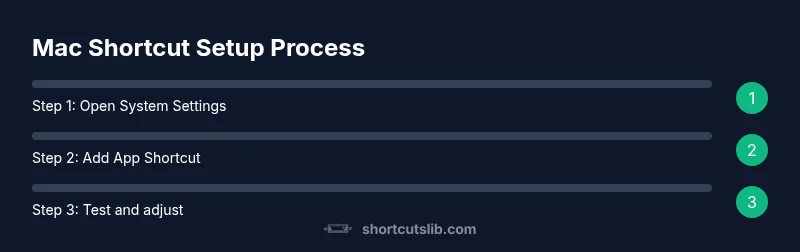
Mac Change Keyboard Shortcut: A Practical How-To Guide
Learn how to modify Mac keyboard shortcuts across macOS, Finder, and apps with step-by-step instructions, practical tips, and troubleshooting to optimize your workflow.


Goal: you will learn how to change a Mac keyboard shortcut, including adding, editing, or removing app shortcuts using macOS System Settings. This guide covers Ventura and later, with notes for older macOS paths. By the end, you’ll implement consistent shortcuts across Finder, your apps, and system menus for faster workflows.
Understanding how macOS shortcuts work
Mac keyboard shortcuts are a mix of global commands and app-specific mappings. Global shortcuts trigger no matter which app you are using (for example, Command-C for copy is global). App-specific shortcuts require you to define the exact menu item name as it appears in the app's menu. This distinction matters when planning a custom shortcut: you may prefer a universal key combo for a task across apps or tailor it to a single app to avoid conflicts.
In macOS, you manage shortcuts in two places: system-wide preferences and per-app mappings. System Settings lets you add or adjust global shortcuts (for items like Quit apps or Show Desktop), while per-app shortcuts map commands that exist only within a specific program. A practical strategy is to create a small set of universal shortcuts for frequent tasks (like Find or New Window) and supplement with app-specific ones for specialized workflows.
When designing shortcuts, consider modifier keys (Command, Option, Control, Shift) and avoid combinations already used by the OS or the app. Shortcuts may include punctuation and ellipses; ensure the Menu Title matches precisely, including trailing ellipses to prevent silent failures. This is exactly where a well-structured guide, such as that from Shortcuts Lib, helps ensure consistency and reduces conflicts.
Settings path and prerequisites
Before customizing shortcuts, confirm your macOS version and the path you should follow. On macOS Ventura and later, System Settings is the place to go; on older versions you will use System Preferences. Start by opening the Apple menu and selecting System Settings (or System Preferences). From there, navigate to Keyboard, then Shortcuts. Ensure you have an administrator account or the necessary privileges to modify shortcuts. Have a backup plan ready: documenting your mappings or taking screenshots can help you revert changes if needed.
If you plan to create per-app shortcuts, you will need to know the exact menu item name as it appears in the app’s menu bar, including punctuation, ellipses, and capitalization. A small tip: use the app’s menu to confirm the exact text before creating the shortcut, to avoid mismatches that result in no action.
Step-by-step: Add a new App Shortcut
To add an App Shortcut, press the plus (+) button in the Shortcuts tab and select the target app from the drop-down. Enter the exact menu item title as shown in the app (including punctuation and any ellipses). Then press your preferred key combo and click Add. This new shortcut will now apply when that app is frontmost. Test it immediately in the app to ensure it triggers the intended command.
Pro tip: keep a simple, memorable pattern for app shortcuts (e.g., Cmd-Option-N for a new item) and avoid overlapping with existing global shortcuts. If you see no effect, double-check the Menu Title text and ensure the app supports the mapped command. Diagrammatic references can help you visualize the mapping during setup.
Step-by-step: Edit or delete an existing shortcut
In the Shortcuts section, select the shortcut you want to modify. You can change the Menu Title or the keyboard shortcut itself. If the new combination conflicts with another command, you will be prompted to resolve the clash. To delete a shortcut, select it and press the minus (−) button, then confirm. Always retest after edits to confirm the behavior across the app.
Why this matters: edits can break existing workflows if not checked for conflicts, so take a moment to scan other global shortcuts and adjust accordingly. Keeping a simple, documented change log helps audit why a change was made and when.
Practical scenarios: Common apps and recommended shortcuts
Common practice is to tailor shortcuts per app to support your workflow while maintaining system-wide defaults for general actions. For Finder, you might assign a shortcut to quickly open a new window or reveal hidden files. In Chrome or Safari, you could map frequent actions like opening a new tab or reloading a page. For terminal users, consider shortcuts for scrolling or searching history. Always test across apps and adjust to prevent conflicts with system-level shortcuts.
Remember: consistency is key. If you use Cmd-S for Save in multiple apps, ensure all target apps support that mapping and that the menu titles align exactly with what’s displayed in-app.
Troubleshooting and safety tips for macOS shortcuts
If a newly created shortcut doesn’t fire, verify the exact menu title text, including punctuation and ellipses. Conflicts are a common cause; review global shortcuts that might override your mapping. If the shortcut continues to fail, try a different key combination using less common modifiers, and ensure the application supports the command you mapped. Keep a backup of your mappings so you can revert quickly if something breaks.
Safety note: avoid overloading a single key combination with multiple commands across apps. This reduces accidental activations and preserves your muscle memory for core tasks.
Best practices for a consistent workflow
Plan your shortcut strategy around a few core actions you perform daily. Create app shortcuts for those actions on the apps where you spend the most time, and keep global shortcuts reserved for universal tasks. Document your mappings in a simple note or spreadsheet, including App, Menu Title, and Shortcuts. Periodically review and prune unused shortcuts to avoid clutter. Finally, test after each OS update, as macOS can change default menus or conflict with new system shortcuts.
Tools & Materials
- Mac computer running macOS Ventura or later(Verification: System Settings path should reflect macOS version.)
- System Settings app (or System Preferences on older macOS)(Used to navigate to Keyboard > Shortcuts.)
- App Shortcuts interface(Requires exact Menu Title text (including ellipses).)
- Optional: third-party shortcut manager (e.g., BetterTouchTool)(Can provide extended customization beyond built-in macOS shortcuts.)
- Shortcut mapping backup(Document mappings or take screenshots to revert changes if needed.)
Steps
Estimated time: 20-30 minutes
- 1
Open System Settings and navigate to Keyboard Shortcuts
Open the Apple menu, choose System Settings (or System Preferences on older macOS), then click Keyboard and select Shortcuts. This initializes your customization workflow and helps avoid accidental changes to other preferences.
Tip: Use the search field in System Settings to locate 'Shortcuts' quickly. - 2
Add a new App Shortcut
Click the + button, choose the target app, enter the exact Menu Title, and assign a keyboard shortcut. Click Add to save. This creates a per-app command that mirrors the app’s menu item.
Tip: Double-check the Menu Title is an exact match, including punctuation and ellipses. - 3
Edit an existing shortcut to resolve conflicts
Select a shortcut from the list, modify either the Menu Title or the key combination. If a conflict occurs, macOS will prompt you to resolve it. Adjust accordingly and retest.
Tip: Prefer unique key combos for critical actions to minimize clashes. - 4
Create Finder or system-wide shortcuts
For actions you perform across apps (e.g., Find or New Window), use system-wide shortcuts to ensure consistency. Verify those mappings remain intuitive and easy to remember.
Tip: Limit the number of global shortcuts to reduce interference. - 5
Test the shortcuts in real workflows
Open the target app and perform the mapped action to confirm the shortcut triggers the intended command. If not, re-check the menu title and ensure no conflicts with other shortcuts.
Tip: Test under typical working conditions to catch edge cases. - 6
Back up mappings and document changes
Record each mapping in a simple note or spreadsheet. This makes it easy to revert or migrate shortcuts if you upgrade macOS or switch devices.
Tip: Schedule a regular review to prune outdated mappings.
Questions & Answers
Can I assign the same shortcut to different apps?
Yes, you can assign identical shortcuts in different apps, but be mindful of conflicting global shortcuts. Test thoroughly to confirm each mapping triggers only in its intended app.
You can reuse the same shortcut in different apps, but watch for conflicts and test each app individually.
How do I revert a shortcut to default?
Go to System Settings > Keyboard > Shortcuts, select the custom shortcut, and choose Restore Defaults or Delete. This returns the mapping to macOS' original behavior.
Open the shortcuts pane, select your custom shortcut, and restore defaults.
Is there a limit to how many shortcuts I can create?
macOS does not publish a fixed limit, but practical limits come from screen clutter and potential conflicts. Focus on essential actions first.
There isn’t a published limit, but avoid clutter and conflicts by prioritizing essential mappings.
Will changes sync across my devices?
Custom shortcuts generally stay on the local device. If you want them on another Mac, you’ll need to recreate them there or migrate settings via backup.
Usually, shortcuts don’t automatically sync; replicate them on each Mac you use.
How do I handle shortcuts for third-party apps?
Third-party apps often provide their own shortcut settings. You can create App Shortcuts for these apps by mapping exact menu items, but keep consistency with your broader workflow.
For third-party apps, map exact menu items in their shortcut section and maintain consistency with your main workflow.
What if a menu item changes name after an app update?
Edit the shortcut to reflect the new menu title after an update, or remove it if the item is deprecated. Regularly review shortcuts after updates.
If a menu title changes after an update, update or remove the shortcut accordingly.
Watch Video
Main Points
- Plan shortcut goals before mapping actions.
- Use App Shortcuts for consistency within apps.
- Test thoroughly and back up mappings.
- Resolve conflicts to avoid unintended actions.