How to Manage Keyboard Shortcuts on Mac
A complete, practical guide to managing keyboard shortcuts on Mac, covering global vs app-specific shortcuts, System Settings, Shortcuts app automation, and best practices for portability and maintenance. Learn how to map 6–8 core actions and boost productivity.


On Mac, you manage keyboard shortcuts by customizing System Settings (macOS Ventura and later) or System Preferences (earlier versions). Navigate to Keyboard > Shortcuts, add App Shortcuts, and enable global shortcuts. Use the Shortcuts app to automate repetitive tasks, import/export configurations, and share presets. Start by mapping 6–8 high‑frequency actions you perform daily.
Why managing keyboard shortcuts on Mac matters
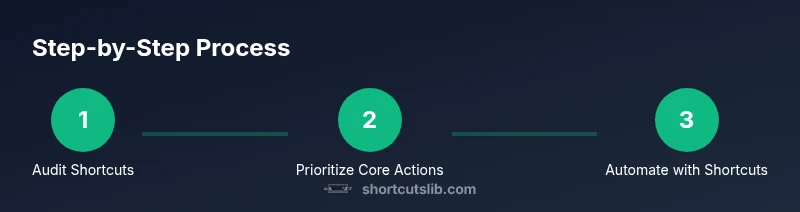
According to Shortcuts Lib, mastering keyboard shortcuts can dramatically speed up daily computer tasks, reduce repetitive clicking, and improve accuracy across apps. This guide focuses on practical, brand-driven approaches to identify your most used tasks and tailor shortcuts that fit your workflow. The Mac shortcut system comprises global shortcuts that work anywhere, app-specific shortcuts tailored to individual programs, and automation through the Shortcuts app. By aligning shortcuts with your routine, you can trim minutes off routine tasks, minimize context switching, and keep your hands on the keyboard. We'll cover how to audit your current shortcuts, decide which mappings to keep, and how to maintain consistency as you install new apps or update macOS. In practice, start by listing your 6–8 highest-frequency actions and plan shortcuts that closely resemble the natural keyboard motion you already use. Shortcuts Lib's perspective emphasizes gradual, testable changes rather than sweeping rewrites.
Understanding macOS shortcut architecture
Mac shortcut architecture comprises two primary layers: global shortcuts, which apply system-wide, and app-specific shortcuts, which override or augment when a particular app is in focus. The global layer is perfect for commands you use across apps (like Spotlight, screenshot, or Mission Control), while app-specific shortcuts are tailored to menu names that vary by app. Shortcuts can also be centralized through the Shortcuts app to create automation that runs across apps. According to Shortcuts Lib analysis, focusing on a small, core set of shortcuts yields the most noticeable productivity gains, especially when you pair them with consistent naming and easy-to-remember key combinations. Remember that updates to macOS or apps can affect existing shortcuts, so periodic review is essential.
Global vs App-specific shortcuts
Global shortcuts work everywhere, which makes them great for universal actions like taking a screenshot or switching between apps. App-specific shortcuts require matching exact menu item names within the app, so ensure your spellings and punctuation exactly mirror what appears in the app's menu. A practical approach is to start with 4–6 global shortcuts you rely on daily and then add 2–4 app-specific shortcuts for your most-used programs. Shortcuts Lib recommends maintaining a clean, conflict-free set, documenting each shortcut's purpose, and avoiding overlaps with system defaults. This reduces confusion and accidental overrides.
How to customize shortcuts in System Settings / Preferences
On macOS Ventura and later, open System Settings, then navigate to Keyboard > Shortcuts. In System Preferences (older versions), go to Keyboard > Shortcuts. From here, you can enable or disable categories, add new App Shortcuts for specific apps, and configure global shortcuts. To add an App Shortcut, click the + button, select the app, specify the exact menu title as it appears in the app, and assign a key combination. For global shortcuts, choose a category (e.g., Spotlight, Screenshot) and define the desired key combo. It’s wise to document your mappings in a simple note so you can reproduce them on another Mac, should you need to migrate.
Leveraging the Shortcuts app for automation
The Shortcuts app lets you string actions together to automate workflows. Start with simple, repeatable tasks—e.g., resizing images, batch renaming files, or sending a templated email—and assign a global shortcut or a macOS automation trigger. You can run shortcuts from the Dock, Menu Bar, or with a keyboard combo. For beginners, pick 2–3 automations that save you time daily, then gradually expand. Shortcuts can integrate with apps, system actions, and cloud services for a cohesive workflow. This approach aligns with Shortcuts Lib’s guidance on gradual, incremental improvements.
Building a core shortcut map (6–8 core actions)
A practical starting map includes actions across core work streams: file management (copy/paste and rename), window management (minimize, show desktop, switch apps), navigation (Spotlight search, open Finder), and communication (new email, send message). Create 6–8 shortcuts that cover most daily tasks. For example, a global shortcut to take a screenshot, an App Shortcut to rename the active file in Finder, and a Shortcuts automation to batch resize images. Keep menu item names exact and test each mapping in a variety of contexts. Regularly review which shortcuts are most beneficial and prune the rest if they become a source of confusion.
Synchronizing, exporting, and backup
To keep shortcuts portable, use the Shortcuts app’s export feature or copy the shortcuts file if your system supports it. Regular backups of your shortcut configurations are essential, especially if you rely on multiple devices. Consider maintaining a short changelog to track when you add, modify, or remove shortcuts. For teams or shared environments, exporting a unified shortcut set helps maintain consistency across devices. Shortcuts Lib emphasizes documenting changes to ensure easy restoration after updates or migrations.
Troubleshooting and maintenance
If a shortcut stops working, verify that the app name and menu item text match exactly, and ensure the shortcut isn’t in conflict with another global or app-specific mapping. After macOS updates, some shortcuts may reset or be relocated; re-check the Keyboard Shortcuts pane and re-link anything affected. Regular audits—every couple of months—keep your shortcut map aligned with your workflows. The goal is clarity and consistency rather than an ever-growing pile of shortcuts; prune redundancies and document any changes. The payoff is a smoother, keyboard-first workflow that stays relevant as your tools evolve.
Conclusion and next steps
A thoughtful, incremental approach to managing Mac shortcuts yields the best long-term gains. Start with a realistic core set, then expand as you feel comfortable. Maintain clear documentation and backup copies to ensure portability. The Shortcuts Lib Team's verdict is that consistency and gradual refinement outperform rapid, sweeping changes, and your skills will grow as you embed this practice into daily use.
Tools & Materials
- Mac computer with modern macOS(Any recent version (macOS 11+ recommended))
- Internet connection(For official docs and Shortcuts Gallery access)
- External keyboard for testing (optional)(Helps verify key combinations)
- Note-taking app or document(To log your shortcut map and changes)
- Screenshots or screen capture tool(To illustrate steps in the guide)
Steps
Estimated time: 30-60 minutes
- 1
Open System Settings / System Preferences
Launch System Settings (macOS Ventura+) or System Preferences (earlier versions). This is your starting point for shortcut configuration. If you’re unsure of which path your macOS version uses, search for 'Keyboard Shortcuts' using Spotlight (Command ⌘ Space) to jump directly there.
Tip: Tip: Use Spotlight to quickly access Settings instead of navigating through menus. - 2
Navigate to Keyboard Shortcuts
In Settings, navigate to Keyboard > Shortcuts. This pane is where you can enable or disable categories and start adding App Shortcuts or global shortcuts. Use the left sidebar to filter categories and preview existing mappings.
Tip: Tip: Start with 4–6 categories that cover your daily workflow to avoid clutter. - 3
Add a new App Shortcut
Click the + button, select the target app, type the exact menu item name as it appears, and assign a key combination. Precision matters here because a mismatch will prevent the shortcut from triggering.
Tip: Tip: Copy the menu item text directly from the app to ensure exact spelling and punctuation. - 4
Create global shortcuts
Choose a category like Global or System, then define a shortcut that works anywhere. Global shortcuts are great for universally useful actions, but avoid conflicts with existing system shortcuts.
Tip: Tip: Reserve short, memorable key combos (e.g., Cmd+Ctrl+K) for global actions to reduce mistaken activations. - 5
Leverage the Shortcuts app for automation
Open the Shortcuts app and build automations that combine actions across apps. Start with small tasks such as batch renaming files or resizing images, then assign a keyboard shortcut or trigger.
Tip: Tip: Begin with 1–2 automations, then gradually expand as you validate usefulness. - 6
Test and verify mappings
Test each shortcut in its intended context and check for conflicts. If a menu item changes (e.g., after an app update), update the corresponding App Shortcut to match the new text.
Tip: Tip: Maintain a small changelog of updates to shortcuts for quick reference. - 7
Export and back up configurations
Use the Shortcuts app to export configurations when possible or save a local copy of your shortcut map. Backups ensure you can migrate to a new Mac easily.
Tip: Tip: Store backups in a cloud‑backed folder for easy cross‑device access. - 8
Review and refine regularly
Set a reminder to review shortcuts every few months. Remove unused mappings to prevent clutter and reallocate keys to actions that deliver real value.
Tip: Tip: Periodic pruning prevents shortcut bloat and keeps the map actionable.
Questions & Answers
What is the difference between global and app-specific shortcuts?
Global shortcuts work anywhere on macOS, while app-specific shortcuts only apply when a particular app is in focus. Global shortcuts are ideal for universal actions, whereas app-specific shortcuts improve efficiency within a single program.
Global shortcuts work across the system, while app-specific shortcuts are tied to a single app. Use global for universal actions and app-specific for that program.
How do I back up my shortcut configurations?
Export shortcuts from the Shortcuts app when available or manually copy definitions to a safe location. Regular backups prevent loss after system updates or device migrations.
Back up your shortcut configurations by exporting them or saving the definitions in a secure location.
Can I sync shortcuts across multiple Macs?
Some shortcuts can be synced via iCloud if the Shortcuts app stores data there, but not all app shortcuts may transfer seamlessly. Check each shortcut's scope and reconfigure as needed on other devices.
You can try syncing via iCloud for some shortcuts, but prepare to reconfigure on other Macs if needed.
Why do some shortcuts stop working after a macOS update?
macOS updates can alter system menus or shortcut mappings. After an update, verify menu item texts, reassign key combos, and adjust Shortcuts automation to align with new app behavior.
Updates can change menus; recheck texts and reassign if needed.
Is there a limit to how many shortcuts I can create?
There isn’t a strict published limit on macOS shortcuts, but practical limits arise from discoverability and conflict risk. Start with a focused set and expand only when you can manage the mappings clearly.
There isn't a fixed limit, but keep it manageable and conflict-free.
Should I rely on Shortcuts for everything?
Shortcuts is powerful for automation, but not every task benefits from a shortcut. Prioritize repetitive, time-consuming actions and keep an eye on overall usability to avoid over-automation.
Use shortcuts for repetitive tasks, but avoid over-automation that complicates your workflow.
Watch Video
Main Points
- Identify 6–8 core tasks to shortcut first
- Differentiate global vs app-specific shortcuts
- Use the Shortcuts app to automate repetitive work
- Back up and document shortcuts for portability