Master Keyboard Shortcuts Without a Mouse
Learn how to navigate, edit, and manage your computer using keyboard shortcut keys only. This step-by-step guide covers OS basics, app workflows, customization, and practical drills for a mouse-free workflow.


Master keyboard shortcuts without a mouse by building a core set of OS and app commands, then expanding to custom shortcuts. This guide shows practical steps to navigate, edit, and manage windows using keystroke sequences, with examples for Windows and macOS, plus tips for accessibility and workflow optimization. By the end you’ll perform common tasks in minutes without reaching for the trackpad.
Why Keyboard-Only Control Matters
In our fast-paced digital environments, being able to operate your computer without a mouse is more than a convenience—it's a skill that can boost accuracy, speed, and focus. According to Shortcuts Lib, keyboard-first workflows help you keep eyes on content rather than chasing the cursor, reducing context-switching fatigue. A strong keyboard routine makes multitasking easier, especially when you work across multiple apps or remote desktops. Beyond speed, keyboard shortcuts improve accessibility by providing consistent interaction patterns that don’t rely on precise pointer control. When you master the basics, you unlock a portable toolkit that travels with you across devices and operating systems. Start with a core set of universal shortcuts and build from there, testing in the apps you use most. This approach aligns with Shortcuts Lib Analysis, 2026, which highlights how keyboard-driven workflows favor consistency and focus.
Core keyboard shortcuts by operating system
The first step to a mouse-free workflow is learning a robust core set of shortcuts that works across your day-to-day tasks. Start with navigation, selection, and text editing, then layer in app-specific commands. For Windows users, essential sequences include Win to open the Start menu, Alt+Tab to switch apps, and Ctrl+Tab to move between tabs in a browser or editor. Use Ctrl+C to copy, Ctrl+X to cut, Ctrl+V to paste, and Ctrl+S to save. To move within text, use Ctrl+Arrow to jump between words and Ctrl+Shift+Arrow to select. For moveable windows, Windows+Left/Right snaps windows to halves, and Windows+L locks the screen. On macOS, Command becomes your primary navigator: Command+Space opens Spotlight, Command+Tab switches apps, and Command+Q quits apps. Use Command+C/V/X for clipboard operations, Command+S to save, and Command+Arrow to jump to line ends. Option+Arrow moves by word, while Command+Shift+Arrow selects text by characters. Remember to keep focus on the active window; Tab moves between controls, and Shift+Tab reverts focus.
Navigating menus and windows without a mouse
Without a mouse, menu bars become keyboard gateways. In Windows, press Alt to highlight the menu bar, then use arrow keys to navigate menus, and Enter to activate. The Tab key moves focus across controls, while Shift+Tab moves backward. Use F6 to cycle focus between panels in many apps, and Ctrl+F to open the Find dialog quickly. In macOS, use Control+F to search within a document and Command+Down Arrow to jump to end; to access application menus, hold the Control key while pressing the function key numbers or use the dedicated shortcuts for hidden options. For browser navigation, Ctrl+L focuses the address bar, and Ctrl+Enter completes a known URL pattern. Practice these flows to reduce reliance on the pointer.
Text editing and data entry with shortcuts
Editing is where keyboard mastery shines. Quick actions include Undo (Ctrl+Z or ⌘Z), Redo (Ctrl+Y or ⌘Shift+Z), Copy (Ctrl+C or ⌘C), Cut (Ctrl+X or ⌘X), and Paste (Ctrl+V or ⌘V). Select all (Ctrl+A or ⌘A) before applying bulk edits. For numbering and lists, use Tab and Shift+Tab to indent in editors; in many apps, Ctrl+Shift+L applies bullet lists, while Ctrl+B and Ctrl+I toggle bold and italic. In browsers, use Ctrl+T for a new tab, Ctrl+W to close a tab, and Ctrl+Tab/Shift+Ctrl+Tab to move between tabs. When entering content, use Home and End to jump to line boundaries, and Page Up/Page Down to skim long pages. Practice combining navigation with editing to speed up tasks without the mouse.
Customizing shortcuts for consistent workflows
One size does not fit all. Create universal shortcuts for common actions across apps, then optional app-specific mappings for critical tools. In Windows, explore Settings > Accessibility or Keyboard options, and consider PowerToys for remapping keys and creating shortcuts that don’t conflict with system ones. In macOS, open System Preferences > Keyboard > Shortcuts to enable App Shortcuts or create custom sequences with the exact menu titles your apps use. Third-party tools like AutoHotkey or BetterTouchTool can help you design custom shortcuts that trigger multiple actions with a single keystroke. Document your mappings in a cheat sheet and review them weekly to keep them aligned with your workflow.
Accessibility and reliability of keyboard shortcuts
Keyboard work often intersects with accessibility features. Enable Sticky Keys on Windows or macOS to reduce the need for simultaneous key presses during learning. Keyboard navigation depends on focus, so ensure your UI exposes logical focus order across pages and dialogs. If you depend on shortcuts during long sessions, consider enabling Quick Shortcuts or a dedicated “macro” layer that won’t interfere with standard OS keys. Always test new mappings in a safe environment before adopting them in production, and back up your shortcut definitions.
Practice routines and building muscle memory
Consistency beats intensity. Start with a 15-minute daily drill focusing on a core set of 10-15 shortcuts. Use a cheat sheet and keep it visible while you practice. Gradually add new shortcuts one at a time, and emphasize correct finger placement rather than speed. Use simulated tasks—typing, switching windows, editing a document—to integrate shortcuts within real workflows. Track progress by noting reduced mouse use and faster task completion, and reward small milestones to reinforce the habit.
Common mistakes and quick fixes
New users often rely on complex sequences without understanding the context or app quirks. Avoid trying to memorize every shortcut at once; focus on a core set and ensure consistency across apps. One common pitfall is using shortcuts that conflict with system commands; re-map conflicting keys. Another mistake is neglecting focus; always verify where the keyboard focus is before sending a keystroke. When in doubt, pause and use a visible cheat sheet to validate the next action. Finally, don’t forget to practice across devices to avoid mental fatigue from switching platforms.
Tools & Materials
- Computer (Windows or macOS) with keyboard access(Ensure current OS supports the shortcuts you plan to use.)
- Full-sized or ergonomic keyboard(Prefer keys with clearly labeled function rows for faster access.)
- Keyboard shortcut cheat sheet(Printable or digital; include core OS shortcuts and common app mappings.)
- Notepad or note-taking app(Record custom mappings and practice notes.)
- Timer or pomodoro app(Time-box practice sessions to build discipline.)
- External monitor (optional)(Helpful for larger layouts while learning complex mappings.)
Steps
Estimated time: 40-60 minutes
- 1
Identify target tasks
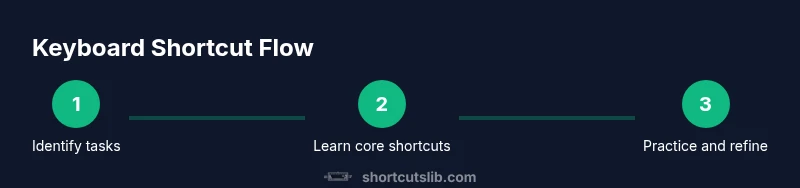
Choose 5–8 daily tasks that benefit from keyboard control—navigation, text editing, window management, and data entry. Map the most-used shortcuts you already know to cover these tasks, then select the top 3 to practice first.
Tip: Start with tasks you perform every day to see quick wins. - 2
Learn core OS shortcuts for navigation
Study a core set of OS-level shortcuts for moving between apps, tabs, and windows. Practice until you can switch contexts without looking at the screen. Remember to keep your hands on the home row and use shortcuts that don’t require a mouse.
Tip: Keep a minimalist list of 8–12 essential shortcuts handy. - 3
Practice a timed drill
Set a timer for 10–15 minutes and go through your core shortcuts on a small task (e.g., drafting a document, switching windows, saving). This builds consistent finger memory and reduces hesitation.
Tip: Use a dedicated timer to reinforce regular practice cadence. - 4
Add app-specific shortcuts
Identify top actions in your most-used apps (browser, editor, design tool) and map 2–3 actions to single keystrokes. Ensure mappings don’t conflict with system keys.
Tip: Document each mapping in your cheat sheet for quick recall. - 5
Create and deploy a cheat sheet
Create a single-page cheatsheet with sections for Windows and macOS shortcuts and a blank area for personal mappings. Keep it visible during practice and update weekly as you add shortcuts.
Tip: Place the cheat sheet on your desktop or in a pinned note for easy reference. - 6
Evaluate and adjust
After a few days, review which shortcuts saved the most time and where you still reach for the mouse. Refine mappings to cover gaps and improve consistency across apps.
Tip: Schedule a short weekly review to keep mappings relevant.
Questions & Answers
Why should I use keyboard shortcuts without a mouse?
Keyboard shortcuts speed up common tasks, reduce hand movement, and keep your focus on content. They also help with accessibility by providing consistent interaction patterns. Start with a small core set and gradually expand.
Shortcuts save time and keep you focused on your work; start with a core set and expand.
Are keyboard shortcuts the same across apps?
Many shortcuts are universal (copy, paste, undo), but app-specific mappings vary. Learn the core OS shortcuts first, then add app-specific keys as you rely on those apps daily.
Core OS shortcuts are usually universal, with app-specific mappings added later.
How can I discover shortcuts on Windows?
Explore the Start menu hints, use Win+X menus, and check each app's Help or Settings for shortcut lists. Many apps expose a shortcut cheat sheet in the Help menu.
Check your app's Help menu and Windows help for shortcut lists.
How do I customize shortcuts on macOS?
Open System Preferences > Keyboard > Shortcuts to enable App Shortcuts or create custom mappings. Third-party tools can extend this further, but start with built-in options.
Use System Preferences to add or adjust shortcuts; you can start there.
Is it possible to learn shortcuts without ever touching a mouse?
Yes. Begin with a small core set, practice daily, and gradually add more. Use a cheat sheet and non-mouse tasks to reinforce the habit.
Absolutely—start small, practice daily, and build up gradually.
Do keyboard shortcuts improve productivity over time?
Yes. When practiced consistently, shortcuts reduce task time and cognitive load, enabling smoother multitasking across apps and workflows.
Yes, with steady practice you’ll work faster and more smoothly.
Watch Video
Main Points
- Start with a core universal shortcut set.
- Practice daily to build muscle memory.
- Customize shortcuts for consistent workflows.
- Test across apps to avoid conflicts.