Without Mouse Keyboard Shortcuts: Navigate with Confidence
Learn practical, brand-driven keyboard shortcuts to navigate without a mouse across OS and apps. This guide from Shortcuts Lib covers steps, tips, and real-world examples for faster, mouse-free workflows.


You will learn practical, keyboard-first navigation techniques that let you operate your computer without a mouse. This guide covers core OS shortcuts, focus management, selection, scrolling, and app-specific tricks, all designed for a smooth, mouse-free workflow. You’ll practice with a structured plan and learn to customize shortcuts for your needs.
Why going keyboard-only matters
Operational efficiency is a core goal for power users and keyboard enthusiasts. When you rely on without mouse keyboard shortcuts, you reduce context-switching, lower dependence on a physical pointing device, and speed up routine tasks. In practice, keyboard-first navigation lets you stay in flow, preserve screen focus, and minimize finger movement across your workspace. According to Shortcuts Lib, disciplined keyboard navigation can trim task friction in everyday computing, especially for routine activities like opening apps, navigating menus, and editing documents. If you’re aiming for a more fluid, distraction-free setup, practicing mouse-free workflows is a solid investment in time and efficiency.
Foundation matters: study your operating system’s baseline shortcuts, then layer in app-specific keys. For tech users who spend hours at the keyboard, mastering without mouse keyboard shortcuts translates to a more consistent, reliable workflow and fewer accidental mouse movements that break concentration.
Core principles of keyboard-first workflows
A successful keyboard-first approach rests on a few universal ideas: clear focus management, predictable key sequences, and minimal reliance on the pointing device. Start by mapping the primary actions you perform every day, and ensure each action has a consistent shortcut or a simple mnemonic. Build muscle memory with deliberate, short practice sessions rather than long, unfocused runs. Shortcuts should feel natural and repeatable, not forced. Remember, this is a long-term skill—progress compounds with daily practice and gradual customization.
Simplicity beats complexity. When you introduce new shortcuts, keep a small, growing set (5–12 core actions) and expand only after you’re confident with the basics. As you progress, begin to customize key combos for your most frequent tasks to reduce cognitive load and keep your hands on the keyboard.
System-wide navigation: moving focus with Tab, Shift+Tab, Alt+Tab, and OS shortcuts
System-wide navigation is the gateway to mouse-free operation. The Tab key moves focus through interactive elements, while Shift+Tab moves it backward. Use Enter or Space to activate focused controls, and Esc to exit dialogs. Alt+Tab on Windows or Command+Tab on macOS switch between open applications, maintaining a keyboard-driven task flow. Getting comfortable with these patterns reduces the need for a mouse in day-to-day work and helps you stay in a rhythm.
To optimize your workflow, arrange your most-used apps in a logical sequence and practice switching between them without looking away from your primary task. On some Linux desktops, you can leverage Super (Windows) key shortcuts to open the app launcher and then type to focus the desired window, further minimizing hand movement. A few tailored combos can eliminate repetitive pointer movements and dramatically speed up multitasking.
Mastering movement without a mouse: arrow keys, Page Up/Down, Home/End, and word-based navigation
Caret-based navigation uses the arrow keys for precise movement within text, while Word-based navigation speeds movement across long lines. Ctrl+Arrow moves the caret by words, Home and End jump to line starts/ends, and Page Up/Down scrolls through content. In text editors, Vim-like navigation (h/j/k/l) can be adopted in compatible environments, but for most apps, standard keys remain reliable. Practice combining arrow movement with Ctrl, Alt, and Shift to select text incrementally, or to reposition focus within a block of content.
Develop a mental map of where the caret and focus lives in common interfaces—menus, lists, and forms—so you can move efficiently without eyeing the screen constantly. A practical rule is to move with arrow keys first, use Page/End for faster progression, and resort to precise caret moves for accurate edits.
Selecting, activating, and clicking controls without a mouse
Selecting controls without a mouse typically relies on Tab focus, Space to toggle, and Enter to activate. For dropdowns and menus, Arrow keys help you navigate options, with Enter selecting the highlighted item. Many apps also offer keyboard-accessible shortcuts to open specific menus (for example, Alt+F to open the File menu on Windows apps) and then arrow through the items. Learning consistent patterns across apps reduces friction when encountering unfamiliar interfaces.
When a dialog appears, use Tab to cycle through controls, Shift+Tab to reverse, and Esc to cancel. Some tools provide dedicated hotkeys to confirm or cancel, which can dramatically reduce mouse usage in repetitive tasks like file operations or formatting actions.
Scrolling and content navigation without a mouse
Scroll through long pages with Page Up/Page Down, Space (downward scroll) and Shift+Space (upward scroll) in many browsers. In editors and IDEs, Ctrl+PageDown and Ctrl+PageUp move between tabs or documents. Use Home/End to jump to start or end of a line, and Ctrl+Home/Ctrl+End to jump to the top or bottom of a document. For precise control, combine arrow keys with Page commands to reach exact positions without a mouse.
If you read on a large document, consider enabling focus tracking (high-contrast focus rings) so you can see which element is currently active as you navigate with the keyboard. This makes it easier to predict where the next focus will land and reduces mis-clicks when using the keyboard alone.
Accessibility features and settings to enable
Accessibility tools can significantly improve mouse-free navigation. Sticky Keys lets you press modifier keys like Ctrl or Alt one at a time, reducing hand strain when entering complex sequences. Mouse Keys (Windows) or similar features let you move the mouse pointer using the numeric keypad, offering a bridge between pure keyboard moves and pointer-based interactions when needed.
Always tailor accessibility features to your comfort level. Start with one feature at a time, test it in your daily tasks, then add another as you grow more confident in your mouse-free workflows. These settings should be adjusted in System Preferences/Settings to align with your hardware and OS version.
Customizing shortcuts and learning plans
Customization is where keyboard shortcuts really shine. Begin by documenting your most frequent tasks and assign simple, memorable key combos. On Windows, you can use native settings to rebind keys or create macro-like actions; on macOS, the Keyboard preferences panel supports app-specific shortcuts. Linux environments vary, but desktop environments generally offer keyboard customization options as well. Create a small, progressive learning plan that adds 1–2 new shortcuts per week and keeps practicing the core 5–12 actions until they’re second nature.
Track your progress with a cheat sheet that you keep handy during practice sessions. Over time, you’ll notice fewer cognitive steps and more fluid, mouse-free control across your primary tools.
Practical examples across OS and apps
Windows users typically navigate with Win+arrow to snap windows, Alt+F for menu access, and Ctrl+L to focus the address bar in browsers. macOS users frequently leverage Command+Tab for app switching, Command+Space to open Spotlight, and Control+F for find within apps. Cross-platform tools like browsers and office suites share many common shortcuts, but there are also app-specific keys worth learning. Build a practical set by auditing your daily routines and listing the exact actions you perform, then map those actions to consistent keys.
In office suites, you’ll use Ctrl or Command along with letter keys to format, insert, or navigate. In code editors, practice moving between files, splitting windows, and running tasks via keyboard shortcuts. The key is consistency—by locking in a reliable set of actions, you can operate without a mouse across your entire workflow.
Common pitfalls and how to fix them
A common challenge is shortcut conflicts—two apps may use the same hotkey for different actions. Keep a master list of active shortcuts per app and learn app-specific exceptions. Another pitfall is attempting overly long or complex hotkeys that are hard to remember. Favor shorter, memorable combinations and gradually expand as you gain confidence. Finally, avoid multitasking too early; focus on a small, manageable set of actions before layering on more shortcuts to prevent cognitive overload.
Tools & Materials
- Fully functioning keyboard (arrow keys, Tab, Enter, Escape)(Any standard keyboard; number pad recommended for mouse-key emulation)
- Computer with Windows/macOS/Linux(Ensure you have admin access to enable accessibility features)
- Access to accessibility settings (Sticky Keys, Mouse Keys, etc.)(Navigate via keyboard or search in settings)
- Printed shortcut cheat sheet or digital notes(Helpful for practice sessions)
- Optional: timer or practice task list(Keeps you on schedule during learning)
Steps
Estimated time: 60-90 minutes
- 1
Map core actions
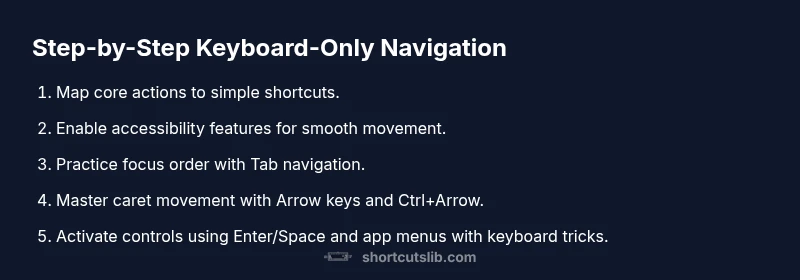
Identify 5–12 daily tasks you perform most often and list the exact actions to complete them using the keyboard. This establishes a focused starting point for mouse-free efficiency.
Tip: Choose actions you perform in the same apps daily to maximize consistency. - 2
Enable accessibility features
Turn on Sticky Keys and Mouse Keys if available to reduce finger strain and provide keyboard-based pointer control when needed. Test each feature in a safe document before using it in work tasks.
Tip: Start with one feature at a time to avoid confusion. - 3
Audit focus order
Open a simple form or UI and move through controls with Tab/Shift+Tab to learn the focus order. If the order feels odd, adjust in the app’s settings or system accessibility preferences.
Tip: If you get stuck, press Esc to close dialogs and reset focus. - 4
Practice caret movement
Navigate text using Arrow keys, then use Ctrl+Arrow to jump by words. Master Home/End for line starts/ends and Page Up/Down for broader content movement.
Tip: Combine movement with Shift to select as you go. - 5
Activate controls with keyboard
Use Enter or Space to activate focused items. Learn app-specific shortcuts to open menus and perform actions without the mouse.
Tip: Consistency matters—stick to a small set of reliable keys. - 6
Scroll without a mouse
Use Page Up/Down and Space/Shift+Space to move through pages. In browsers, use Ctrl+PageDown/PageUp to switch tabs when supported.
Tip: Avoid reaching for the trackpad by keeping your hands on the home row. - 7
Leverage browser/app shortcuts
Identify and practice 6–8 universal browser/app shortcuts (address bar focus, find, redo/undo) to speed up navigation across apps.
Tip: Create a personal cheat sheet to reinforce learning. - 8
Customize shortcuts
Remap frequent actions to simpler combos using OS-level or app-level settings. Create app-specific shortcuts for common workflows.
Tip: Document new shortcuts to prevent忘 forgetfulness. - 9
Practice with real tasks
Apply mouse-free shortcuts to a representative work task, like drafting a document or managing emails, to build transferability.
Tip: Set a timer to segment practice into 15–20 minute blocks. - 10
Review and refine
Periodic checks help you retire old or awkward shortcuts. Replace them with more intuitive keys and retire inefficient patterns.
Tip: Aim for a stable core set before expanding further.
Questions & Answers
What does 'without mouse keyboard shortcuts' mean in practice?
It means using keyboard-only commands to perform routine actions—opening apps, moving focus, navigating menus, selecting text, and scrolling—without using a mouse. The goal is speed, consistency, and reduced hand movement.
It means controlling your computer entirely with the keyboard, avoiding the mouse when possible.
Can I use Vim-like navigation in all apps for mouse-free navigation?
Some apps offer Vim-like navigation modes or shortcuts, but most apps rely on standard keyboard keys. Start with basic Tab/Enter/Arrow keys, then explore app-specific shortcuts where available.
Some apps support Vim-like keys, but most rely on standard keys first.
How do I enable Mouse Keys on Windows or macOS?
On Windows, go to Settings > Ease of Access > Mouse > Mouse Keys and turn it on. On macOS, go to System Settings > Accessibility > Pointer Control and enable Mouse Keys. Use the keypad to move the cursor.
Turn on Mouse Keys in accessibility settings and practice moving the cursor with the keypad.
Are keyboard shortcuts universal across apps and OSes?
Many shortcuts work across apps and OSes (like Ctrl/Cmd+Q to quit), but some are app-specific. Build a core set first, then learn exceptions in critical apps you use daily.
Some shortcuts are universal, others are app-specific—start with the basics and learn app nuances.
What’s the best way to learn shortcuts quickly?
Practice in focused sessions, keep a cheat sheet, and gradually add 1–2 new shortcuts weekly. Apply them to real tasks to reinforce memory and reduce reliance on the mouse.
Practice often with a small, steady set of shortcuts and build from there.
Do mouse-free shortcuts work in assistive technology workflows?
Yes, many keyboard shortcuts enhance accessibility workflows, complementing screen readers and other assistive tech. Start with universal navigation and expand to app-specific actions as needed.
Keyboard shortcuts help with accessibility when used with assistive tech.
Watch Video
Main Points
- Master a core set of mouse-free shortcuts
- Enable accessibility features to support keyboard navigation
- Maintain consistent focus order for predictable navigation
- Customize shortcuts to fit your daily workflow
- Practice with real tasks to transfer skills across apps