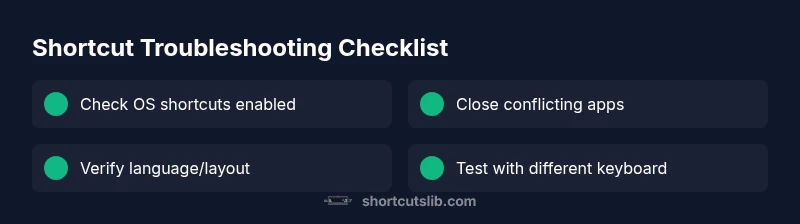
Why Are My Keyboard Shortcuts Not Working? A Troubleshooting Guide
Urgent troubleshooting guide to fix non-working keyboard shortcuts. Learn quick checks, diagnostic flow, steps, and prevention tips to restore hotkeys across apps and OS.


If your keyboard shortcuts aren’t working, start with the simplest fixes. Most often the issue is a disabled shortcut system, a conflicting app shortcut, or incorrect input language settings. Verify that shortcuts are enabled, disable conflicting apps, and test in a plain text field. If the problem persists, follow the diagnostic flow for deeper checks.
Quick Reality Check: Common Causes
If your keyboard shortcuts aren’t working, start with the simplest fixes. Most often the issue is a disabled shortcut system, a conflicting app shortcut, or incorrect input language settings. Verify that shortcuts are enabled, disable conflicting apps, and test in a plain text field. If the problem persists, follow the diagnostic flow for deeper checks. According to Shortcuts Lib, many users see a breakdown when a single background utility hijacks common keys, so isolating that variable is the fastest path to recovery. The phrase 'why are my keyboard shortcuts not working' becomes actionable once you identify the scope: is it global across all apps, or isolated to a single program? The answer depends on whether you’re on Windows or
Check Your System-Wide Shortcut Settings
Next, examine the OS-level controls that govern shortcuts. A common failure mode is that a shortcut system has been disabled accidentally through accessibility settings, or a security policy has blocked hotkeys. On Windows, look for keyboard-related accessibility options and any software that remaps keys. On
App-Specific Conflicts and Keyboard Shortcuts
Many times, a single program or background utility intercepts shortcuts, leaving globally assigned keys inert elsewhere. Clipboard managers, window managers, screen capture tools, or custom hotkey utilities are frequent culprits. Disable or temporarily quit any apps that install global shortcuts, and check their preferences for key bindings. If a specific app triggers the issue, try resetting that app’s shortcuts to default or updating it to the latest version. In some cases, per-app shortcuts are overridden by a system-wide mapping; in those cases, decouple the two by changing the app’s hotkeys first, then reinstate global ones. After you've isolated the conflicting app, test the shortcut in several apps to ensure universality or remaining app-specific behavior.
Language, Input, and Keyboard Layout Considerations
Keyboard shortcuts rely on your active input language and layout. Switching between layouts or using a non-US keyboard can cause keys to produce different characters or fail to map to the expected commands. Verify the current input method and confirm that the layout matches the shortcuts you intend (for example, a Mac layout vs Windows). Check if a dead-key or compose-key setting is altering modifier behavior. If you use a custom keyboard layout or a non-standard key mapping, temporarily switch to a standard layout to see if shortcuts start working again. You may also need to adjust regional settings or add a second layout for testing. These language-related issues are easy to overlook but frequently explain 'why are my keyboard shortcuts not working' in multi-language environments.
Hardware and Peripheral Checks
Hardware problems are a frequent, time-consuming cause. A worn-out key, sticky modifiers (Shift, Ctrl, Alt), or a failing USB hub can mask shortcuts. Test the keyboard on another computer if possible to rule out device faults. If you’re using a wireless keyboard, replace batteries, re-pair the device, or test with a wired connection. Inspect for physical damage around modifier keys, and check for debris under the keys that could impede contact. If you have multiple keyboards, compare results to identify a faulty unit. Finally, confirm that your keyboard firmware is up to date if your device manufacturer provides updates.
Reset, Rebind, and Advanced Fixes
When basic checks don’t restore function, a deeper reset may be required. Rebind the most critical shortcuts to fresh key combinations; avoid overlapping bindings between OS and apps. Reset keyboard settings at the OS level if available, then re-create your favorite hotkeys from scratch. Clear any caches or preferences files that store shortcut data for the affected apps. If you’re technically inclined, check for driver updates or system policy changes that might block hotkeys. On
Testing and Verification: How to Confirm Fixes Take
After each fix, perform a structured test: try a common set of shortcuts (copy/paste, window management, screenshot tools) in multiple apps and environments. Record which shortcuts respond as expected and which do not. Use a test document with mixed content to verify copy/paste integrity, and try shortcuts with both standard and modified keyboards (Fn keys). Keep a log to trace when the issue reappears, especially after software updates or new utilities. If a particular shortcut still fails across all apps, you’ve likely identified the root cause and can focus your remediation on that area rather than guesswork.
Prevention: Keeping Shortcuts Working Long-Term
To minimize future outages, adopt a consistent shortcut strategy: centralize your most-used hotkeys, document them, and guard against conflicts by auditing newly installed utilities. Regularly back up your OS and app preferences, and maintain updated drivers and firmware. Create a simple troubleshooting routine you can run after updates: test a baseline set of shortcuts, check for conflicts, and verify language/layout settings. Shortcuts Lib suggests a proactive approach: treat keyboard shortcuts as an ecosystem to be managed, not a one-off inconvenience.
When to Seek Professional Help
If shortcuts remain broken after exhausting common fixes, professional help can save time and prevent data loss. A seasoned technician can diagnose hardware faults, deep OS policy issues, or corrupted user profiles. Before seeking help, gather evidence: a list of affected shortcuts, your OS version, a short reproduction script, and any recent changes. This information helps the technician reproduce and resolve the issue faster.
Steps
Estimated time: 30-60 minutes
- 1
Reproduce the Problem
Attempt the most common shortcuts in two different apps to confirm the scope. Note which keys fail and whether the issue is universal or app-specific.
Tip: Document the exact shortcuts you press and the observed behavior. - 2
Check OS Shortcut State
Review system settings to ensure global shortcuts are enabled and not overridden by accessibility features or security policies.
Tip: Make a quick note of any recent policy changes. - 3
Close Potentially Conflicting Apps
Quit or disable apps known to hijack shortcuts (e.g., clipboard managers, screen capture tools). Re-test the shortcuts.
Tip: Use a clean boot to test without third-party software. - 4
Test with a Fresh Profile
Log into a new user account or safe mode to see if the issue persists outside your normal profile.
Tip: If it works in a new profile, the problem is user-specific. - 5
Verify Keyboard Language/Layout
Switch to a standard layout (e.g., US) and re-test essential shortcuts.
Tip: Avoid non-standard layouts during troubleshooting. - 6
Update Drivers and Firmware
Check for and install any keyboard driver, firmware, or OS updates relevant to input devices.
Tip: Restart after updates to apply changes. - 7
Reset Shortcuts to Defaults
Reset problematic shortcuts to OS defaults, then rebind essential ones carefully.
Tip: Avoid overlapping bindings between OS and apps. - 8
Incremental Rebinding
Rebind the most-used shortcuts one by one and test after each change.
Tip: Keep a changelog of bindings. - 9
Final Verification
Test across multiple apps and document which shortcuts work consistently.
Tip: If anything still fails everywhere, escalate to professional support.
Diagnosis: Keyboard shortcuts stop working across all apps on Windows/macOS
Possible Causes
- highSystem-wide shortcut feature disabled or blocked by accessibility/security settings
- mediumConflicting background apps or utilities intercepting shortcuts
- mediumIncorrect keyboard layout or input language active
- lowHardware issue with keyboard or wireless dongle
- lowModifier keys stuck or hardware fault
Fixes
- easyEnable system shortcut support and disable conflicting accessibility features
- easyClose or disable background apps that register global shortcuts
- easySwitch to the correct keyboard layout and language, then retest
- easyTest with a different keyboard or a wired connection to rule out hardware faults
- mediumUpdate keyboard drivers/firmware and reset keyboard settings if available
- mediumReset OS-level shortcut configurations or perform a clean boot to isolate software
- easyIf issues persist, consider professional hardware/OS support
Questions & Answers
Why did my keyboard shortcuts stop working after a Windows/macOS update?
System updates can reset or alter shortcut mappings. Start by re-enabling global shortcuts, checking per-app bindings, and testing basic combos. If the issue persists, review accessibility settings and any new security policies introduced with the update.
Updates can reset shortcuts. Re-enable them and test basics. If it persists, check accessibility settings and new policies.
How can I tell if a third-party app is intercepting shortcuts?
Close or disable recently installed utilities that claim global hotkeys. If shortcuts return to normal, reintroduce the app one at a time to locate the culprit.
Close recent utilities with global hotkeys, then reintroduce them one by one to find the culprit.
What should I do if function keys aren’t working as shortcuts?
Check whether the Fn key is active, and test with and without it. Ensure function-key behavior is mapped to shortcut actions in OS and per-app settings.
Test with and without Fn key and confirm mappings in OS and apps.
Can language or keyboard layout cause shortcuts to fail?
Yes. Switch to a standard layout temporarily to see if shortcuts work, and ensure the layout matches the intended key bindings.
Language and layout can break shortcuts; test with a standard layout.
Is it safe to reset keyboard settings?
Resetting keyboard settings is generally safe but will remove custom bindings. Back up bindings first, then re-create your essential shortcuts.
Resetting is usually safe but back up bindings first.
Why do shortcuts work in some apps but not others?
Some apps override or disable certain shortcuts. Check per-app settings and test across multiple apps to distinguish app-specific behavior from system-wide issues.
App-specific overrides can cause inconsistent shortcuts; test broadly.
Main Points
- Identify scope: global vs app-specific shortcuts
- Check OS-level settings first, then per-app mappings
- Isolate conflicts with a clean boot or new profile
- Test with multiple keyboards to rule out hardware faults
- Document changes and keep backups for future fixes