Where Are Keyboard Shortcuts: Find, use, and customize them effectively
Discover where keyboard shortcuts live across Windows, macOS, and major apps. Learn how to locate, customize, and master shortcuts to speed up tasks and build a repeatable workflow with actionable steps.


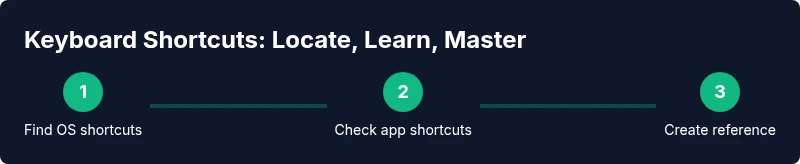
Keyboard shortcuts live in three primary places: the operating system, individual apps, and official documentation. Start by checking OS settings for global shortcuts (Windows and macOS), then look in each program’s Help or Preferences for app-specific shortcuts. You can often search for “Shortcuts” in the app’s help menu or settings panel. This quick guide will show you how to locate and begin using them today.
What are keyboard shortcuts and why they matter
Keyboard shortcuts are compact key combinations that perform actions much faster than navigating menus with a mouse. If you’ve ever pressed Ctrl/Cmd+C to copy or Ctrl/Cmd+V to paste, you’ve already used shortcuts in everyday work. According to Shortcuts Lib, understanding where shortcuts live — in the operating system, in individual programs, and in official documentation — is the essential first step to mastering them. This section lays the groundwork: shortcuts reduce motion, save time, and help you execute complex tasks with fewer errors. By recognizing the global shortcuts that work across many apps and the app-specific ones that unlock specialized features, you’ll create a smoother, more productive workflow. In short, knowing where to look for shortcuts is the key to faster, more precise work across your computer and your favorite tools.
The core idea is simple: shortcuts are not a single list but a layered map across your digital workspace. Your brain learns a few global commands first, then gradually incorporates app-specific shortcuts for the tools you use most. This approach keeps your mental model manageable while delivering real speed gains. As you explore, you’ll notice that the same keys can perform different actions depending on the context, which is normal and expected. The goal is to build familiarity with the most-used combinations and keep a quick reference handy for less familiar ones.
Global shortcuts vs app-specific shortcuts
Global shortcuts are designed to work across almost every app and window on your system. They cover essentials like cut, copy, paste, undo, and window management. App-specific shortcuts, by contrast, boost efficiency for particular tasks in a given program, such as formatting in a word processor, code navigation in an editor, or the search commands in a browser. The advantage of global shortcuts is predictability; they stay consistent no matter what you’re doing. The advantage of app-specific shortcuts is power: you unlock shortcuts tied to the tool’s unique features.
In practice, you’ll often start with a short list of global keystrokes you rely on daily, then layer in specialized shortcuts as you gain familiarity with your most-used apps. When learning, keep a two-column reference: global shortcuts on one side and app-specific shortcuts on the other. If you notice a clash (two shortcuts performing different actions in different apps), customize one to avoid conflicts. Shortcuts are most effective when they’re easy to remember, easy to type, and consistently available across your tasks.
Locating shortcuts in Windows
Windows makes many shortcuts discoverable through Settings and the built-in Help system. A practical starting point is to open the Settings app and use the search box to look for keywords like “keyboard shortcuts,” “shortcuts,” or “typing.” The results often point you to the relevant sections where you can view a curated list of common global shortcuts and accessibility-related keystrokes. If you’re working in a specific app, look for the program’s Help or Preferences menu and search there for a dedicated Keyboard Shortcuts page. You’ll also find official Microsoft documentation and community guides that summarize the most-used keystrokes for everyday tasks. The key is to start with the OS-level shortcuts you’ll use across many apps (copy, paste, undo), then move to app-specific shortcuts as you rely on a particular tool more heavily.
Note that shortcuts can vary by language layout and regional settings. If a shortcut doesn’t work as expected, verify your input language and keyboard layout first. Regularly reviewing the Settings search results helps you stay current as Windows updates add or adjust shortcuts.
Locating shortcuts in macOS
macOS keeps shortcuts organized in the System Settings (or System Preferences in older versions). Open System Settings, then navigate to Keyboard, and select Shortcuts. This panel groups shortcuts by task (Mission Control, Spotlight, Accessibility, etc.). You can enable, disable, or modify many shortcuts here. For app-specific shortcuts, open the app’s menu, choose Preferences (or Settings), and look for a Keyboard or Shortcuts tab. In practice, most macOS shortcuts are consistent across apps with slight variations for editors or heavy productivity suites. Because Mac keyboards often include dedicated function keys, you’ll see many shortcuts that rely on the Command key (⌘) rather than Control (Ctrl) as on Windows.
If you’re unsure where a particular shortcut lives, use the built-in Help menu and search for “keyboard shortcuts” to locate the exact path within macOS and the model-specific guidance for your device.
Locating shortcuts in popular apps
Different apps expose shortcuts in slightly different places, but the general pattern remains consistent: look for Help, Preferences, or Settings, then search for “shortcuts” or “keyboard.” In word processors (e.g., Microsoft Word), you’ll typically find a dedicated Keyboard Shortcuts dialog where you can view and customize commands. In Google Docs, the built-in Help menu includes a Keyboard Shortcuts panel with a concise list of essential actions. Browsers (Chrome, Firefox) provide shortcuts under the Settings or Help sections; many actions (new tab, find on page, zoom) have shortcuts that work across sites. Code editors like VS Code feature an entire Keyboard Shortcuts page, often with a live search and the ability to rebind keys. The overarching idea is to use a consistent search term in Help or Settings, then practice the most relevant ones until they become second nature.
As you explore, keep a small, navigable cheatsheet of the top 10 shortcuts you’ll use in each app. This makes it easier to recall and reduces the friction of learning new commands in multiple environments.
How to customize shortcuts safely and effectively
Customizing shortcuts can significantly boost your efficiency, but it also introduces the risk of breaking existing workflows if you change system-wide keys. Start with non-critical actions first and avoid remapping well-established global shortcuts (such as copy, paste, undo) in your OS. Before changing any binding, write down the original mapping so you can revert if something doesn’t feel right. Use the application’s built-in reset or export features to back up your current configuration. After reassigning a shortcut, test it in a safe document or project to ensure it doesn’t conflict with other commands. If you rely on multiple devices, consider keeping the same mappings across machines or using cloud-synced profiles in your editor for consistency. Finally, document any changes in your personal shortcuts reference so you don’t forget which keys do what across apps and systems.
Small, thoughtful changes compound into big time savings over weeks and months. The goal is reliability and speed, not tunnel vision on a single keystroke.
Build a personal shortcuts library and study plan
A practical way to accelerate mastery is to build a personal shortcuts library—a living document that lists, in one place, the shortcuts you use most, plus any that you’ve customized. You can keep this as a simple note, a spreadsheet, or a dedicated cheatsheet in a note app. Organize it by task (navigating text, editing, window management) and by context (Windows/macOS, Word/Docs, VS Code, browsers). Review your library in short daily sessions: pick 3–5 new shortcuts every few days and commit them to memory with spaced repetition. Practice them in real tasks (editing a document, switching between tabs) to create muscle memory. Over time, you’ll extend your list to cover more workflows without overwhelming yourself. Pair this with a quick-access reference (preferably a keyboard overlay or a small on-screen cheat sheet) for quick lookup during work.
Remember to keep your library up to date with app updates or changes in OS versions. Shortcuts Lib’s guidance emphasizes habit-driven learning: small, consistent increments beat long, sporadic sessions.
Troubleshooting common issues and caveats
Even with a robust plan, you’ll encounter snags. Language and keyboard layout differences can alter key mappings; always verify the active layout when a shortcut doesn’t perform as expected. Conflicts are another frequent pitfall: the same keys might be bound to different actions in different apps. If this happens, reset conflicting shortcuts to defaults, then choose a new binding that avoids overlap. Some shortcuts require modifier keys (like Shift, Control, Alt, or Command) and can behave differently on laptops with built-in keyboards or external docks. If a shortcut works in one app but not another, check whether the app has its own shortcut override. Finally, be mindful of accessibility features (Sticky Keys, Filter Keys) that can affect shortcut behavior. If you enable such features, you may need to adjust how you learn and apply shortcuts to avoid friction.
The goal is to maintain predictable behavior across your everyday tasks so shortcuts stay reliable instead of becoming a source of confusion.
Quick-start 7-day action plan to begin mastering shortcuts
Day 1–2: Identify your top 3 tasks and list the shortcuts you already know for each. Day 3: Locate OS-wide shortcuts in Settings and create a one-page reference. Day 4–5: Check your most-used apps for built-in shortcuts and make a plan to practice 2–3 per app. Day 6: Begin customizing a couple of safe, non-conflicting shortcuts. Day 7: Review your progress, refine your cheatsheet, and set a 10-minute daily practice routine for the next week.
Tools & Materials
- Computer with keyboard(Essential for testing and practicing shortcuts)
- Internet connection(Needed to access OS docs and app help pages)
- Notepad or digital note app(For personal shortcuts reference and quick tests)
- Access to OS settings and app preferences(You’ll need permissions to view and modify shortcuts)
- Optional: external keyboard(Helpful when testing across layouts or ergonomic setups)
Steps
Estimated time: 45-60 minutes
- 1
Identify your learning goals
Define the tasks that would benefit most from shortcuts (e.g., text editing, navigation, window management). Clarify whether you want OS-wide shortcuts or app-specific ones. This focus will guide your learning plan and prevent overwhelm.
Tip: Write down 3 concrete tasks you want to accelerate with shortcuts. - 2
Search for existing shortcuts
In Settings or Help, search for terms like “shortcuts” or “keyboard.” Collect the most common actions that appear across your OS and top apps. Create a quick reference list as you go.
Tip: Use the OS search feature because it often surfaces official shortcut pages quickly. - 3
Open shortcut settings in OS
Navigate to your system’s Keyboard or Shortcuts section and review the global bindings. Note which keys are reserved by the OS and which are freely customizable.
Tip: Avoid remapping critical OS-level shortcuts to prevent workflow breakage. - 4
Check app-specific shortcuts
For each essential app, open Help or Preferences and locate Keyboard Shortcuts. Write down the top 5–10 actions you perform daily.
Tip: Prioritize shortcuts that directly impact your daily tasks. - 5
Test and confirm
Try the identified shortcuts in real tasks. If something doesn’t work, verify layout/language settings and update your cheatsheet.
Tip: Test in a safe document or project to avoid disrupting important work. - 6
Document and organize
Create a personal shortcuts library organized by task and app. Include both default and customized bindings along with notes about when to use them.
Tip: Keep it accessible; a one-page reference accelerates recall during work. - 7
Practice daily
Set a short daily practice window (5–10 minutes). Revisit your reference and add 1–2 new shortcuts weekly.
Tip: Consistency compounds quickly; make it a habit rather than a one-off task.
Questions & Answers
What exactly are keyboard shortcuts?
Keyboard shortcuts are key combinations that perform actions quickly, reducing the need to navigate menus. They improve speed and accuracy across tasks, from basic editing to complex workflows.
Keyboard shortcuts are fast key combinations that let you perform actions without clicking through menus.
Where can I find shortcuts on Windows?
In Windows, open the Settings app and search for shortcuts or keyboard. You’ll typically find a list of common global shortcuts and accessibility bindings. Check individual apps via Help or Preferences for app-specific shortcuts.
On Windows, use Settings to locate global shortcuts and check each app's Help or Preferences for more.
Where can I locate shortcuts on macOS?
macOS shortcuts are organized in System Settings > Keyboard > Shortcuts. For app-specific keys, open the app’s Preferences and look for a Keyboard or Shortcuts tab.
On Mac, go to System Settings > Keyboard > Shortcuts, and check each app's Preferences for additional bindings.
Can I customize shortcuts safely?
Yes. Start with non-critical actions, back up current bindings, and avoid changing core OS shortcuts. Test changes in a safe document, then document your new mappings.
You can customize shortcuts safely by starting small, backing up, and testing before using them regularly.
How long does it take to learn shortcuts?
Learning is incremental. Start with 3–5 core shortcuts per app and practice daily for a week; expect continued improvement as you add more over time.
A few minutes daily over a week yields noticeable improvements, with ongoing gains as you add more over time.
Are shortcuts the same across all apps?
No. Shortcuts vary by app and platform. Learn the OS-level ones first, then memorize the app-specific bindings for your most-used tools.
Shortcuts differ by app, so focus on OS-wide ones first and then the main apps you use.
Watch Video
Main Points
- Identify global vs app-specific shortcuts
- Locate shortcuts via OS settings and app Help/Preferences
- Test, document, and practice consistently
- Customize safely and maintain a personal cheatsheet