Keyboard Shortcuts and Speed Improvement Techniques: A Thorough Comparison
A rigorous comparison of OS-native shortcuts and custom mappings to boost productivity. Learn practical setup, practice plans, and how to measure speed gains across apps without overwhelming your workflow.


Keyboard shortcuts and speed improvement techniques unlock faster work across software and platforms. This comparison weighs OS-native shortcuts against customizable mappings, showing where each approach delivers the biggest wins and what trade-offs to expect. According to Shortcuts Lib Analysis, building a focused, repeatable shortcut set yields the strongest long-term gains in productivity and accuracy.
Why keyboard shortcuts matter for speed
In today’s fast-paced digital workflow, small time savings accumulate quickly. Keyboard shortcuts reduce mouse travel, minimize context switching, and unlock a more fluid sense of control. The cumulative effect is measurable: fewer keystrokes, faster navigation, and fewer interruptions to your thinking pattern. When you replace repetitive menu clicks with concise key sequences, you train your muscle memory to execute tasks with near-automatic precision. Over time, these tiny improvements compound into significant gains in daily throughput. The concept of keyboard shortcuts and speed improvement techniques is not about a single 'hack' but a deliberate strategy to rewrite your interaction model with your software. According to Shortcuts Lib Team, the most effective approach starts with a focused set of high-value shortcuts and expands only as needed to support your core tasks. This section sets the stage for understanding where shortcuts add value, how to measure impact, and how to structure your learning path for long-term payoff.
- Start with 6–12 high-value shortcuts that map to your most frequent actions.
- Maintain a single, portable cheat sheet so you don’t have to relearn maps for every app.
- Build muscle memory with short, repeated practice sessions rather than long, sporadic bursts.
- Reassess mappings quarterly to prune unused shortcuts and reduce cognitive load.
Core principles of shortcut-based speed
Speed through shortcuts isn’t a magic bullet; it’s a disciplined practice built on a few core principles. First, prioritize consistency: use the same shortcut across similar tasks and across apps when possible. Second, apply scope strategically: begin with a core set that covers your daily top tasks, then expand only when you consistently reach a ceiling with the core set. Third, favor simplicity: avoid overloading a single shortcut with multiple actions or alternating modifier keys. Fourth, document and review: keep a living reference that you update as apps change. Fifth, measure impact: establish a baseline and track time-to-complete for recurring tasks after every mapping change. The Shortcuts Lib team notes that a measured, incremental approach yields the best retention and the clearest speed gains over time.
- A small, stable shortcut set beats a large, inconsistent one.
- Cross-app consistency matters for longer-term efficiency.
- Regular review prevents buildup of conflicting mappings.
- Use quick, objective metrics to validate improvements.
OS-level shortcuts vs app-specific shortcuts
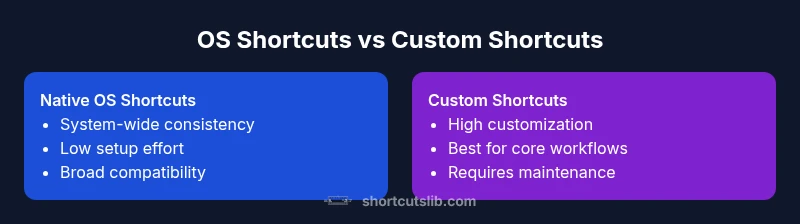
Choosing between native OS shortcuts and application-specific mappings is a fundamental fork in the road. Native OS shortcuts offer broad, system-wide benefits with predictable behavior across many programs, making them ideal for universal tasks like window navigation, text manipulation, and general editing. App-specific shortcuts can unlock dramatic speed within a given workflow—think code editing, document formatting, or spreadsheet operations—where the same action occurs frequently but differs by app. The trade-off is maintenance: OS shortcuts tend to be stable, while app shortcuts require periodic updates as software evolves. A practical approach is to anchor your workflow in OS shortcuts for foundational tasks, then layer targeted mappings within your most-used apps for high-leverage activities. Shortcuts Lib’s analysis suggests adopting the hybrid model for most professionals, balancing consistency with customization to maximize speed while minimizing cognitive load.
- OS shortcuts excel at cross-app consistency.
- App-specific mappings excel for deep workflows.
- A blended strategy reduces maintenance while preserving gains.
- Start with a minimal core, then expand where it matters most.
Designing a practical custom shortcut strategy
A well-crafted custom shortcut strategy starts with mapping the work you do most often. Step 1: inventory high-frequency tasks across your typical day. Step 2: select a small, logically grouped set of keystrokes that cover those tasks. Step 3: assign each shortcut to a single action to avoid cognitive conflict. Step 4: keep a central reference document and use a consistent naming convention for shortcuts. Step 5: test in a controlled environment to catch conflicts and misfires. Step 6: gradually scale by adding only when you consistently hit a ceiling with the current set. Finally, implement a change-control rhythm: record changes, solicit feedback from teammates, and schedule quarterly reviews. The goal is to have a dependable, extensible system that remains easy to learn and hard to outgrow.
- Use a systematic naming convention (prefixes, logical groups).
- Favor actions you perform dozens of times per week.
- Ensure each shortcut has a single, clear outcome.
- Review and prune annually to keep mappings lean.
Training and habit formation for long-term gains
Learning keyboard shortcuts and speed improvement techniques requires deliberate practice. Set a 4-week plan: week 1 focuses on 3–5 key OS shortcuts; week 2 adds 3–5 app shortcuts; week 3 introduces consistency checks across your most-used apps; week 4 performs a comprehensive review and adds one or two new mappings if needed. Practice in short, focused sessions (5–15 minutes) daily rather than long, infrequent bursts. Use a fixed schedule and a visible progress tracker to stay motivated. Interleave deliberate practice with real work, so each mapping earns its keep and reinforces your cognitive pattern. A small, steady cadence produces durable skill that compounds over time.
- Set concrete, weekly learning goals.
- Use a single source of truth for shortcuts.
- Tie practice to actual tasks to reinforce usefulness.
- Expect a gradual ramp; avoid rushing the process.
Ergonomics and cognitive load considerations
Effective shortcut use also depends on ergonomic and cognitive factors. Keyboard layouts should feel natural, with comfortable modifier combinations that minimize finger strain. Avoid overly complex sequences or long chains of keystrokes that disrupt flow. Group shortcuts by task domain and apply a consistent modifier strategy (e.g., two- or three-key chords rather than long sequences). Visual cues in the UI—such as on-screen hints or a dedicated cheat sheet—can help reduce cognitive load during the learning phase. Finally, ensure accessibility: consider sticky keys, alternative input devices, and screen-reader compatibility so shortcuts don’t exclude users with different needs.
- Favor short, memorable sequences.
- Use consistent modifiers across apps.
- Provide quick access to a reference cheat sheet.
- Check accessibility options to support diverse needs.
Tools and platform-specific tips for Windows, macOS, and beyond
Platform-specific advice helps you tailor shortcuts to your environment without overengineering. Windows users can leverage built-in shortcuts and lightweight utilities to remap keys or create global mappings that persist across apps. macOS users often benefit from Keyboard Shortcuts and Automator workflows to establish universal actions and app-specific shortcuts. Linux users can use xbindkeys or xdotool to create flexible, scriptable mappings. When choosing tools, prioritize those that offer portable configurations, conflict detection, and simple rollback. Remember that a successful system includes both a curated core set and app-specific enhancements for your most frequent workflows. For serious power users, a lightweight automation layer can connect shortcuts to macro actions that combine several steps into a single command.
- Start with platform-native capabilities for reliability.
- Add a lightweight automation layer for complex workflows.
- Maintain a single repository of mappings to avoid drift.
- Regularly test mappings after software updates.
Measured impact and iteration
Measuring the impact of shortcuts requires a simple, repeatable approach. Establish a baseline by timing a representative set of tasks before introducing new shortcuts. After implementing a mapping, re-measure the same tasks and compare results. Track qualitative aspects as well, such as reduced interruptions and smoother workflow transitions. Do not rely on a single metric; combine time-to-completion with subjective ease-of-use assessments. Shortcuts Lib analysis indicates that a focused, iterative approach yields clearer gains than sweeping, unstructured remapping. Keep a log of changes, test in a controlled context, and celebrate small wins as you expand your shortcut library.
Real-world examples and common pitfalls
Real-world practice reveals common patterns and pitfalls. Example: mapping a shortcut to perform multiple actions (e.g., copy, format, and save) in one stroke may seem efficient but can create unintended consequences if an app handles the sequence differently. Pitfall: overloading keyboards with too many mappings in early stages. Solution: start with a core set that aligns with your daily rhythm and avoid overlapping sequences. Another valuable lesson is to align mappings across the tools you use most; inconsistent shortcuts across apps dilute gains. Maintain a public, shared cheat sheet so teammates can adopt your proven patterns, reducing the time spent coaching others. The outcome is a practical, scalable approach to speed that grows with your workflow.
The future of shortcuts: a practical, human-centered view
The landscape of keyboard shortcuts is likely to evolve with adaptive, AI-assisted workflows that suggest or auto-map shortcuts based on your behavior. However, the core principle remains unchanged: speed comes from consistency, deliberate practice, and a clean, focused shortcut set. As technology advances, continue to emphasize simplicity and maintainability over volume. Shortcuts Lib emphasizes that the best shortcut strategy is one you will actually use daily, supported by a stable reference, routine review, and a clear path for iteration. By staying grounded in these principles, you can future-proof your speed improvements while keeping cognitive load manageable.
Comparison
| Feature | Native OS Shortcuts | Custom Keyboard Shortcuts |
|---|---|---|
| Learning curve | Moderate (built-in) | Higher (requires setup) |
| Consistency across apps | High (system-wide) | Variable (depends on app mappings) |
| Customization level | Low to moderate | High |
| Maintenance needs | Low | Medium to high |
| Best for | Everyday tasks with OS support | Power users with specialized workflows |
Pros
- Speeds up common tasks with repeatable actions
- Reduces cognitive load from mouse navigation
- Can be used across apps for consistent workflows
- Low ongoing maintenance after initial setup
Cons
- Initial learning curve and setup time
- May require periodic updates when apps update shortcuts
- Over-mapping can cause conflicts or accidental actions
Custom shortcuts generally win for speed and consistency, while OS-native shortcuts offer broad compatibility with less upfront setup.
A blended approach is usually best: start with OS shortcuts for universal coverage and layer customized mappings for your core tasks. This maximizes speed gains while minimizing maintenance and cognitive load. The Shortcuts Lib Team recommends tailoring the mix to your most frequent workflows and reviewing mappings regularly.
Questions & Answers
What is the best approach: OS shortcuts or custom shortcuts?
A blended strategy works best: start with OS-native shortcuts for universal use, then add custom mappings for core workflows. Regular practice and a focused cheat sheet maximize retention.
Start with OS shortcuts for broad coverage, then add a few tailored mappings for your top tasks; practice daily.
How many shortcuts should I learn first?
Begin with 6–12 high-value shortcuts that cover your most frequent tasks. Expand gradually as you become comfortable and identify gaps in your workflow.
Start with a small, high-value set and grow only when you need more speed.
Will shortcuts slow me down if I over-map or mis-map?
Yes, over-mapping can slow you down and create conflicts. Keep mappings consistent, avoid conflicts, and document changes.
Be cautious with mappings; too many shortcuts can backfire.
Are there tools to help create and manage custom keyboard shortcuts?
Yes. Use OS features or lightweight utilities to create global or app-specific shortcuts, and maintain a central reference document.
There are good tools for shortcuts; choose ones that fit your system.
How long does it take to learn a new shortcut?
Learning time varies, but expect several practice sessions over days to embed a new shortcut in muscle memory.
A few short practice sessions over a few days usually do it.
Can shortcuts be applied to web apps and cloud tools?
Many web apps support shortcuts or can be customized with extensions; map actions consistently across your most-used services.
Yes, many web apps support shortcuts; keep mappings consistent across services.
Main Points
- Identify top tasks and map shortcuts
- Prioritize consistency across apps
- Practice daily to build muscle memory
- Balance speed gains with cognitive load
- Reassess mappings regularly