Mastering the keyboard shortcut key for check symbol
Learn how to insert a check symbol quickly using keyboard shortcuts across Windows, Mac, and popular editors. This guide covers Alt codes, Unicode input, and built-in symbol pickers with practical steps, tips, and troubleshooting.


Goal: Insert a check symbol quickly using keyboard shortcuts. On Windows, use the Alt code 2713 in apps that support Alt codes; on Mac, enable Unicode Hex Input and type 2713 with Option to insert ✓. In many editors, you can access a built-in symbol picker (Win+.) or Ctrl+Cmd+Space. This guide covers Windows, Mac, and common editors to speed up your workflow.
Why the keyboard shortcut key for check symbol matters
In everyday productivity tasks, the ability to insert a check symbol quickly helps with to-do lists, forms, reports, and email replies. A fast keystroke reduces interruptions and keeps you focused on the task at hand. According to Shortcuts Lib, mastering keyboard shortcuts like the keyboard shortcut key for check symbol can save hours when you’re compiling status updates, marking completed items, or filling templates. This control is especially valuable across teams that rely on consistent symbols for status indicators. Remember: the exact keystroke varies by platform and app, so learning the most reliable options for Windows, Mac, and your favorite editors is worth the time. The rest of this article breaks down practical methods you can apply immediately and test across your most-used tools.
OS-level methods to insert the keyboard shortcut key for check symbol
Platform differences matter here. On Windows, many programs accept Alt codes. The most common path is Alt+2713 (with the numeric keypad) to produce ✓ in apps that support Alt codes. On Mac, you’ll want Unicode Hex Input enabled and then type 2713 with the Option key to produce ✓. If you don’t have Unicode Hex Input available, the standard Emoji & Symbols viewer (Control+Cmd+Space) provides a quick fallback: search for “check” and double-click the symbol to insert it. Linux users can use similar Unicode entry methods or the clipboard for quick insertion. Across all platforms, you should verify that the font you’re using provides the glyph for a clean rendering.
In-app methods for Windows, Mac, and editors like Word, Google Docs, and Sheets
Many editors have built-in paths to insert check marks without leaving the keyboard. In Word or Google Docs, the Insert Symbol dialog (or the Emoji picker where supported) makes it easy to insert ✓. In spreadsheets like Excel or Sheets, you can place the symbol in a cell either via a symbol dialog or by pasting a pre-copied ✓ from a symbol library. If you need to insert multiple checks, consider creating a text expansion or a simple macro that inserts the symbol with a single keystroke. These in-app methods are especially handy when you’re formatting reports or building task trackers that require consistent visuals across documents.
Alternatives and workflows: Unicode input, emoji pickers, and clipboard tricks
When a dedicated keyboard shortcut isn’t feasible, Unicode input remains a robust fallback. On Windows, Alt+2713 yields ✓ in compatible apps. On Mac, Unicode Hex Input lets you type 2713 with Option to render ✓, provided your font supports it. If you’re in a browser or a mobile app, the built-in emoji or symbol picker often offers a check mark (look for a checkbox or tick symbol). Copy-paste remains a reliable strategy for rare environments lacking symbol support, but aim to minimize manual copies by using a small repository of frequently used glyphs. Testing across your most-used apps will help you determine the most stable approach.
Troubleshooting and compatibility tips: fonts, rendering, and fallback options
Not all fonts render the check symbol consistently. If you see a hollow square or a missing glyph, switch to a font that includes U+2713 (for example, common sans-serif fonts often support it). Some editors default to font fallbacks that omit the symbol; in that case, adjust the font family or install a font with broader symbol coverage. In complex layouts, ensure that the symbol is treated as text (not a decorative image) so it’s searchable and accessible. If you export to PDF or another format, verify the symbol remains intact in the final document. Finally, keep a short cheat sheet of the most reliable methods for your workflow.
Best practices and recommended sequences for reliable results
Build a simple, repeatable workflow around the keyboard shortcut key for check symbol. Start with Windows Alt+2713 as your baseline and pair it with the macOS Unicode Hex Input approach for cross-platform tasks. For everyday documents, use the in-app symbol pickers for quick inserts and reserve Unicode input for advanced formatting. Maintain font consistency across documents to avoid rendering issues and test frequently after updates to your text editors or OS.
tip":"Test your chosen method on a blank document before applying it to real work to avoid unexpected formatting changes."],
toolsMaterialsForBlockMissing":false},
Tools & Materials
- Windows PC with numeric keypad(Alt+2713 is a common method for inserting ✓ in apps that support Alt codes.)
- Mac computer with Unicode Hex Input or Emoji/Symbols viewer(Enable Unicode Hex Input in System Preferences, then type 2713 with Option to insert ✓.)
- Character Map (Windows) or Emoji & Symbols (Mac)(Useful fallback to copy symbols when Alt/Unicode input isn’t available.)
- Text editor or word processor (e.g., Word, Google Docs, Sheets)(Insert symbol using OS method or in-app tools.)
- Test document(Verify symbol renders correctly in fonts used by your project.)
Steps
Estimated time: 15-20 minutes
- 1
Identify your primary insertion method
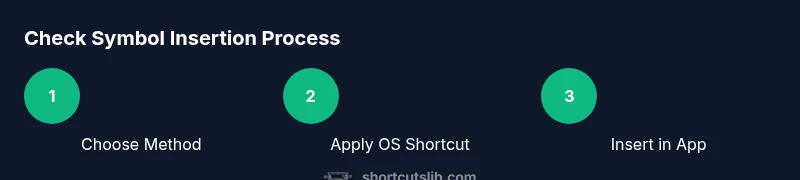
Choose the insertion method that works best on your platform (Windows Alt code, Mac Unicode Hex Input, or in-app symbol pickers). This ensures consistency across documents and reduces guessing during deadlines.
Tip: Pick one reliable method per platform to build muscle memory. - 2
Enable Mac Unicode Hex Input if you’re on Mac
Open System Settings, add Keyboard Preferences, and enable Unicode Hex Input. This step unlocks typing 2713 with Option to produce ✓.
Tip: After enabling, switch to a font that supports the symbol. - 3
Insert using Windows Alt code
In apps that support Alt codes, hold the Alt key and type 2713 on the numeric keypad, then release to insert ✓.
Tip: Use the numeric keypad; some laptops lack a dedicated keypad. - 4
Insert using Mac Option+2713 (Unicode Hex Input)
With Unicode Hex Input active, press Option+2713 to insert the check symbol. If not visible, switch to a font with symbol support.
Tip: Ensure there’s a reliable font fallback in your document. - 5
Use in-app symbol pickers when needed
Open the emoji/symbol picker (Win+.; Ctrl+Cmd+Space) and search for a check mark. Double-click to insert in your document.
Tip: This method is quick for occasional use and for non-technical users. - 6
Test rendering and adjust fonts
After inserting, verify the symbol renders correctly in your document, slides, and exported files. If it looks off, switch fonts or adjust the text style.
Tip: Always test in the final export format (PDF/print) as fonts may differ.
Questions & Answers
What is the easiest way to insert a check symbol on Windows?
For Windows, the quickest route is usually the Alt code: hold Alt and type 2713 on the numeric keypad to insert ✓ in apps that support Alt codes. If Alt codes aren’t available, use the Windows emoji/symbol picker or a symbol dialog in your editor.
On Windows, press Alt and type 2713 on your numeric keypad to insert a check symbol in supported apps; use the emoji picker if Alt codes aren’t available.
Can I type a check symbol on Mac without Unicode input?
Yes. You can use the Emoji & Symbols viewer (Control+Cmd+Space) to search for a check mark and insert it. If you rely on Unicode input, enable Unicode Hex Input and use Option+2713.
Mac users can insert a check symbol via the Emoji viewer or by enabling Unicode Hex Input and typing Option+2713.
Does every font support the check symbol?
No. Some fonts do not include the glyph U+2713. If the symbol doesn’t render, switch to a font with broader symbol coverage and re-test in your document.
Not all fonts show the check symbol. Try a font with broader symbol support and test again.
What about Word or Google Docs—any built-in shortcut?
Word and Google Docs offer Insert Symbol or Emoji pickers that work across platforms. Use Alt+2713 on Windows or the emoji panel (Ctrl+Cmd+Space) on Mac where applicable.
In Word or Docs, use the built-in symbol tools or emoji pickers to insert a check mark.
Is there a universal shortcut for all apps?
There isn’t a universal shortcut that works everywhere. The best approach is to learn a Windows Alt code, a Mac Unicode input, and your editor’s built-in picker for consistency.
There isn’t a single universal shortcut; learn the main methods for Windows, Mac, and your editors.
How can I verify the symbol looks correct in exports?
Test the symbol in your document and export to PDF or other formats to ensure the glyph renders correctly in the final file. Font substitutions during export can affect appearance.
Always check how the check symbol looks in the final exported document.
Watch Video
Main Points
- Master at least two insertion methods per platform
- Always verify font support to ensure rendering
- Use in-app pickers for frequent needs, Unicode for rare cases
- Test symbols in final export formats before sharing