Keyboard shortcut for symbol: Master symbols fast with OS-level shortcuts
Learn practical keyboard shortcuts to insert symbols on Windows, macOS, and Linux. This step-by-step guide covers Alt codes, Unicode input, Character Viewer, and Compose keys to speed up your typing across apps.


According to Shortcuts Lib, mastering a keyboard shortcut for symbol lets you insert special characters in a snap. In this quick guide you’ll learn Windows Alt codes, macOS Option sequences, Compose keys, and Unicode input. The Shortcuts Lib team analyzed the most reliable methods and practical gotchas to save you time across apps and documents.
Why symbols matter in daily work
Symbols appear everywhere: in documents, presentations, code, and emails. Being able to insert them quickly reduces disruption and keeps your flow intact. A single symbol can convey meaning more clearly than words, from currency signs to mathematical operators, copyright marks, and arrows. A well-practiced keyboard shortcut for symbol reduces mouse clicks, saves time, and minimizes context switching. According to Shortcuts Lib, mastering symbol input is a small but powerful upgrade for any serious keyboard user, and it scales across apps and platforms. In this section we lay the groundwork for where symbol shortcuts shine and how they fit into a modern workflow. You’ll learn not just what to press, but when to press it for maximum effect across word processors, code editors, spreadsheets, and design tools.
How keyboard shortcuts for symbol differ by OS
Different operating systems provide different pathways to the same end: a fast symbol insertion. Windows relies heavily on Alt codes and Unicode input in certain apps. macOS leans on the built-in Character Viewer and a range of Option-key combos, while Linux often uses a Compose key or direct Unicode entry. The goal is to pick one or two reliable methods per environment and then use consistent shortcuts across apps. By understanding these foundations, you’ll be able to switch contexts without losing speed. This section compares the core approaches and helps you decide where to start based on your primary OS and workflow. Remember, the best method is the one you can remember and reproduce under pressure.
Windows: Alt codes and Unicode input
Windows users often rely on Alt codes to insert symbols quickly. If you have a numeric keypad, hold the Alt key and type the code, then release. A common example is Alt+0169 for ©, which works in many programs once Num Lock is on. For finer control within Office apps like Word, you can type the hex code and convert with Unicode input methods (for example, typing 00A9 and pressing Alt+X to yield ©). Unicode input is supported in many editors and IDEs, though behavior can vary by application and font. This combination of Alt codes and Unicode entry covers the majority of daily needs and is a dependable baseline for speed.
macOS: Option keys, Character Viewer, and Unicode input
macOS builds symbol insertion into everyday typing with a mix of Option-key combos and the Character Viewer. For example, Option+G often yields ©, Option+3 yields £, and others produce a wide range of symbols depending on keyboard layout. If a symbol isn’t readily available from key combinations, you can open the Character Viewer with Control+Command+Space, search for the symbol, and insert it with a click or drag-and-drop. Unicode input is also supported in many applications by using hex codes and appropriate input methods. This approach minimizes context switching and keeps symbol entry consistent across macOS apps and browsers.
Linux: Compose key and Unicode input
Linux users can and should leverage a Compose key as a fast path to common symbols. After enabling a Compose key in system settings, you can press it followed by simple sequences (the exact sequences depend on your distro and layout) to produce a wide array of characters. For ultimate portability, you can also enter Unicode code points directly: press Ctrl+Shift+U to start the hex input, type the code point (for example, 00A9 for ©), then press Enter. This method is reliable across text editors and terminals, making symbol insertion predictable on Linux workstations.
Cross-application strategies to speed up symbol insertion
To maximize speed, choose one primary method per OS and stick with it across apps. Create a small personal reference that lists the symbol, its code, and the recommended input method. Use a text expander or clipboard manager for frequently used symbols, and consider bookmarking the most common symbols in the Character Viewer or on a cheat sheet. If you work across Windows, macOS, and Linux, keep a dual set of shortcuts handy and practice switching between them in a focused, timed drill. This consistency reduces cognitive load and improves typing rhythm over time.
Common symbols you’ll likely use and their shortcuts
Symbol sources and shortcuts vary by font and layout, but many symbols are widely available through a handful of methods:
- ©: Windows Alt+0169; macOS via Option+G; Linux with Compose or Unicode U+00A9.
- £: Windows Alt+0163; macOS via Option+3; Unicode U+00A3 as fallback.
- €: Windows Alt+0128; macOS often via Option+Shift+2 (layout-dependent); Unicode U+20AC as fallback.
- ™: Windows Alt+0153; macOS uses various Option-key sequences; Unicode U+2122 as fallback.
- ±: Windows Alt+0177; macOS and Linux have layout-dependent equivalents; Unicode U+00B1.
- ∑: Windows Alt+2211; Linux/Unicode input for U+2211.
- •: Windows Alt+0149; macOS often via Option+8; Unicode U+2022 for bullet.
Note: Always verify symbol availability with your current font and locale. If a symbol doesn’t render, switch to a font that supports it, or use a fallback symbol from your font family.
Troubleshooting and font considerations
Symbol rendering failures are usually font-related. If a character appears as a box or question mark, switch to a font with broader symbol coverage (e.g., a Unicode-heavy font) or adjust the font fallback. Ensure the target document supports the symbol; some older files or restricted fonts may block certain glyphs. When sharing documents, consider embedding fonts or exporting to a format that preserves glyphs. Finally, keep your keyboard language and region settings aligned with your input method to minimize confusion when switching contexts.
Practical workflow tips for memorization and consistency
Turn symbol shortcuts into muscle memory by building a small daily drill: choose 5 symbols you type most often and practice their entry across two apps for a week. Create a compact reference sheet and keep it near your workspace or in a digital note app. Pair symbols with a representative mnemonic (e.g., Alt+0169 for a simple copyright cue). Use a single method per OS for a while before introducing a second method to avoid fragmentation. Regular practice yields faster symbol insertion and fewer mistakes.
Quick reference cheat sheet (examples)
Below is a compact cheat sheet you can save on your desktop or in your notes. It highlights common symbols and the primary method to insert them on each OS. If you frequently work in a particular app, copy these into a separate note for quick access.
- ©: Windows Alt+0169; macOS Option+G; Linux Compose/o+c
- £: Windows Alt+0163; macOS Option+3; Unicode U+00A3
- €: Windows Alt+0128; macOS Option+Shift+2; Unicode U+20AC
- ™: Windows Alt+0153; macOS varies; Unicode U+2122
- •: Windows Alt+0149; macOS Option+8; Unicode U+2022
Tools & Materials
- Keyboard(Any standard keyboard with a numeric keypad helps for Alt codes)
- Computer/OS(Windows, macOS, or Linux with the described input methods)
- Num Lock key(Needed for Windows Alt codes on most setups)
- Character Viewer/Emoji picker(MacOS users can leverage Control+Command+Space)
- Unicode-capable editor/app(Useful for direct Unicode entry (e.g., U+XXXX))
Steps
Estimated time: 15-25 minutes
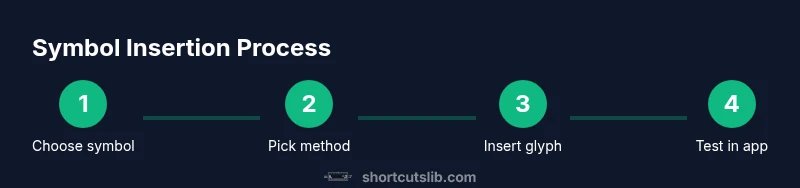
- 1
Choose symbol and input method
Decide which symbol you need and which OS method you will use (Windows Alt codes, macOS Character Viewer, or Unicode input). Pick a method you can consistently recall to build speed. This step sets the foundation for a smooth insertion workflow.
Tip: Keep a short list of your most-used symbols to minimize guesswork. - 2
Insert with Windows Alt code
If you’re on Windows with a numeric keypad, hold Alt and type the code (e.g., 0169 for ©). Release Alt to insert the symbol. Ensure Num Lock is enabled and you’re in a text-capable field.
Tip: Use Alt+0169 in most apps; some programs may require a different input mode—preview first if in a web form. - 3
Use macOS Character Viewer
Press Control+Command+Space to open the Character Viewer. Search for the symbol, then double-click to insert or drag into your document. This method works across all macOS apps and supports many fonts.
Tip: Add frequently used symbols to your Favorites for faster access. - 4
Try Unicode input as a universal fallback
In editors that support it (Word, IDEs, some editors), type the hex code (e.g., 00A9) and press Alt+X to convert to the corresponding symbol (©). This approach is especially useful for programmers and document authors who work with code points.
Tip: Keep a small hex-to-symbol map handy for quick reference. - 5
Enable a Linux Compose key
On Linux, enable a Compose key in settings. Press the Compose key, then sequences like o c to produce © or - (for bullets) and other glyphs. The exact sequences vary by distro, so consult your environment docs.
Tip: Pick a rarely used key as your Compose key to avoid conflicts. - 6
Test across apps and fonts
After inserting, verify the symbol appears in the target font. If it doesn’t render, switch to a font with broader symbol support or use Unicode input to ensure compatibility.
Tip: Always test in the app where the symbol will be used most (word processor, email, code editor).
Questions & Answers
What is the fastest way to insert a symbol in Windows?
Windows users often rely on Alt codes for speed. With a numeric keypad, hold Alt and type the code, then release. For example, Alt+0169 inserts © in many programs. Unicode input via hex-to-symbol conversion is also common in Word.
In Windows, most people type the symbol with Alt codes on the numeric keypad, or use hex-to-symbol in Word via Alt+X.
How do I insert symbols on macOS quickly?
macOS users can press Control+Command+Space to open the Character Viewer and insert symbols. You can also use Option-key combos (varies by keyboard layout) for many common glyphs.
Open the Character Viewer with Control-Command-Space and pick your symbol, or try Option-key combinations on your layout.
What about Linux users who need symbols often?
Linux users benefit from enabling a Compose key and by using Unicode input (Ctrl+Shift+U, then hex code). Compose sequences provide many common symbols without memorizing codes.
Enable a Compose key and use direct Unicode input for reliable symbol insertion on Linux.
Can I paste symbols into any app?
Most apps support pasted symbols, but font support matters. If a symbol doesn’t display, switch to a font with broader glyph support or use a Unicode input method that preserves the glyph.
Yes, you can paste symbols like © or € in most apps, but check the font compatibility.
Is there a minimal cheat sheet for symbol shortcuts?
Yes. Maintain a concise reference with a few symbols you use daily, along with their Windows, macOS, and Linux entry methods. Review it periodically to keep speed steady.
Create a tiny cheat sheet of your most-used symbols and review it regularly.
Watch Video
Main Points
- Pick one primary method per OS and stick with it.
- Use the Character Viewer or Compose key for symbols not on a key.
- Unicode input offers a reliable fallback for many apps.
- Font support matters: ensure your symbol renders in the target font.