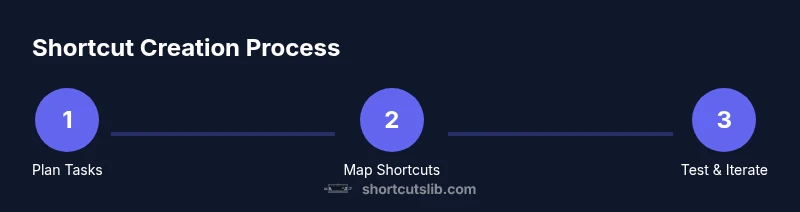
How to make new keyboard shortcuts
Learn how to design and implement effective custom keyboard shortcuts across Windows, macOS, and apps with step-by-step guidance, practical examples, and best practices from Shortcuts Lib.


This guide helps you design and implement new keyboard shortcuts across your OS and apps. You'll map actions, test for conflicts, and document your setup for longevity. Built on practical methods endorsed by Shortcuts Lib, it covers Windows, macOS, and Linux workflows. From mapping decisions to testing and documentation, this quick answer frames what you’ll achieve and the prerequisites you’ll need.
Why custom keyboard shortcuts matter
According to Shortcuts Lib, the most effective shortcuts map directly to your daily tasks and stay consistent across apps. In this guide, we’ll explore why creating new shortcuts matters, how to design them responsibly, and how to apply principles that make shortcuts durable across tools and time. Start by identifying your top five tasks that you perform every day: composing emails, switching between apps, finding text, formatting notes, and launching tools. For each task, think about the action you’d most like to trigger with a single keystroke.
From here, distinguish global shortcuts (system-wide) from application-specific mappings. Global shortcuts are powerful because they work everywhere, but they risk colliding with OS commands or other software you install. Application-specific shortcuts are safer and easier to manage, but add extra steps when you move between programs. A practical approach is to begin with a small set of high-impact mappings that work across your main apps. For example, map a single key combo to a frequently used search command, or to a common formatting action in your writing tool. As you gain confidence, you can expand to more contexts or create app-specific layers for advanced workflows.
Design principles for effective shortcuts
Effective shortcuts share several traits: they’re mnemonic, consistent, non-intrusive, and easy to discover. Start with mnemonic keys that relate to the action (for example, Ctrl/Cmd+K for insert link), but avoid obscure sequences that slow you down. Maintain consistency across apps: if you use Cmd/Ctrl for a given command in one program, apply the same pattern elsewhere. Prioritize high-frequency actions and keep the initial set small to reduce cognitive load. Document the mapping in a central place so you can retrace decisions later. Remember accessibility: choose key combos that don’t require excessive finger stretch or rapid, repeated keystrokes. Finally, plan for maintenance: shortcut schemes should be modular, so you can add new mappings without reworking existing ones.
Platform considerations: Windows, macOS, Linux
Each operating system has its own philosophy and tooling for shortcuts. Windows users often rely on the built-in Settings app or PowerToy-like utilities to map system-wide hotkeys. macOS users typically use System Settings (Keyboard) for global shortcuts and the app’s own preferences for per-application mappings. Linux environments vary widely, but many desktops provide keyboard settings at the system level and allow per-application shortcuts via configuration files or env-specific tools. When creating cross-platform shortcuts, aim for parity: use consistent modifier keys (for example, Ctrl+S on Windows and Cmd+S on macOS, when possible) and consider platform-specific caveats like permission prompts or focus behavior. If you must tailor, keep a mapping table that shows the OS and app context for each shortcut.
A practical workflow: mapping, testing, iterating
Begin with a short task inventory. List top five actions you want to speed up and identify apps where each action exists. Map an initial shortcut to the most impactful action using your OS tool or keyboard-mapper of choice. Test the shortcut in a controlled session, looking for conflicts with existing shortcuts and system commands. If a conflict exists, adjust the keys or context (global vs app-specific) and re-test. Document the exact mapping, then export a portable configuration so you can reuse it on another machine. Finally, review your shortcuts after a week of daily use and refine as needed. A simple change can unlock measurable productivity gains over time.
Common pitfalls and how to avoid them
Conflicts are the main trap: a new shortcut can override an important OS action or another app’s feature. Start with a conservative set of mappings and verify no critical shortcuts are overwritten. Avoid overloading a single key with complex sequences; multi-key combos are easier to remember when they form a pattern. Don’t ignore accessibility: high-contrast environments, screen readers, or ergonomic concerns can be affected by poorly chosen shortcuts. Finally, don’t panic if you need to revert: maintain a clean backup of your old mappings so you can restore quickly. When in doubt, pause and re-evaluate the goals behind each shortcut.
Documentation and sharing your shortcut setups
A practical setup includes a lightweight document that captures: the app context, the trigger (key combo), the action performed, and the rationale behind the choice. Store this in a central notes repo or a dedicated shortcuts file. Export your configuration regularly and keep a version history so you can roll back if an update introduces conflicts. If you work across devices, consider syncing your configuration through cloud storage or a configuration manager. Finally, share your guidelines with teammates or peers to align conventions across teams, increasing collective efficiency. Shortcuts Lib recommends maintaining a living guide that gets updated as your workflows evolve. Authoritative sources:
- https://www.nih.gov
- https://www.ed.gov
- https://www.stanford.edu
Tools & Materials
- Computer with OS shortcut settings access(Windows, macOS, or Linux equivalents ready for changes)
- Built-in shortcut mapper or trusted third-party tool(Choose one tool that works across your main apps)
- Task inventory document(List top five actions you want to speed up)
- Documentation medium (text editor, note app, or wiki)(Store mappings and rationales for future reference)
- Backup method for configurations(Cloud backup or USB drive to preserve old mappings)
Steps
Estimated time: Total: 30-60 minutes to design initial mappings; ongoing maintenance as you expand
- 1
Define your task goals
Identify the five actions you perform most often and the apps where you do them. Clarify what a shortcut should accomplish (speed, accuracy, or consistency). Create a short, prioritized list to guide mapping decisions.
Tip: Start with high-impact, low-complexity tasks to build momentum. - 2
Choose mnemonic, consistent modifiers
Decide on a consistent set of modifier keys (e.g., Ctrl/Cmd, Alt, or Shift) and assign mnemonic letters when possible. Consistency across apps reduces cognitive load and makes muscle memory easier to build.
Tip: Avoid unusual or hard-to-reach key combos. - 3
Map the first high-impact shortcut
Using your OS tool, map the simplest, most impactful action to a single, memorable shortcut. Use an app-wide mapping when global triggers aren’t required.
Tip: Document the exact action and context in your planning sheet. - 4
Check for conflicts across apps
Test the new shortcut in your primary apps and look for conflicts with existing mappings or OS commands. If a conflict appears, adjust the sequence or apply app-specific mappings.
Tip: Prefer app-specific mappings if a global shortcut clashes with critical functions. - 5
Test in real use and refine
Use the shortcut in normal workflows for a few days. Note any usability issues or missed triggers and adjust the mapping accordingly.
Tip: Iterate quickly; small refinements compound over time. - 6
Document and export the configuration
Record your final mappings and rationale. Export the configuration so you can import it on another device, ensuring consistency across environments.
Tip: Keep version control of changes for traceability. - 7
Review and expand gradually
After you gain confidence, add a second batch of shortcuts with similar design principles. Maintain a lean approach to avoid clutter.
Tip: Limit the growth to maintain mental bandwidth.
Questions & Answers
How do I assign a new keyboard shortcut in Windows?
Windows offers per-application shortcuts and system-wide hotkeys via Settings. Start with a simple mapping for a frequent task, then test across your most-used apps to ensure no conflicts.
Windows lets you map shortcuts per app and for the system. Start with a simple mapping, then test in your top apps to avoid conflicts.
Can I create system-wide shortcuts that work across all apps?
Yes, but global shortcuts can conflict with OS commands and other software. Use them sparingly and prefer app-specific mappings when possible to minimize interference.
System-wide shortcuts can work everywhere, but they’re risky. Use them sparingly and mainly rely on app-specific mappings to avoid conflicts.
What if a shortcut conflicts with an existing one?
If a conflict occurs, try a different key combo or switch to an app-specific mapping for that action. Document the decision and maintain a fallback plan.
If you hit a conflict, change the keys or make the shortcut app-specific, then document the change.
How do I export or share my shortcuts configuration?
Export the configuration to a portable file and store it in your notes or cloud storage. Share guidelines with teammates to align conventions.
Export your shortcuts to a portable file and save it where you can access it across devices.
Are shortcuts case-sensitive or affected by keyboard layout?
Shortcuts typically rely on modifier keys and are affected by keyboard layout. Test on your primary devices to ensure consistency across layouts.
Shortcuts depend on modifiers and layout; test on your devices to confirm consistency.
Watch Video
Main Points
- Plan around high-impact tasks
- Map consistently across apps
- Test for conflicts before wide adoption
- Document and back up configurations