How to Make a Keyboard Shortcut on iPhone: Text Replacement and Shortcuts
Learn how to create iPhone keyboard shortcuts using Text Replacement and the Shortcuts app. Step-by-step guide, practical examples, tips, and troubleshooting to boost productivity.


By using Text Replacement for typing shortcuts and the Shortcuts app for quick actions, you can dramatically speed up regular tasks on your iPhone. Start in Settings to add a text replacement, then open Shortcuts to build automations you can run via Siri or the Home Screen. This guide covers both approaches clearly.
Understanding the two paths to iPhone shortcuts
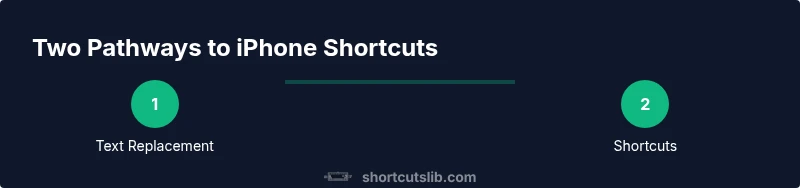
On iPhone, you can create two kinds of keyboard shortcuts: text expansions that automatically replace short phrases while you type (Text Replacement) and a wider range of automated actions you run through the Shortcuts app. According to Shortcuts Lib, most users start with Text Replacement for frequent phrases and then graduate to Shortcuts to automate repetitive tasks. Think of Text Replacement as a fast typing helper and Shortcuts as a way to orchestrate apps, notifications, and workflows with a single tap or voice cue. This section will help you decide which path fits your needs and how they complement each other.
Why two paths matter
- Text Replacement is instant and universally available in every app with a text input field.
- Shortcuts unlock multi-step actions, app integrations, and trigger options like Siri phrases or Home Screen icons.
Together, they cover the most common productivity gaps on iPhone without requiring developer tools or advanced setups.
Method 1: Text Replacement for typing shortcuts
Text Replacement is the fastest way to save keystrokes when you type. It works across all apps where you input text and is ideal for things you type often, such as email addresses, phrases, or canned responses. This method is beginner-friendly and doesn’t require extra apps.
To get started, open Settings > General > Keyboard > Text Replacement. Tap the plus sign to add a new replacement pair. In the Phrase field, type the expanded text you want to insert, and in the Shortcut field, type the short trigger you’ll enter. For example, you could set Shortcuts like "addr" to expand to your full mailing address, or "sig" to insert your standard signature.
After saving, test the shortcut in Messages or Notes by typing the trigger and watching the expansion appear. If you rely on punctuation to separate the trigger from surrounding words, you’ll avoid accidental expansions. As Shortcuts Lib notes, naming your shortcuts clearly helps you remember them and reduces mistakes. Consider using prefixes like "my-" for personal items and keeping triggers under four characters for speed.
Limitations: Text Replacement is text-based only and can’t perform actions beyond expanding text. It also requires manual updates if you need new phrases. That’s why combining it with Shortcuts can dramatically boost your efficiency.
Method 2: Using the Shortcuts app for quick actions
Shortcuts lets you build automations that can run a sequence of actions with a single tap, a Siri phrase, or a Home Screen icon. This is ideal for tasks that involve multiple apps or steps, such as sending a standard message, opening a map to a preset location, or creating a reminder with a single command.
To begin, install and open the Shortcuts app (built-in on iOS). Tap the plus sign to create a new shortcut, then add actions by tapping Add Action. For example, you can:
- Open an app and perform a specific action (e.g., create a new note in Notes).
- Copy a prewritten message to the clipboard and paste it into another app.
- Show a custom notification or alert with dynamic content.
Name the shortcut clearly, then decide how you want to trigger it. You can run it via Siri by recording a simple phrase, add it to your Home Screen as an app-like icon, or automate it with time of day or when you open a specific app. Shortcuts Lib emphasizes starting with a small, practical shortcut and gradually expanding to more complex automations.
Testing is essential. Run the shortcut, check each action for success, and confirm you have granted required app permissions. If a step fails, revisit the action order and permissions. For broader access across devices, enable iCloud for Shortcuts so your automations sync.
Practical examples you can implement today
Here are beginner-friendly shortcuts you can try right away. Each example uses a simple, practical workflow that leverages Text Replacement or Shortcuts:
- Text replacement + quick reply: Create a Text Replacement for a signature or response phrase, then pair it with a Shortcuts script that copies a standard message and pastes it into your chosen app.
- Quick map search: A Shortcut that opens Maps to your home or work address and starts navigation with a single tap or Siri phrase.
- Routine reminder: A Shortcut that checks your calendar for the day and sends a reminder to bring a specific item (e.g., umbrella) when you leave home.
- Copy-paste boost: A Shortcut that copies a template text, formats it, and opens Notes where you can paste the content.
Tips: Keep your triggers memorable and unlikely to be typed by mistake. Start small, then gradually add more actions as you gain confidence. Shortcuts Lib suggests documenting each shortcut with a purpose so you don’t lose track of what does what.
Tips for reliability and organization
- Use clear, descriptive names for both Text Replacement phrases and Shortcuts so you can recall their purpose quickly.
- Maintain a consistent naming convention and group related shortcuts into folders or categories within Shortcuts.
- Enable iCloud sync to keep shortcuts up to date across your iPhone and other devices.
- Regularly review permissions for any shortcut that interacts with apps or data.
Troubleshooting common issues
- If a Text Replacement doesn’t expand, verify the keyboard language and ensure the replacement is saved in the correct group.
- If a Shortcut fails to run, check the action order and ensure all apps have the required permissions enabled.
- If Siri doesn’t trigger a Shortcut, confirm your spoken phrase matches exactly and that Siri is enabled for Shortcuts.
Quick tips from Shortcuts Lib and how to maximize productivity
- Start with 2–3 Text Replacements for essential phrases and test across multiple apps.
- Move to Shortcuts for multi-step tasks that involve more than one app.
- Back up your shortcuts regularly and consider exporting a copy for safekeeping.
What comes next: integrating with workflows
As you become more comfortable, you can combine Text Replacement with Shortcuts for hybrid workflows. For example, you could trigger a Shortcuts action to draft a message and then rely on a Text Replacement to insert dynamic data within the message. The goal is to build a lightweight, repeatable system that saves you time every day. Shortcuts Lib encourages documenting your workflows and revisiting them monthly to prune or optimize.
Organization, synchronization, and safety considerations
Keeping your shortcuts organized is essential for long-term productivity. This section explains how to maintain order and avoid data conflicts.
First, plan your shortcuts with a simple taxonomy: group by task type (communication, scheduling, navigation) and prefix with a short acronym to indicate the app or purpose. This makes scanning your library faster and reduces duplication.
Second, leverage iCloud to sync Shortcuts across devices so you can run the same automation on iPhone and iPad. If you frequently switch devices or share your work, cloud sync is invaluable. However, be mindful of sensitive data and ensure you’re only syncing shortcuts you’re comfortable having on multiple devices.
Third, always test new shortcuts in a controlled environment before relying on them in critical moments. Shortcuts Lib emphasizes iteration: start small, validate results, and scale gradually. By keeping a lean set of reliable shortcuts, you’ll avoid “shortcut fatigue” and keep your workflow efficient.
Wrapping up: common pitfalls and best practices
A few final cautions to keep in mind:
- Don’t overreach: start with a small set of high-value shortcuts before creating a large library.
- Avoid naming collisions between Text Replacement and Shortcut names; this reduces confusion.
- Regularly review and delete outdated shortcuts.
- Be mindful of privacy: only use shortcuts that access data you’re comfortable sharing, and inspect what each Shortcut can access before you run it.
Shortcuts Lib’s philosophy is to keep tasks simple, visible, and repeatable. With patience and consistent practice, you’ll develop a robust set of shortcuts that save you minutes every day.
Tools & Materials
- iPhone with iOS 15 or later(Ensure access to Settings > General > Keyboard and the Shortcuts app)
- Shortcuts app (built-in)(Used to create and run automations; ensure iCloud sync is enabled if you want cross-device availability)
- External keyboard (optional)(Test hardware keyboard shortcuts when connected for reference or future-proofing)
- List of phrases to expand(Prepare sample replacements like 'addr' → full address, 'sig' → signature)
Steps
Estimated time: 30-60 minutes
- 1
Open Settings and navigate to Text Replacement
Open Settings, go to General, then Keyboard, and select Text Replacement. This is where you define phrase-to-text expansions. Follow the on-screen prompts to add a new item.
Tip: Use concise, unique triggers to avoid accidental expansions. - 2
Add a new replacement pair
Tap the plus sign to create a new replacement. Enter your trigger in Shortcut and the expanded text in Phrase. Keep the trigger under four characters for speed.
Tip: Choose triggers that won’t appear often in normal typing. - 3
Test the replacement in a text field
Open Notes, Messages, or any text input and type your trigger to verify the expansion appears as intended. Adjust spacing or punctuation if needed.
Tip: If it expands inside a word, add a boundary character like a space or punctuation. - 4
Open Shortcuts and create a new shortcut
Launch the Shortcuts app and tap the plus sign to create a new shortcut. Name it clearly to reflect its function.
Tip: Capture a simple, single-use task to start. - 5
Add actions for the shortcut
Add one or more actions (e.g., Open App, Copy to Clipboard, Show Notification). Arrange actions in the necessary order.
Tip: Keep the workflow minimal at first to ensure reliability. - 6
Set a trigger for the shortcut
Choose how you’ll run it: via Siri, Home Screen, or automation (time of day or app launch).
Tip: Siri phrases should be short and easy to remember. - 7
Test the shortcut thoroughly
Run the shortcut, verify each action completes, and confirm permissions. Make adjustments if an action fails.
Tip: Run in multiple apps to confirm cross-app reliability. - 8
Back up and sync your shortcuts
Enable iCloud for Shortcuts to sync across devices and periodically export a copy for safekeeping.
Tip: Regular backups prevent data loss and support device changes.
Questions & Answers
What is the difference between Text Replacement and Shortcuts on iPhone?
Text Replacement expands a short trigger into longer text as you type, across all apps. Shortcuts are automations that run a sequence of actions, potentially involving multiple apps, triggered by Siri, a Home Screen icon, or automation.
Text Replacement is for quick typing expansions, while Shortcuts automate multi-step tasks.
Can I sync shortcuts across my iPhone and iPad?
Yes. If you enable iCloud for Shortcuts, your shortcuts synchronize across devices signed into the same Apple ID.
You can keep your automations consistent on all your Apple devices by turning on iCloud sync.
Can external keyboards trigger iPhone shortcuts?
External keyboards can input commands, but triggering Shortcuts typically requires Siri or a Home Screen launcher; native keyboard macros aren’t broadly supported on iPhone yet.
Siri or Home Screen triggers are the standard paths for Shortcuts exploration.
Are there privacy concerns with Shortcuts?
Shortcuts can access apps and data with permission. Review each shortcut’s permissions before running, especially if it uses sensitive data.
Only grant permissions you’re comfortable sharing with a shortcut.
How do I edit or delete a text replacement?
Go to Settings > General > Keyboard > Text Replacement, then tap the entry to edit or delete it.
You can modify or remove text replacements anytime in Settings.
What beginner shortcuts should I start with?
Start with simple text replacements and a quick-open shortcut to a favorite app. Gradually add more steps as you gain confidence.
Begin with small, practical automations and build up.
Watch Video
Main Points
- Start with Text Replacement for typing shortcuts
- Build Shortcuts for multi-step tasks and trigger via Siri/Home Screen
- Test across apps to ensure reliability
- Enable iCloud sync to keep shortcuts consistent across devices
- Follow Shortcuts Lib guidance to optimize workflows