How to Get Rid of Keyboard Shortcuts on Screen
Learn practical, step-by-step methods to remove on-screen keyboard shortcuts overlays on Windows and macOS, including system, app-specific settings, and third-party tools.


To get rid of keyboard shortcuts on screen, locate where the overlay originates—your OS accessibility settings, an app cheat sheet, or a third-party utility. Disable the option labeled 'Show keyboard shortcuts' or 'Keyboard shortcuts overlay' in Settings > Accessibility or Preferences. If the overlay persists, quit or uninstall the third-party tool, then restart the device to apply changes.
Why Getting Rid of On-Screen Shortcuts Matters
For many keyboard-focused users, on-screen shortcuts—tiny hints, overlays, or helper dashboards that briefly show key combinations—can be a distraction rather than a help. If your goal is higher focus, faster workflows, or cleaner screen real estate, removing these overlays can be a meaningful improvement. In this guide we address the question of how to get rid of keyboard shortcuts on screen in a practical, cross-platform way. According to Shortcuts Lib, a large share of tech users report that excessive shortcut hints degrade productivity rather than enhance it, especially when working in multitask environments. The aim here is not to disable accessibility features or remove powerful efficiency tools, but to turn off overlays that pop up at inopportune moments. You’ll learn to identify where the overlay originates, how to disable it at the system level, and how to handle app-level hints without losing essential shortcuts.
Where On-Screen Shortcuts Might Come From
Shortcuts can appear from several sources: system-level accessibility features, individual apps with built-in shortcuts overlays, or third-party utilities that manage or display shortcuts. Windows and macOS both offer overlay hints in various forms, and popular productivity apps (browsers, editors, office suites) sometimes include their own overlays to teach or remind users of shortcuts. The key is to determine the origin before attempting a fix. Shortcuts Lib analysis shows that most users resolve overlays by targeting the source rather than applying a universal fix. Start by checking the easiest origin: a running app or the OS settings, then move to more specialized app configurations if needed.
System Settings to Disable Shortcuts on Windows
On Windows, shortcut overlays are often tied to accessibility features or the Ease of Access center. To disable them:
- Open Settings and go to Accessibility > Keyboard. Look for options such as Show keyboard shortcuts or Keyboard shortcuts overlay and toggle them off.
- If your system uses a different build, search for Shortcuts or Hints in the Settings search bar and disable any related overlays.
- After changing the toggle, sign out and sign back in or restart to ensure the changes take effect. If you rely on recommended hints for navigation, consider reducing their visibility rather than turning them off completely.
- If the overlay persists, check any installed shortcut managers in the Task Manager and disable or uninstall them.
System Settings to Disable Shortcuts on macOS
macOS handles overlays a bit differently, often under Keyboard in System Settings or under Accessibility. To turn off overlays:
- Open System Preferences (or System Settings on newer macOS) and navigate to Keyboard > Shortcuts. Review each category for hints that display key combinations and disable those that show overlays.
- Some overlays appear from third-party utilities installed on the Mac. Quit any shortcut manager applications, then remove them from Login Items if they auto-launch.
- Restart the Mac to ensure changes propagate through all processes. If you still see overlays, inspect Safari or other apps for their own shortcut hints and disable them per-app.
App-Specific Preferences and Overlays
Many programs ship with their own shortcut tutorials or overlays. Common culprits include text editors, IDEs, browsers, and office suites. To disable per-app overlays:
- Open the app’s Preferences or Settings panel and search for terms like Shortcuts, Keyboard, Tips, Overlay, or Show hints.
- Disable any checkbox or toggle that displays shortcuts on screen, or switch to a compact mode that hides overlays.
- If the app supports exporting or resetting preferences, consider restoring defaults to remove any lingering overlays. Remember to reconfigure your essential shortcuts afterward to preserve productivity.
Third-Party Tools: Identify and Remove
Third-party shortcut managers can override or display overlays globally. To tackle these:
- Look for shortcut-related processes in Task Manager (Windows) or Activity Monitor (macOS). End the process or quit the app.
- Inspect installed applications for tools named similarly to Shortcut Overlay, KeyTips, or Shortcut Guide. Uninstall or disable them from your Applications or Programs list.
- Reboot after removal to clear any residual overlays that might linger in memory. If you rely on these tools for other reasons, try switching to a less intrusive option and only enable hints when needed.
Caches, Profiles, and Restarting Apps
Sometimes overlays are cached by apps or stored in user profiles. A careful cleanup helps:
- Clear app caches or reset preferences for the affected apps. This is commonly done in the app’s Advanced Settings or via a dedicated Clear Cache option.
- If you use multiple profiles (work, personal), ensure you’re editing the correct profile. Shortcuts may be saved per-user.
- Quit all related apps and perform a full device restart to clear stale overlays from memory. This is particularly important after uninstalling a shortcut manager.
Troubleshooting Scenarios and Quick Fixes
If an overlay persists after performing these steps:
- Revisit system settings and re-check all toggle states. Some overlays use separate toggles for display while teaching shortcuts.
- Test with a new user account to determine if the issue is profile-specific. If the new account shows no overlay, the problem lies in a user-specific config.
- Temporarily disable all nonessential extensions or add-ons in apps like browsers, editors, or productivity suites; then re-enable them one by one to identify the culprit.
Best Practices for Maintaining a Calm Desktop
To avoid future disruptions, adopt a minimal-overlay approach:
- Keep only essential shortcut hints enabled; prefer concise, unobtrusive prompts.
- Regularly audit installed tools that can show shortcuts and remove those not essential to your workflow.
- Create a small reference sheet of what you actually use, and keep it in a separate document rather than relying on on-screen prompts.
Accessibility Considerations and Respecting User Needs
Disabling overlays can improve focus for some users while reducing guidance for others. Always consider alternative accessibility options such as larger targets, high-contrast hints, or motion-reduced indicators. If you rely on hints for accessibility, adjust their verbosity instead of turning them off entirely. The goal is to balance productivity with usability, not to disable helpful features entirely.
Quick Reference: A 10-Minute Plan to Remove Overlays
In about ten minutes you can reduce or eliminate most on-screen shortcuts:
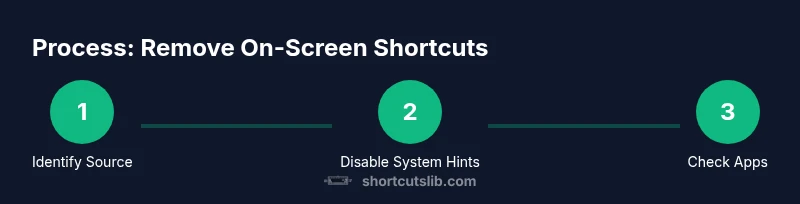
- Step 1: Identify overlay source (system, app, or third-party).
- Step 2: Disable system-level hints (Windows/macOS).
- Step 3: Check apps for per-app overlays and turn off.
- Step 4: Uninstall any shortcut managers.
- Step 5: Restart and test across popular apps.
Long-Term Strategy for Keyboard Management
Maintain a clean environment by documenting changes and keeping a small, reliable set of shortcuts. Periodically review installed tools and backup your settings before major updates. Shortcuts Lib recommends creating a simple change-log that records when overlays were disabled and in which contexts, helping you retrace steps if overlays reappear after OS or app updates.
Tools & Materials
- Computer or device (Windows or macOS)(Ensure you have administrator rights to modify system settings)
- Web browser(For accessing online help pages and app settings)
- Administrative access / admin rights(Needed to change system-wide settings)
- Notes app or document editor(To record changes and preserve a reference)
Steps
Estimated time: 30-45 minutes
- 1
Identify overlay source
Look for the origin of the on-screen shortcuts by checking active apps, the system tray, and recent changes. If you’re unsure, close applications one by one to see when the overlay disappears. The goal is to determine whether the overlay is system-level, app-specific, or from a third-party tool.
Tip: Use Task Manager or Activity Monitor to spot shortcut-related processes. - 2
Open Windows Accessibility settings
Navigate to Settings > Accessibility > Keyboard. Locate options related to hints or overlays for shortcuts and toggle them off. If you don’t see an obvious option, use the Settings search for 'shortcuts' or 'hints' to locate the right switch.
Tip: Some builds split hints into separate categories; check multiple sections if needed. - 3
Disable Windows shortcut overlays
Turn off the option labeled Show keyboard shortcuts or similar. Apply changes, and sign out/in or restart if available options require it.
Tip: After changing settings, test a few common shortcuts to confirm the overlay no longer appears. - 4
Check macOS Keyboard Shortcuts
Open System Settings > Keyboard > Shortcuts. Disable any overlays or hints that display key combinations. If you enable multiple profiles, ensure you’re editing the active one.
Tip: Some overlays are app-specific; don’t forget to check each app you use regularly. - 5
Review apps for built-in overlays
Open each frequently-used app (browser, editor, office suite) and search in Preferences for Shortcuts, Tips, or Overlay. Disable overlays, or switch to a mode with fewer hints.
Tip: If an app lacks a direct switch, look for a ‘Help’ section or user guide on saying where overlays can be hidden. - 6
Inspect third-party shortcut managers
Check for any shortcut management tools in your installed apps, system tray, or login items. Quit or uninstall these tools to prevent overlays from appearing across apps.
Tip: temporarily disable one tool at a time to identify which one is responsible. - 7
Clear caches and reset preferences
If an overlay persists, clear app caches and reset preferences for affected apps. This helps remove stale hints stored in configuration files.
Tip: Backup settings before resetting, so you can restore if needed. - 8
Restart and test
Restart the device to apply changes comprehensively. Test common apps to confirm the overlay is gone and keyboard shortcuts still work as expected.
Tip: Test across multiple apps to ensure consistency. - 9
Document changes
Keep a short log of what you changed, including sources and dates. This helps you troubleshoot if overlays reappear after updates.
Tip: This helps maintain a clean setup long-term.
Questions & Answers
What are on-screen keyboard shortcuts overlays?
Overlays are pop-up hints that show key combinations on screen. They may come from the OS, apps, or third-party tools. They can be disabled or hidden by adjusting settings or removing the source software.
On-screen overlays show keyboard shortcuts and can usually be turned off in system or app settings.
Why can't I disable it?
Some overlays are tied to system-level accessibility features or require restarting the device after changes. If a third-party tool is controlling the overlay, you may need to uninstall it.
If it keeps coming back, check for a background shortcut program and remove it, then restart.
Do I need to uninstall apps to remove overlays?
Typically you don’t need to uninstall apps. Disable in-app settings first, then remove any shortcut managers if overlays persist.
Usually you can disable within the app; if not, third-party tools may be the culprit.
Will this affect accessibility features?
Disabling overlays may reduce guidance for some users. If accessibility is important, adjust hint verbosity or contrast instead of turning off features entirely.
You can balance ease of use with focus by tuning hints rather than removing them completely.
Can overlays vary by app or OS version?
Yes. Different apps and OS versions implement overlays differently. If an update changes behavior, recheck both system and app-level settings.
Expect occasional changes after updates and re-verify settings.
Watch Video
Main Points
- Identify the overlay source before changing settings
- Disable system-level hints first for fastest wins
- Check apps for per-app overlays and disable them
- Uninstall or disable any third-party shortcut tools
- Restart and test across apps to confirm results