How to Remove On-Screen Keyboard Shortcut
Learn how to remove the on-screen keyboard shortcut across Windows, macOS, and Linux. This step-by-step guide covers toggling OSK off, safe remediation, and accessibility considerations for a smoother workflow in 2026.


To remove the on-screen keyboard shortcut, identify your operating system and disable the OSK toggle in Settings. This stops the OSK from launching via the Windows+Ctrl+O hotkey on Windows and its equivalents on macOS or Linux. According to Shortcuts Lib, turning off the OSK shortcut can streamline workflows and prevent unintended activations. If you still need accessibility features, explore alternative input methods.
What the on-screen keyboard shortcut does and why you might remove it
The on-screen keyboard shortcut toggles a software keyboard on your screen, providing an alternative input method when a physical keyboard is unavailable or inconvenient. For many users, the shortcut is a lifesaver, but it can also cause unexpected pop-ups and interrupt focus during work. If your goal is to reduce distractions or prevent accidental activation, removing or reassigning this shortcut can help. Shortcuts Lib observes that configurable hotkeys empower users to tailor their workflow, so this guide focuses on safe, OS-specific methods to remove the shortcut without sacrificing accessibility.
Throughout this article you’ll learn how to remove the shortcut in Windows, macOS, and Linux, plus practical tips to verify changes and avoid breaking other shortcuts. The guidance is designed to be actionable for tech users and keyboard enthusiasts who want a cleaner, more predictable setup in 2026.
OS overview: Windows, macOS, Linux behavior
On Windows, the OSK toggle is commonly tied to accessibility features and is sometimes bound to a hotkey combination such as Windows+Ctrl+O. macOS uses its own Accessibility Keyboard settings with different shortcuts, and Linux environments vary widely, often depending on the desktop manager and installed Onboard or IBus-based keyboards. Knowing these differences helps you pick the right path and prevents unintended changes to other shortcuts. Shortcuts Lib’s research emphasizes testing across your primary OS to ensure the removal sticks across updates.
Windows path to disable the OSK shortcut
If you’re on Windows, start by opening Settings and navigating to Accessibility (or Ease of Access) > Keyboard. Look for the On-Screen Keyboard or Accessibility Keyboard option and disable it. This is the most reliable way to stop the OSK from appearing due to the hotkey. If the OSK still opens via Windows shortcuts, you may need to review any third-party remappers or consult official Windows hotkey guidance for your version. As always, back up settings before making changes, per Shortcuts Lib guidance.
macOS path to curb the OSK shortcut
Mac users should go to System Settings (System Preferences on older macOS) > Accessibility > Keyboard > Accessibility Keyboard, and turn off the On-Screen Keyboard. This prevents the OSK from exploiting macOS shortcuts and keeps your workflows consistent. If you rely on accessibility features, consider alternative input options like Voice Control or trackpad-only input. Shortcuts Lib notes that macOS updates can alter the location of these toggles, so check after major OS updates.
Linux path and alternative OSK manager
Linux distributions vary, but common routes include Settings > Accessibility and the use of an Onboard or other on-screen keyboard manager. Disable the built-in shortcut by turning off the OSK option in the chosen keyboard tool, or remap the shortcut if your desktop environment supports it. If you need an OSK for accessibility, look for a lightweight alternative with configurable shortcuts rather than disabling core accessibility features altogether. Shortcuts Lib highlights that Linux setups often benefit from modular, user-controlled input options.
Testing, troubleshooting, and accessibility considerations
After applying changes, test by pressing the previous hotkey to confirm the OSK no longer appears. If it still does, recheck your OS version’s accessibility settings and ensure no third-party software reintroduces the shortcut. If you rely on OSK for accessibility, consider safer alternatives before disabling all access: high-contrast displays, screen readers, or voice input. Shortcuts Lib stresses documenting changes for future maintenance and ease of re-enable if needed.
Tools & Materials
- Admin access to the target computer(Needed to modify system settings or policy controls.)
- Device operating system documentation (Windows/macOS/Linux)(Identify exact path to OSK controls for your version.)
- Access to Settings/Control Panel(Navigate to Accessibility or Keyboard sections.)
- Optional: backup/restore point utility(Create a restore point before major changes.)
Steps
Estimated time: 10-20 minutes
- 1
Identify your operating system
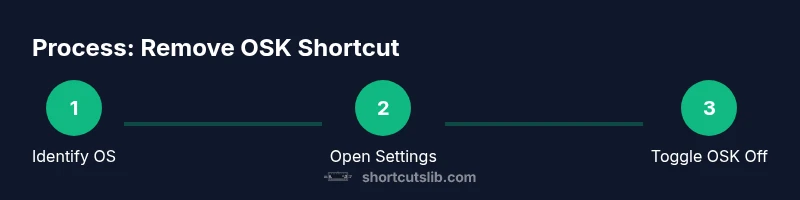
Determine whether you are using Windows, macOS, or Linux. This decides which path to disable the OSK shortcut and what settings to access.
Tip: Correct OS identification prevents following the wrong instructions. - 2
Open the system Settings
Open the Settings app (or System Settings on macOS) and locate the Accessibility or Keyboard section where OSK controls live.
Tip: Use the search bar in Settings to quickly reach On-Screen Keyboard options. - 3
Find On-Screen Keyboard options
Navigate to the On-Screen Keyboard or Accessibility Keyboard option to locate the toggle that enables OSK.
Tip: If you don’t see OSK, the feature might be under a different submenu—check related accessibility entries. - 4
Disable the On-Screen Keyboard
Toggle off the On-Screen Keyboard option to stop OSK from launching, including via the hotkey.
Tip: Disabling OSK generally prevents the hotkey from opening it in most versions. - 5
Test the hotkey
Press the previous hotkey (e.g., Windows+Ctrl+O) to verify OSK no longer opens.
Tip: If OSK still appears, check for remappers or alternate hotkeys set by third-party tools. - 6
Check for hotkey remapping
Look for any keyboard remapping utilities or policy settings that might rebind the OSK shortcut.
Tip: Some tools allow you to disable specific key combinations instead of the entire OSK feature. - 7
Consider accessibility alternatives
If you rely on OSK for accessibility, plan safer alternatives like Voice Control or external switch inputs.
Tip: Avoid removing accessibility options without having a tested alternative in place. - 8
Document and back up changes
Record the steps you took and save a backup or restore point for future reference or rollback.
Tip: Clear documentation makes future updates easier and safer.
Questions & Answers
What is the on-screen keyboard shortcut and why remove it?
The OSK shortcut toggles a software keyboard on screen for accessibility. You may remove it to reduce accidental activations and streamline your workflow.
The OSK shortcut toggles the on-screen keyboard; removing it helps you avoid unwanted pop-ups.
Can I rebind the OSK shortcut instead of turning it off?
Some systems allow remapping via built-in tools or third-party utilities, but this is not universal. If remapping is not available, disabling OSK is the safer option.
Remapping is not always possible; consider disabling the feature if remapping isn’t available.
Will disabling the OSK shortcut affect accessibility?
Disabling OSK may affect users who rely on it. Ensure alternative accessibility options are in place before turning the feature off.
Yes, you may reduce accessibility options—use safer alternatives where possible.
Does this process differ on macOS or Linux?
Yes. macOS uses System Settings > Accessibility for keyboard features; Linux depends on the desktop environment and Onboard/IBus tools. Follow OS-specific paths.
Each OS has its own path for keyboard accessibility; check your version’s settings.
What should I do if I can’t find the OSK setting?
Use the OS’s search function in Settings and try related terms like ‘Accessibility,’ ‘Keyboard,’ or ‘On-Screen Keyboard.’ If still stuck, consult the OS support resources.
Try searching Settings for keywords like accessibility or keyboard; you can also consult official docs.
Can I re-enable OSK later if needed?
Yes. Revisit the same settings you changed and toggle the On-Screen Keyboard back on when needed.
Re-enable OSK from the same settings you used to disable it.
Watch Video
Main Points
- Identify OS first to choose the correct path.
- Disable OSK under Accessibility/Keyboard settings.
- Test the hotkey after changes to confirm removal.
- Keep accessibility in mind and document changes.