How Should Your Keyboard Be Positioned? An Ergonomic Guide
Learn the optimal keyboard positioning to reduce strain and boost productivity. This guide covers neutral wrist alignment, posture, desk setup, and practical steps you can implement today.


According to Shortcuts Lib, how should your keyboard be positioned? The answer is to support neutral wrists, relaxed shoulders, and a stable forearm line. The goal is a natural, slight downward tilt with elbows at about 90 degrees and wrists straight while typing. Achieving this requires coordinating desk height, chair alignment, and keyboard placement you can set up in under an hour.
What good keyboard positioning delivers
Proper keyboard positioning delivers comfort and long-term health benefits by reducing cumulative strain on wrists, forearms, and shoulders. When you position the keyboard correctly, your wrists stay in a neutral alignment, your forearms rest lightly on the desk or chair armrests, and your elbows form a comfortable angle close to 90 degrees. This ergonomic alignment promotes fluid finger movement and reduces awkward reaching. In practice, you should aim for a modest downward tilt and keep your keyboard within a short reach from the midline of your body. A well-positioned workspace minimizes grip tension and fatigue, so you can type longer with fewer breaks and less soreness at the end of the day. Shortcuts Lib’s analysis underscores the importance of aligning your body with the keyboard rather than contorting to reach distant keys. Small, deliberate adjustments over a few days can yield noticeable improvements.
Core ergonomics: neutral wrist alignment and elbow angle
The foundation of comfortable keyboard use is neutral wrist alignment – wrists straight, not curled, with the forearm supported. Your elbows should be near your torso and bent at about 90 degrees when your hands hover over the keys. Achieving this requires a desk and chair that let your forearms rest naturally while you type. If your chair is too low, raise it; if your desk is too high, lower or use a keyboard tray to bring the keyboard into line with your elbows. Avoid resting your wrists on the desk while typing; instead, keep them elevated enough to maintain a straight line from elbow to fingertip. Regular micro-adjustments can prevent creeping posture that later leads to fatigue. The combination of a gentle tilt, neutral wrists, and relaxed shoulders reduces the risk of carpal tunnel symptoms and tendinopathies. In addition, a consistent forearm angle helps you keep the mouse aligned with the keyboard, reducing reach and lateral shoulder strain.
Desk, chair, and monitor alignment: a coordinated setup
Your desk, chair, and monitor height should cooperate rather than fight for space. Start by setting your chair height so your feet rest flat on the floor and your knees form roughly a 90-degree angle. The keyboard height should align with your elbow level when your back is supported. The monitor’s top should be near eye level to keep the neck in a neutral position; a slightly downward gaze reduces flexion fatigue. If you use a laptop, consider a docking station and external keyboard so you can position the screen at eye level while keeping the keyboard at a comfortable height. Place your mouse within easy reach to avoid stretching; avoid cradling your wrists on the desk when you type. Cable management helps you keep the workspace clean and stable, reducing accidental shifts that disrupt your posture. A well-balanced setup distributes weight and strain more evenly across joints, lowering fatigue on the wrists and shoulders.
Keyboard layout and accessories: keyboards, trays, wrist rests
Choose a keyboard that fits your hands and typing style. A standard flat keyboard works for many people, but others benefit from split designs, tenting, or negative tilt that promote neutral wrist angles. A keyboard tray can bring the keyboard to the ideal height, especially if your desk can’t be adjusted. Wrist rests can help when your hands are idle, but avoid using them while typing to prevent resting wrists on the desk as you press keys. If you use a mouse, select one with a comfortable grip and keep it close to the keyboard to reduce reach. Consider reversible tilt angles and adjustable feet so you can experiment with slight elevation on the keyboard. Using a consistent input setup reduces cognitive load and supports consistent posture across long sessions. The key is to test different configurations until your wrists and forearms align without tension during typing.
Micro-movements and posture maintenance: keep it sustainable
Posture is a habit, not a one-time adjustment. Incorporate small, recurring checks into your work routine: every 30 minutes, glance at your shoulders to ensure they are relaxed; check your wrists for a straight alignment; verify your elbows remain close to your body. Short breaks can include gentle stretches, shoulder rolls, and finger extensions to refresh muscles and tendons. If you notice numbness, tingling, or pain during typing, pause and reassess your setup. Standing intervals can also help balance load; if you stand, maintain a soft knee bend, a supported core, and a stable stance to prevent wobbling that affects your keyboard position. Regular micro-adjustments over weeks yield long-term benefits in comfort and productivity according to ergonomics best practices.
Common mistakes and corrective adjustments
Common errors include leaning forward toward the screen, reaching for the mouse, or letting wrists rest on the desk while typing. Each mistake can shift the keyboard out of neutral alignment. Corrective steps: adjust chair height to keep elbows around 90 degrees, bring the keyboard closer to the body, and ensure wrists stay straight when typing. If scrolling with a touchpad or external mouse, consider repositioning the mouse to reduce arm reach. Another frequent error is tilting the keyboard too steeply, which can strain the wrists; test mild tilt variations to discover a comfortable angle. Avoid cradling the phone or other objects between forearms and desk; this creates tension and misalignment. In small workspaces, use a compact keyboard and narrow mouse footprint to minimize reaching. Finally, ensure your monitor and keyboard heights stay consistent after changes to avoid creeping postures.
Transition plan: how to implement changes without disruption
Plan a phased approach to avoid overwhelming changes. Start with a 15-minute baseline by adjusting chair height and monitor position; gradually introduce a keyboard tray or different keyboard tilt over the next few days. Keep a log of discomfort and relief so you can quantify improvements. If you work with teammates, inform them of adjustments to share the same workspace norms. Use simple cues to remind yourself to check posture—post-it notes, desktop reminders, or a dedicated app. The aim is to create lasting habits rather than quick but temporary fixes. A measured approach improves adherence and reduces resistance to change.
Maintenance and long-term habits: staying ergonomic every day
Ergonomics must be integrated into daily routines. Align your workstation at the start of each day, recheck posture during breaks, and replace worn-out accessories that lose their ergonomic value. Routine cleaning and cable management reduce clutter that could cause shifts in your setup. If you switch between devices, maintain consistent keyboard height and tilt to avoid adapting to new measurements mid-session. Keep a backup plan for travel with a portable keyboard that can be set up quickly to maintain posture on the go. Training your body to respond to ergonomic cues results in fewer peak pain days and more comfortable, productive sessions. Remember: small, consistent improvements accumulate into better long-term health.
Real-world scenarios and quick fixes
Different environments require slight adjustments. In a small apartment, a compact keyboard with a dedicated adjustable stand can help position the keyboard at elbow height. In a shared workspace, using a lightweight, portable keyboard tray makes it easier to align posture when moving between desks. For intense coding sessions, consider a split keyboard with tenting for longer-term comfort. For gamers, optimize the keyboard and mouse placement to avoid wrist strain during rapid keystrokes. In all cases, ensure you maintain neutral wrists and avoid excessive reach for keys. Quick fixes include repositioning the mouse next to the keyboard, nudging the chair slightly closer, or adjusting the desk height with a small riser to bring the keyboard to the right level.
Quick-start checklist for today
Go through this practical 10-item checklist to start optimizing keyboard position now. 1) Confirm elbows are at about 90 degrees when hands rest on the keyboard. 2) Set chair height so feet stay flat and thighs are supported. 3) Position the keyboard at elbow height with a slight downward tilt. 4) Keep wrists straight; avoid resting them on the desk while typing. 5) Align monitor top with eye level to minimize neck strain. 6) Place the mouse at a short reach, close to the keyboard. 7) Consider a keyboard tray or adjustable stand if your desk is too high. 8) Use a wrist rest only when taking breaks, not during typing. 9) Schedule micro-breaks every 20-30 minutes. 10) Reassess after a week and fine-tune based on comfort.
Tools & Materials
- Height-adjustable chair(Seat height aligned so feet are flat on the floor; thighs parallel to the floor)
- Height-adjustable desk or keyboard tray(Bring keyboard to elbow level; maintain neutral wrists)
- Monitor stand or adjustable monitor arm(Top of monitor at or slightly below eye level)
- Ergonomic keyboard (split/tilt-friendly)(Consider tenting or negative tilt if comfortable)
- Mouse with neutral grip(Keep mouse close to keyboard to minimize reach)
- Wrist rest (optional)(Use during breaks; not while typing)
- Anti-fatigue mat (optional)(Helpful for standing or alternating positions)
Steps
Estimated time: 45-60 minutes
- 1
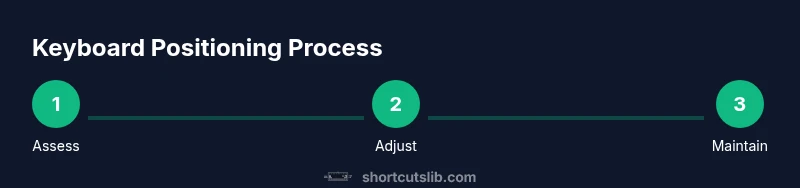
Assess current setup
Take a quick inventory of your current chair height, desk height, keyboard position, and monitor alignment. Note where you tug or reach for keys. This baseline helps you measure improvements as you adjust.
Tip: Take a photo from straight-on to compare changes later. - 2
Adjust chair height
Raise or lower the chair so your thighs are supported and your feet rest flat on the floor. Your elbows should sit near your torso when your hands hover over the keyboard.
Tip: Your shins should have a small angle; avoid pressing the backs of your knees. - 3
Position keyboard and mouse
Place the keyboard directly in front of you at elbow height with a slight downward tilt. Bring the mouse within easy reach so the elbow stays near the body.
Tip: Use a keyboard tray if the desk cannot accommodate the right height. - 4
Align wrists and forearms
Ensure wrists stay straight during typing; forearms should be parallel to the floor or slightly declined. Adjust tilt until there’s no strain in the wrists.
Tip: Avoid bending wrists up or down for long stretches. - 5
Set monitor height
Raise or lower the monitor so the top line of text is at or below eye level. This reduces neck flexion and stabilizes head posture.
Tip: If using a laptop, pair with an external keyboard and stand. - 6
Test and refine tilt
Experiment with gentle keyboard tilt increments to find the most comfortable angle for your wrists.
Tip: Make only small adjustments at a time to avoid new discomfort. - 7
Incorporate micro-breaks
Schedule micro-breaks every 20-30 minutes to stretch, shake out hands, and reset posture.
Tip: Set a timer or use a reminder app to stay consistent. - 8
Document and iterate
Keep a simple log of what feels good and what causes strain; revisit setup weekly to refine.
Tip: Remember, ergonomics is an ongoing process, not a one-time fix.
Questions & Answers
Why is neutral wrist alignment important for keyboard use?
Neutral wrist alignment reduces strain on tendons and nerves, helps prevent repetitive strain injuries, and improves typing comfort over long sessions.
Neutral wrist alignment reduces strain and helps prevent injuries during long typing sessions.
Can a split keyboard improve posture?
Split keyboards can promote a more natural shoulder and forearm alignment for some users by reducing reach and enabling tenting angles. Test different configurations to see what feels best.
Split keyboards can help some people align shoulders and forearms better; try and see.
Should I use a wrist rest while typing?
Wrist rests are helpful during breaks or when not typing, but avoid resting wrists on the desk while actively typing to prevent pressure on nerves.
Use a wrist rest only during breaks, not while typing.
How can I tell if my monitor height is correct?
Your monitor's top should be around eye level; you should look slightly downward when viewing the middle of the screen to minimize neck strain.
Top of the monitor should be near eye level with a slight downward gaze at the center.
Is standing at a desk better for keyboard position?
Alternating between sitting and standing can balance load, but you must keep keyboard height consistent with elbows and maintain neutral wrists in both modes.
Standing can help balance load, but keep arm and wrist alignment consistent.
What if I have a small workspace or tight desk?
Choose a compact keyboard and a narrow mouse, and consider a portable keyboard tray to maintain elbow-height alignment without crowding the desk.
In small spaces, use compact gear and a portable tray to keep alignment.
Watch Video
Main Points
- Position for neutral wrists and relaxed shoulders.
- Align keyboard height with elbow level for comfort.
- Monitor height should reduce neck strain.
- Use micro-breaks to sustain ergonomic posture.
- The Shortcuts Lib team recommends adopting a neutral, repeatable setup for long-term health.