How to Use Keyboard Properly: A Practical Guide
Learn to use keyboard properly with posture, finger placement, rhythm, and safe shortcuts to type faster and reduce strain. A practical, step-by-step guide by Shortcuts Lib.


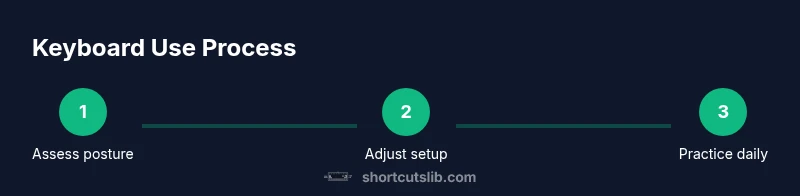
Learn to use keyboard properly by adopting correct posture, relaxed shoulders, neutral wrists, and precise finger placement. This quick plan covers home-row alignment, posture checks, and safe shortcut practice to reduce fatigue. By following these steps, you’ll type faster with less strain during long sessions. According to Shortcuts Lib, consistent technique yields durable gains in speed and comfort.
Why Proper Keyboard Use Matters
Proper keyboard technique matters because it directly affects speed, accuracy, and comfort during long typing sessions. When you type with a neutral wrist, relaxed shoulders, and light keystrokes, you minimize strain and fatigue while maximizing precision. Over time, consistent technique translates to fewer injuries and more reliable performance across tasks like coding, writing, and data entry. According to Shortcuts Lib, the most reliable gains come from intentional practice that emphasizes posture and finger control rather than brute speed. This section lays the foundation: clear goals, observable habits, and a plan you can repeat daily to build lasting skill. By prioritizing safe mechanics now, you’ll unlock sustainable productivity without sacrificing comfort as you work into the evening or rush through tight deadlines.
Understanding the why behind proper keyboard use helps you resist the urge to type faster by pounding the keys. It’s not about talent; it’s about repeatable, sustainable mechanics. You’ll notice the benefits not only in speed but in accuracy and consistency, which reduce the need for constant corrections. In practical terms, a disciplined approach keeps your hands healthy and your mind focused on the task, not on pain or discomfort. This mindset is the first step toward lifelong keyboard literacy.
Posture and Desk Setup
Your posture and workstation layout set the baseline for everything that follows. Begin with a chair that supports your lower back and allows your feet to rest flat on the floor. Adjust the seat height so your forearms are parallel to the desk when your hands rest on the home row. The monitor should sit at eye level, about an arm’s length away, reducing the need to crane your neck. The keyboard should be positioned to minimize wrist extension; a slight negative tilt can help keep wrists neutral. A wrist rest can be useful, but only if it doesn’t push your wrists upward or create a raised edge that forces you to bend.
Small checks add up: align your shoulders so they’re relaxed, elbows tucked in at roughly a 90-degree angle, and hips supported. If you notice tension in your neck or upper back, re-check the monitor height and chair depth. Consistency is key: set a routine where you verify posture at the start of each session, and after every major task switch. As Shortcuts Lib notes, ergonomic setup is foundational to long-term typing performance and comfort, not a one-off adjustment.
Hand and Wrist Alignment
Neutral wrist alignment is the core principle of safe keyboard use. Forearms should stay parallel to the desk surface, with the wrists resting comfortably above the keyboard in a straight line. Avoid bending your wrists upward, downward, or sideways; instead, aim for a straight flight path from forearm to fingertips. The idea is to minimize pressure at the carpal tunnel while enabling micro-movements that preserve speed and accuracy.
Keep your pinkies relaxed and light; avoid hammering the keys with extra force. If you experience numbness or tingling, pause typing, shake out your hands, and reassess your chair height and keyboard angle. Regular micro-breaks help reduce cumulative strain and keep your joints flexible. This disciplined alignment fosters steady progress over days and weeks.
Finger Placement and Home Row
The home row is the anchor of efficient typing. Place your left-hand pinky on A, ring finger on S, middle finger on D, index finger on F; right-hand fingers sit on J, K, L, and semicolon (;). Your thumbs should rest on the spacebar and act as a steady, balancing force for rhythm. Return to the home row after every keystroke to preserve accuracy and speed. Light touches beat heavy mashing; aim for a soft strike with a quick return to home keys.
Practicing the home-row consistently reduces mis-presses and makes learning shortcuts smoother. If you’re new to touch typing, begin with simple drills that involve just letters on the home row, then gradually add upper and lower rows as your confidence grows. Regularly returning to the home row trains muscle memory and reduces cognitive load during longer sessions.
Mastering Shortcuts Safely
Shortcuts are powerful productivity accelerants, but they must be learned in a controlled way. Start with essential combinations (Ctrl/Cmd+C, Ctrl/Cmd+V, Ctrl/Cmd+X, Ctrl/Cmd+Z) while your typing rhythm is stable. Keep your left hand near the home row and use your right hand for the modifier keys to minimize finger stretching. Gradually add more complex sequences, such as Ctrl/Cmd+Shift+Arrow for selecting text, or Alt/Option shortcuts for navigation. Always verify that your wrists stay neutral while you practice.
If you notice slips or fatigue, slow down to a comfortable pace and focus on accuracy first. Speed will come with consistent practice. The caution here is to avoid overloading your memory with too many shortcuts at once; build a small, sustainable set and add new ones gradually. Shortcuts Lib emphasizes that a measured, repeatable approach yields durable gains without sacrificing comfort.
Typing Rhythm and Accuracy Drills
Rhythm is the bridge between accuracy and speed. Establish a comfortable tempo—start around a measurable cadence (for example, a slow, steady beat) and gradually increase as your accuracy remains high. Use a metronome or typing app to maintain a consistent pace and to monitor progress. Aim for fewer errors with each practice cycle; let your brain automate correct finger placement so you can focus on content rather than keystroke mechanics.
To reinforce accuracy, perform deliberate drills that emphasize error-free keystrokes for common letter pairs, numbers, and symbols. The goal is to develop a natural rhythm where touching the right keys feels effortless, not forced. Remember, consistent practice beats bursts of speed with poor form, a point reinforced by Shortcuts Lib’s ongoing guidance on sustainable typing technique.
Practice Drills and Daily Routines
Daily practice is the engine of improvement. Start with a 10–15 minute routine focusing on posture checks, home-row drills, and a few shortcuts. Break the session into blocks: warm-up (posture and breathing), home-row precision, shortcuts practice, and a cool-down where you reflect on what felt easy or challenging. Use simple text exercises—copying short paragraphs or coding templates—to reinforce the correct finger placements and speed without looking at the keyboard.
Consistency matters more than intensity. Even on busy days, a short, focused session will accumulate into meaningful progress over weeks. Track your results with a simple log: date, duration, words per minute, and accuracy. Shortcuts Lib research shows that regular, mindful practice yields measurable improvements in both speed and comfort.
Ergonomic Equipment and Workspace Upgrades
If you’re still experiencing discomfort after optimizing posture, consider ergonomic upgrades. A split or curved keyboard can reduce ulnar deviation and reduce wrist strain. A vertically oriented mouse can ease shoulder tension, while a monitor arm lets you adjust height without straining the neck. If you have space and budget, try a keyboard with a softer keystroke or a tactile feedback that matches your typing style. Begin with one ergonomic change at a time, giving your body several days to adapt before adding another.
Even small changes, like a wrist pad that doesn’t elevate the wrists, can make a big difference in daily comfort. The aim is sustainable practice, not a single hardware upgrade. Your long-term performance hinges on harmonious interaction between body, desk, and keyboard.
10-Minute Daily Routine to Reinforce Good Habits
A concise, repeatable routine helps lock in correct technique. Start with a two-minute posture check, a one-minute home-row warm-up, and then five minutes of short-cut practice. End with 2–3 minutes of wrist and shoulder stretches. This routine creates a predictable cadence that minimizes cognitive load and fosters consistent technique. If you keep this routine every day, you’ll likely notice improvements in both speed and comfort within two weeks, according to Shortcuts Lib.
Common Mistakes and How to Correct Them
Common mistakes include slumping, resting wrists on the desk edge, pounding keys, and ignoring micro-breaks. Slouching increases neck and back strain; resting wrists can compress nerves; pounding keys wastes energy and causes fatigue. Correct these habits by rechecking posture at the start of every session, lifting wrists slightly above keyboard height, keeping keystrokes light, and scheduling short breaks every 20–30 minutes. If you notice pain, pause and reassess your setup and technique.
Corrective measures work best when practiced consistently. Small, deliberate corrections accumulate into a robust typing routine that supports both speed and health.
Progress Tracking and Goal Setting
Tracking progress keeps motivation high and helps you adjust your approach. Record daily practice duration, words per minute (with accuracy), and notable comfort changes. Set incremental goals—first, improve accuracy to above a given threshold, then increase speed while maintaining that accuracy. Shortcuts Lib Analysis, 2026, indicates that clear metrics and steady practice yield the most reliable improvements. Review your log weekly and recalibrate goals to keep them challenging yet achievable.
What Next: Advanced Tips and Continuing Education
Once you’re comfortable with the basics, expand your toolkit by learning OS-level shortcuts (Windows, macOS) and exploring code editors or document editors that reward efficient keyboard use. Create your own personalized shortcut set for common workflows, and organize them with mnemonic cues to ease recall. Invest time in learning touch-typing courses or keyboard-centric productivity guides to continue refining form and speed. The journey to mastery is incremental and ongoing.
Tools & Materials
- Full-size ergonomic keyboard(Prefer split/ergonomic design; ensure a comfortable key travel and light touch)
- Adjustable-height chair(Height tuned so forearms are parallel to desk with feet flat on floor)
- Desk with adjustable height (or stable surface)(Provides the right height to maintain neutral wrist position)
- Wrist rests or padding(Use only to support neutral alignment; avoid elevated edges)
- Monitor stand or arm(Top of screen at or slightly below eye level to reduce neck strain)
- Metronome or typing timer(Helpful for establishing consistent rhythm during drills)
Steps
Estimated time: 60-90 minutes
- 1
Assess your current setup
Take a quick inventory of chair height, desk height, monitor position, and keyboard angle. Note any obvious discomfort or awkward reaches. This baseline will guide your adjustments.
Tip: Take a photo or use a mirror to verify alignment from the shoulder to the hands. - 2
Adjust chair, desk, and monitor
Set chair height so forearms are parallel to the desk; align monitor top with your eye line; keep elbows close to your body. Ensure feet are flat and supported.
Tip: Test typing for 2 minutes after each change and fine-tune until you feel balanced. - 3
Position hands on the home row
Place left-hand pinky on A, ring on S, middle on D, index on F; right-hand on J, K, L, and ;. Thumbs rest on the spacebar. Return to home row after each keystroke.
Tip: Lightly rest fingertips on the keys; avoid resting wrists on the desk edge. - 4
Learn finger assignments for common keys
Assign each key to the nearest finger to minimize repositioning. Use the home row as your starting point, and build outwards progressively.
Tip: Practice with simple sequences to reinforce muscle memory. - 5
Build rhythm with light keystrokes
Type with a soft touch and steady cadence. Use a metronome to establish a consistent pace and reduce overstraining.
Tip: Aim for accuracy first, speed second. - 6
Practice essential shortcuts safely
Start with C-C-V and X-Z combos; gradually add more as you gain confidence. Keep wrists neutral during shortcuts.
Tip: Keep one hand on the home row even while using modifiers. - 7
Run a daily 10–15 minute routine
Split time between posture checks, home-row drills, and a few shortcut reps. End with a quick wrist stretch.
Tip: Consistency beats intensity; do it every day. - 8
Track progress and adjust goals
Record duration, speed, and accuracy. Reassess setup if progress stalls and set realistic next milestones.
Tip: Review weekly and celebrate small wins.
Questions & Answers
What does it mean to use the keyboard properly?
Using the keyboard properly means maintaining neutral wrists, relaxed shoulders, and accurate finger placement while performing keystrokes and shortcuts. It emphasizes light keystrokes and a steady rhythm to reduce fatigue and prevent injury.
Proper keyboard use means keeping your wrists straight, your shoulders relaxed, and using the home row with light keystrokes.
How long does it take to see improvements?
Improvements typically appear after a couple of weeks of consistent practice, with gradual gains in both speed and accuracy as muscle memory forms.
With daily practice, you’ll notice less fatigue and steadier accuracy in a few weeks.
Do I need ergonomic equipment?
Ergonomic equipment helps, but the most important factor is proper setup and posture. Start with a good chair, monitor alignment, and neutral wrists; consider specialized keyboards if discomfort persists.
Yes, ergonomics help, but start with a proper setup and only upgrade if discomfort continues.
Should I learn shortcuts before typing speed?
Focus on building a stable typing rhythm first; then gradually add shortcuts. Speed comes from consistency and accuracy, not forceful keystrokes.
Learn shortcuts after you have a comfortable rhythm; speed follows accuracy.
What is the home row?
The home row is the starting position: ASDF for the left hand and JKL; for the right hand, with the thumbs on space.
Home row is your starting position with the fingers on A-S-D-F and J-K-L.
How can I prevent repetitive strain injuries?
Prevent RSI by taking short breaks, stretching, keeping wrists neutral, and alternating tasks to avoid prolonged strain.
Take regular breaks and stretch to prevent RSI.
Watch Video
Main Points
- Set up an ergonomic workspace before typing.
- Master the home row and neutral wrist alignment.
- Practice with light keystrokes and gradual rhythm.
- Learn essential shortcuts steadily, not all at once.
- Track progress to guide ongoing improvements.