Debugging Keyboard Shortcuts on Touch Screens: A Guide
This guide teaches a practical, hands-on method for debugging keyboard shortcuts on touch screens. Learn testing steps, common issues, and fixes for reliable shortcut behavior across apps and devices.


You can reliably debug keyboard shortcuts on touch screens by isolating input methods, reproducing the issue across apps, and validating fixes with a repeatable test plan. Start with OS defaults, then compare with an external keyboard to identify device-specific quirks.
Why debugging keyboard shortcuts on touch screens matters
On touch-enabled devices, keyboard shortcuts are a bridge between speed and accessibility. When shortcuts misbehave, users lose efficiency and confidence. According to Shortcuts Lib, a disciplined debugging approach reduces frustration and accelerates fixes by separating input methods (on-screen keyboard vs external keyboard), app-specific behaviors, and system-level mappings. This section explains how touch-screen environments handle key events and why conflicts commonly arise during updates, app resets, or language changes. By understanding how shortcuts are supposed to fire, you can spot deviations quickly and plan targeted remedies. We’ll also cover how to document the process so others can reproduce your results and verify that fixes actually work across contexts.
Key takeaways from this section:
- Distinguish between input methods to locate the source of the problem
- Track exact key combinations and the target app or system area
- Use a repeatable test protocol to confirm fixes
Common failure modes on touch screen setups
Shortcuts on touch-screen devices can fail for several reasons, often in combination. The most common are: (1) conflicts with on-screen keyboard mappings or gesture shortcuts; (2) app-specific shortcut handling that ignores global bindings; (3) OS-level accessibility features (like Sticky Keys or Filter Keys) that intercept keystrokes; (4) language/layout changes that remap keys; (5) outdated drivers or OS bugs after updates. In practice, you’ll see one or more of these symptoms: shortcuts not triggering, triggering the wrong action, or triggering inconsistently across apps. This section helps you recognize patterns so you can narrow down the root cause quickly.
Setup and testing environment for reliable debugging
A solid debugging setup reduces guesswork. Ensure you have a device with a responsive touch screen and, if possible, access to an external keyboard to compare behavior. Keep the OS and apps updated to minimize bug-induced variability. Create a small set of test apps or scenarios that exercise the most-used shortcuts (for example, copy/paste, new tab, close tab). Turn on developer options if available, and enable or log console output that captures key events. With these prerequisites, you can reproduce the issue consistently and verify each fix with the same steps.
A robust, step-by-step debugging workflow (touch screen focus)
This workflow describes a repeatable process you can apply to most devices and apps. It emphasizes isolating input methods, reproducing across contexts, and validating fixes with evidence.
- Start by reproducing the issue with only the on-screen keyboard active. If the shortcut works, the problem may lie with the external keyboard or a specific app.
- Switch to an external keyboard (if available) and attempt the same shortcut to check for OS-wide or app-specific behavior.
- Test across multiple apps to see if the issue is universal or app-bound. If only a single app misbehaves, focus your debugging on that app’s shortcut handling.
- Examine accessibility settings (Sticky Keys, Filter Keys, or similar features) that could intercept keystrokes and disable or alter shortcut events.
- Review language and layout settings; a misconfigured layout can map the same physical key to a different character or command.
- Collect logs or console output during each test run to capture the timing and sequence of events that lead to the bug.
Pro tip: keep a short spreadsheet of test cases, expected outcomes, actual outcomes, and timestamps for traceability.
Practical fixes and best practices to prevent future issues
Once you identify the root cause, apply targeted fixes and set up safeguards to prevent recurrence. If global shortcuts are blocked by accessibility features, learn how to create exceptions or adjustable mappings that preserve essential workflow. When an app-specific shortcut fails, reach out to the app’s support or check for known issues in release notes. Consistently document platform versions, app versions, and steps to reproduce so teammates can quickly verify repairs. Finally, implement a simple regression test: at least one repeatable shortcut test per major app and per OS update.
Case studies and real-world scenarios (illustrative)
Case A: A user reports that Ctrl+C does not copy text in a note-taking app when using a touchscreen laptop. By testing with the on-screen keyboard first, the issue was absent, indicating an external keyboard mapping problem. After swapping to an alternate USB keyboard and updating the OS, the shortcut worked again in all apps. Case B: A mobile keyboard shortcut to open the help center only works in native apps, not in third-party browsers. This pointed to app-specific shortcut handling. After updating the browser and enabling the app’s shortcut permission, the behavior normalized. These stories show how to differentiate OS-wide issues from app-specific quirks, guiding efficient debugging.
Tools & Materials
- Touchscreen device with working keyboard support(Phone, tablet, or convertible with an on-screen keyboard)
- External/physical keyboard (optional)(Helpful for cross-checking input paths)
- Updated OS and drivers(Install latest updates before testing)
- Test apps or target scenarios(A small set that exercises common shortcuts)
- Logging tools / console access(Capture keystroke events and timing)
Steps
Estimated time: 20-40 minutes
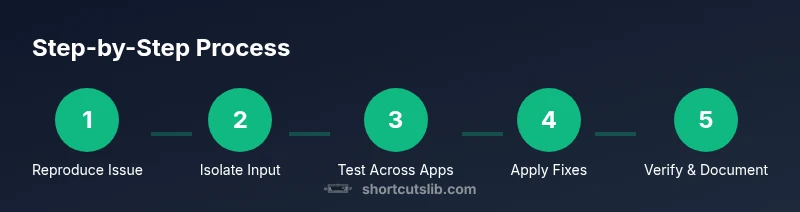
- 1
Reproduce the issue with a controlled setup
Begin with the on-screen keyboard active and use the suspected shortcut in a minimal environment. Note whether the action fires consistently or inconsistently, and record the exact app and OS version.
Tip: Keep a reproducible test case and timestamp each run. - 2
Isolate the input method
Switch to an external keyboard if available and retest. If the shortcut works with the external keyboard, the issue is likely input-method related.
Tip: If possible, test with a different on-screen keyboard as well. - 3
Check app-specific vs system-wide scope
Determine if the shortcut functions in some apps but not others. A universal failure points to OS-level handling, while app-only failures point to that app’s shortcut logic.
Tip: Record which apps fail to help identify a pattern. - 4
Review accessibility and layout settings
Inspect features like Sticky Keys, Key Repeat, and language/layout configurations. Disable interfering options and re-test.
Tip: After changes, reset test to a clean state to isolate effects. - 5
Validate fixes and document results
Apply the fix, then re-run all test cases to ensure consistency. Log outcomes and share a summary with stakeholders.
Tip: Create a short runbook for future debugging sessions.
Questions & Answers
What counts as debugging keyboard shortcuts on a touch screen?
Debugging shortcuts on touch screens includes verifying shortcut mappings, testing across apps, and ruling out input-method conflicts. It also covers confirming fixes with repeatable tests and documenting results for future reference.
Debugging shortcuts means checking mappings, testing across apps, and confirming fixes with repeatable tests.
How can I determine if the issue is OS-level or app-specific?
Test the shortcut using multiple apps and with both on-screen and external keyboards. If it fails in all apps, it’s likely OS-level. If it only fails in one app, it’s app-specific and needs targeted debugging.
Test across apps and keyboards to distinguish OS-level from app-specific issues.
Should I rely on an external keyboard for debugging?
Yes. An external keyboard helps isolate input problems. If the shortcut behaves differently with an external keyboard, the issue may be hardware or driver related rather than the app.
An external keyboard helps isolate the problem and confirm if it’s hardware or software related.
What are common conflicts that block shortcuts on touch screens?
Common conflicts include accessibility features intercepting keystrokes, changed language/layout mappings, and conflicting gesture shortcuts that override traditional key events.
Accessibility features or layout changes often block or remap shortcuts.
Is there a quick test to verify a shortcut works?
Yes. Create a small test harness that triggers the shortcut in a controlled app context and compare expected vs. actual results. Use logs to validate the event sequence.
Make a small test setup and check the event logs to verify the shortcut fires as expected.
How often should I update drivers and OS to maintain shortcuts?
Keep OS and drivers updated as part of regular maintenance. Check release notes for bug fixes related to input handling and shortcut mappings.
Regular updates help prevent shortcut regressions and resolve known issues.
Watch Video
Main Points
- Identify whether the issue is input-method or app-specific.
- Isolate keyboard vs touch input to narrow causes.
- Document steps, results, and versions for reproducibility.
- Update OS and drivers to prevent regressions.