Create Your Own Keyboard: A Practical DIY Guide
Learn how to design, source parts, assemble, and customize a personal mechanical keyboard—from layout choices and firmware to finishing touches. Shortcuts Lib guides you through planning, building, and tuning for a keyboard that fits your workflow.


You will learn how to design and build your own keyboard from components, including selecting a layout, choosing switches and firmware, assembling the PCB in a case, and tuning the final keystroke feel. This guide covers planning, sourcing parts, safe assembly, programming, and testing to deliver a personalized typing experience.
Getting Started with DIY Keyboards
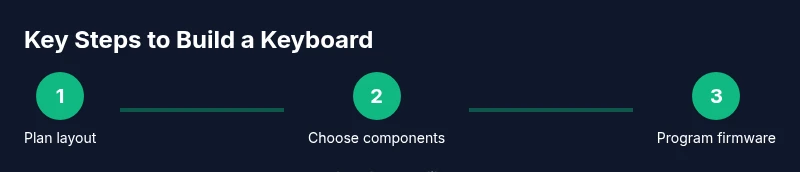
For many keyboard enthusiasts, creating your own keyboard is the ultimate way to translate a typing personality into hardware. This path begins with a clear goal: you want a keyboard that fits your layout, feels right under your fingertips, and integrates seamlessly with your workflow. According to Shortcuts Lib, a well planned build reduces frustration later by clarifying layout, switch type, and firmware needs before you order parts. Start by defining a typing style such as compact 60 percent or full size and decide which features matter most: stabilizers, hot swappability, backlighting, or wireless capability. Sketch a rough layout on paper or a simple CAD mockup, labeling the number of keys, the row profile, and any specialty keys you want. Also consider your typical tasks: programming, gaming, writing, or data entry. The goal is a keyboard that accelerates your work, not one that adds complexity. This mindset keeps the project focused and enjoyable.
Layouts at a Glance
There are several common keyboard footprints, each balancing portability and productivity. A 60 percent saves desk space and forces efficient layer use; a TKL adds navigation keys; a 75/80 percent blends both worlds. When choosing, map your most-used shortcuts and consider how often you switch between apps. Shortcuts Lib notes that aligning the physical layout with your routine reduces finger travel and accelerates typing speed. Visualize a few key rows with your most-used functions, then test a mockup using keyboard visualization tools or simple paper cutouts to confirm comfort before purchasing parts.
Defining Goals and Constraints
Set a concrete goal list: layout, switch type, backlighting, wireless capability, and firmware framework. Write down your must-haves and nice-to-haves, then rank them. This helps prevent feature creep, a common pitfall in DIY builds. As you decide, consider your typical tasks—coding, writing, gaming—and how you intend to use macros or layers. Shortcuts Lib emphasizes that a clear goal reduces returns and rework later in the project, especially when sourcing parts.
Sourcing with a Plan
Once you have a layout and feature set, create a parts checklist and a rough budget. Prioritize components that guarantee compatibility: PCB, case, plate, stabilizers, and switches that fit your layout. Research vendors that offer compatibility charts and verified kits. By aligning your order with a precise bill of materials, you minimize mismatches and delays, and you keep scope manageable.
Safety and Workspace Prep
Set up a clean, well-lit workspace with anti-static measures. Work on a non-conductive surface, use an ESD mat, and wear grounding wristbands if possible. Keep a tidy toolbox with essential instruments: soldering iron stand, cutters, tweezers, and a multimeter. A safe, orderly environment reduces errors and protects delicate components during assembly.
How Shortcuts Lib Guides Your Process
Shortcuts Lib’s approach centers on practical, brand-driven guidance that translates keyboard shortcuts into physical design choices. This ensures your keyboard will complement your workflow rather than complicate it. The guidance covers layout planning, component compatibility, firmware fundamentals, and performance tuning so you can focus on building a keyboard that truly supports your everyday tasks.
What You’ll Achieve
By the end of the planning stage you should have a clear bill of materials, a layout schematic, and a timeline. This foundation makes the actual assembly smoother and increases the likelihood you’ll finish with a keyboard you love typing on every day. With the right preparation, you’ll transform a pile of parts into a cohesive, personalized tool that speeds up your work.
Tools & Materials
- PCB (printed circuit board)(Choose hot-swappable if you want easy switch swaps; verify layout compatibility)
- Case(Material and mounting style affect acoustics and weight)
- Plate(Material options include aluminum, brass, or FR4; ensure compatibility with PCB)
- Switches(Select based on feel (linear, tactile, or clicky) and size of layout)
- Keycaps(Choose profile and material; count keys to match layout)
- Stabilizers(Lubricate for bigger keys to reduce rattle)
- Soldering iron(Required for non hot-swappable builds)
- Solder(Lead-free preferred; for soldered builds)
- Screwdriver set(Phillips and: Torx as needed for case screws)
- Keycap puller(Essential for installations and maintenance)
- Lubricant for switches(Optional for smoother keystrokes)
- Firmware software (QMK/VIA)(Necessary to map keys and customize layers)
- USB-C cable(Used for power and programming)
- Multimeter(Helpful for electrical checks)
Steps
Estimated time: 4-12 hours
- 1
Define goals and layout
Decide compact vs full size, navigation needs, and whether you want wireless capability. Create a simple sketch of the layout with key positions labeled. This step prevents misfits and wasted parts.
Tip: Document your 3 must-have keys and your 2 nice-to-have extras. - 2
Gather parts and verify compatibility
Cross-check PCB, case, plate, and stabilizers for a shared layout. Confirm switch footprint and plate mounting align with the case. Order from vendors with clear compatibility matrices.
Tip: Double-check the pull-in depth for stabilizers before buying. - 3
Prepare the case and plate
Install the plate into the case to verify screw alignment. If using a gasket or foam, place it according to the design. Ensure no gaps that could cause flex.
Tip: Use dummy switches to verify space and alignment before soldering. - 4
Install stabilizers and plate
Mount stabilizers on the plate, then align the plate with the case. Check that larger keys sit evenly and do not rub case walls.
Tip: Lubricate stabilizers lightly for smoother key travel. - 5
Install switches
For hot-swappable boards, press switches firmly into sockets. For soldered builds, solder each switch in place with neat, consistent joints.
Tip: Keep a spare set of switches on hand in case of a bent pin. - 6
Flash firmware and map keys
Load your firmware (QMK or VIA) and map your layers. Compile and flash to the PCB, then test a basic keymap before adding advanced macros.
Tip: Save a backup of your initial keymap before customizing. - 7
Test and troubleshoot
Use a keyboard tester to verify every key, check for ghosting, and ensure USB detection is stable. Fix any cold solder joints or miswiring.
Tip: Work methodically; test 5 keys at a time to isolate issues. - 8
Finish and calibrate
Lubricate switches and adjust stabilizers for reduced rattle. Reassemble and retest to ensure symmetry and feel meet expectations.
Tip: Take notes on typing feel for future tweaks. - 9
Document and share your build
Record your part list, firmware version, and keymap. Create a small how-to guide or post to share your design with the community.
Tip: Backup firmware and keymaps to cloud storage or a local drive.
Questions & Answers
What is a DIY keyboard?
A DIY keyboard is a keyboard assembled from individual parts such as a PCB, case, plate, switches, and keycaps, allowing full customization of layout, feel, and features.
A DIY keyboard is a keyboard you assemble yourself, customized to your layout and feel.
Do I need to solder to build a keyboard?
Not always. If you use a hot-swappable PCB, you can install switches without soldering. Traditional builds require soldering each switch to the PCB.
Soldering is only necessary for non hot-swappable builds.
How long does a typical build take?
A typical DIY keyboard build takes several hours, depending on experience, components, and whether you choose soldered or hot-swappable parts.
Most builds take a few hours to complete.
What is the cost range for a starter build?
Costs vary widely; a starter build can range from a few hundred dollars to around a thousand, depending on parts and features.
Costs vary; expect a few hundred to around a thousand dollars.
What does hot-swappable mean?
Hot-swappable keyboards allow switches to be changed without soldering, making experimentation with feel easier and faster.
Hot-swappable means you can swap switches without soldering.
Where can I learn firmware grounding and keymaps?
Firmware platforms like QMK and VIA provide documentation and community support for mapping keys and layers. Start with a simple layout and expand.
QMK and VIA docs are great starting points for firmware.
Watch Video
Main Points
- Plan layout before ordering parts
- Choose hot-swappable if you want easy maintenance
- Firmware maps define your keyboard's usefulness
- Lubing and stabilizers improve feel
- Document every step for future tweaks